
Introduction
If you have an image that looks like a film negative — where light and dark areas are reversed and colors appear unnatural — you can easily restore it to its normal look in After Effects. By applying and adjusting the Invert effect, you can quickly convert the negative image into its positive version and see it as it was originally captured.
Step 1: Import Your Negative Image
Go to File > Import > File and select your negative photo. Once imported, drag it into the Composition Timeline. This creates a new composition where you can apply effects and make adjustments.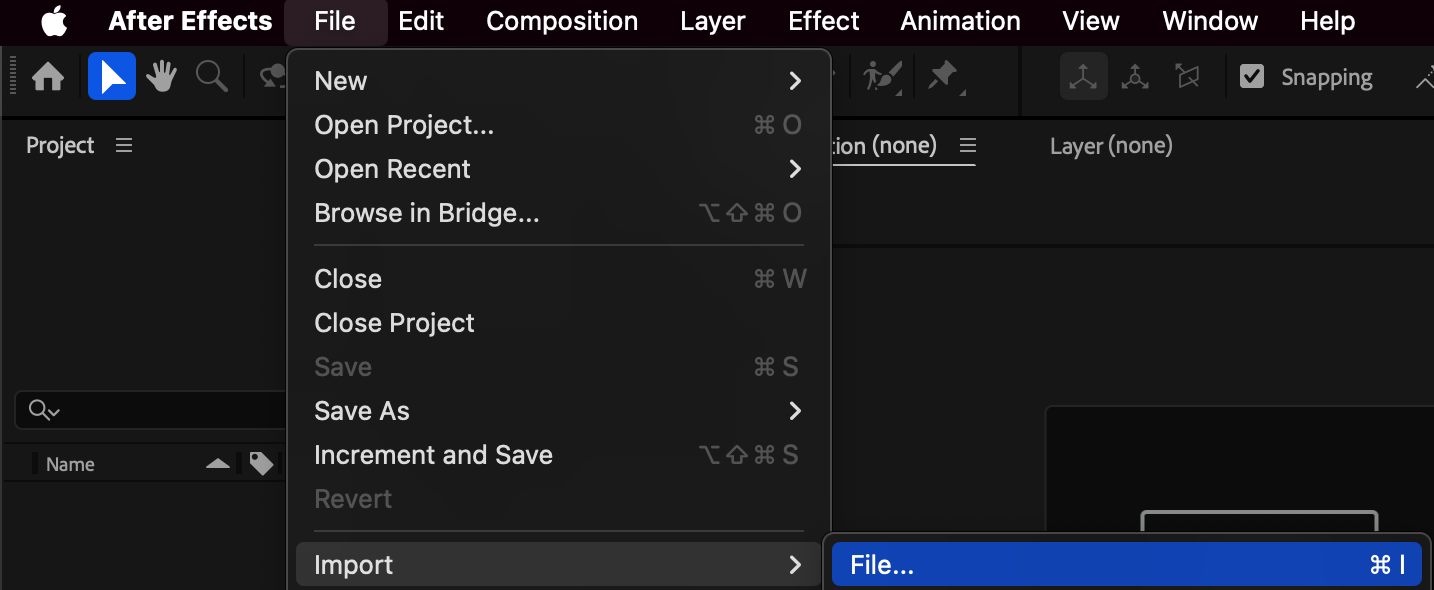
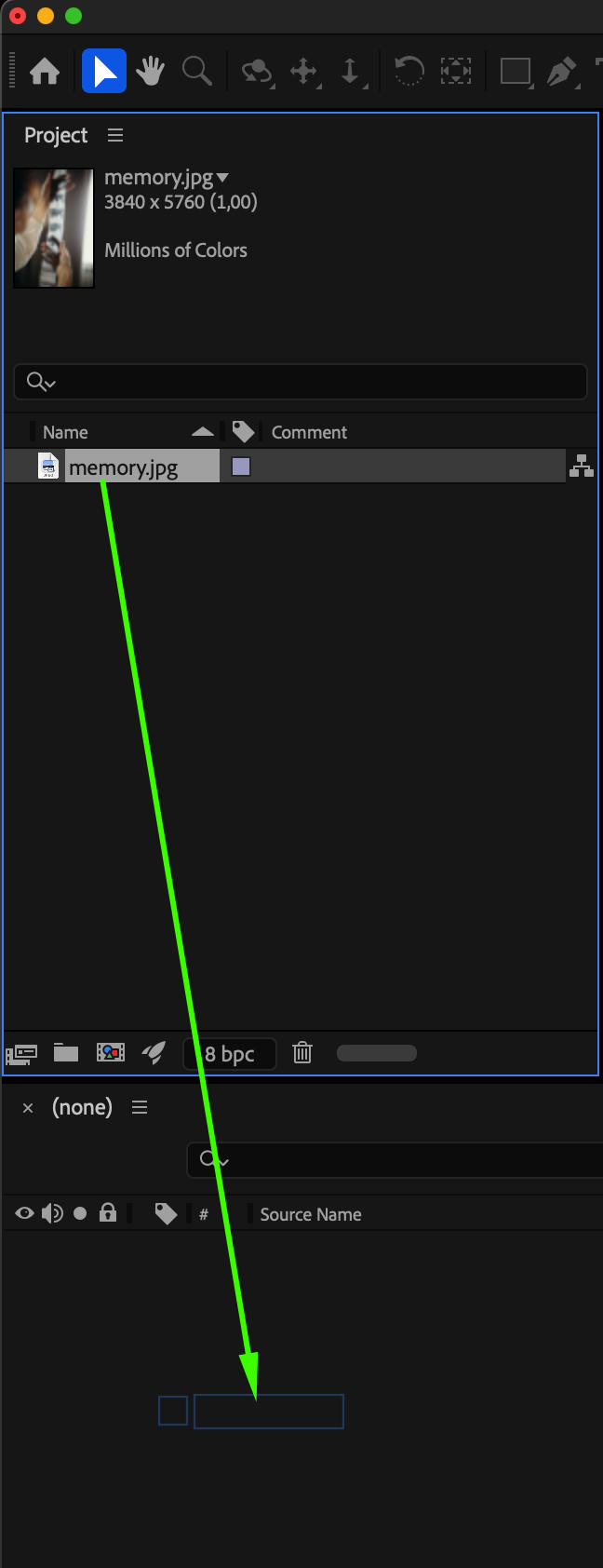 Step 2: Apply the Invert Effect
Select your image layer in the Timeline, then go to Effect > Channel > Invert. The colors of your image will immediately flip — turning the negative into a natural-looking photo.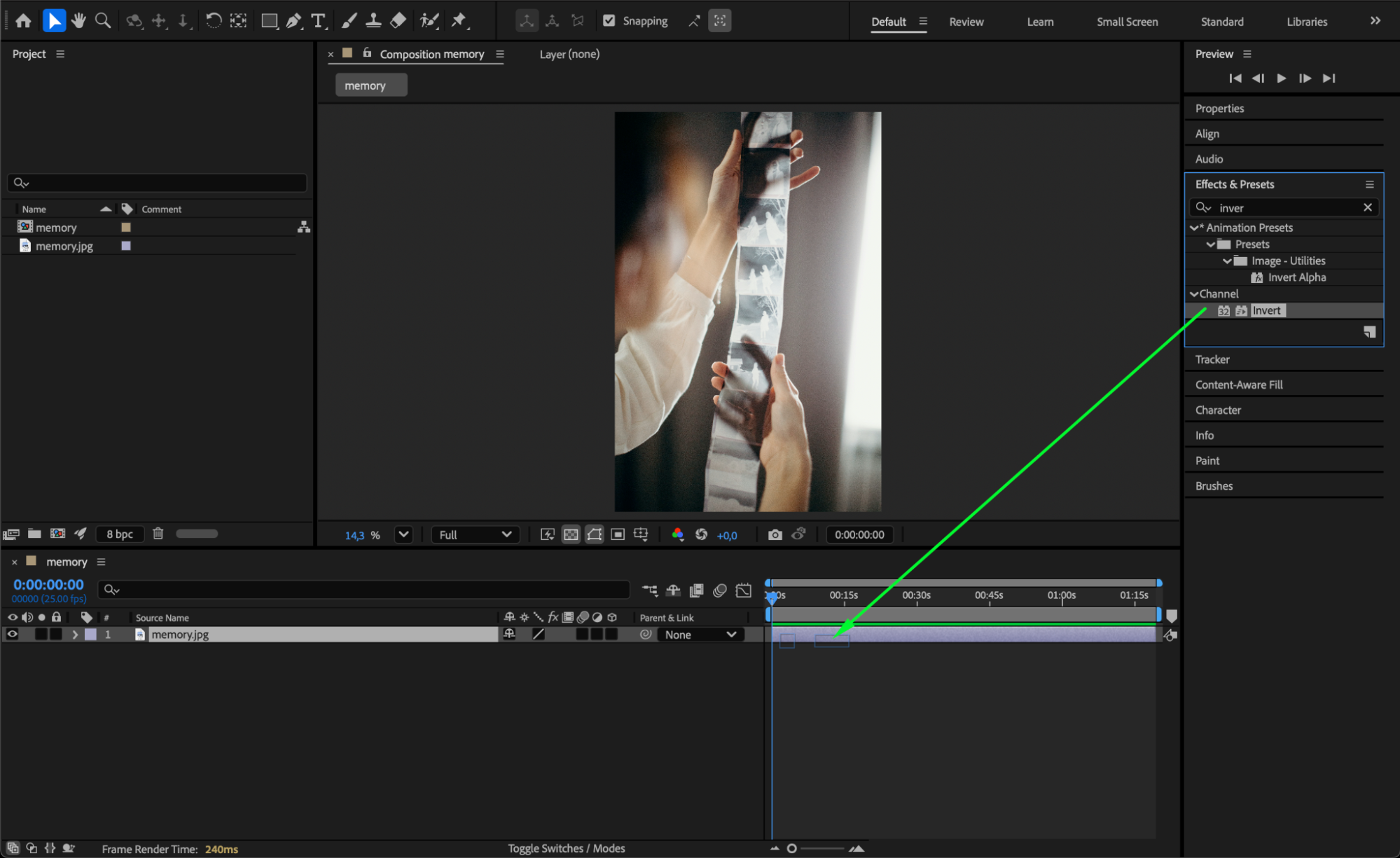
Step 3: Adjust the Invert Settings
In the Effect Controls panel, check the Channel dropdown. Make sure it’s set to RGB to invert all colors correctly. If your image still looks off, try adjusting Blend With Original to fine-tune the balance between inverted and original colors until it looks right.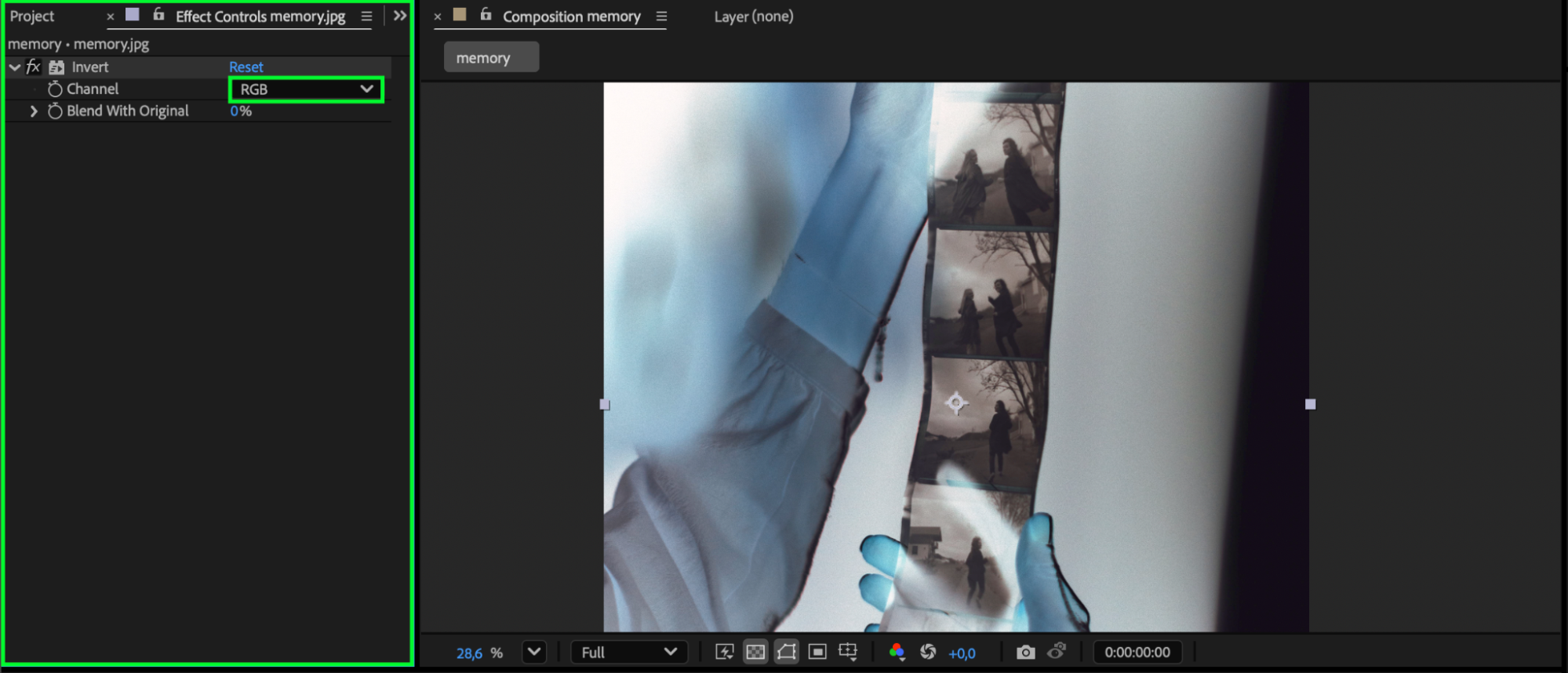 Step 4: Optional – Animate the Transition
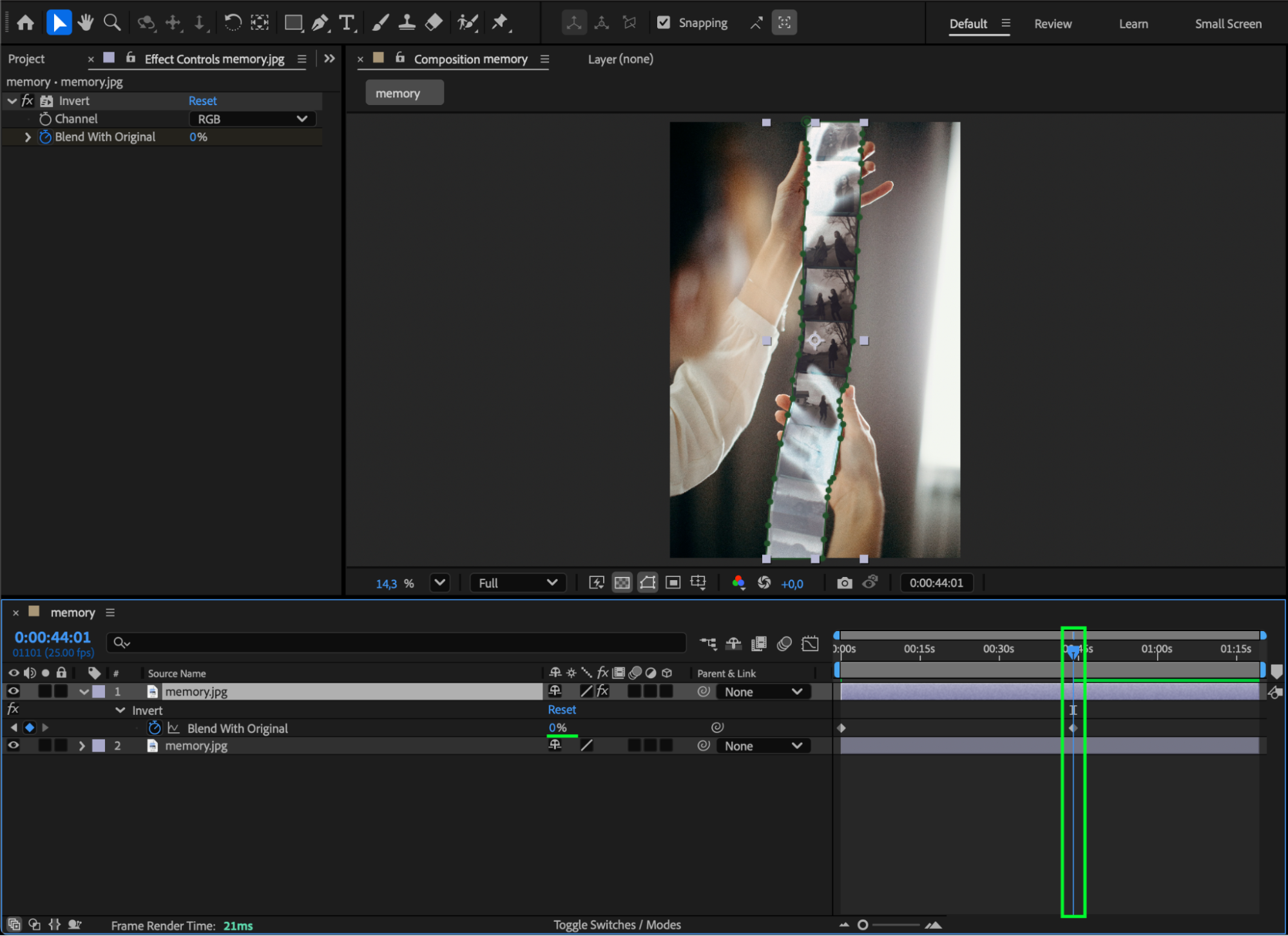
If you want to show the transformation from negative to normal as an animation, click the stopwatch next to Blend With Original. Set a keyframe at 100% (the negative version), move the CTI a few frames forward, and change the value to 0% (the normal version). This creates a smooth transition effect from the negative to the corrected image.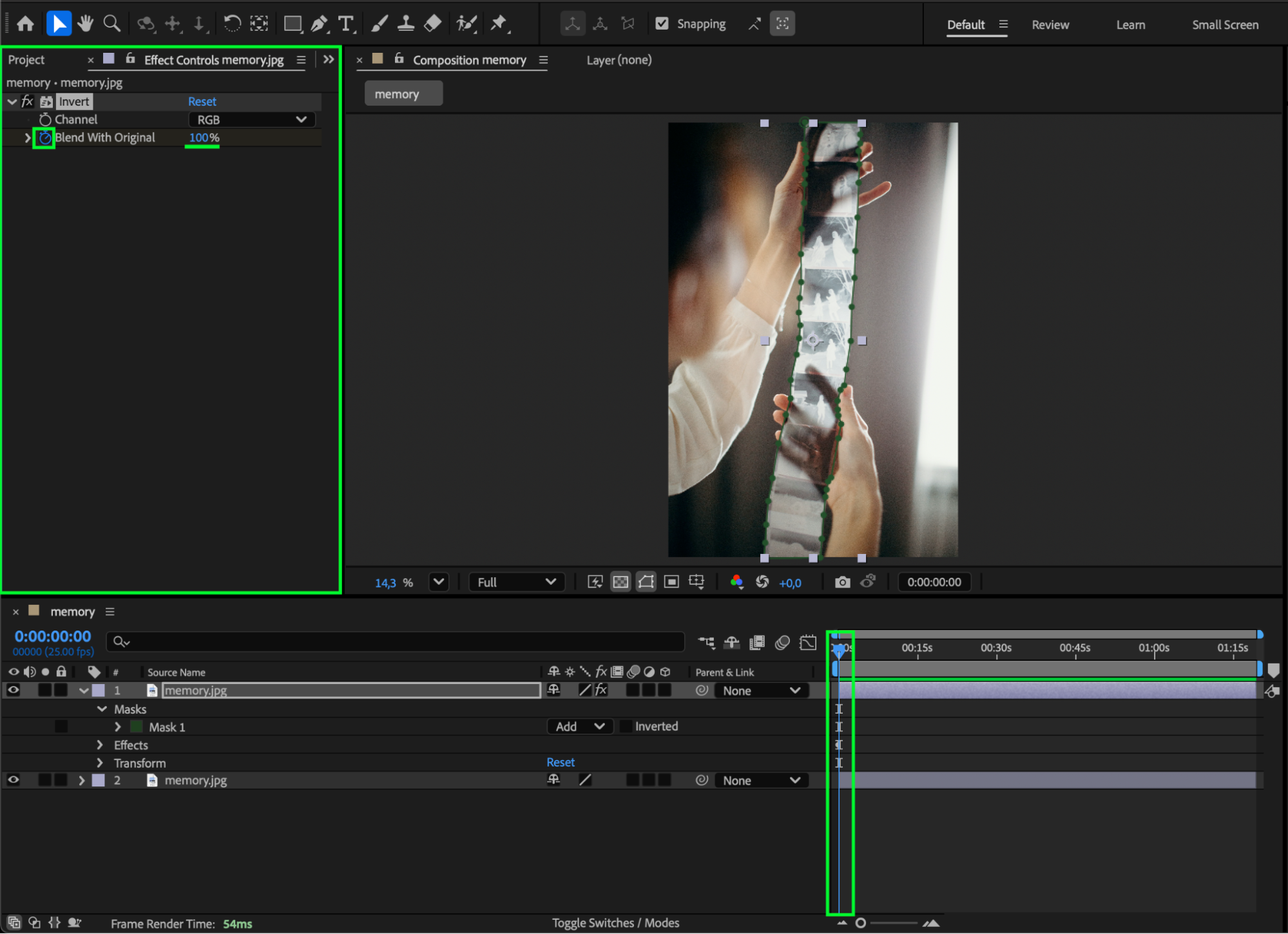
Step 5: Preview Your Result
Press Spacebar to preview your composition. You should now see your negative photo displayed as a proper image — or transitioning from negative to normal if you added animation.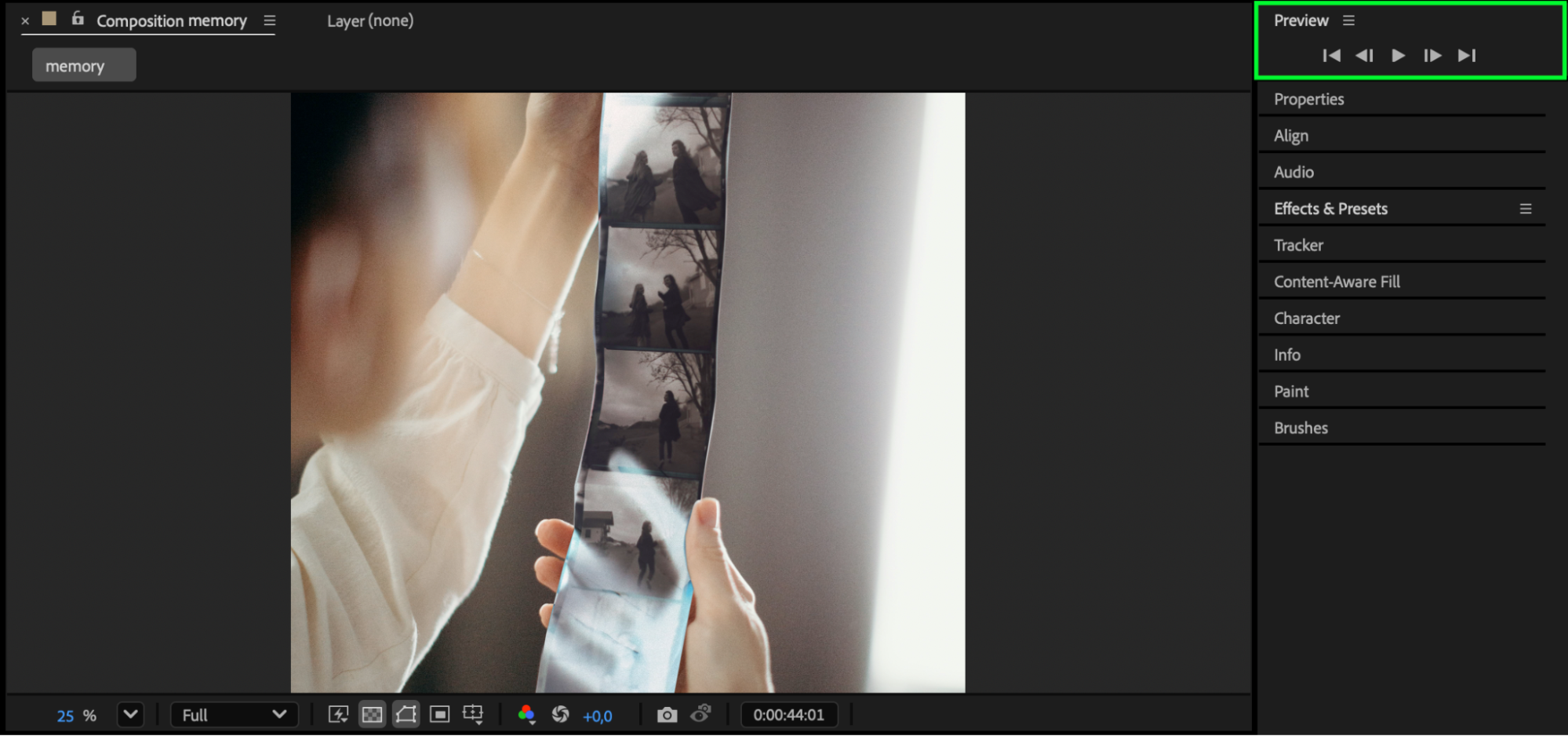
Conclusion
Converting a negative image to its original version in After Effects is simple with the Invert effect. By inverting the RGB channels, you can easily restore scanned negatives or preview inverted visuals correctly. This technique is fast, accurate, and perfect for photo restoration, film scans, or creative motion design projects.
Our Bestsellers
Our Bestsellers


