
Visualizing a Particle Emitter in After Effects
Introduction
When working with CC Particle World in After Effects, you might want to clearly see where the particles are being emitted from — especially if you’re using a custom texture. This tutorial shows how to set up a visible emitter using a textured particle, and how to customize its appearance for better visual reference and control.
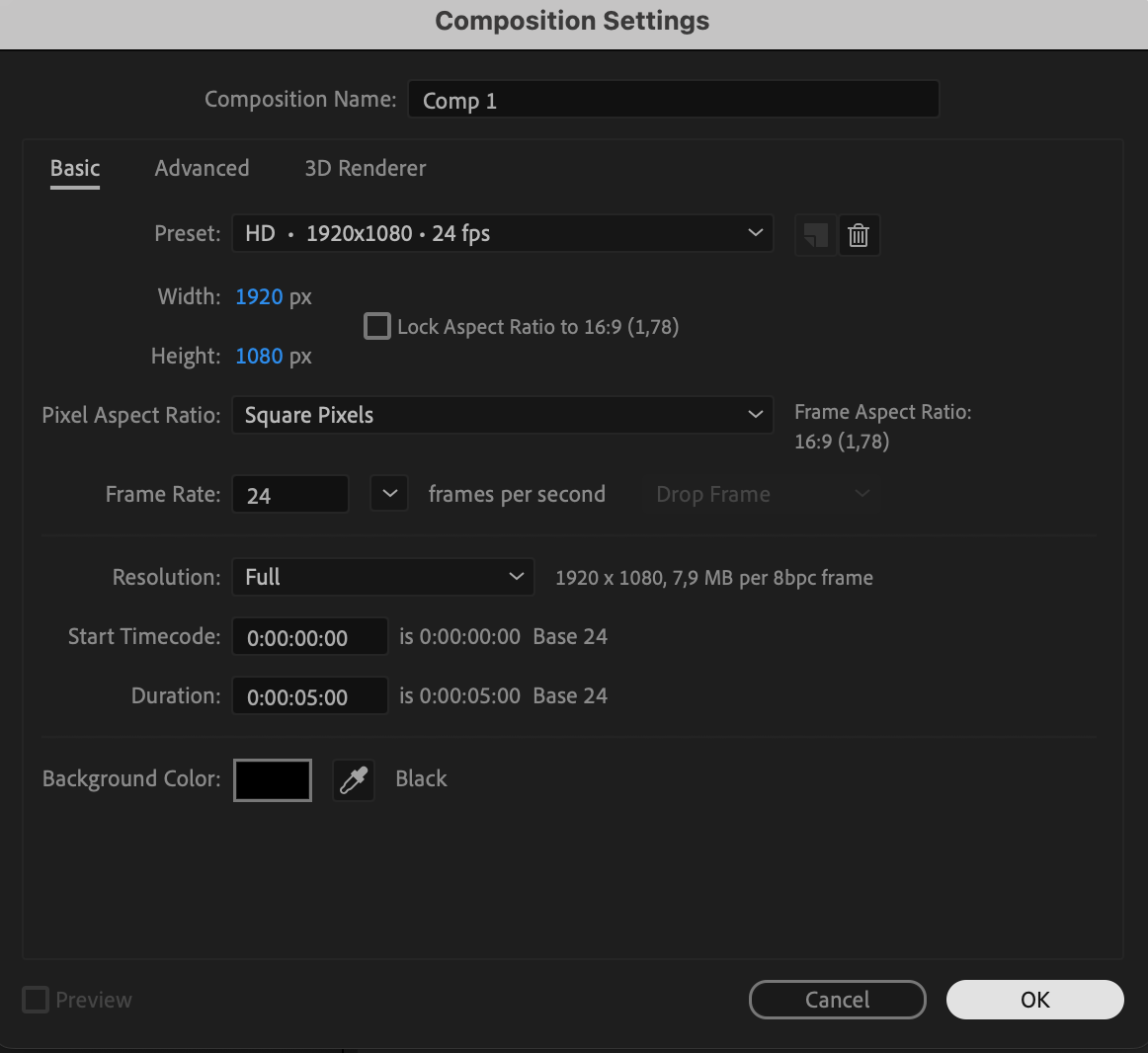
Step 1: Create a New Composition
Start by creating a new composition. Go to Composition > New Composition, choose your preferred resolution and duration, then click OK. This will be your working space.
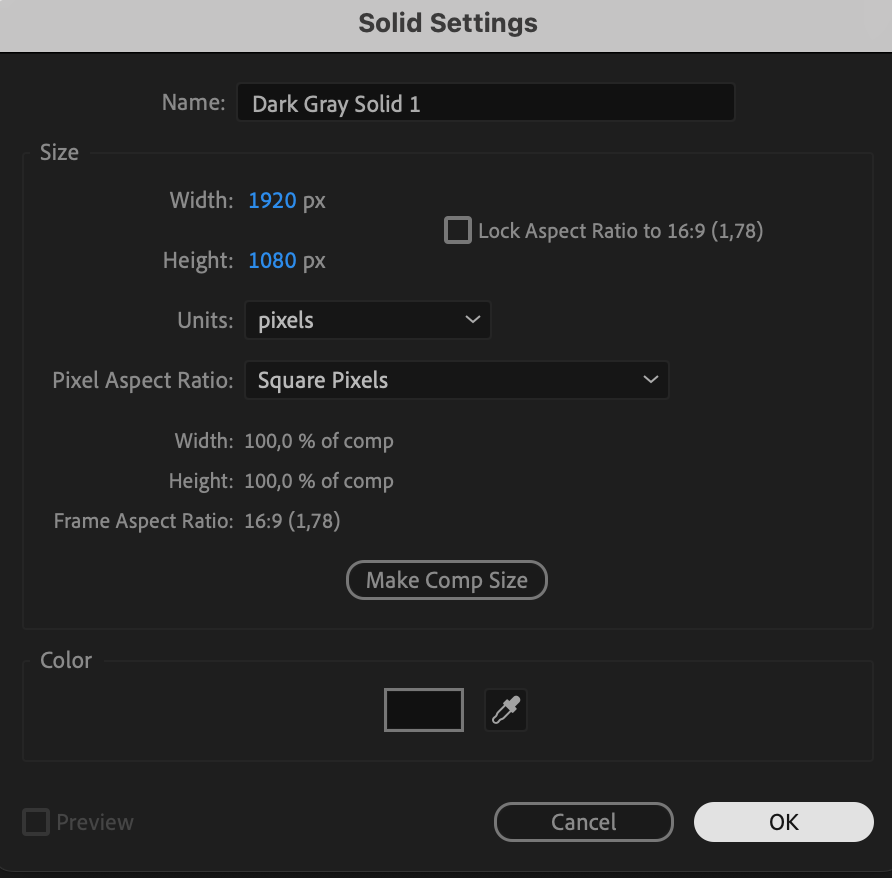 Step 2: Add a Solid Layer
Go to Layer > New > Solid, choose a neutral gray color, and click OK. This solid will serve as the base layer where you apply the particle system.
Step 3: Apply CC Particle World
With the solid selected, go to the Effects & Presets panel, search for CC Particle World, and drag it onto the solid. On the timeline, offset the solid layer slightly to the left so the particles have time to appear as you preview.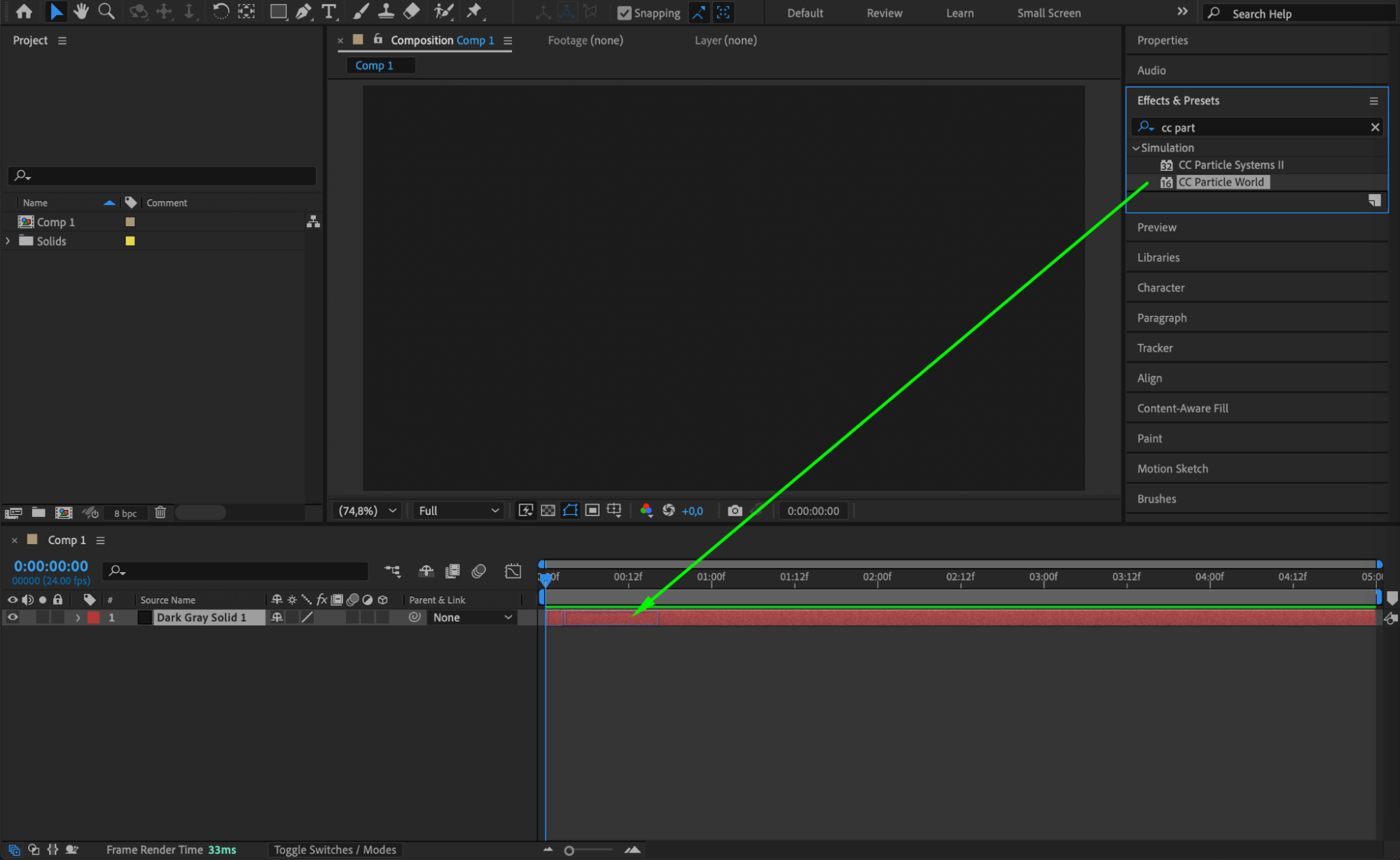
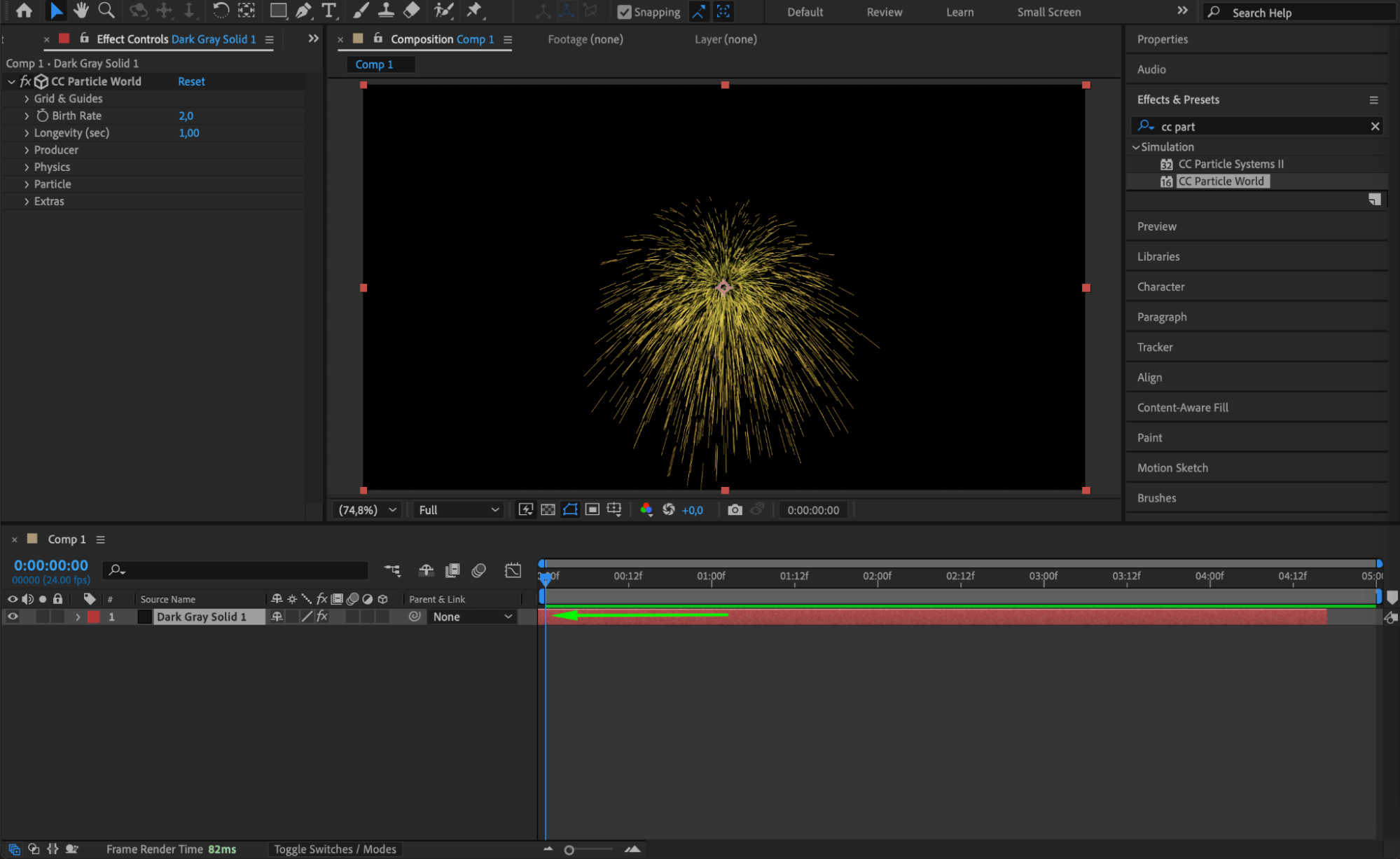
Step 4: Create a Circle for Texture
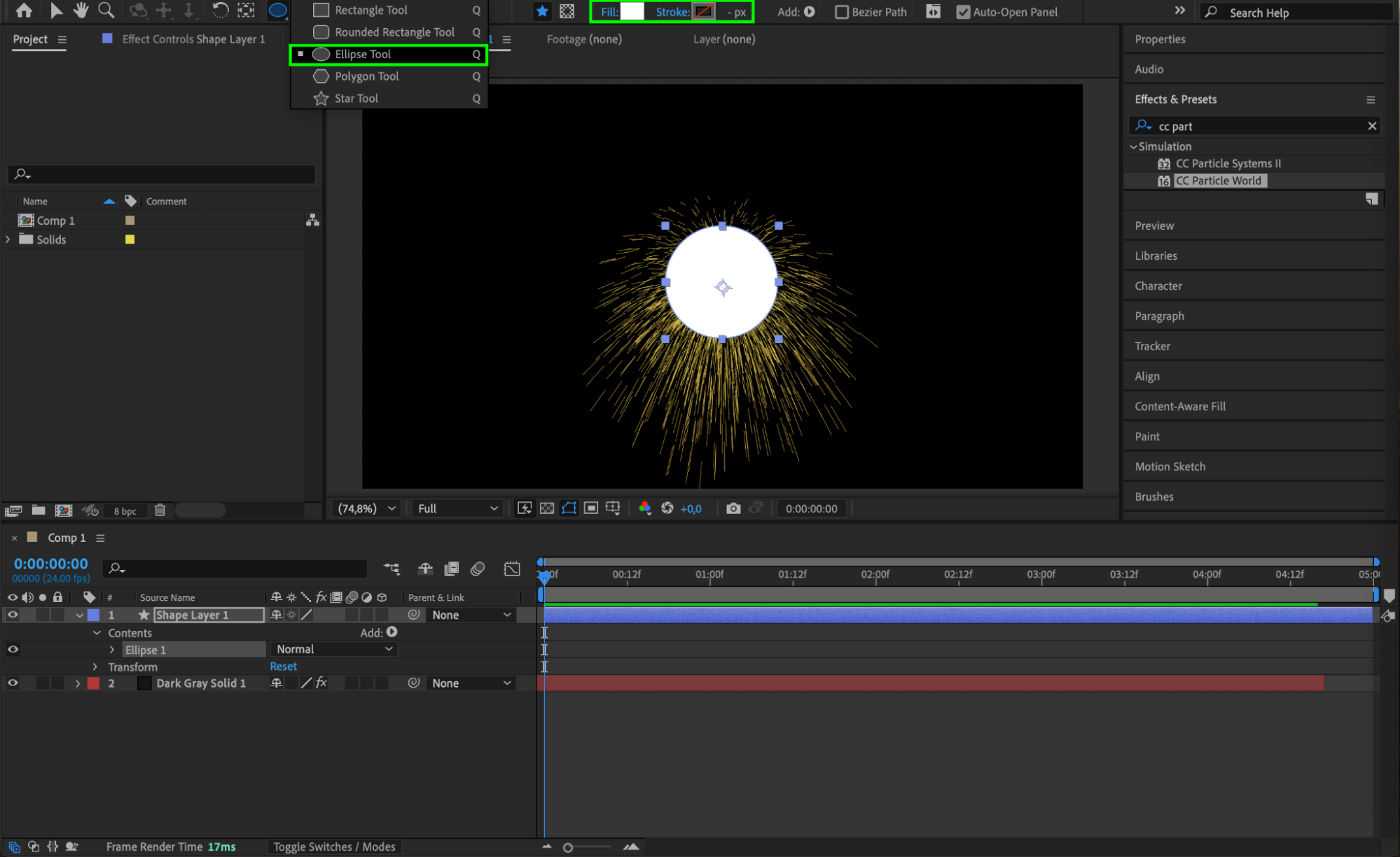
Select the Ellipse Tool (Q), set the Fill color to white and Stroke to none, then draw a small circle shape layer anywhere in the comp. Click the Eyeball icon (👁) next to the shape layer to hide it from view — we’ll use it only as a particle texture.
Step 5: Set Up the Emitter Settings
Return to the solid layer with the CC Particle World effect. In the Effect Controls panel, set these properties:
Birth Rate: 2
Longevity: 3
Radius X and Y: 0.435
Velocity: 0.2
Gravity: 0
Particle Type: Textured Square
Texture Layer: Choose the shape layer you created
Birth/Death Size: 1
Size Variation: 0
Birth/Death Color: White
This setup makes the emitter produce small white circles that act as visible particles.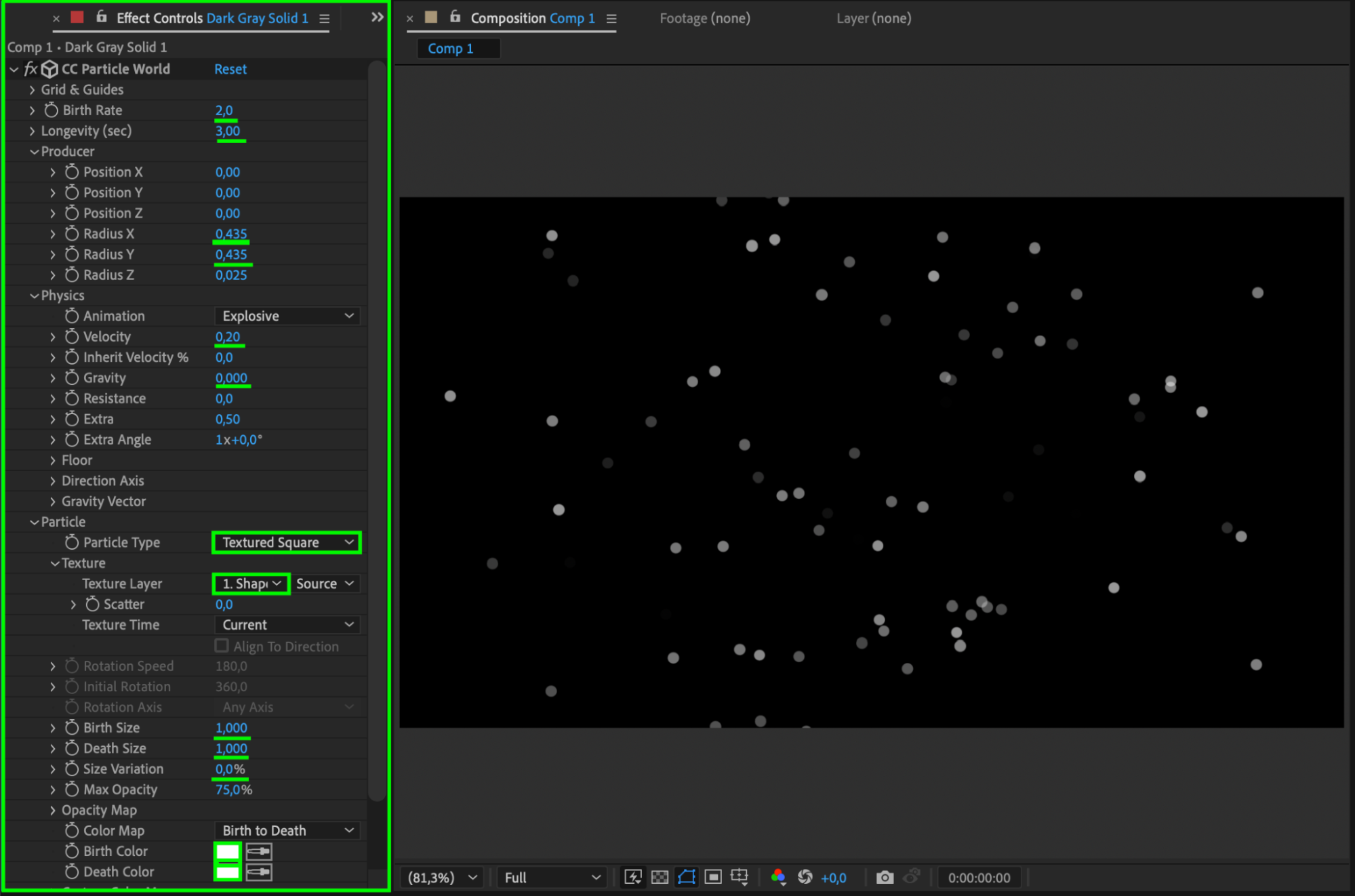
Step 6: Duplicate and Modify the Layer
Duplicate the solid layer by selecting it and pressing “Ctrl/Cmd + D”. On the duplicate, change the following:
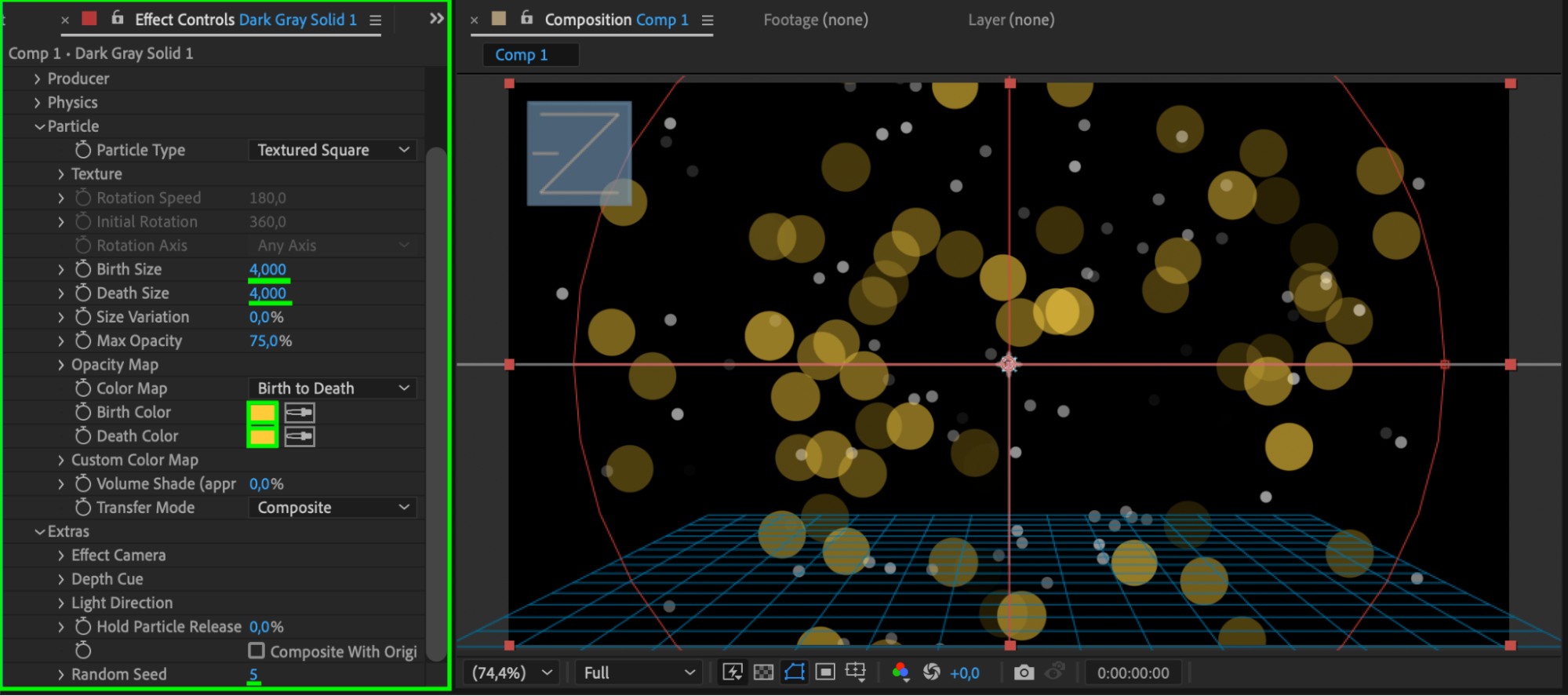
Birth/Death Size: 4
Birth/Death Color: Orange
Random Seed: 5
This layer will produce larger orange particles for contrast, helping you better see and differentiate the emitter’s behavior.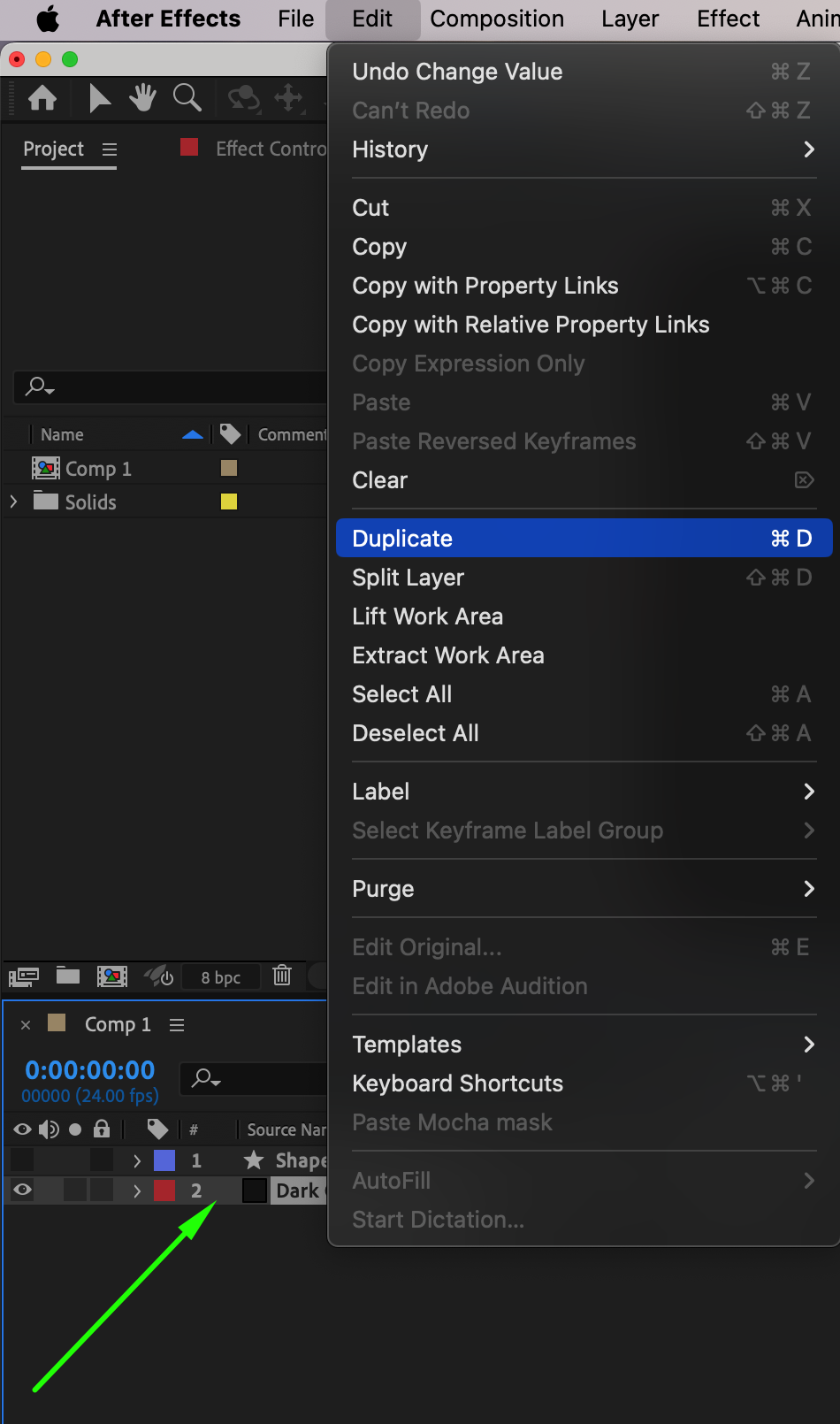
 Step 7: Preview Your Animation
Press Spacebar to preview your comp. You should now see your particle emitter clearly, with two different sets of visible particles — useful for visualizing the exact origin and flow of your emission settings.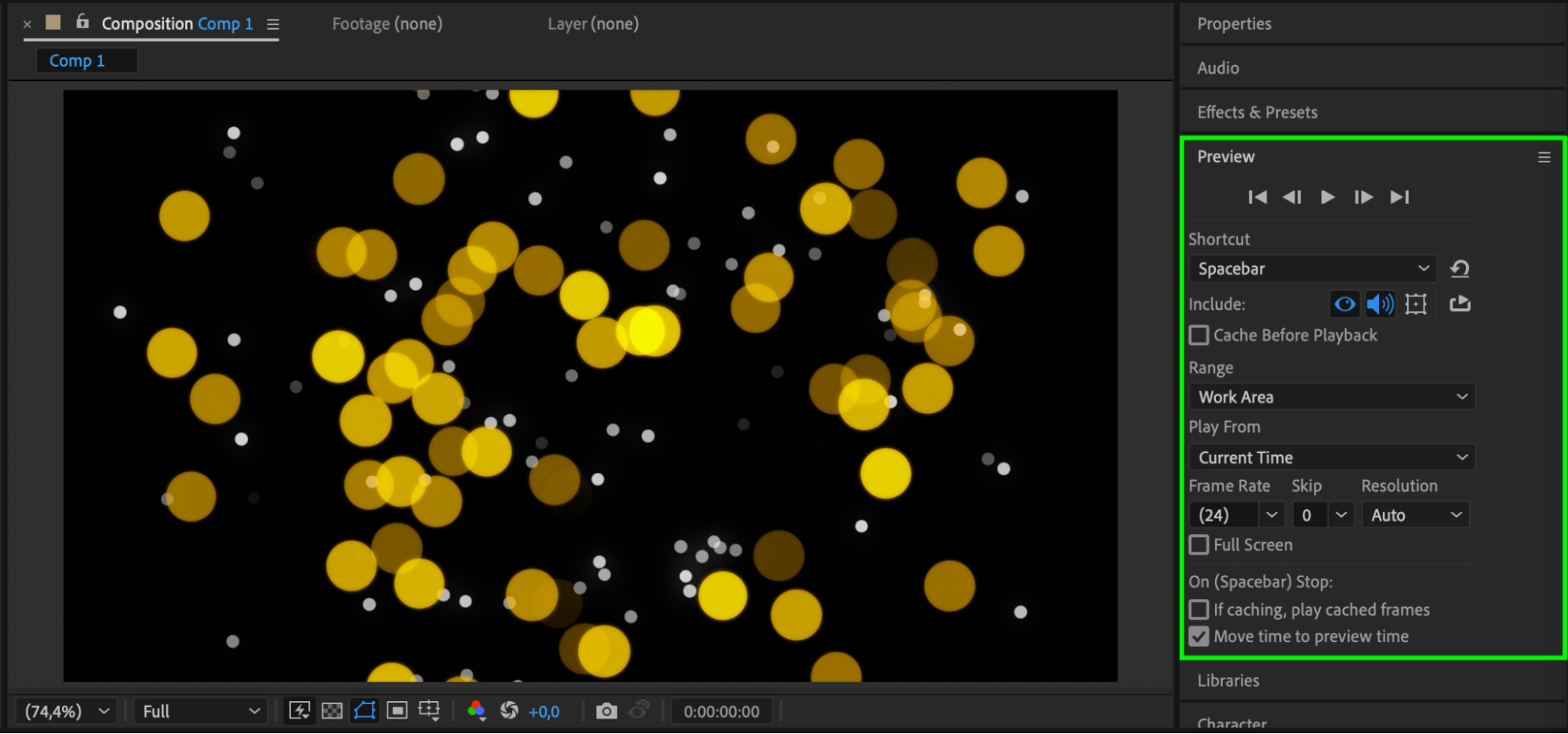
Conclusion
Visualizing the emitter in CC Particle World becomes much easier when you use a custom particle texture and tweak visual settings like size and color. By combining solid layers with shape-based textures, you can make your emitter stand out, helping you fine-tune effects and achieve better results in motion graphics or visual effects.
Our Bestsellers
Our Bestsellers


