Introduction
If your motion graphics are combined with the background in a single video file, you can separate them using the Roto Brush Tool in After Effects. This method works with any type of background and gives you full control over isolating both the foreground graphics and the background as separate layers.
Step 1: Import Your Video
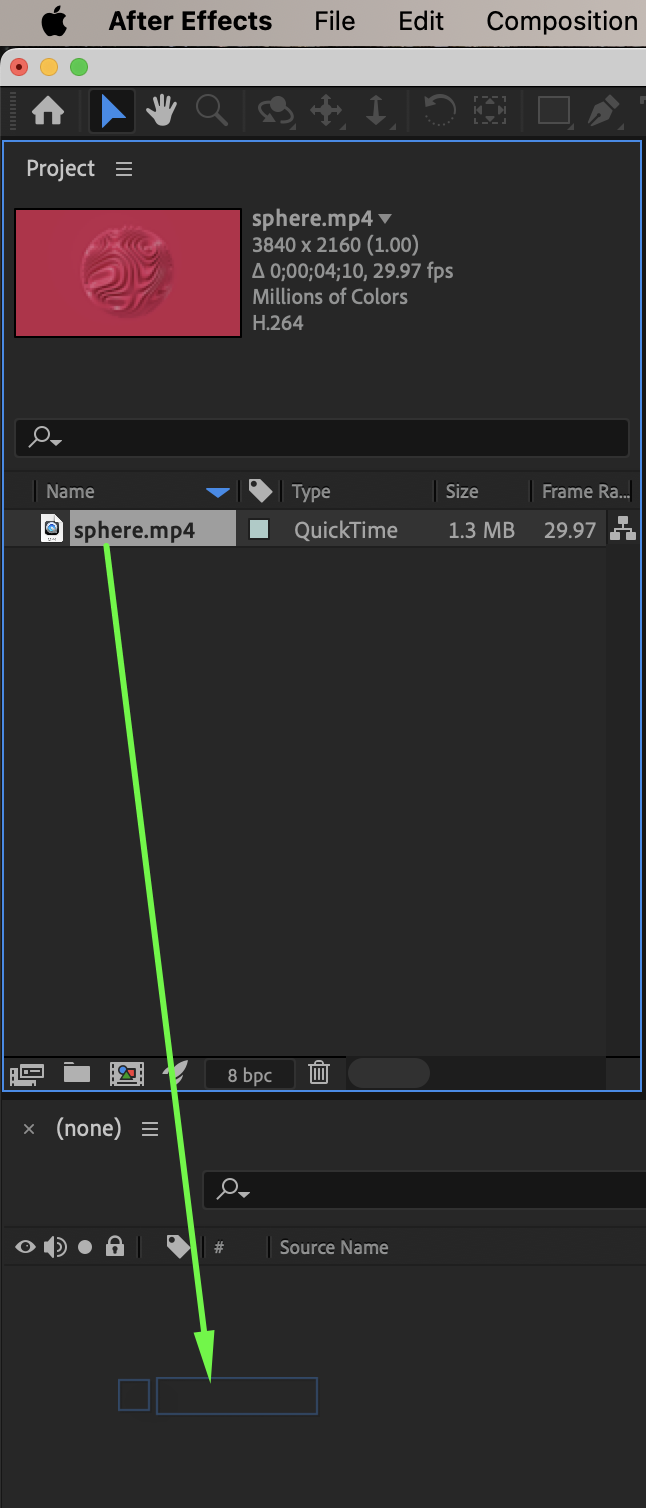
Go to: File → Import → File. Select your video and drag it onto the timeline to create a composition.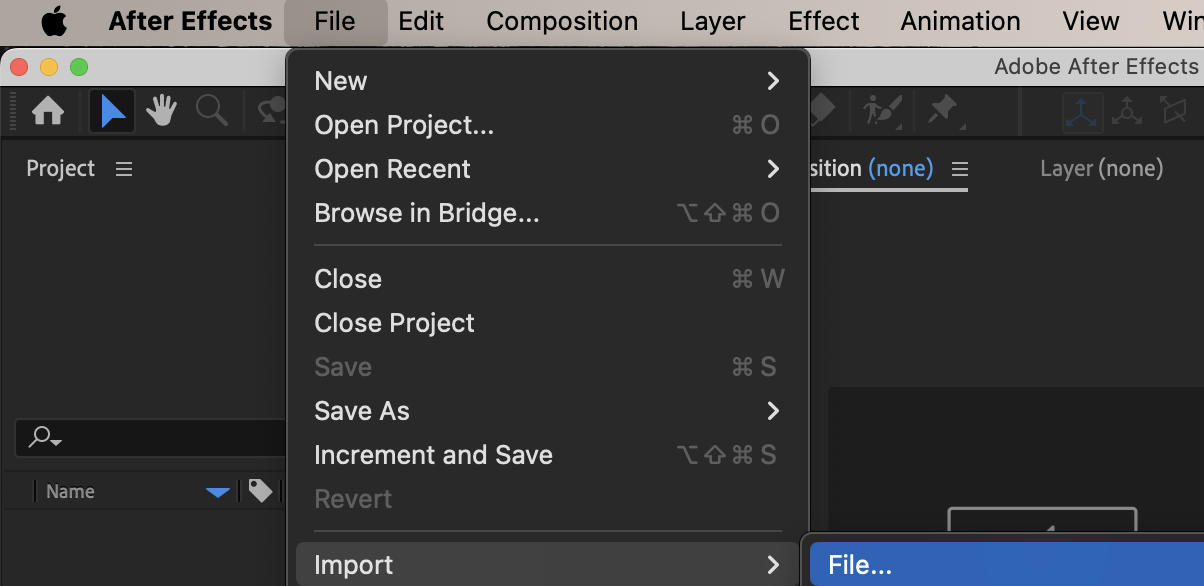
 Step 2: Isolate the Motion Graphics Using Roto Brush
Double-click the video layer in the timeline to open it in the Layer panel.
Select the Roto Brush Tool (Shortcut: Alt/Option + W).
Paint over the motion graphics to select them as the foreground.
If needed, hold Alt/Option and paint to subtract unwanted areas from the selection.
Refine the edges using the controls in the Effect Controls panel:
Feather – softens the edges
Shift Edge – expands or contracts the selection
Reduce Chatter – stabilizes edge flickering
Adjust the selection frame by frame if necessary.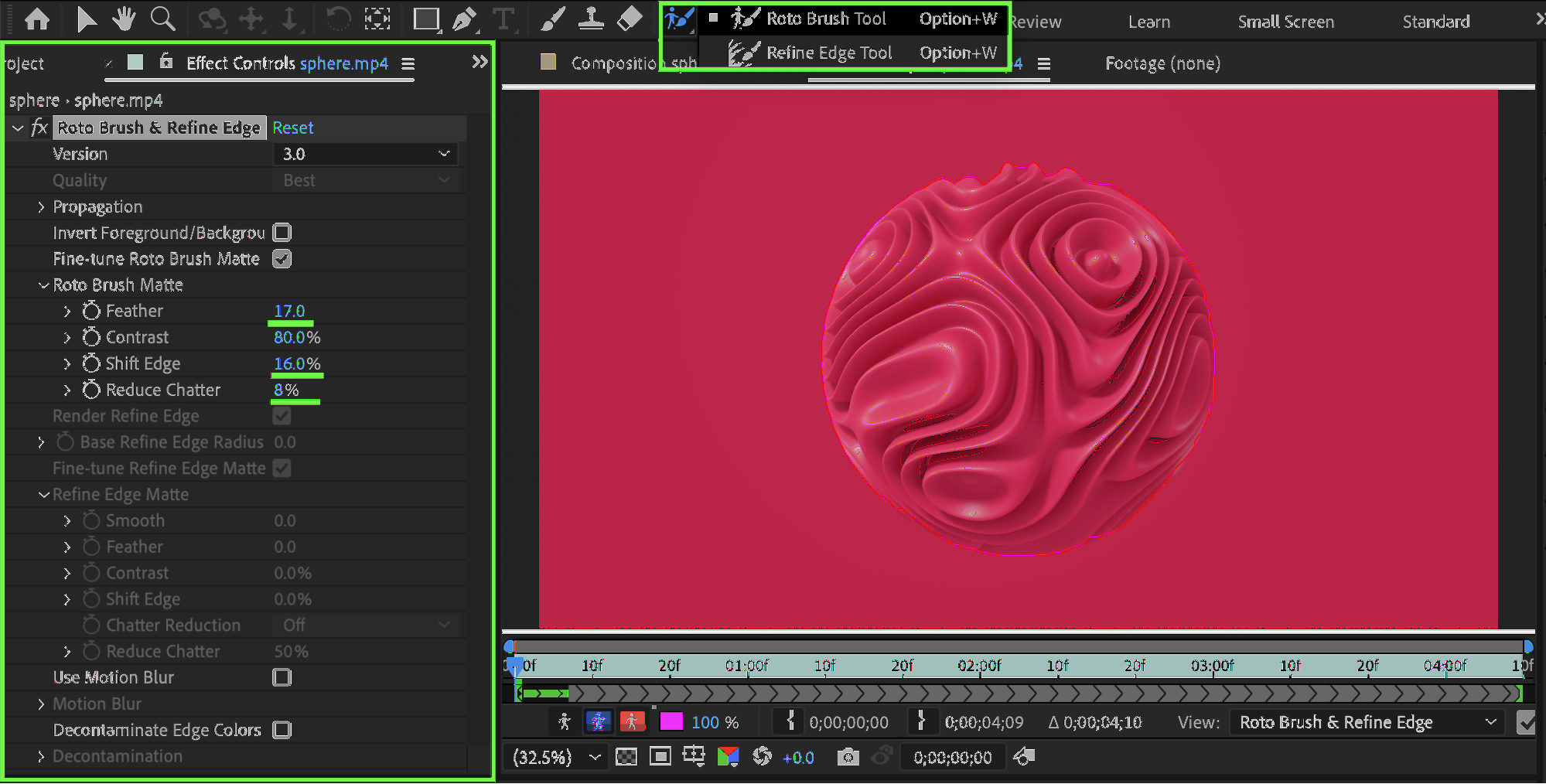
Get 10% off when you subscribe to our newsletter

Step 3: Duplicate the Original Layer
Return to the composition. Duplicate the original video layer (Ctrl/Cmd + D). Rename the bottom layer as: Background.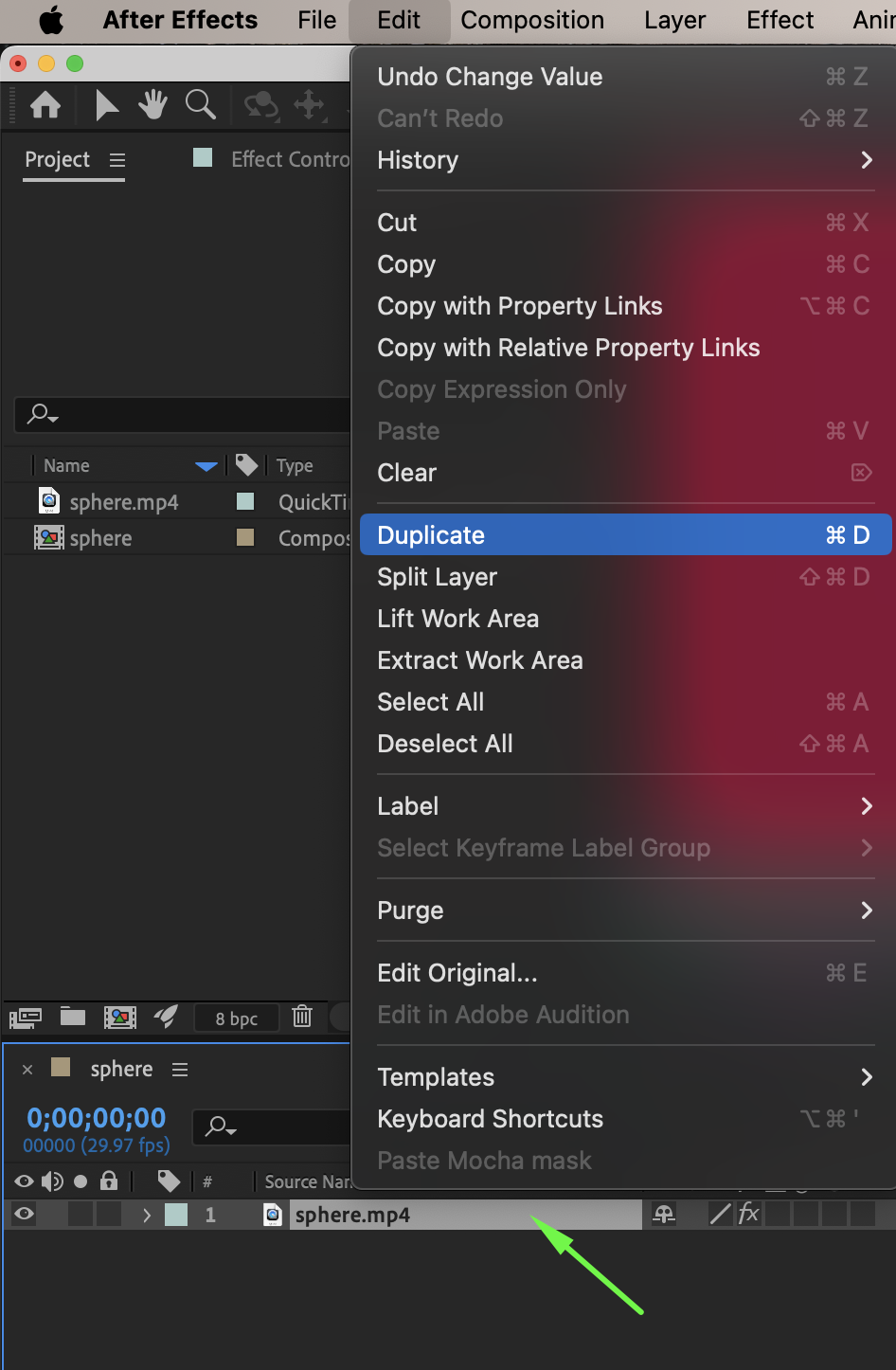
Step 4: Freeze the Foreground Layer
Select the top (foreground) layer. In the Layer panel, click the Freeze button. This locks the Roto Brush calculation for consistent playback.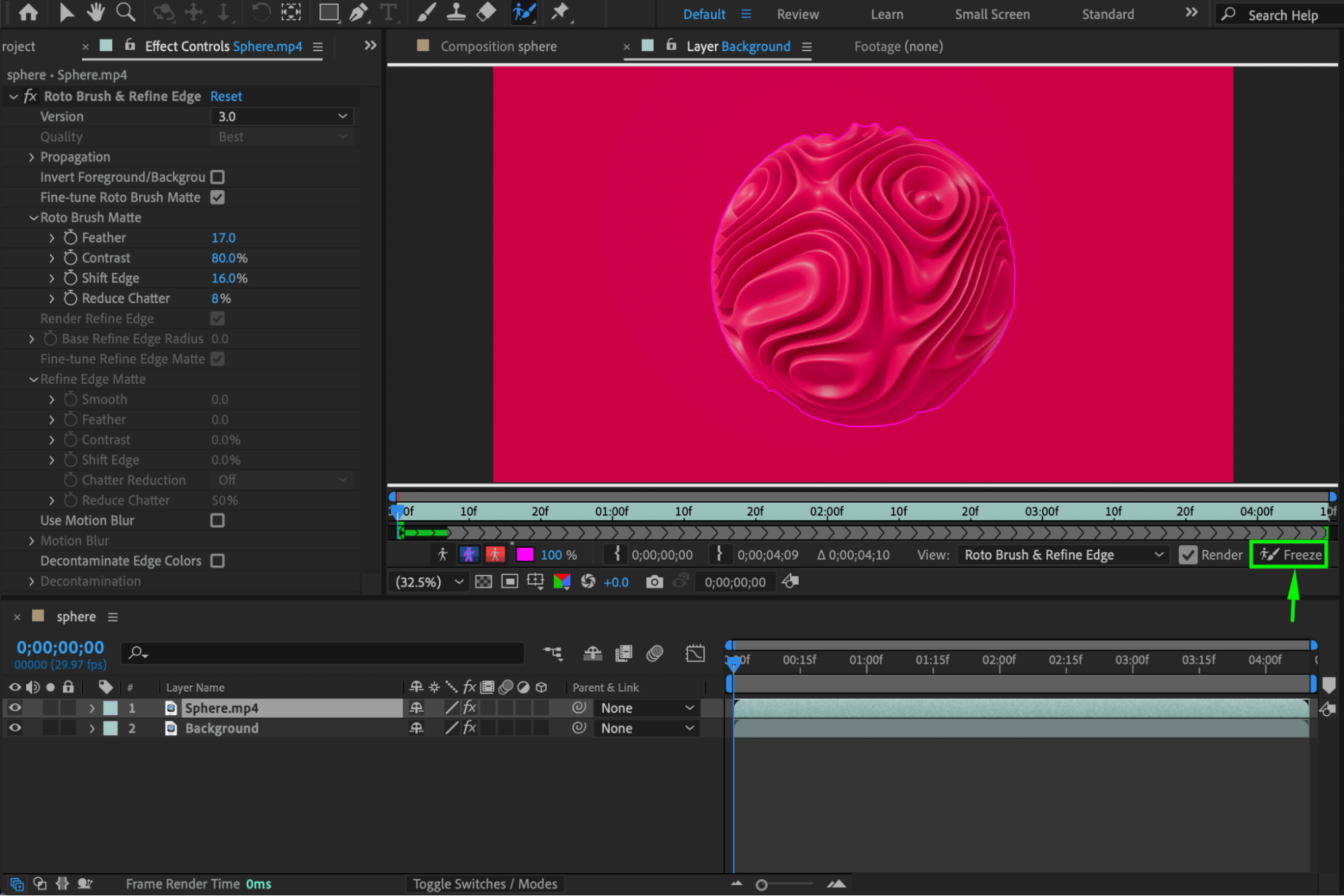 Step 5: Create the Background Layer
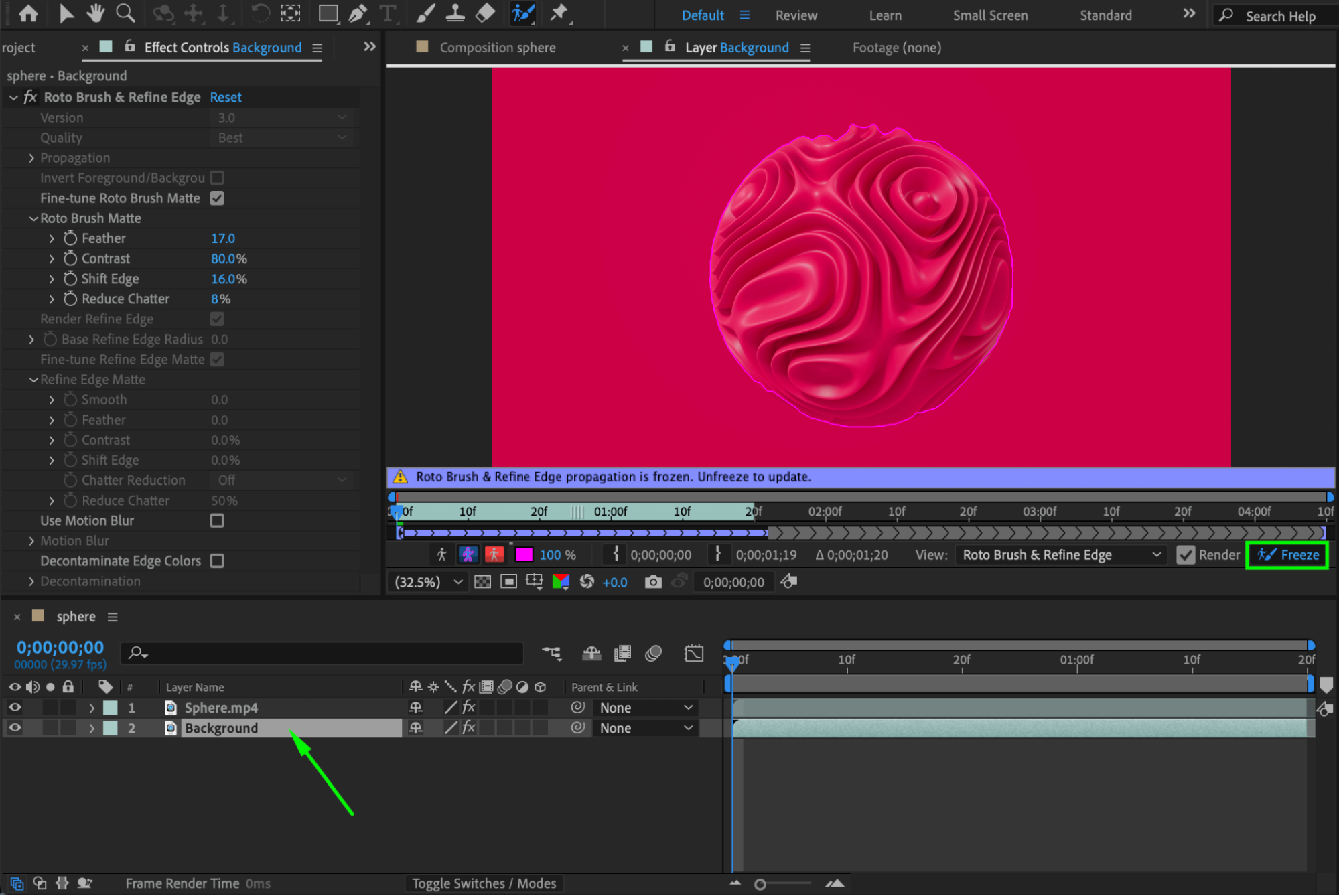
Select the duplicated Background layer.
Disable the current Freeze (if active).
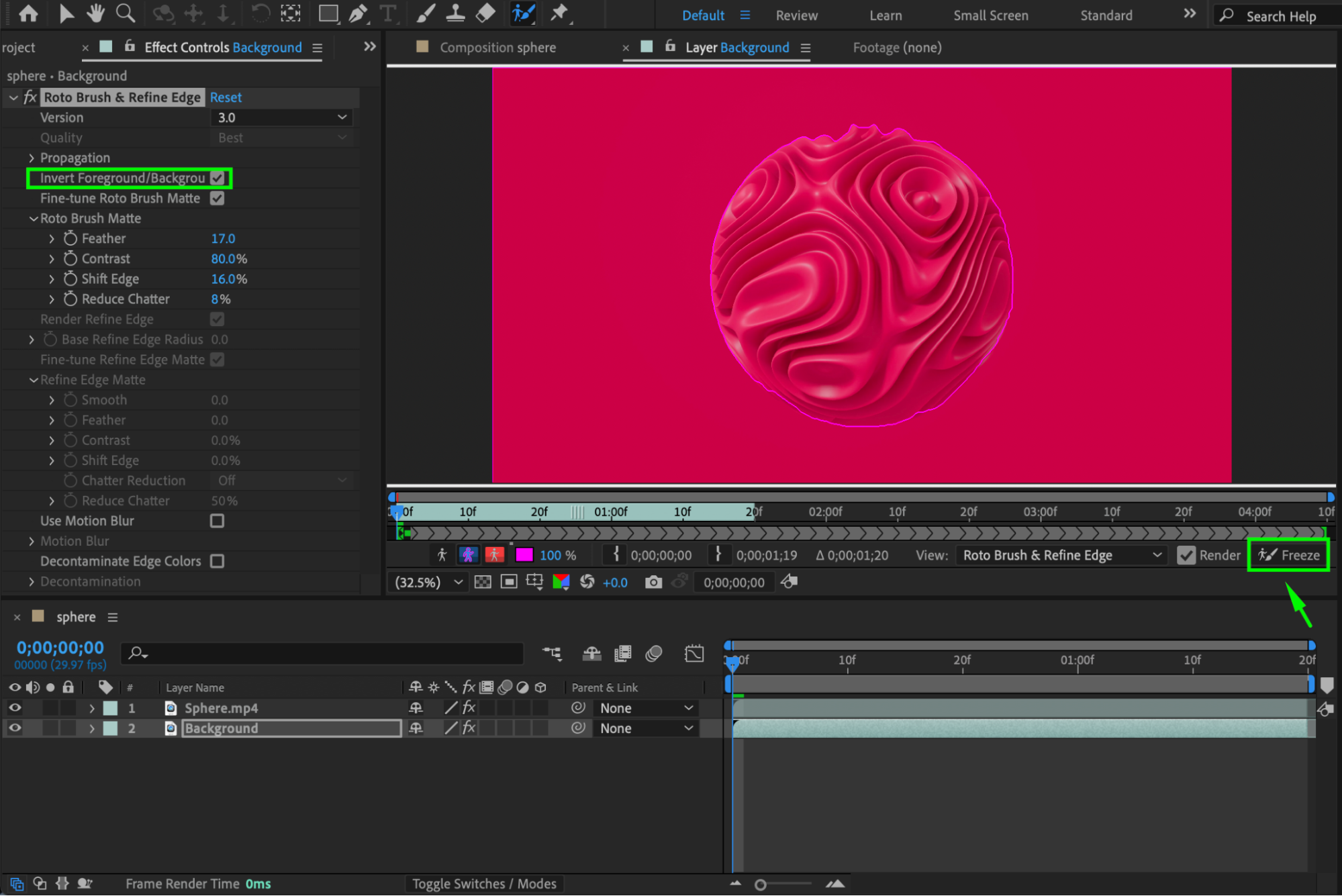
In the Effect Controls panel, enable Invert Foreground/Background. This reverses the selection so that only the background remains visible.
Click Freeze again to lock the background separation.
Step 6: Clean Up the Background (Optional)
You now have two separate layers:
One layer with the motion graphics (foreground)
One layer with the background
If the background layer contains empty areas where the graphics were removed, you can use Window → Content-Aware Fill. This feature automatically fills the missing areas, creating a cleaner and more seamless background.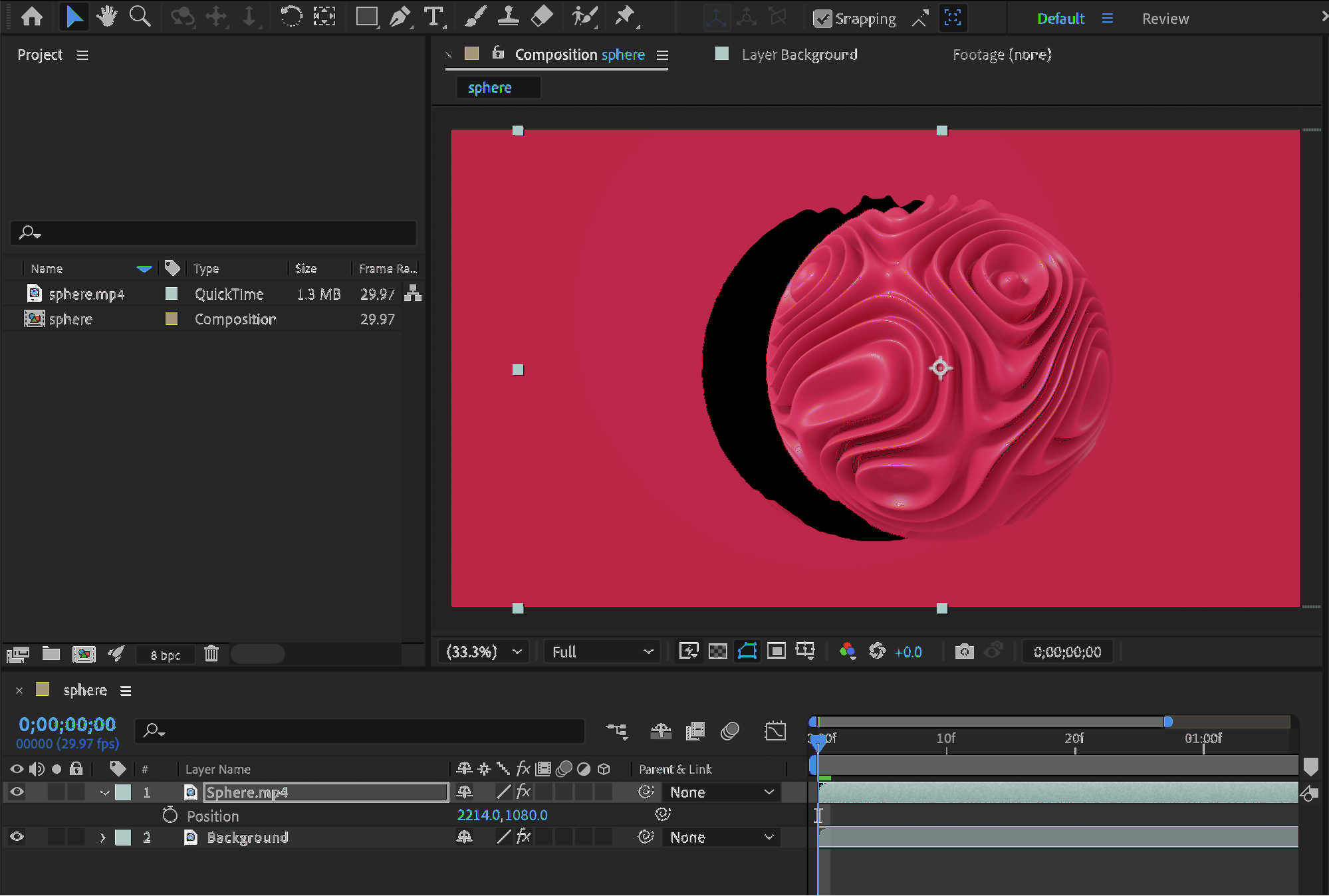 Step 7: Preview the Result
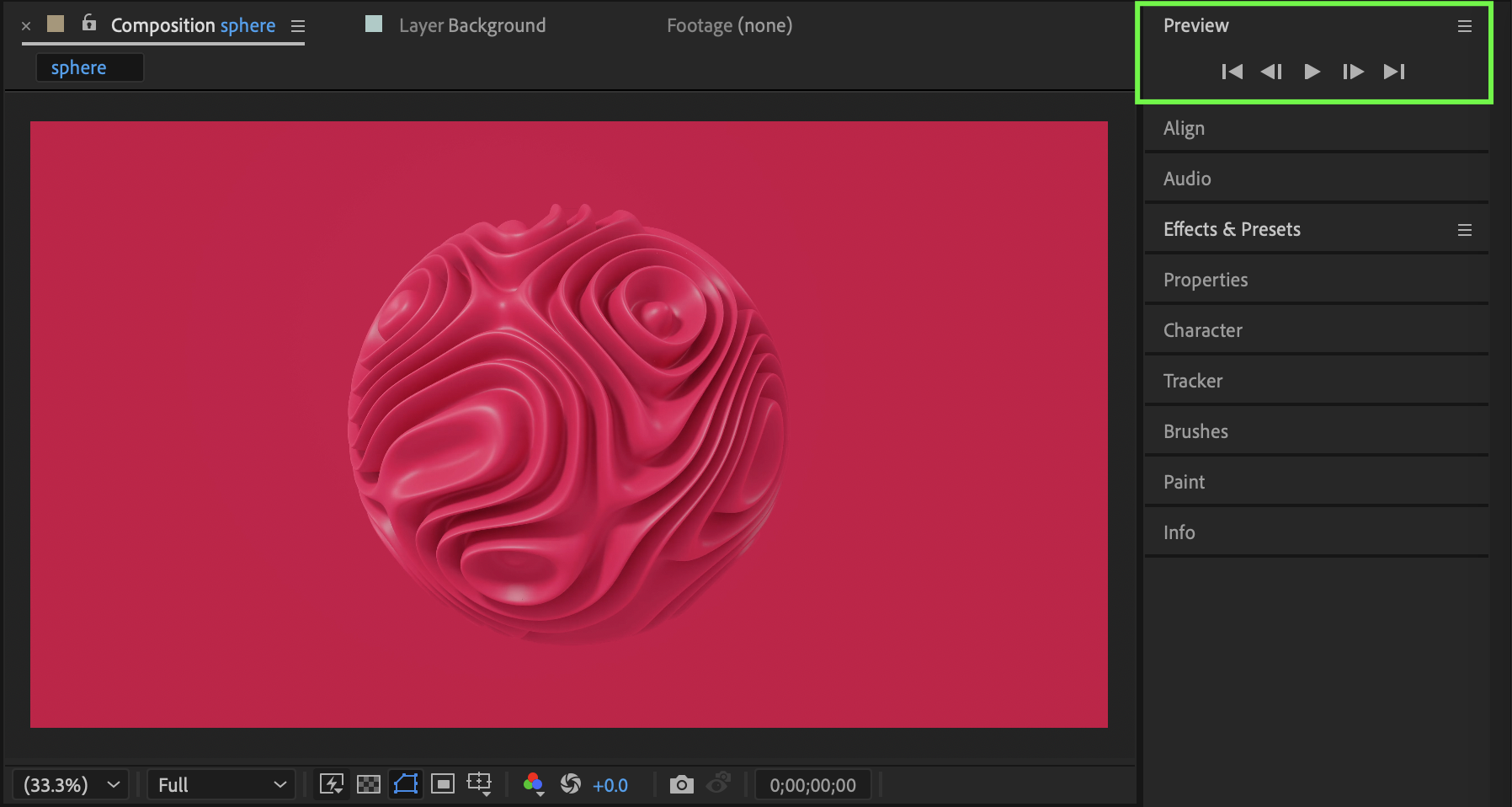
Return to the Composition panel and preview your animation. You can now:
Add a new background
Apply effects to the graphics separately
Color correct foreground and background independently
Conclusion
Using the Roto Brush Tool, you can separate motion graphics from any background directly inside After Effects. This method provides precise control and allows you to work with the foreground and background as completely independent layers
Our Bestsellers

