Introduction
Gradients are commonly used in After Effects for backgrounds, lighting effects, text styling, and motion graphics. Effects like Gradient Ramp, 4-Color Gradient, and Gradient Fill in shape layers include interactive control points that can be adjusted directly in the Composition panel. If you can’t see these controls, they may be hidden or inactive. In this tutorial, you’ll learn how to properly display and adjust gradient controls in After Effects.
Step 1: Select the Gradient Layer
Click the layer that contains your gradient. This can be:
A solid layer with the Gradient Ramp effect
A solid layer with the 4-Color Gradient effect
A shape layer using a Gradient Fill
Any layer that uses gradient-based effects
Gradient controls will only appear when the correct layer is selected.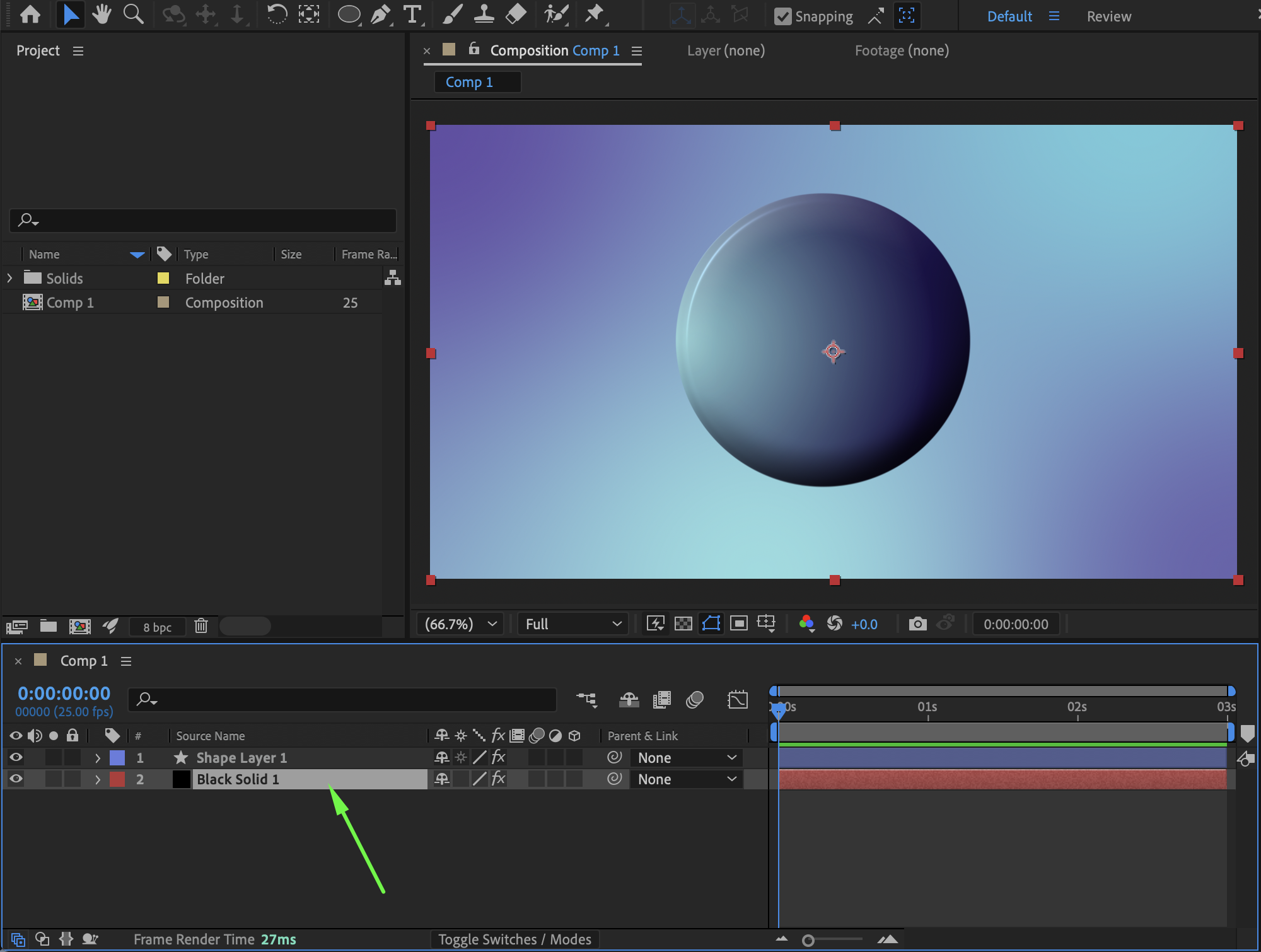
Get 10% off when you subscribe to our newsletter

Step 2: Display Gradient Effect Controls
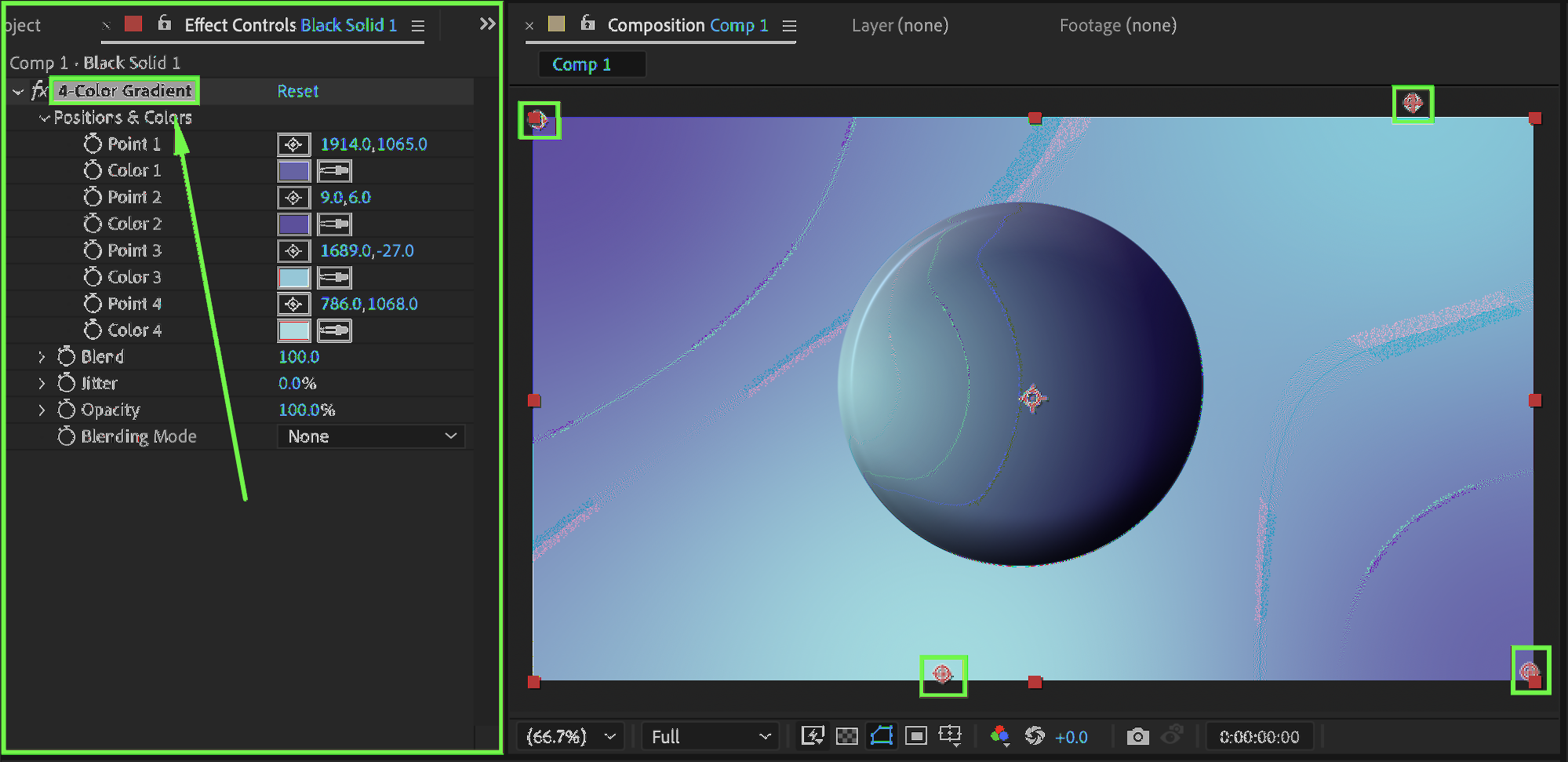
If you are using a gradient effect such as Gradient Ramp or 4-Color Gradient:
Open the Effect Controls panel
Click directly on the gradient effect name
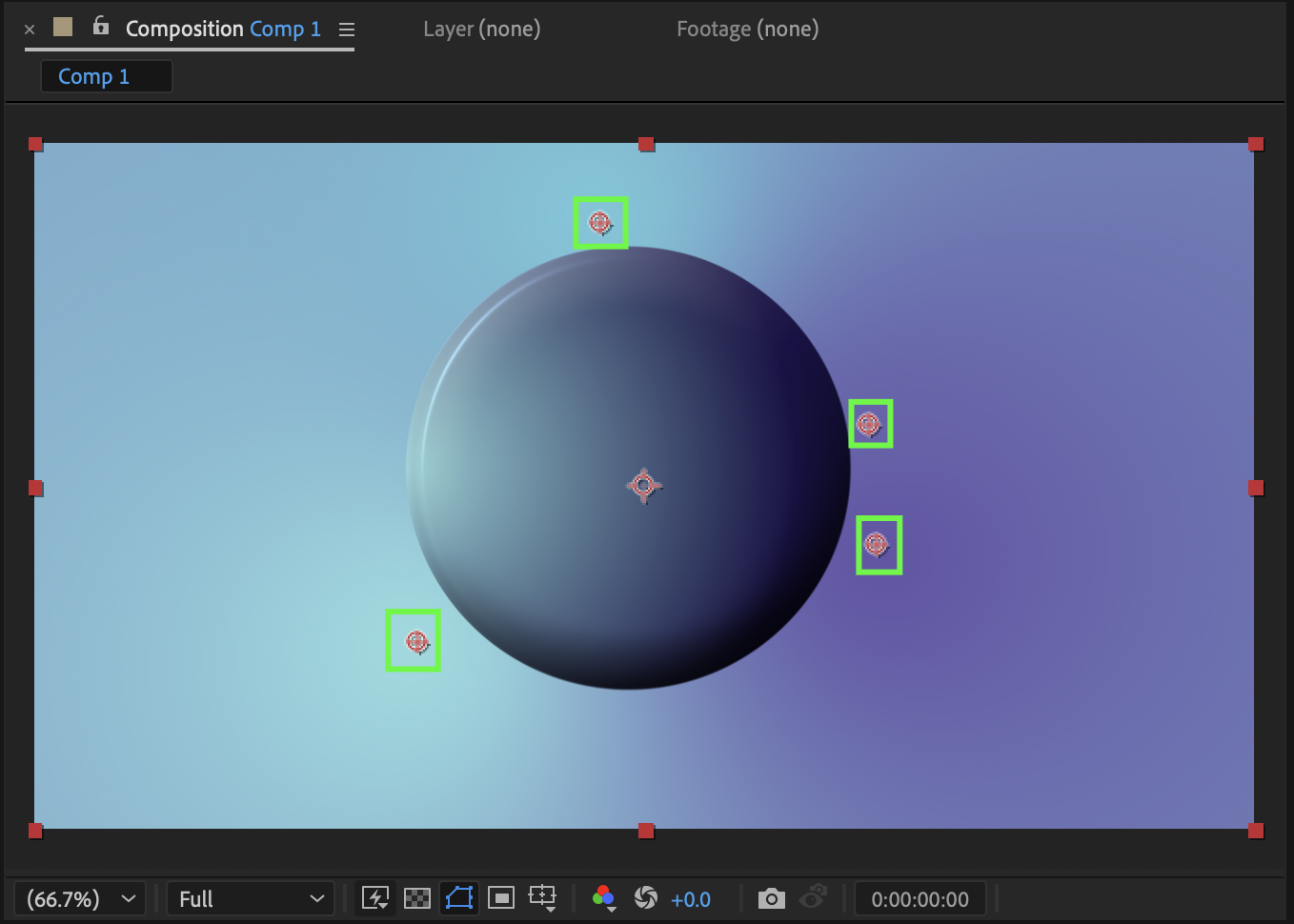
You will now see the control points in the Composition panel
Depending on the effect, you will see:
Start of Ramp and End of Ramp (Gradient Ramp)
Point 1, Point 2, Point 3, Point 4 (4-Color Gradient)
Drag these points to reposition the gradient and adjust how the colors blend with each other.
Step 3: Display Gradient Fill Controls in Shape Layers
If you are using a gradient inside a shape layer:
Expand the shape layer properties
Open: Contents → Shape → Fill → Gradient Fill
Make sure the shape layer is selected
The gradient control handles will appear in the Composition panel.
To edit the colors:
Click Edit Gradient next to the Colors parameter
Adjust color stops and transitions in the Gradient Editor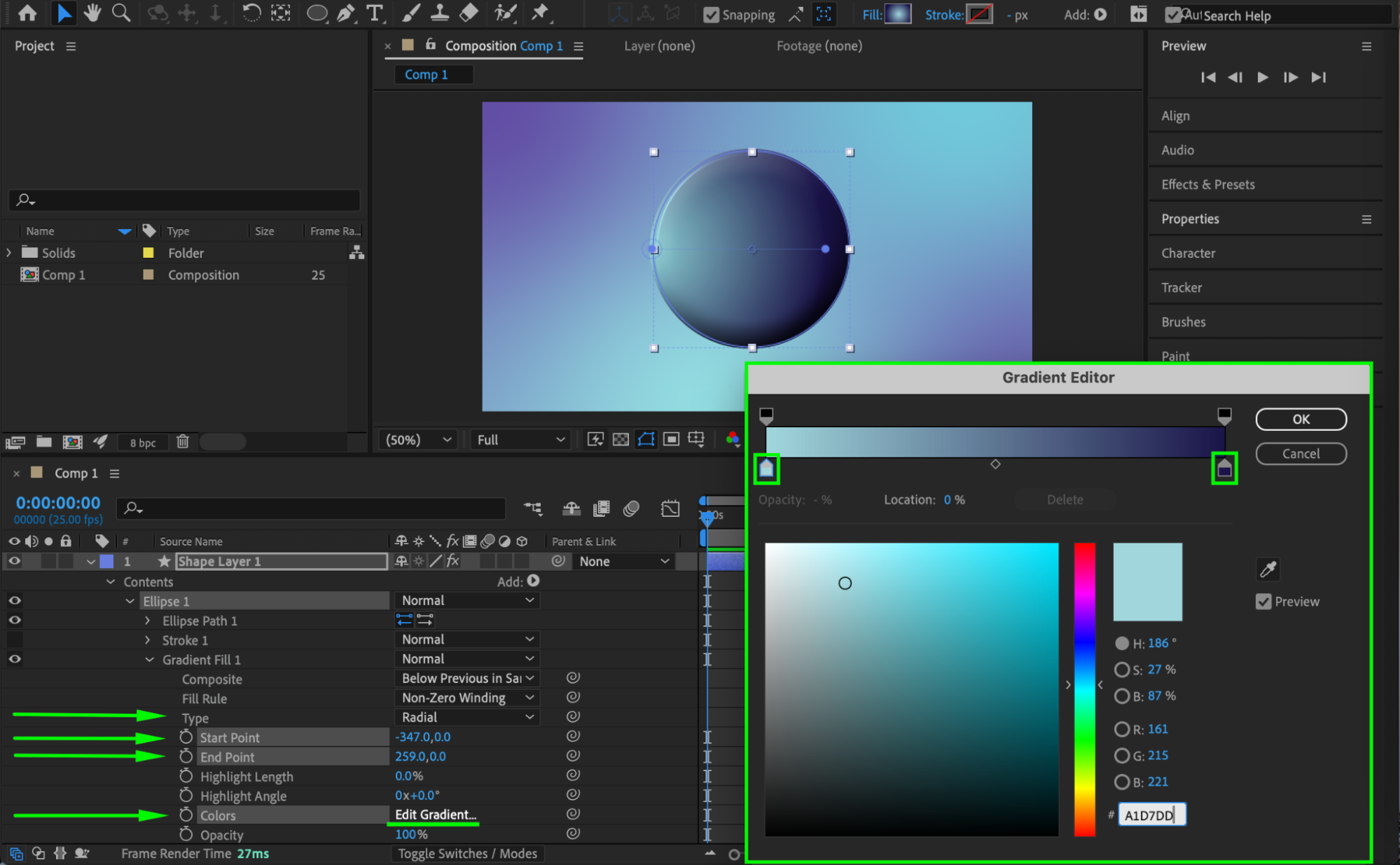 Step 4: Adjust the Gradient Controls
Once the controls are visible, you can:
Drag the gradient points to reposition the gradient
Rotate the gradient direction
Adjust the distance between points to control transition smoothness
If the controls are hard to see, zoom into the Composition panel for better precision.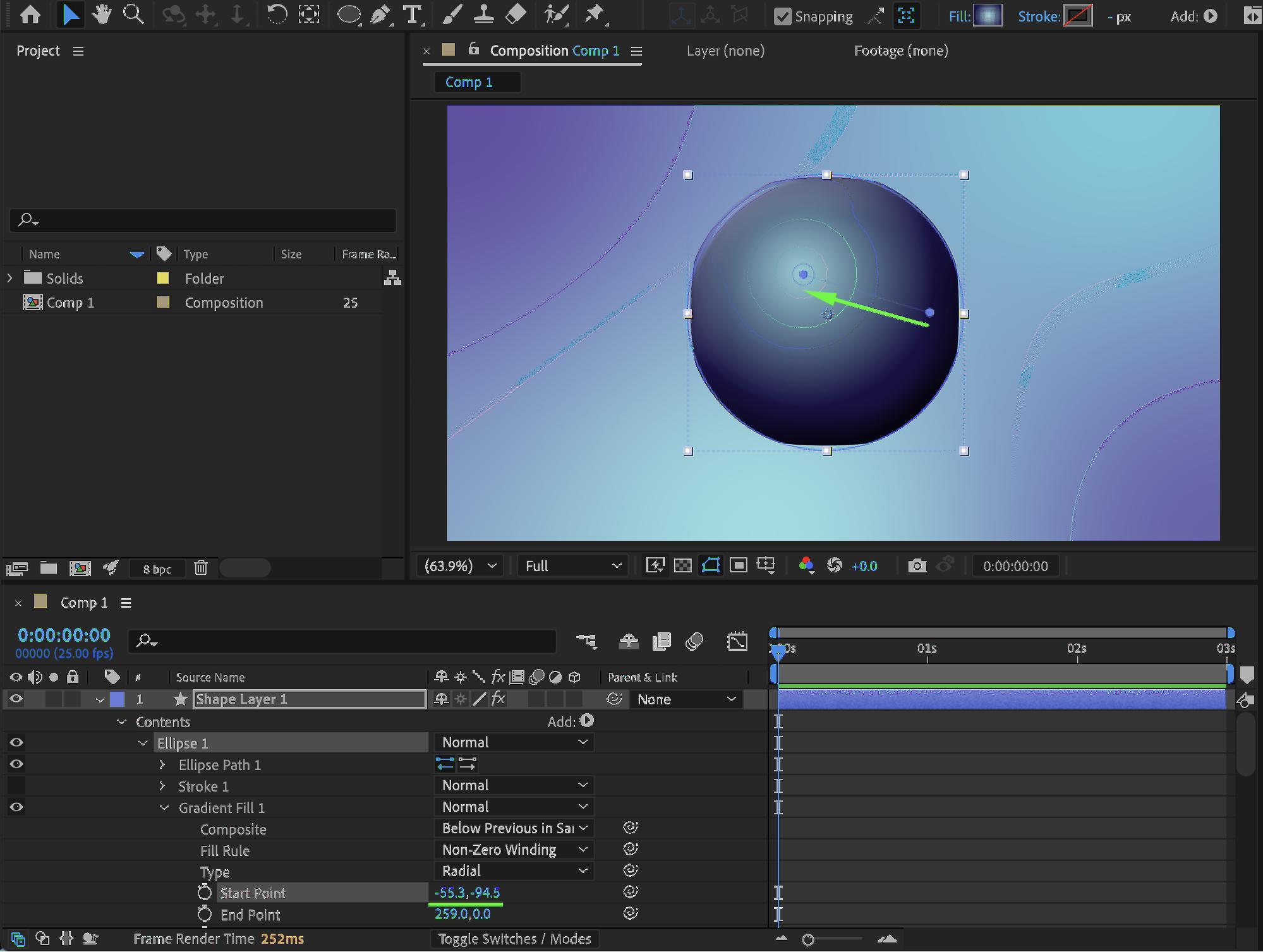
Preview the Result
Move the gradient control points and preview your composition to confirm the gradient behaves as expected.
Conclusion
Showing gradient controls in After Effects allows you to precisely control gradient position, direction, and blending. By selecting the correct layer and activating the gradient effect or shape properties, you can manipulate gradients directly in the Composition panel, making your workflow faster, clearer, and more accurate.
Our Bestsellers

