Introduction
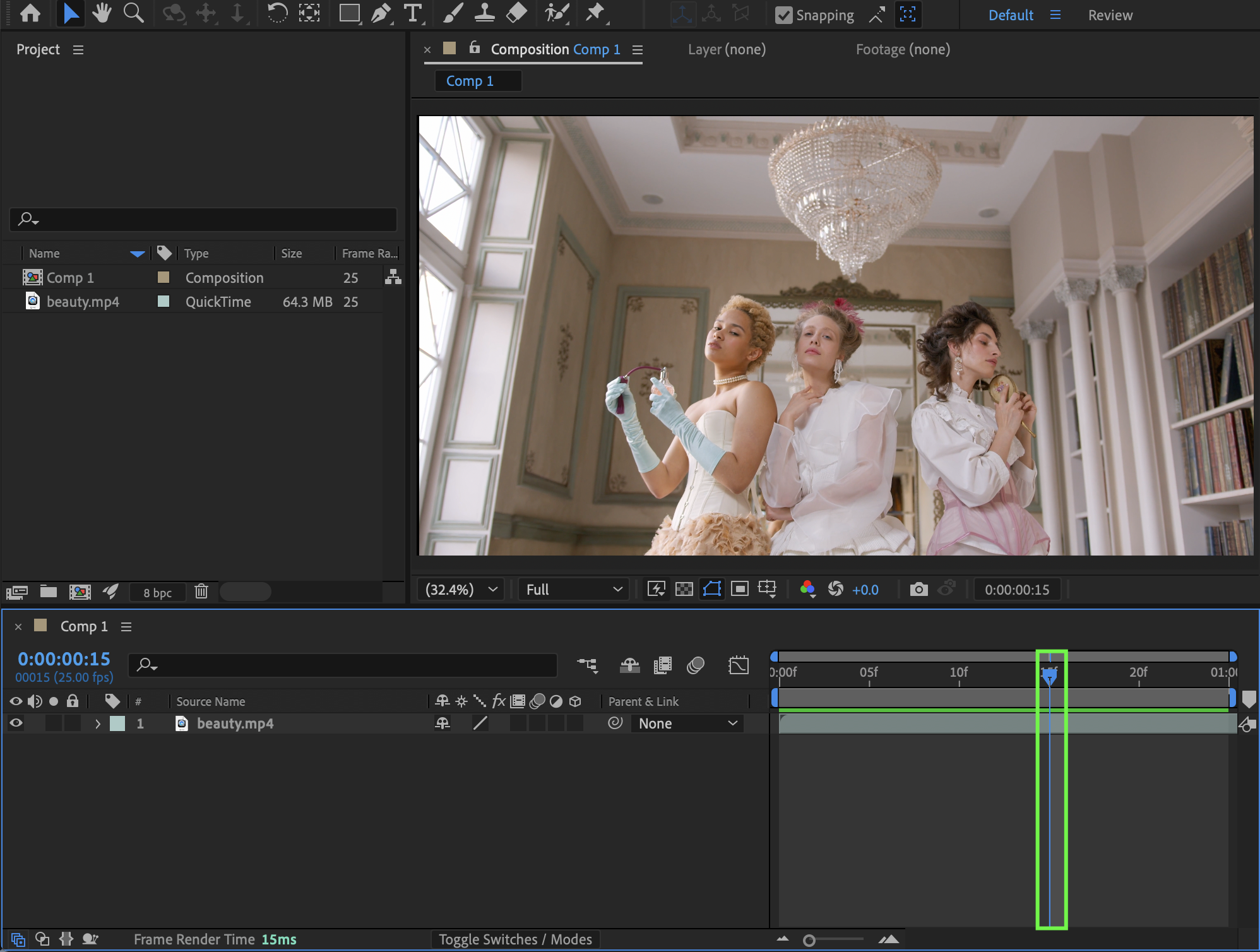
Precise timeline navigation is essential when working with animations, transitions, and keyframes in After Effects. Sometimes you need to move the playhead forward by an exact number of frames — such as 15 frames — to place keyframes or fine-tune timing. Below are two reliable methods to do this quickly and accurately.
Method 1: Move Forward Frame by Frame Using Keyboard Shortcuts
This method is useful when you want manual, frame-accurate control. To move the playhead one frame forward:
Press Ctrl + Right Arrow (Windows) or Cmd + Right Arrow (macOS)
Repeat this shortcut 15 times to move exactly 15 frames ahead.
To move one frame backward: Press Ctrl + Left Arrow (Windows) or Cmd + Left Arrow (macOS)
Get 10% off when you subscribe to our newsletter

Method 2: Jump Ahead by Entering a Timecode Value
This method is faster when you need to move to a precise frame position instantly.
Click the timecode display in the Timeline panel
Enter the desired timecode value, for example: 0:00:00:15 (if the current time is 0:00:00:00)
Press Enter
The playhead will jump directly to frame 15.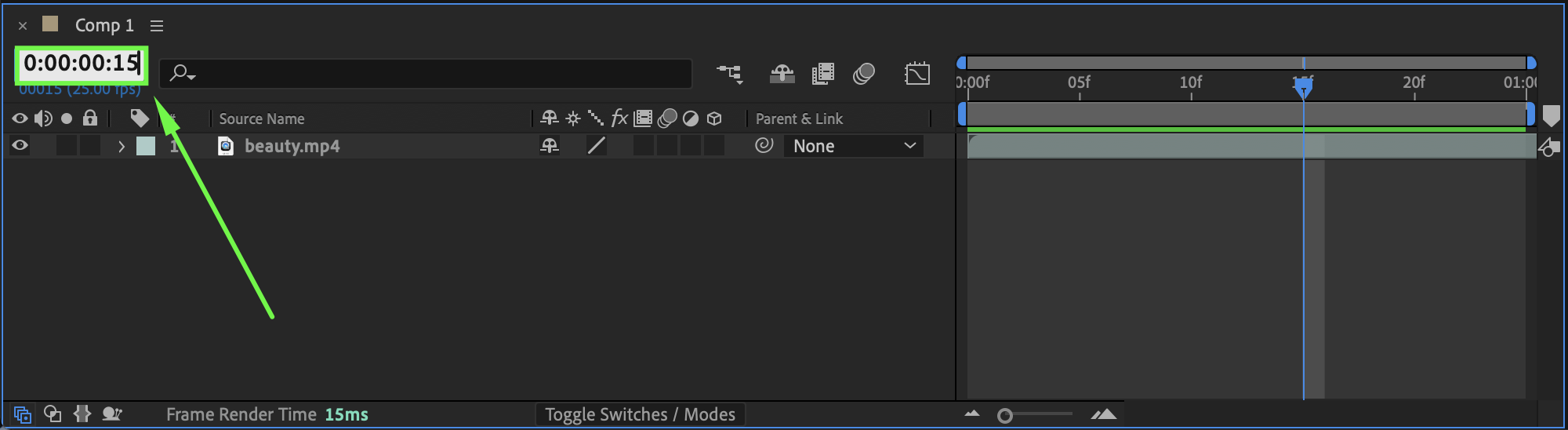
When to Use These Techniques
Skipping ahead by a specific number of frames is especially useful when:
Animating transitions
Placing keyframes at exact intervals
Matching motion to music beats
Working with frame-based animations
Conclusion
By using frame-by-frame keyboard shortcuts or direct timecode input, you can quickly and accurately skip ahead 15 frames in After Effects. These simple navigation techniques help you work faster, maintain precise timing, and keep full control over your animations.
Our Bestsellers


