Introduction
Slicing a clip into multiple parts is a popular technique for split-screen animations, stylized transitions, and dynamic motion graphics. In this tutorial, you’ll learn how to divide a single video into multiple vertical slices using solids, track mattes, and smooth animation in After Effects.
Step 1: Import Your Footage
Go to File → Import → File and import your video into the Project panel.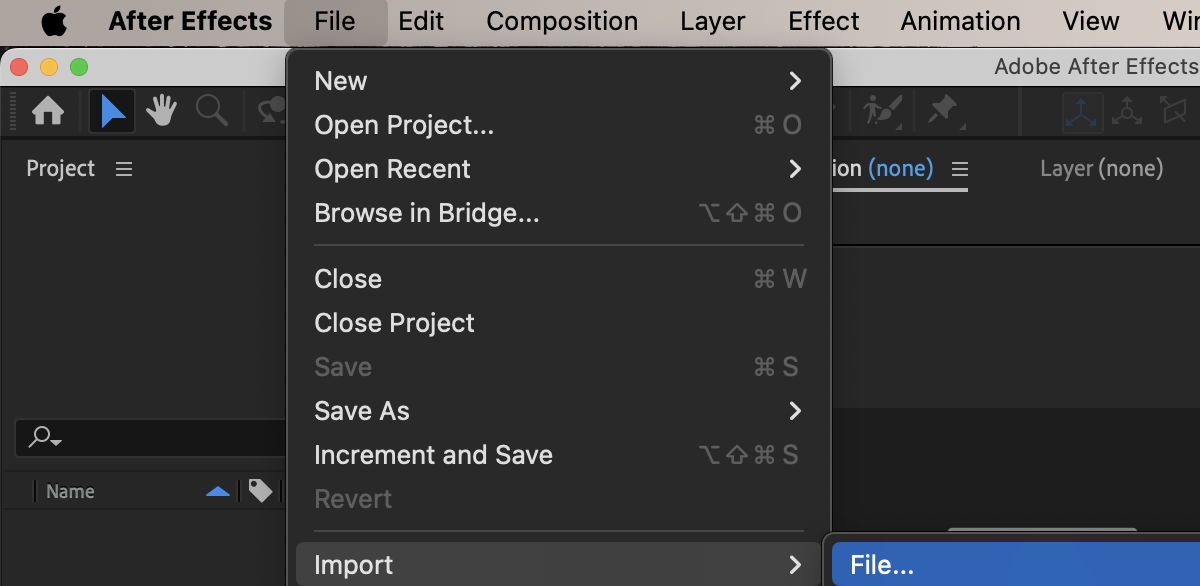 Step 2: Create a New Composition
Create a new composition that matches your video settings (for example, 4096 × 2160).
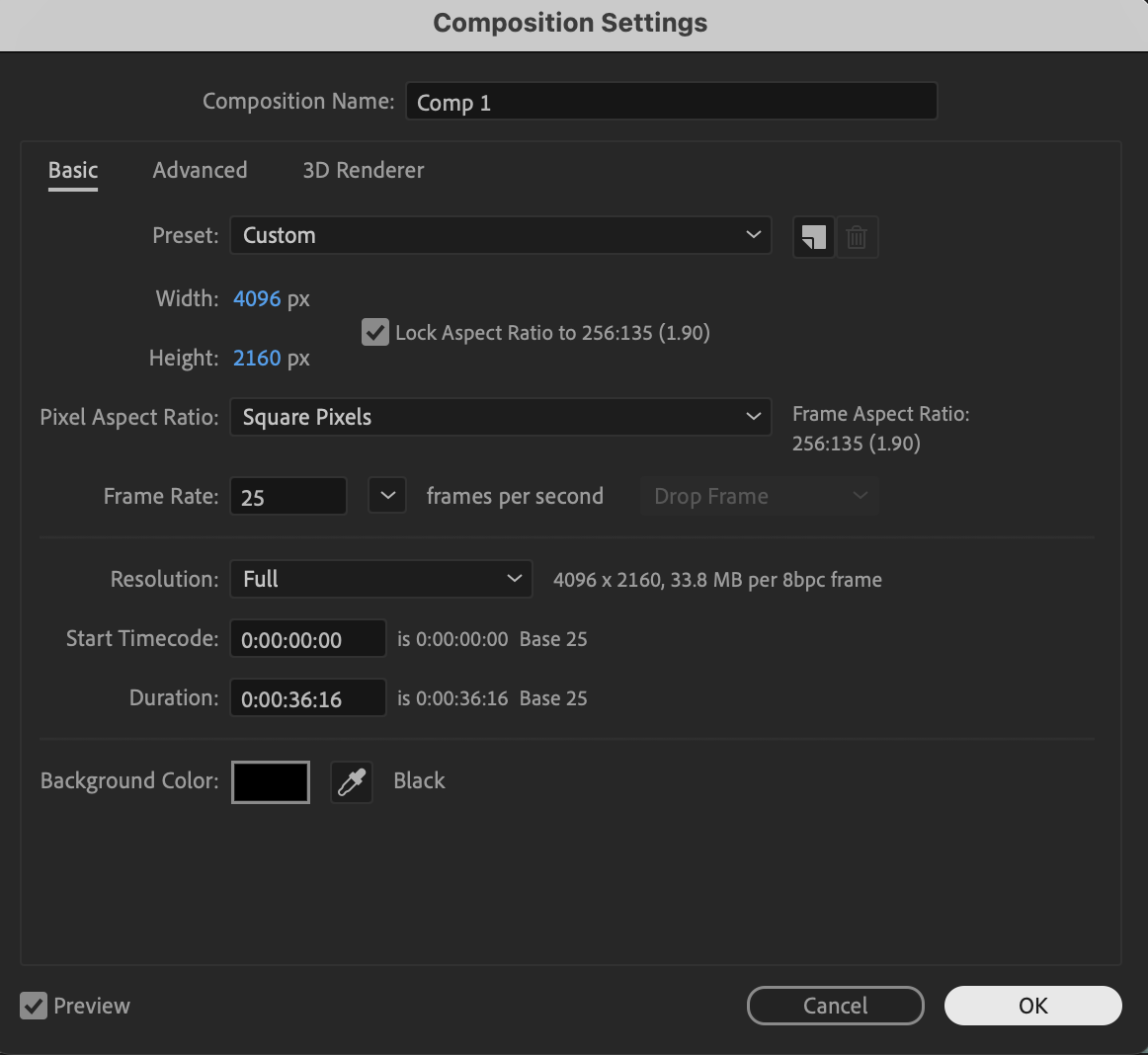 Step 3: Create Solid Masks for Slicing
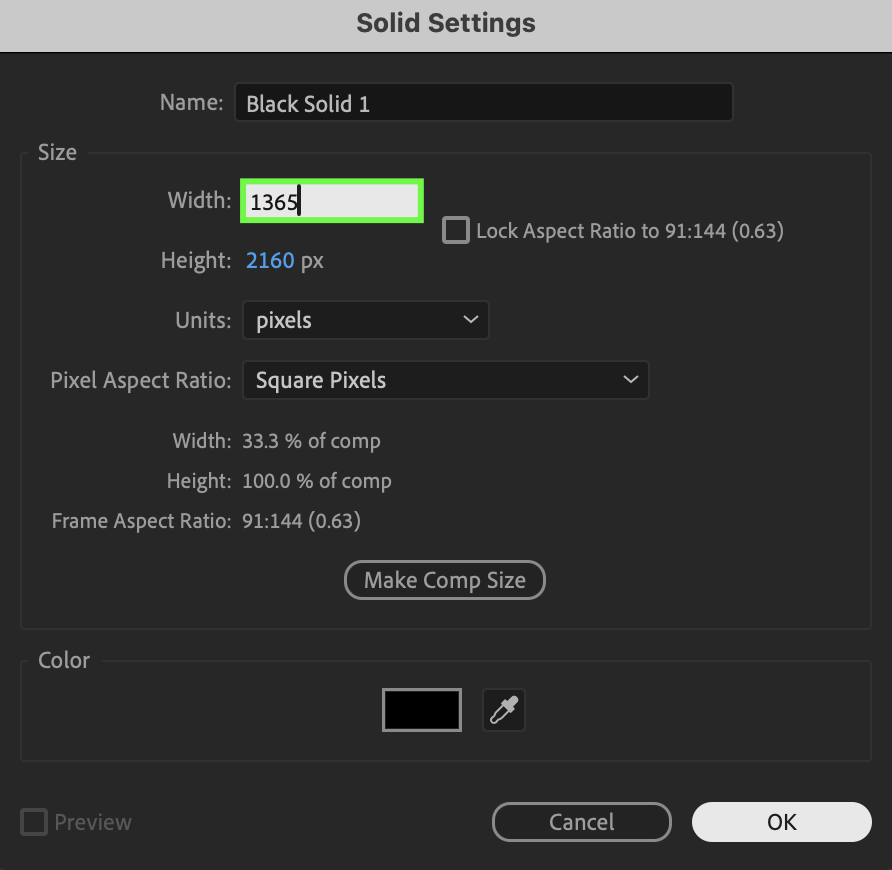
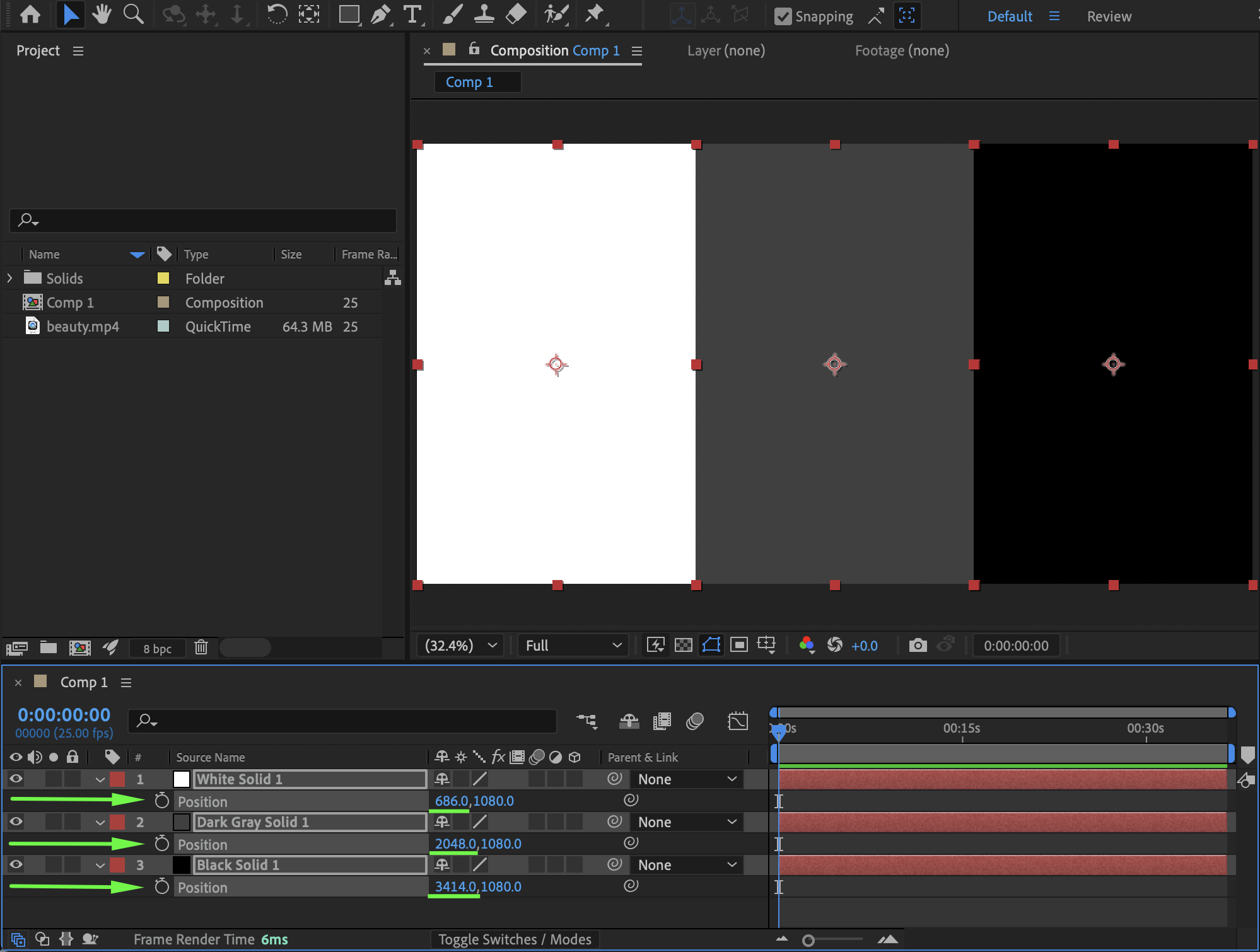
Go to Layer → New → Solid and create three (or more) solids. Each solid should be the same size and together fully cover the composition. Example for a 4096 × 2160 video sliced into 3 vertical sections:
Solid width: 1365 px
Solid height: 2160 px
Position the solids side by side so they completely cover the composition frame.

Get 10% off when you subscribe to our newsletter

Step 4: Duplicate the Video Layer
Based on the number of solids, place the same video above each solid:
Drag the same video from the Project panel onto the timeline three times
Each video layer should be positioned above its corresponding solid 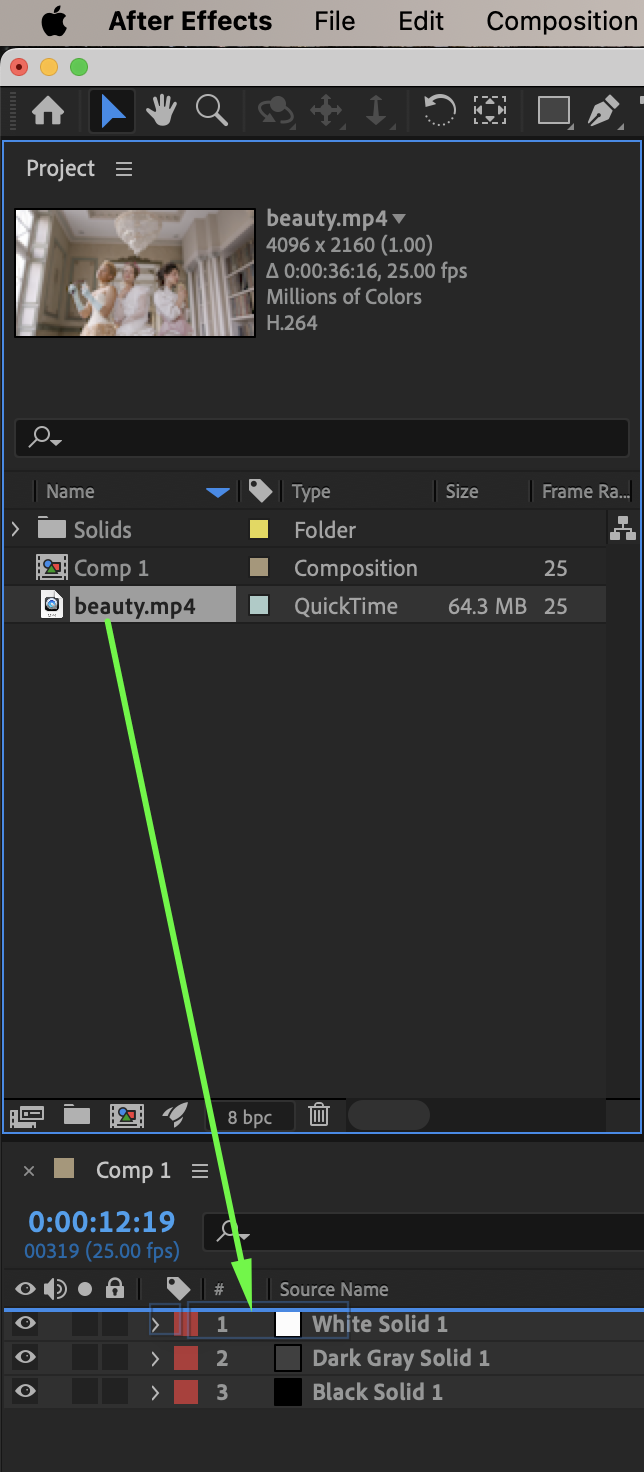 Step 5: Set Track Mattes
In the Track Matte column:
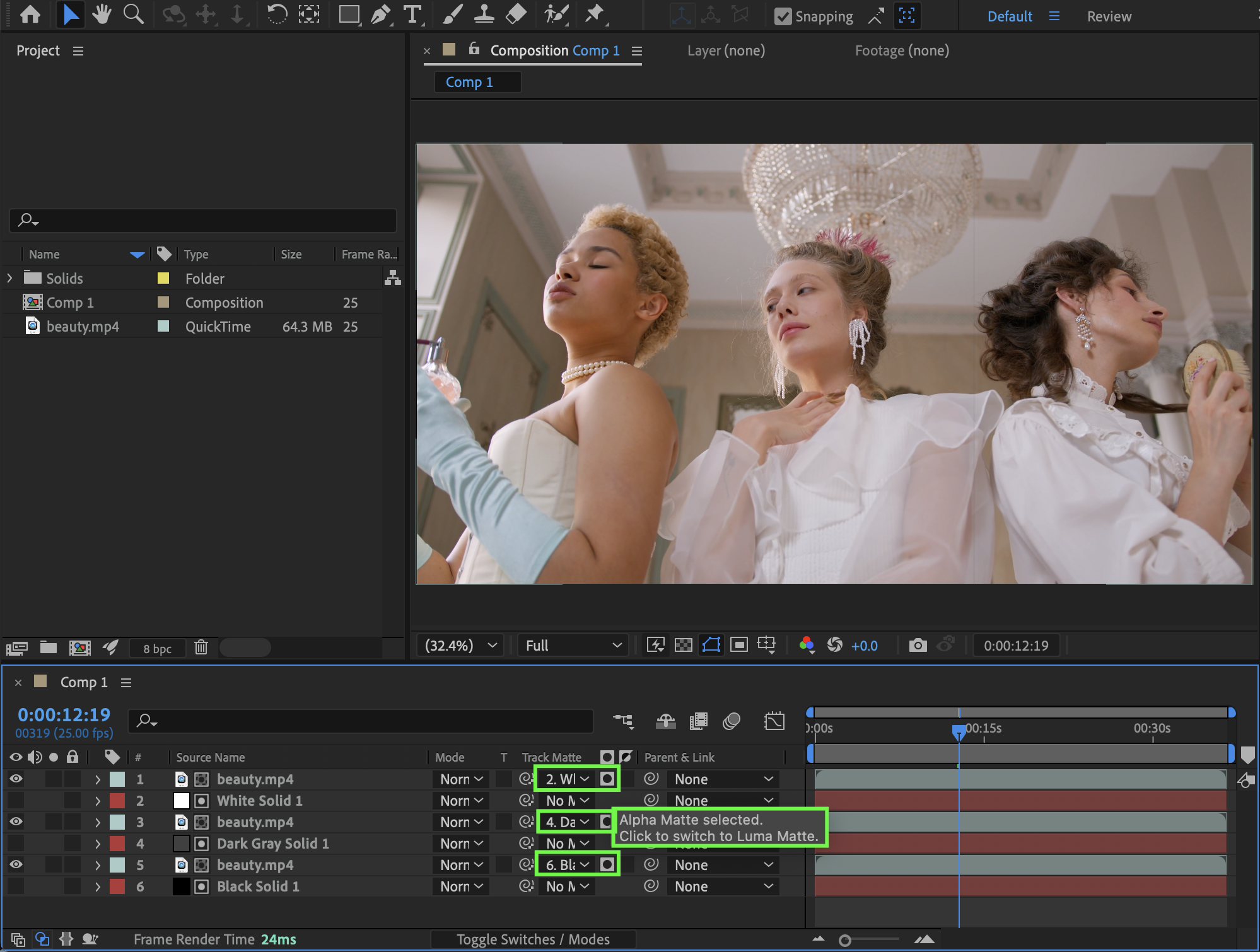
Assign each video layer to its corresponding solid
For each video layer, choose Alpha Matte
Each video layer will now be visible only inside its slice.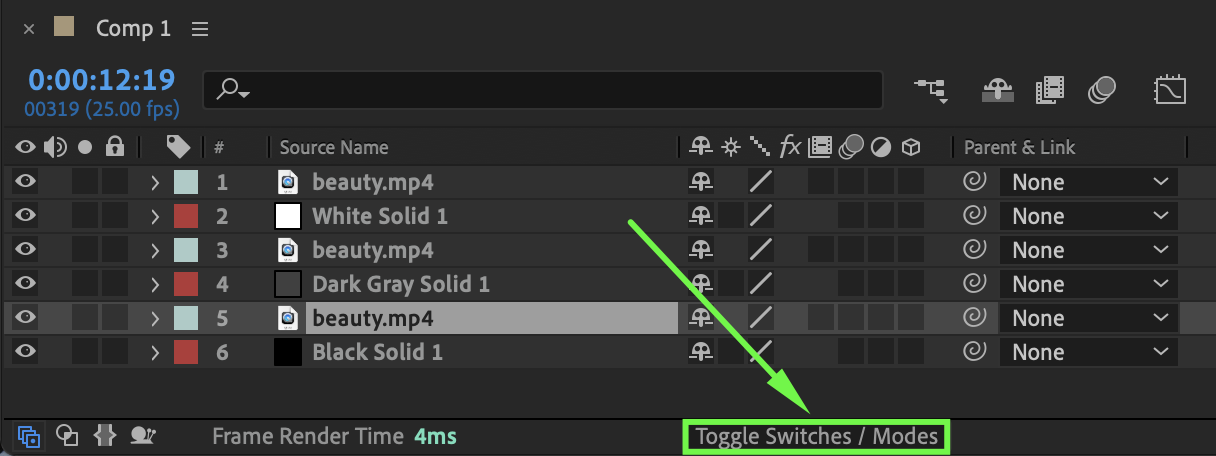
Step 6: Animate the Slice Movement
Animate the Position of the solids:
Move the playhead to the start of the composition
Enable the Position stopwatch for each solid
Keep the initial position unchanged
Move the playhead to the middle of the composition
Animate the solids moving apart in different directions, creating a slicing effect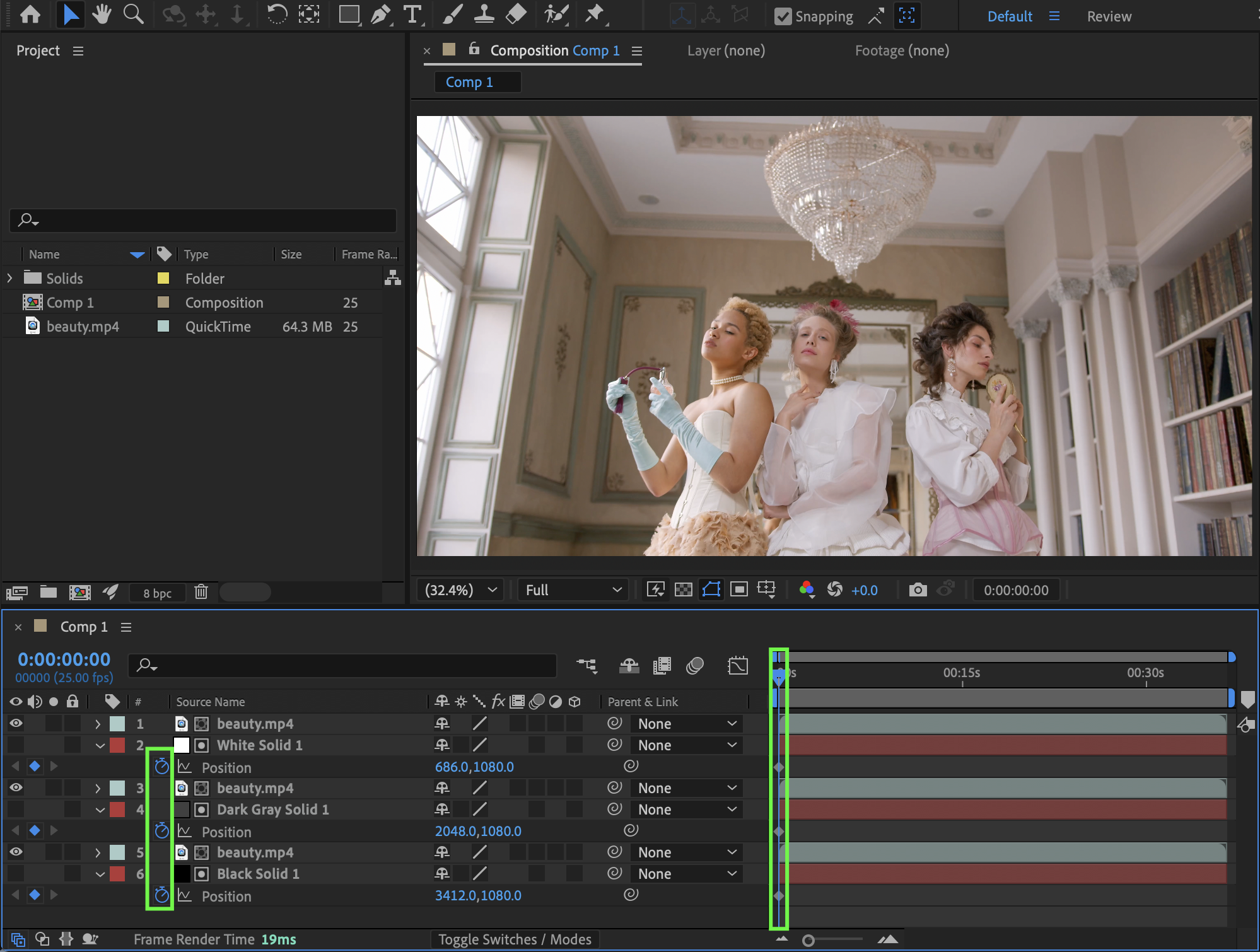
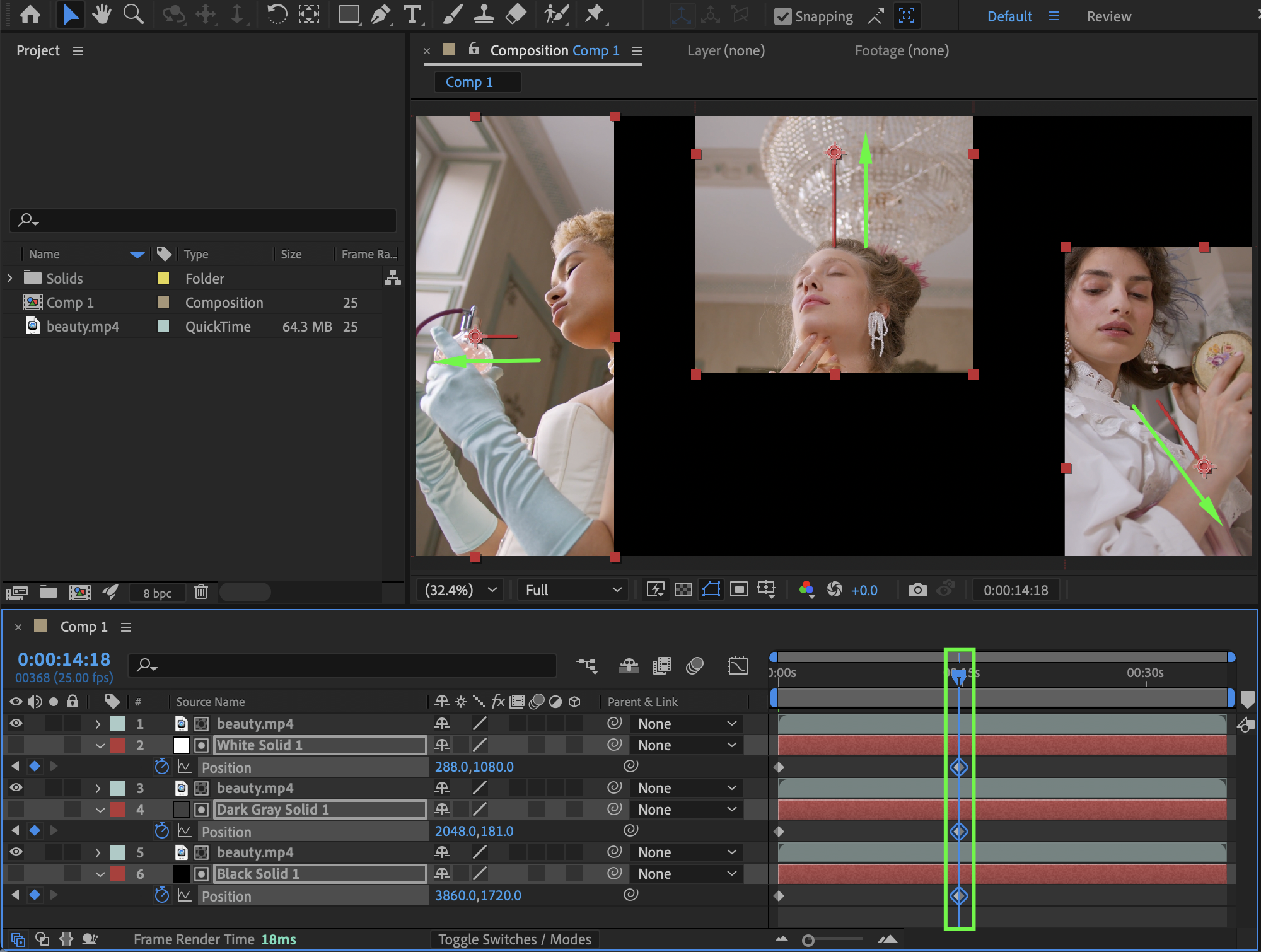 Step 7: Smooth the Animation
Select all position keyframes. Apply Easy Ease and fine-tune the motion using the Graph Editor for smoother movement.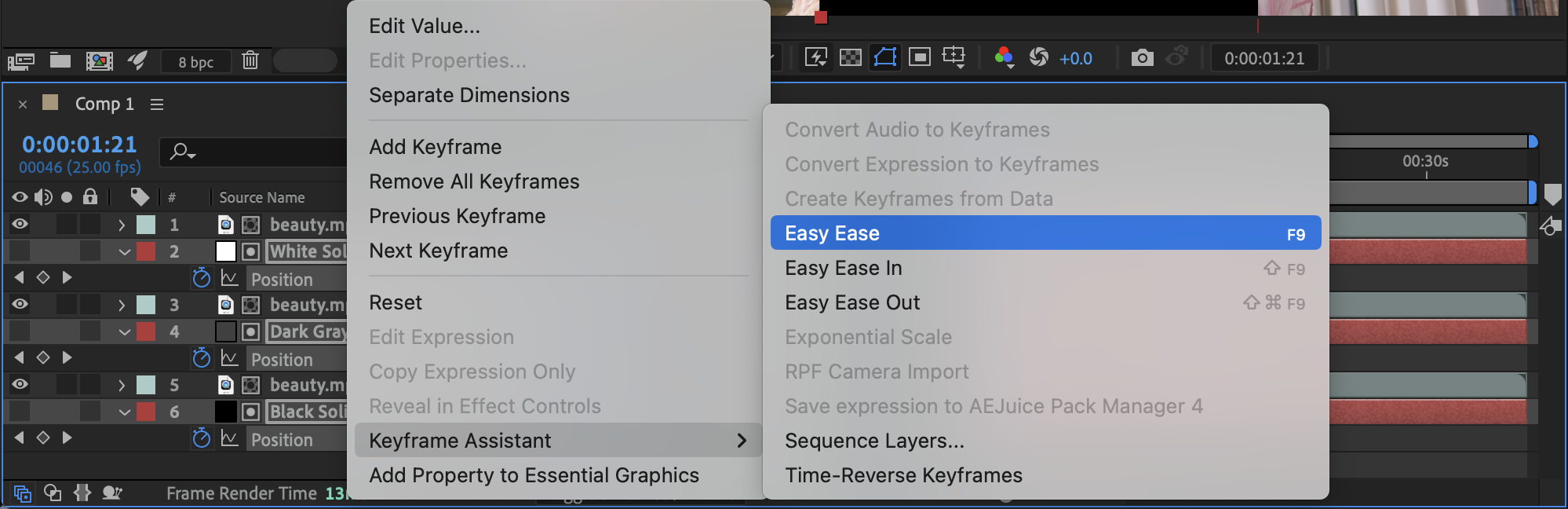
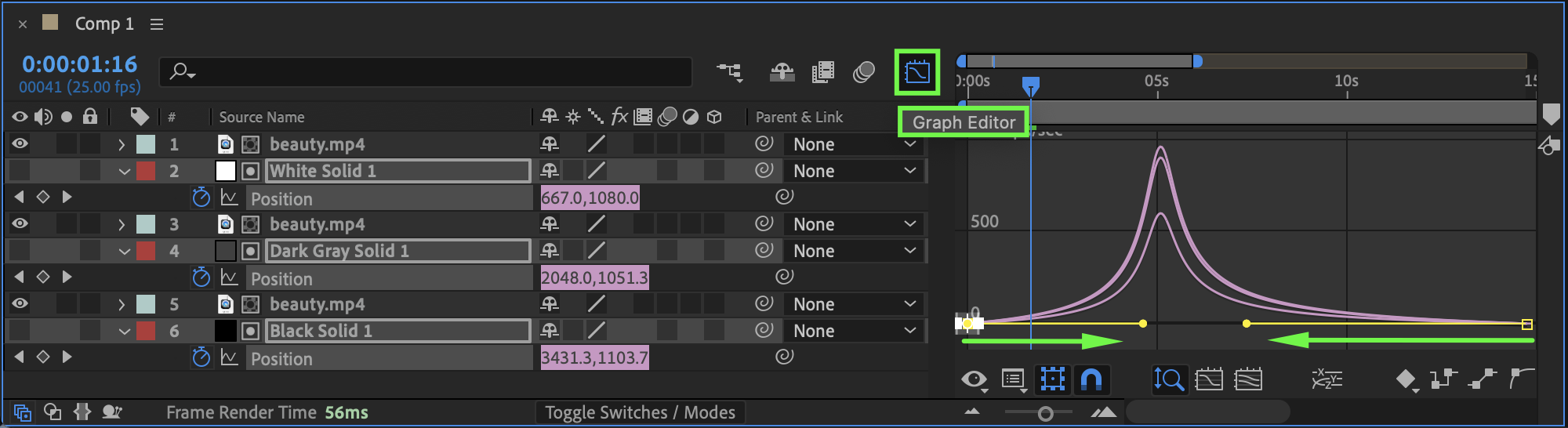 Step 8: Preview the Composition
Preview the composition and adjust spacing, timing, or easing until the slice animation feels clean and dynamic.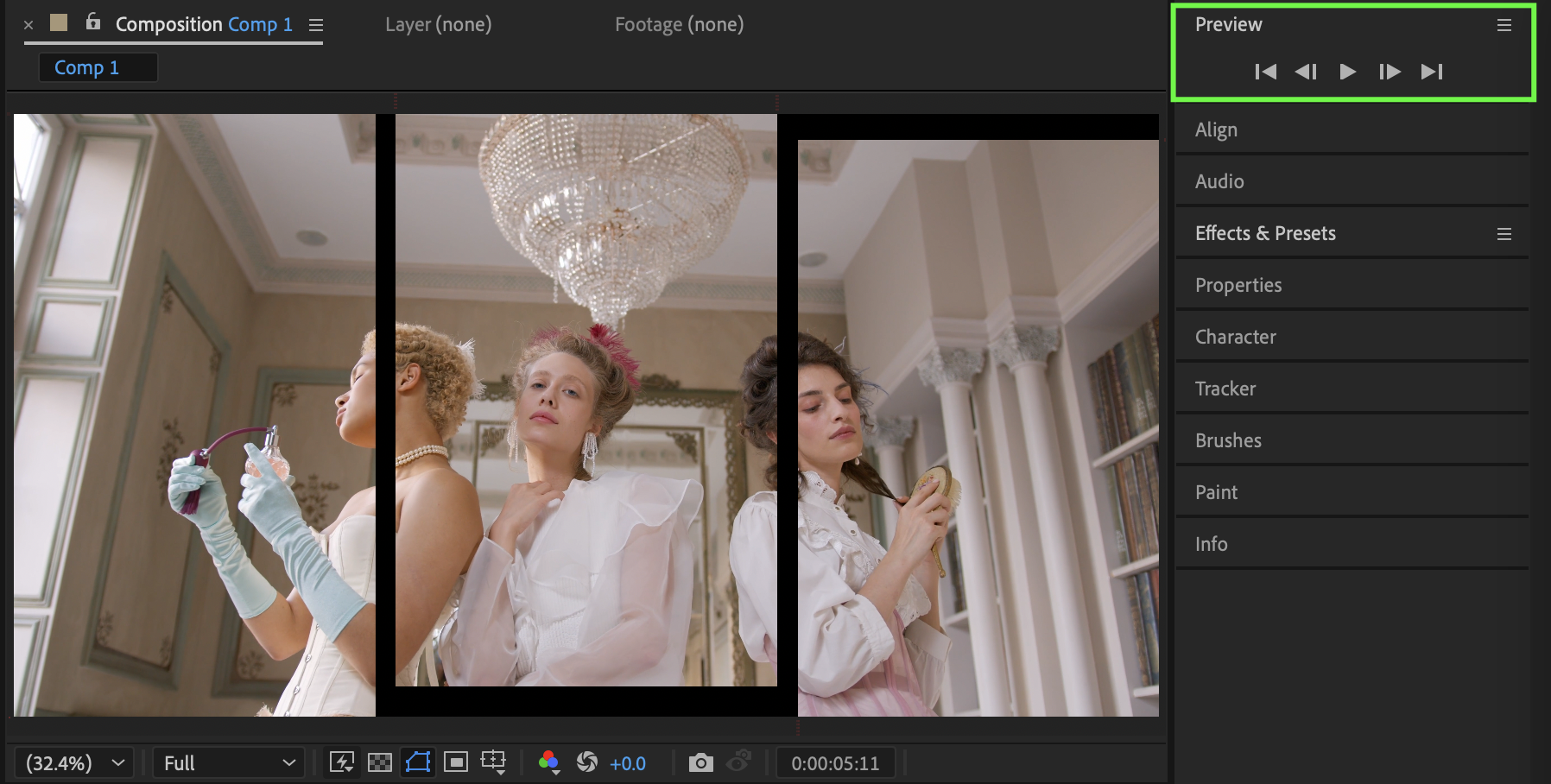
Conclusion
By using solids as track mattes, you can easily slice a single clip into multiple sections and animate them independently. This technique is flexible, resolution-independent, and perfect for creative transitions, split-screen layouts, and modern motion design.
Our Bestsellers


