
Animating Text on a Path in After Effects
Introduction
Typing along a path is a great way to create dynamic, eye-catching text animations in After Effects. This method allows your text to move smoothly along a shape you define, adding flow and style to your projects. In this guide, you will learn how to create a path and animate text along it.
Step 1: Create a New Composition
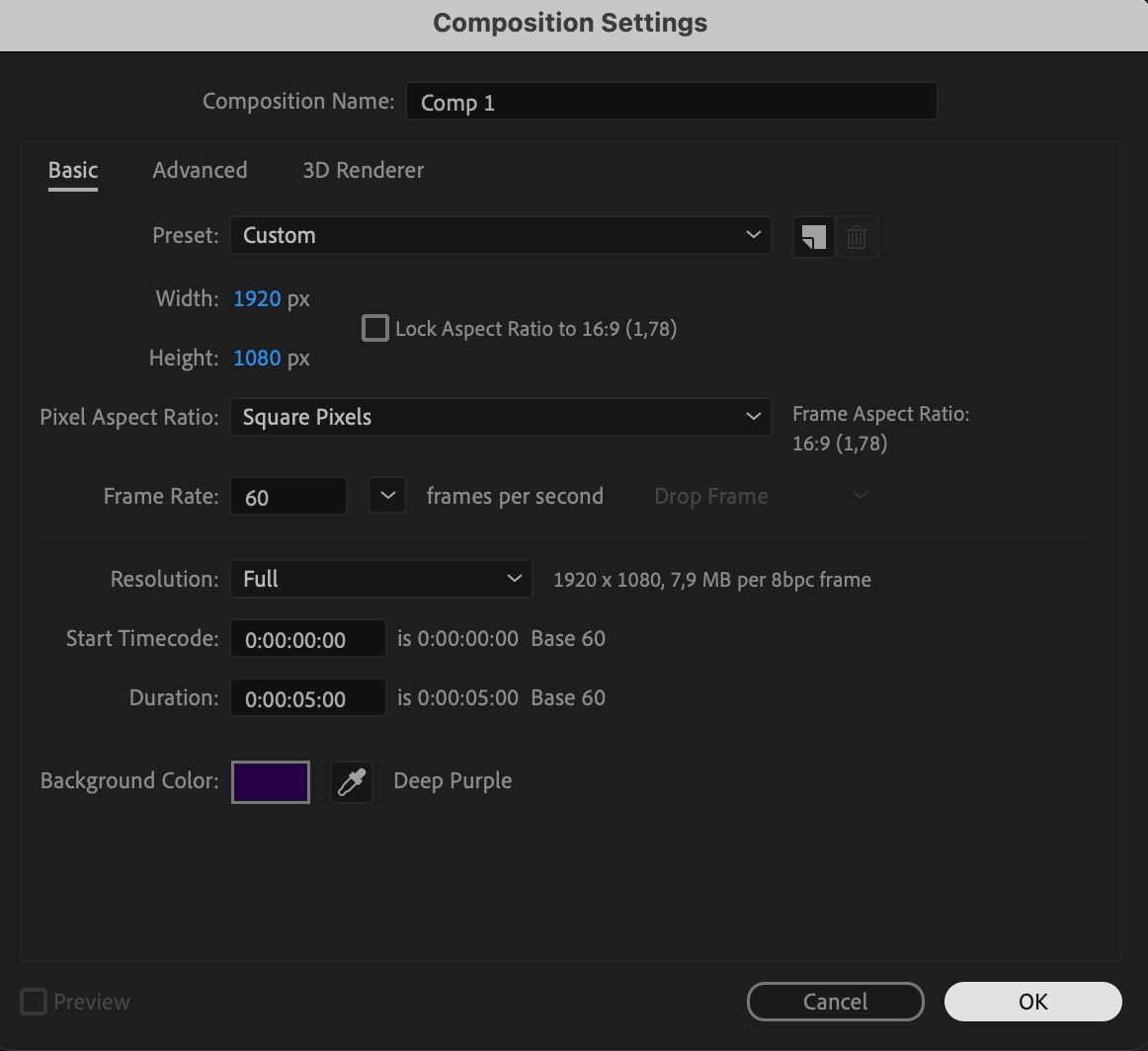
Open After Effects and create a new composition by going to Composition > New Composition. Set your desired resolution, frame rate, and duration to prepare your workspace.
 Step 2: Add a Text Layer
Create a new text layer by selecting the Text Tool (Ctrl/Cmd + T) and typing the text you want to animate. Customize the font, size, and color to fit your design.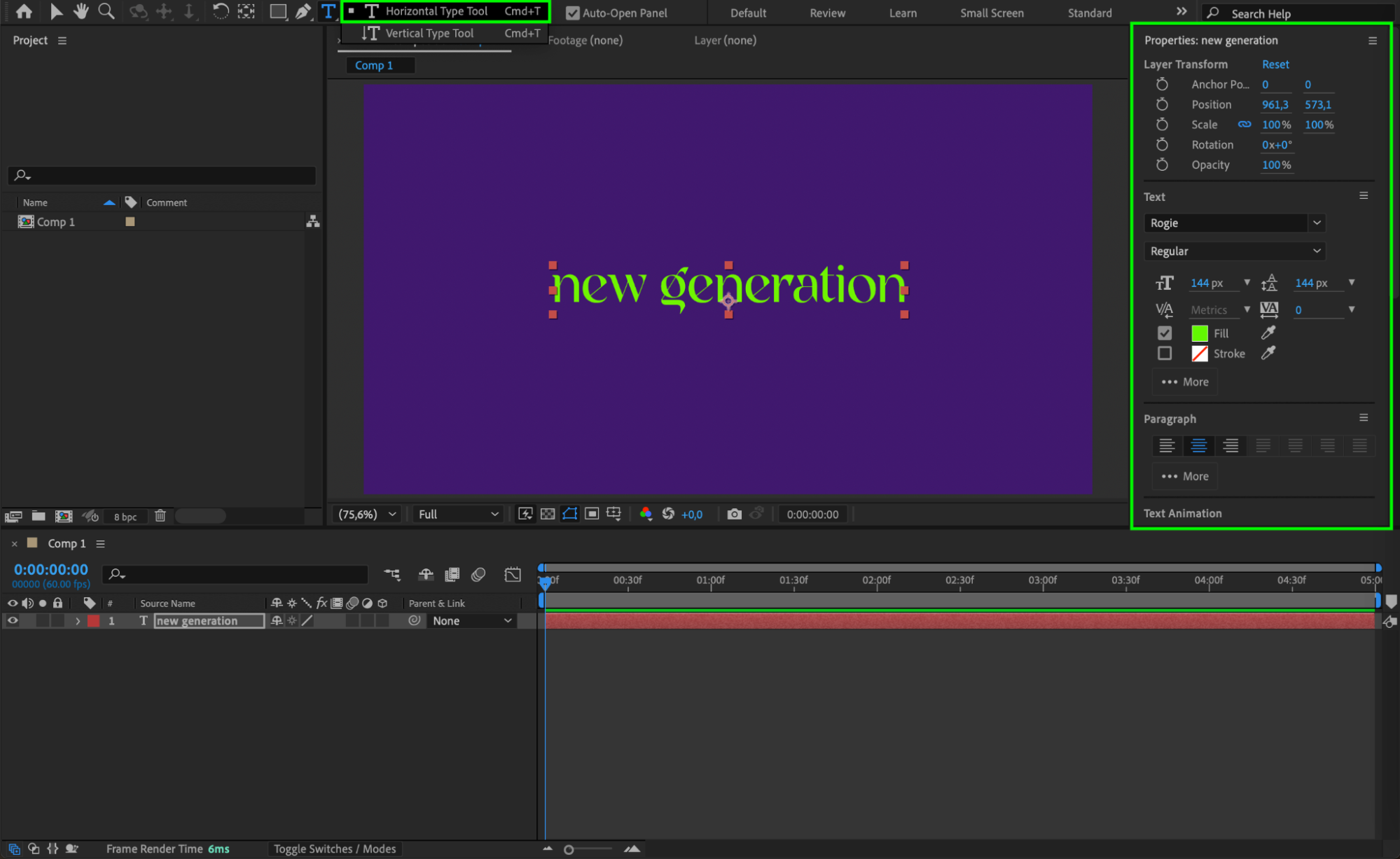
Step 3: Draw a Path Using the Pen Tool
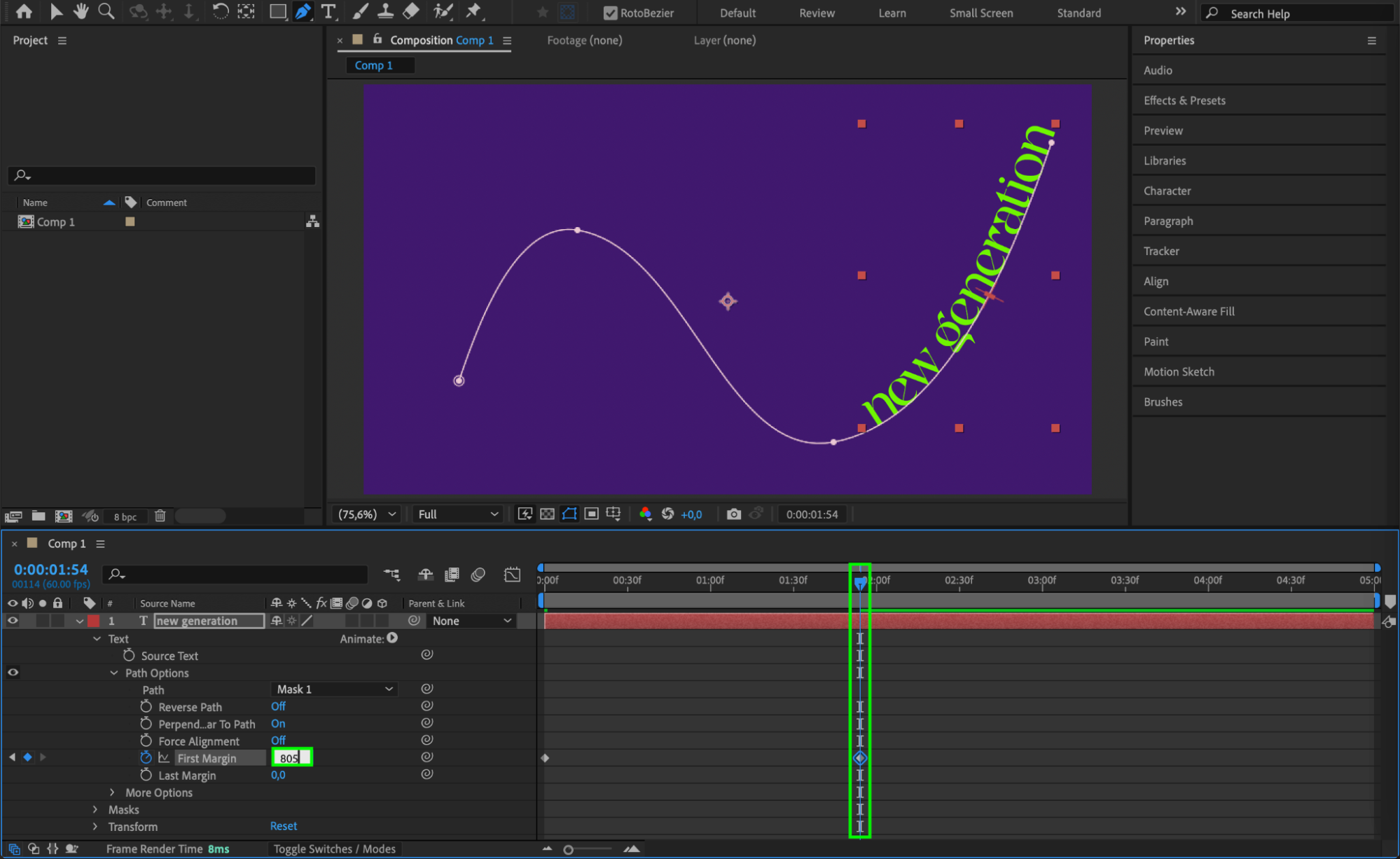
Select the text layer, then pick the Pen Tool (G). Draw a custom mask path directly on the text layer. This path will be the route your text will follow.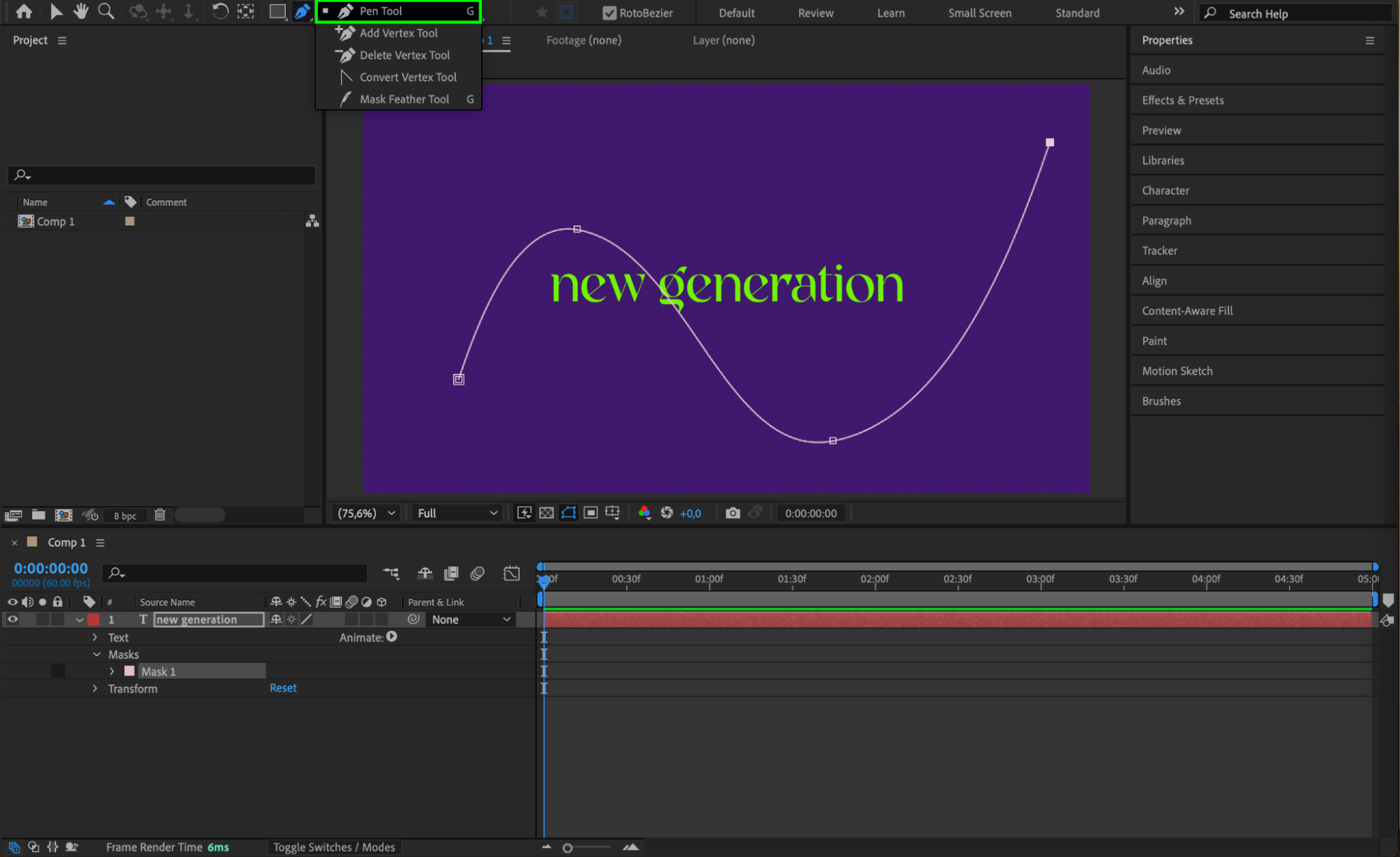 Step 4: Animate the Text Along the Path
Expand the text layer properties, go to Text > Path Options, and set the Path to Mask 1. Then animate the First Margin property. Set it so the text starts at the beginning of the path. Move the CTI (Current Time Indicator) forward in time and change the First Margin value so the text moves along and reaches the end of the path.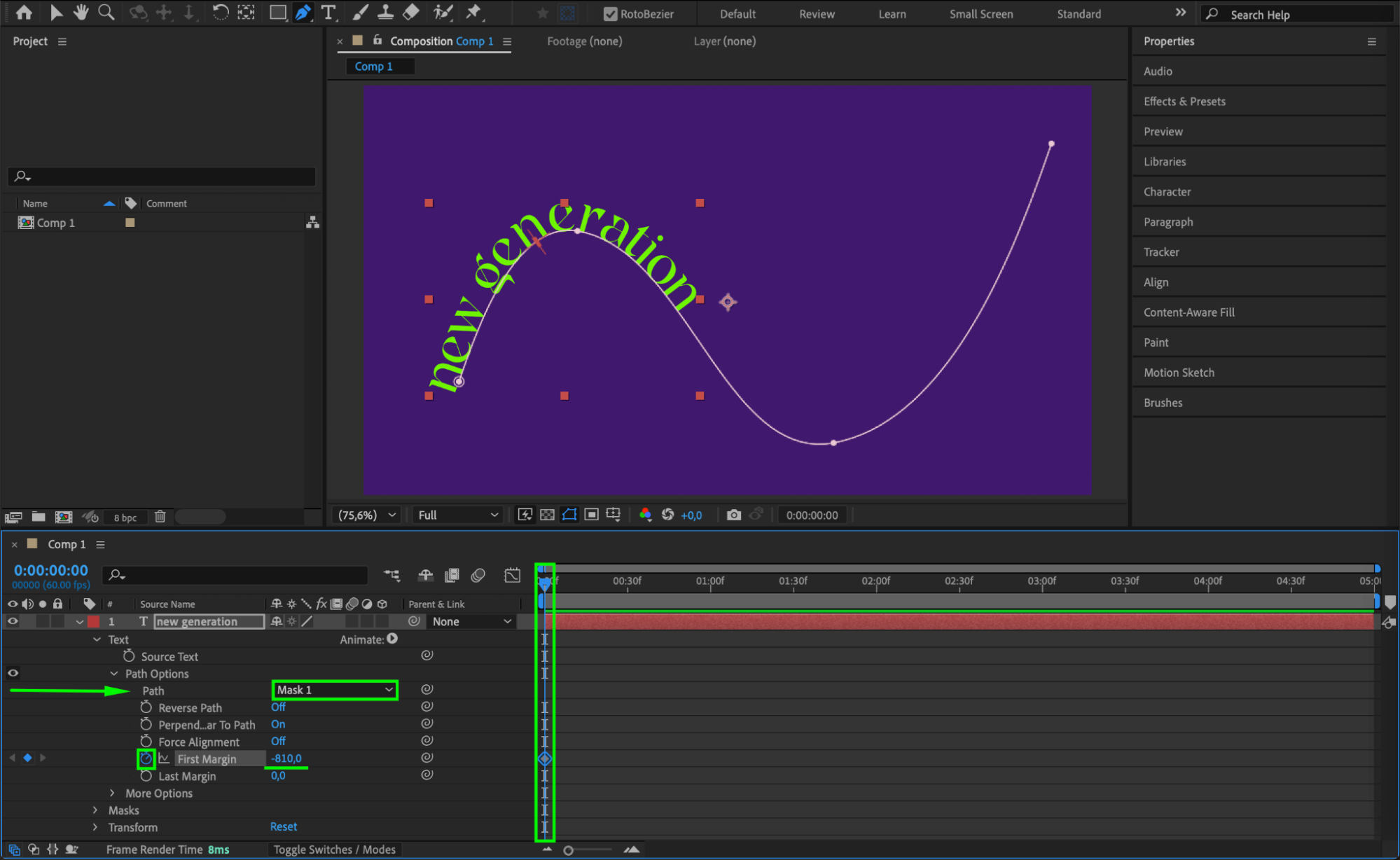
 Step 5: Enable Motion Blur
Activate Motion Blur for the text layer by clicking the motion blur switch next to the layer and enabling it in the timeline panel. This will add a more natural and smooth feel to the text movement.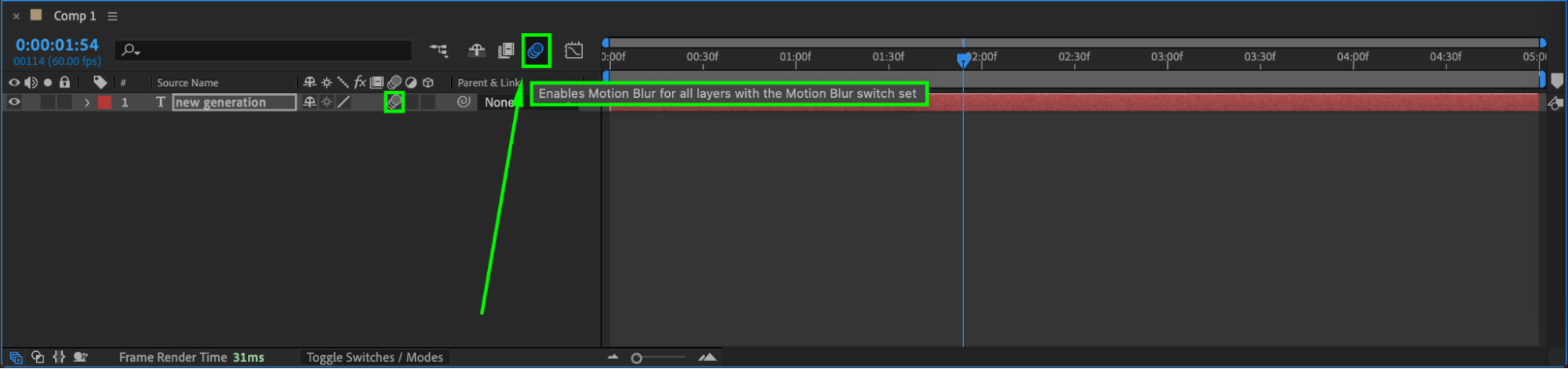
Step 6: Customize the Path with a Stroke Effect
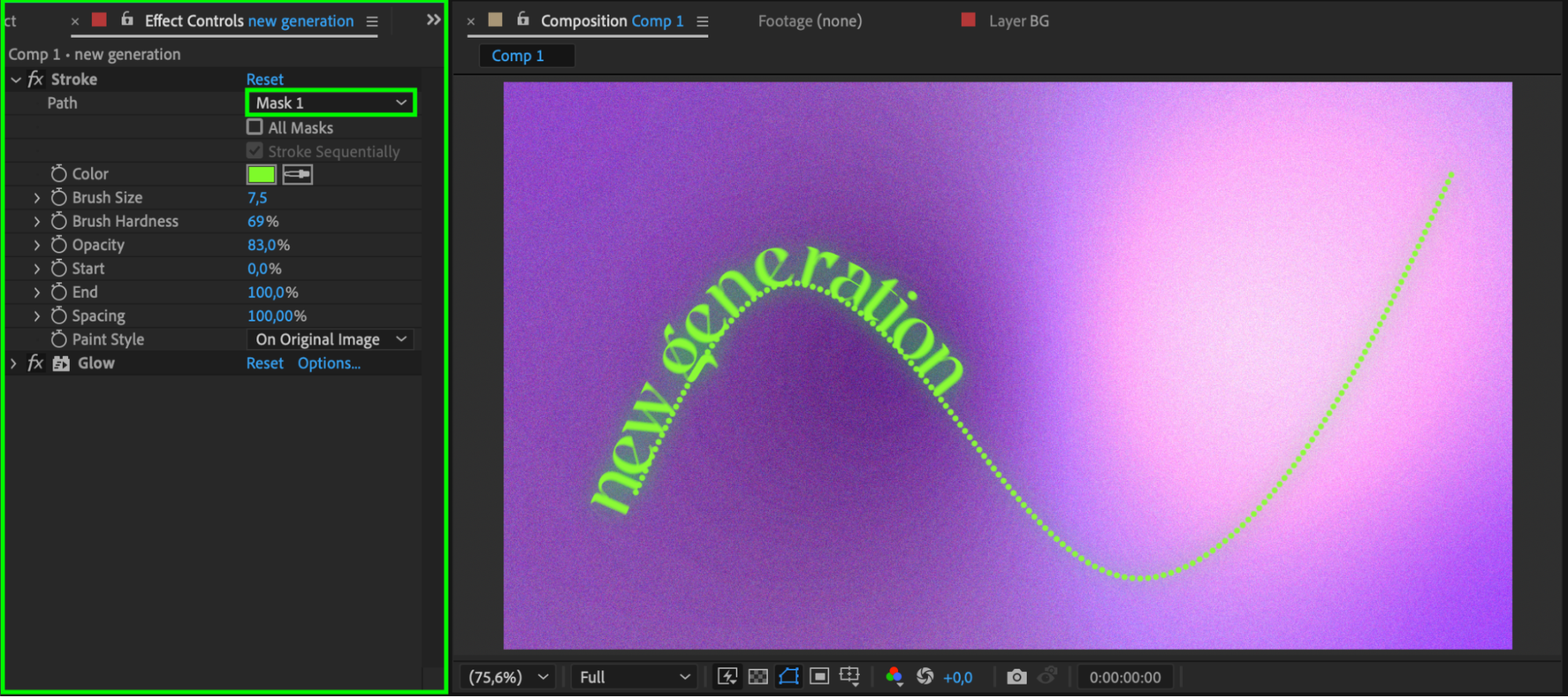
Apply the Stroke effect from the Effects & Presets panel onto the text layer. Use it to stylize the path itself by adjusting the stroke color, thickness, and other settings. This makes the path visible and adds more style to the animation.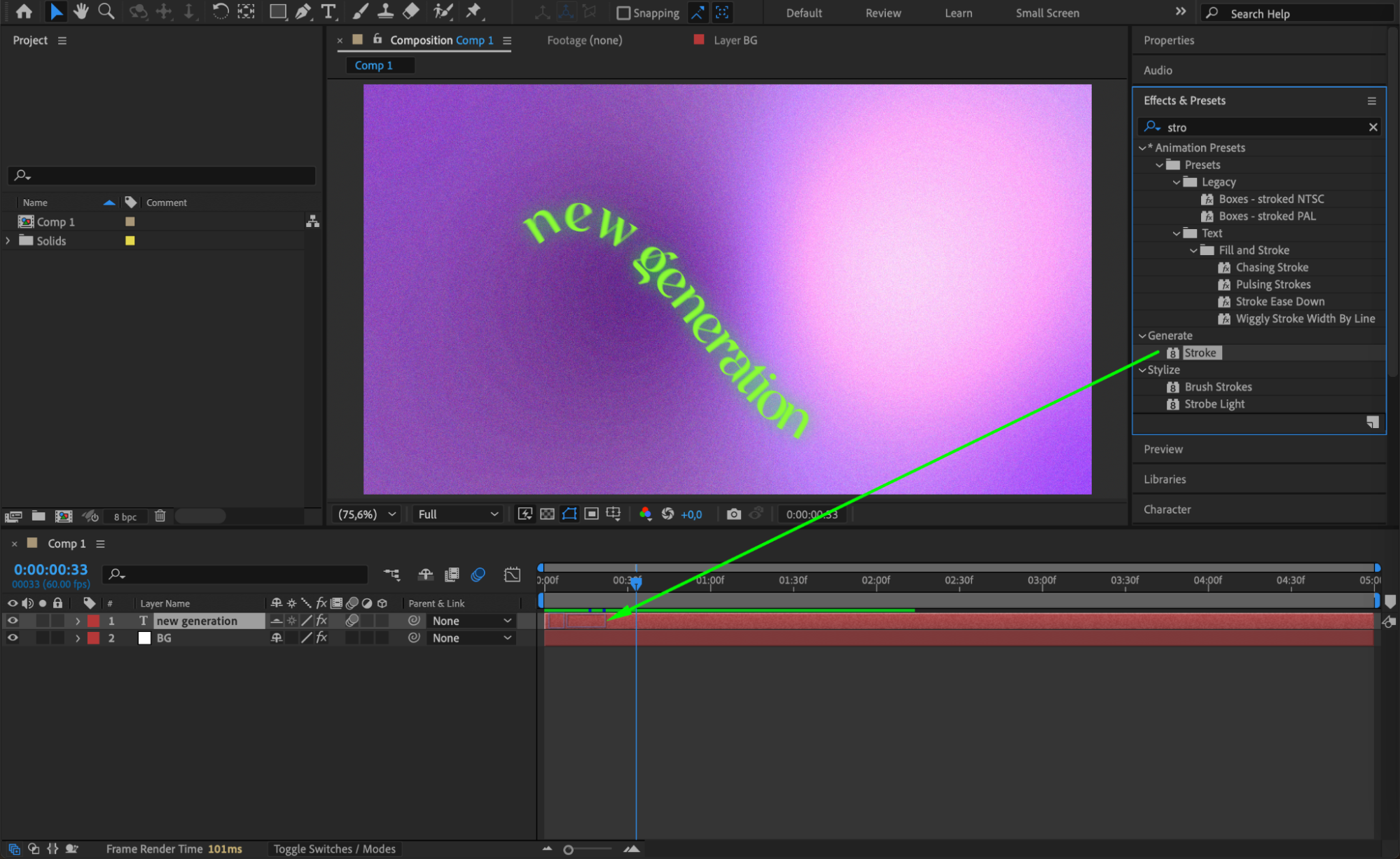
 Step 7: Preview and Final Adjustments
Press the spacebar to preview the animation. Adjust the animation speed, path shape, stroke settings, or motion blur if needed. Fine-tune everything until you are happy with the result.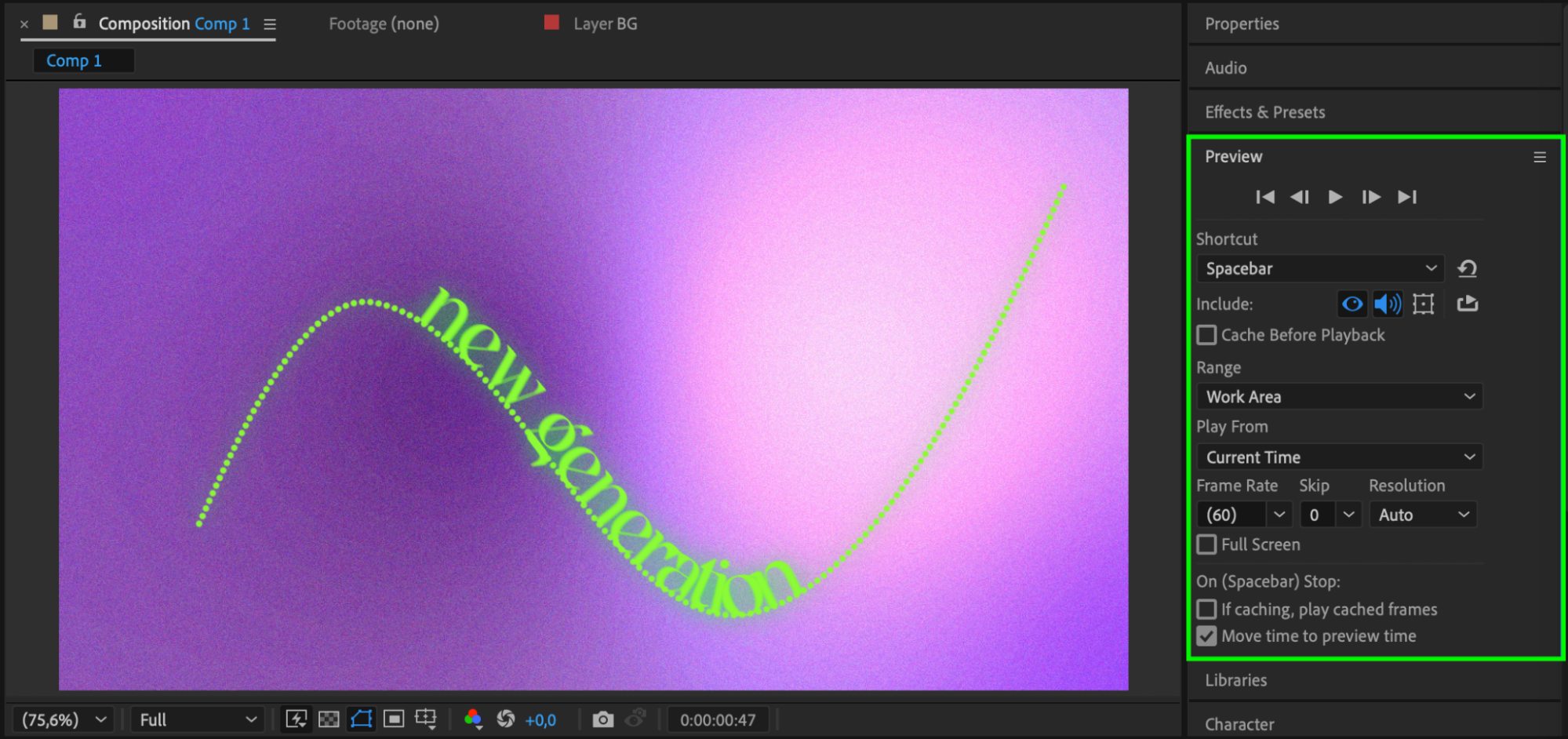 Conclusion
Typing along a path in After Effects is a simple yet powerful way to create flowing, animated text. With just a text layer, a custom mask, and a few keyframes, you can add professional motion to any design.
Our Bestsellers
Our Bestsellers


