
Learn how to add animated backgrounds to your video projects using AEJuice’s customizable background loops in After Effects.
Adding Animated Backgrounds in After Effects with AEJuice Templates
Introduction to Animated Background Loops for Video Editors
Animated backgrounds are a simple yet powerful way to enhance your video projects. They can add motion, depth, and atmosphere to scenes — whether you’re creating a title sequence, promo video, or social media content. In this animated backgrounds tutorial, we’ll show you how to use the AEJuice Animated Backgrounds Pack, one of the best animated background loop libraries for editors. These templates are easy to import, customize, and blend with your own footage in After Effects.
Step 1: Create a New Composition
Open Adobe After Effects and go to Composition > New Composition. Set the resolution (for example, 1920×1080), frame rate, and duration depending on your project. This new composition will be your main working area where you’ll place the animated background and other elements.
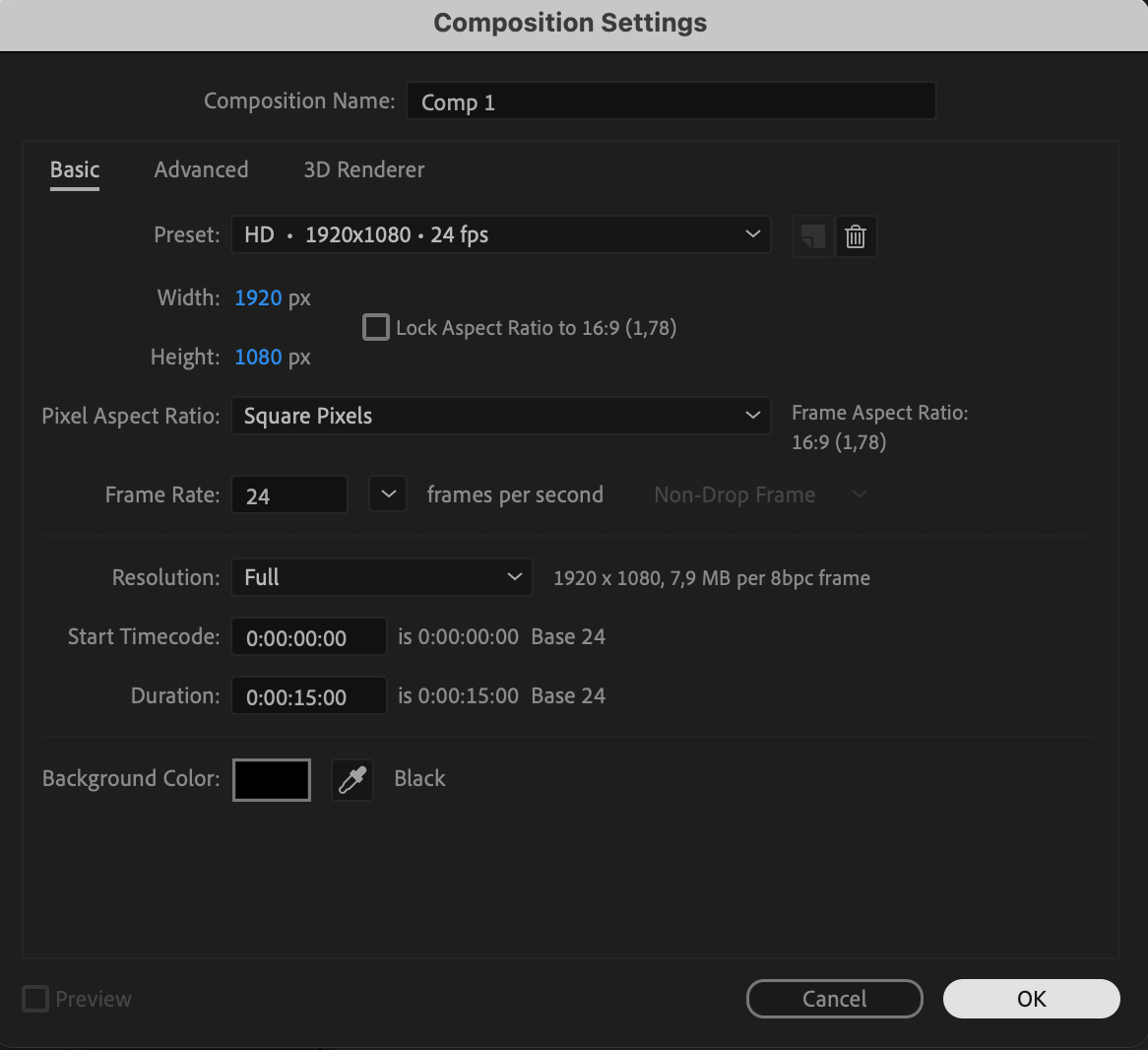 Step 2: Open AEJuice Pack Manager
Go to Window > AEJuice Pack Manager 4 to open the AEJuice panel. This plugin allows you to access all AEJuice packs that are installed on your system. From here, you can preview and import animated assets directly into your composition. Step 3: Download the Animated Backgrounds Pack
Inside the Pack Manager, locate the Animated Backgrounds Pack. If it’s not already installed, click to download it. Once downloaded, you’ll have access to a wide range of animated loops — including gradients, abstract shapes, digital textures, and more.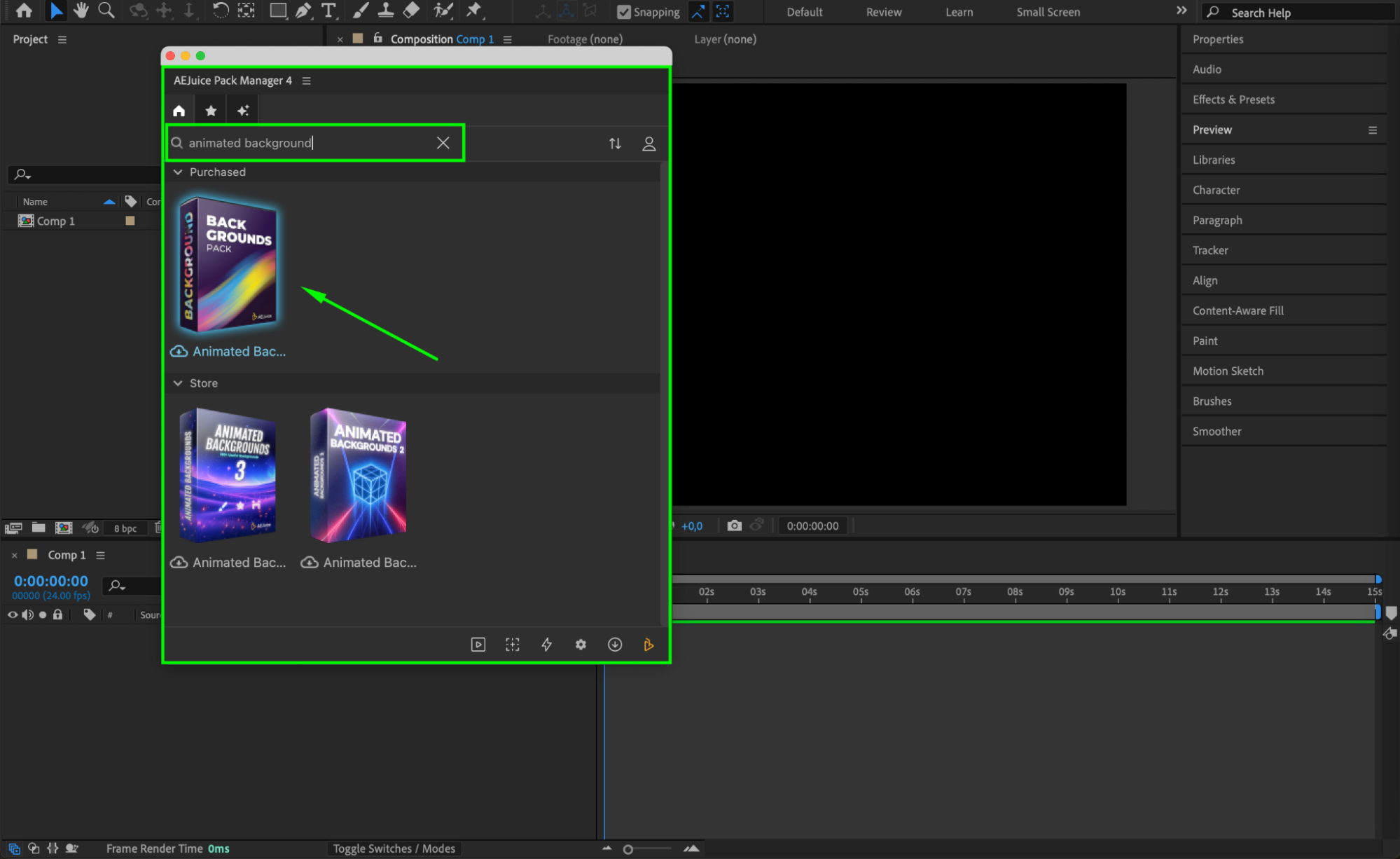
Step 4: Choose and Import a Background Loop
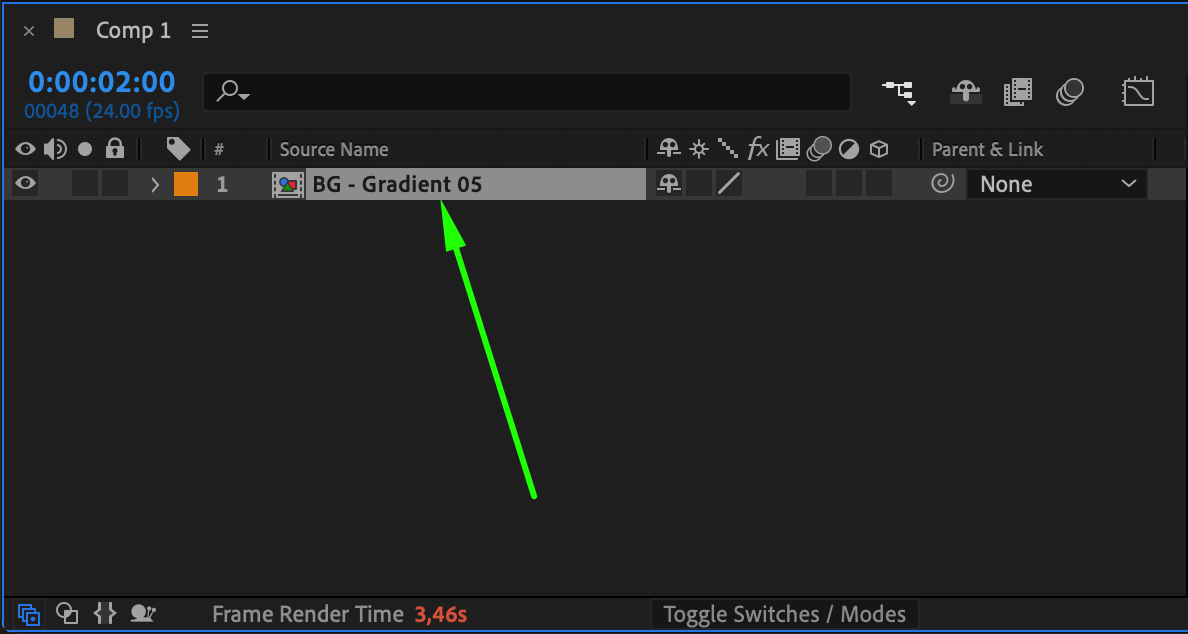
Browse through the available background animations and select one that fits your project’s tone and style. When you find the one you like, click on it and press Import. The background will appear in your timeline as a pre-composition, usually labeled with names like Bg – Gradient 05.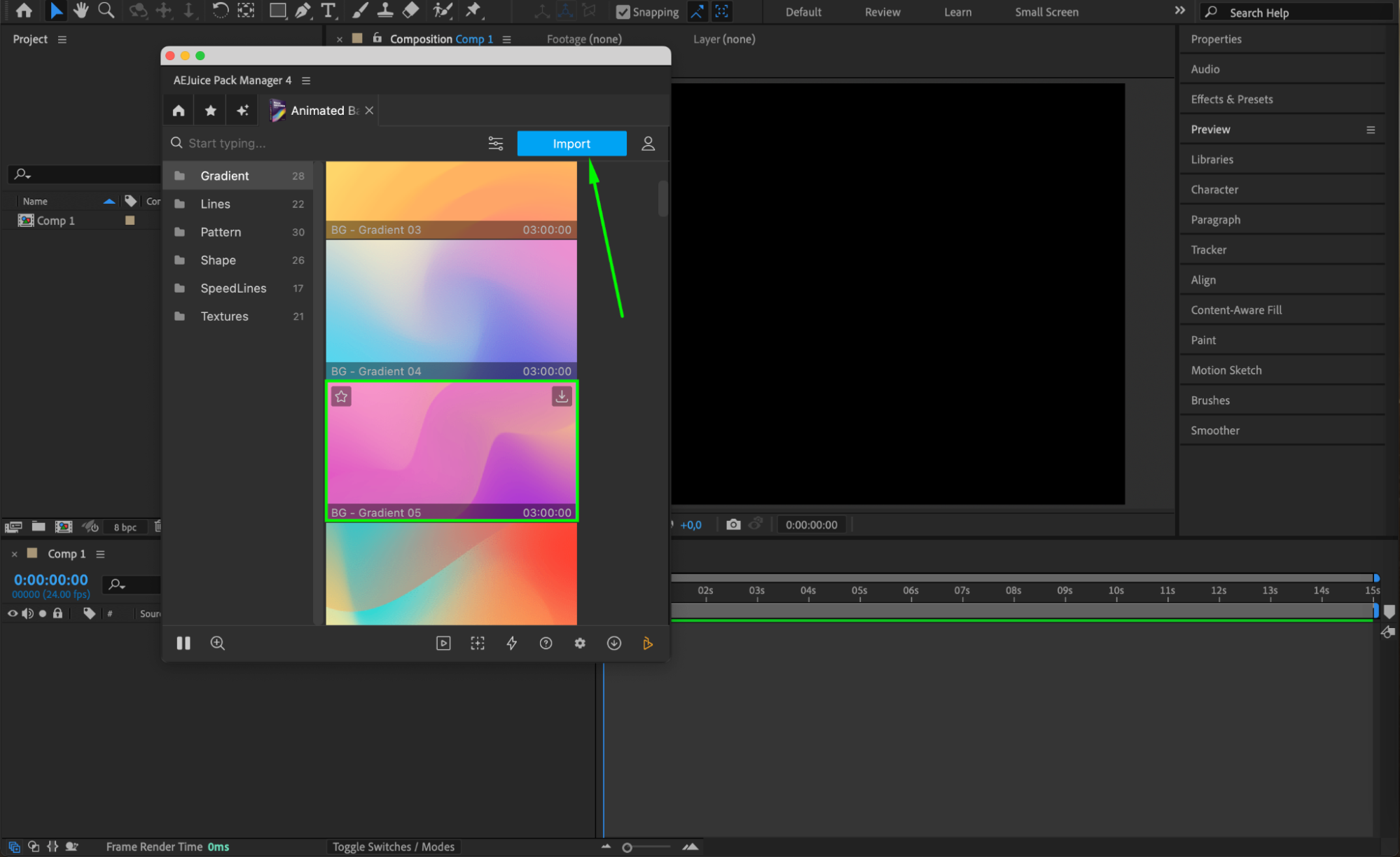 Step 5: Position and Scale the Background
Select the imported background pre-comp in your timeline. Use shortcut keys P (Position), S (Scale), and R (Rotation) to adjust the background so that it fits your main composition perfectly. Make sure it covers the entire frame and doesn’t interfere with your foreground elements.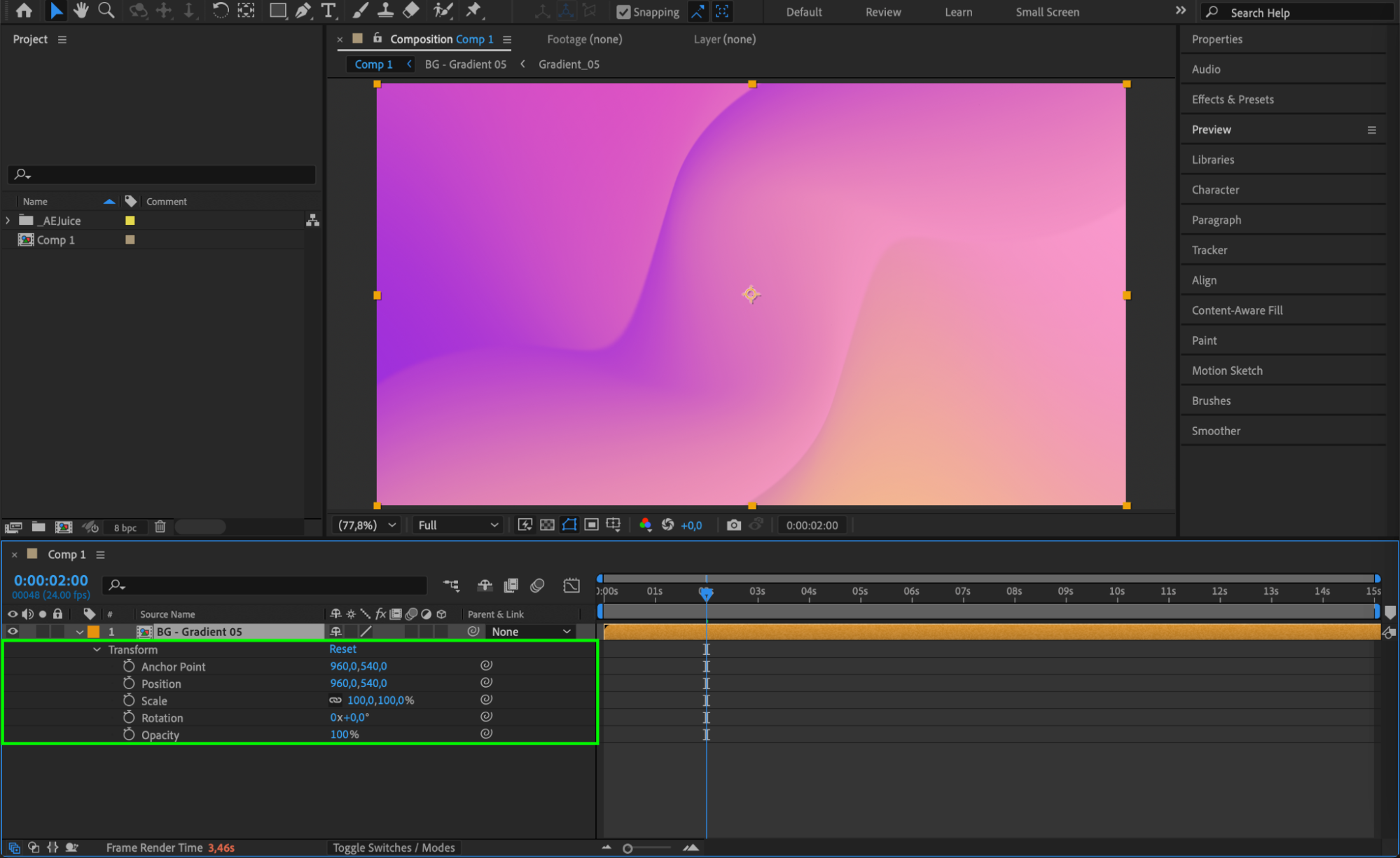 Step 6: Customize the Colors and Effects
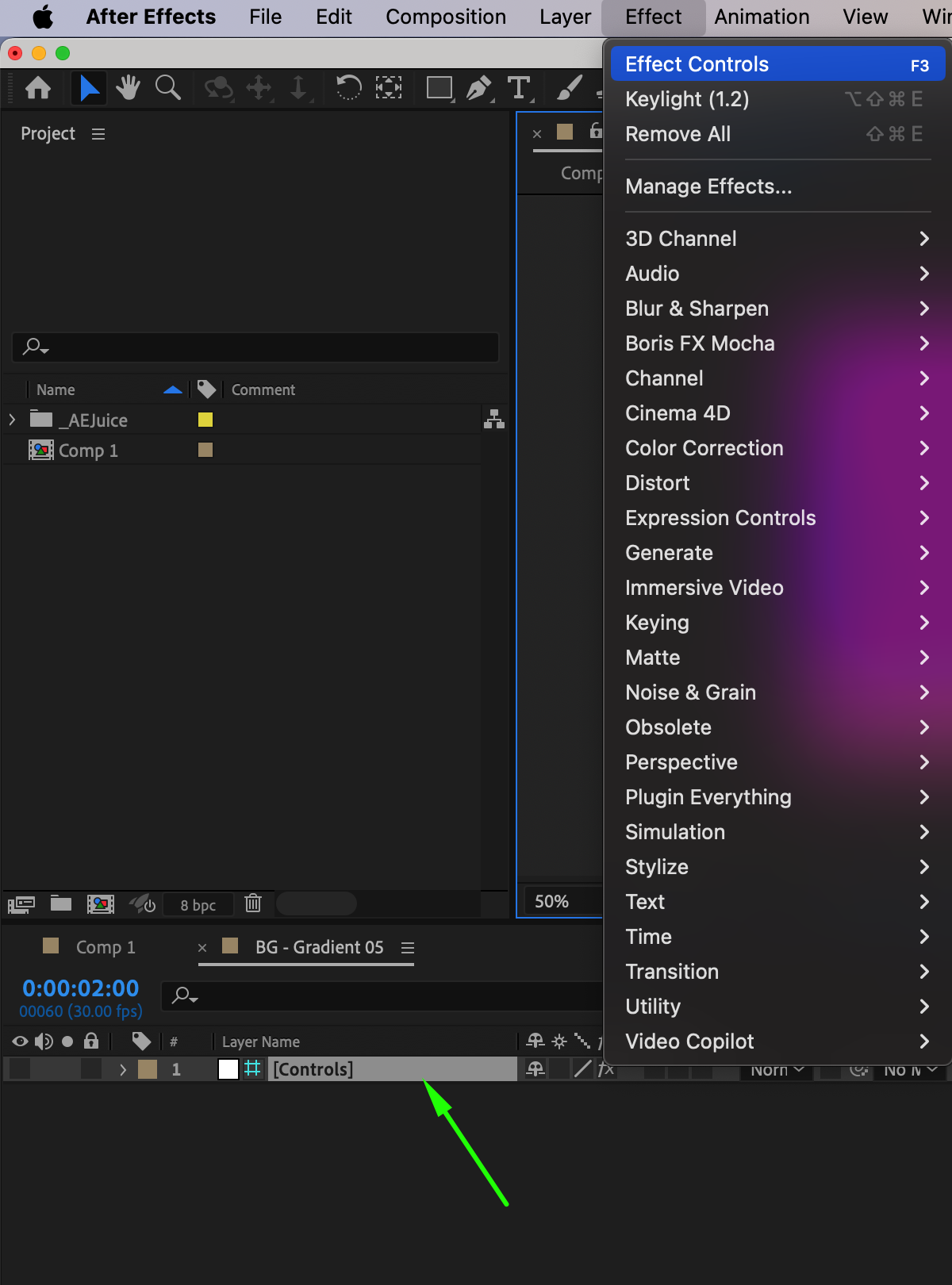
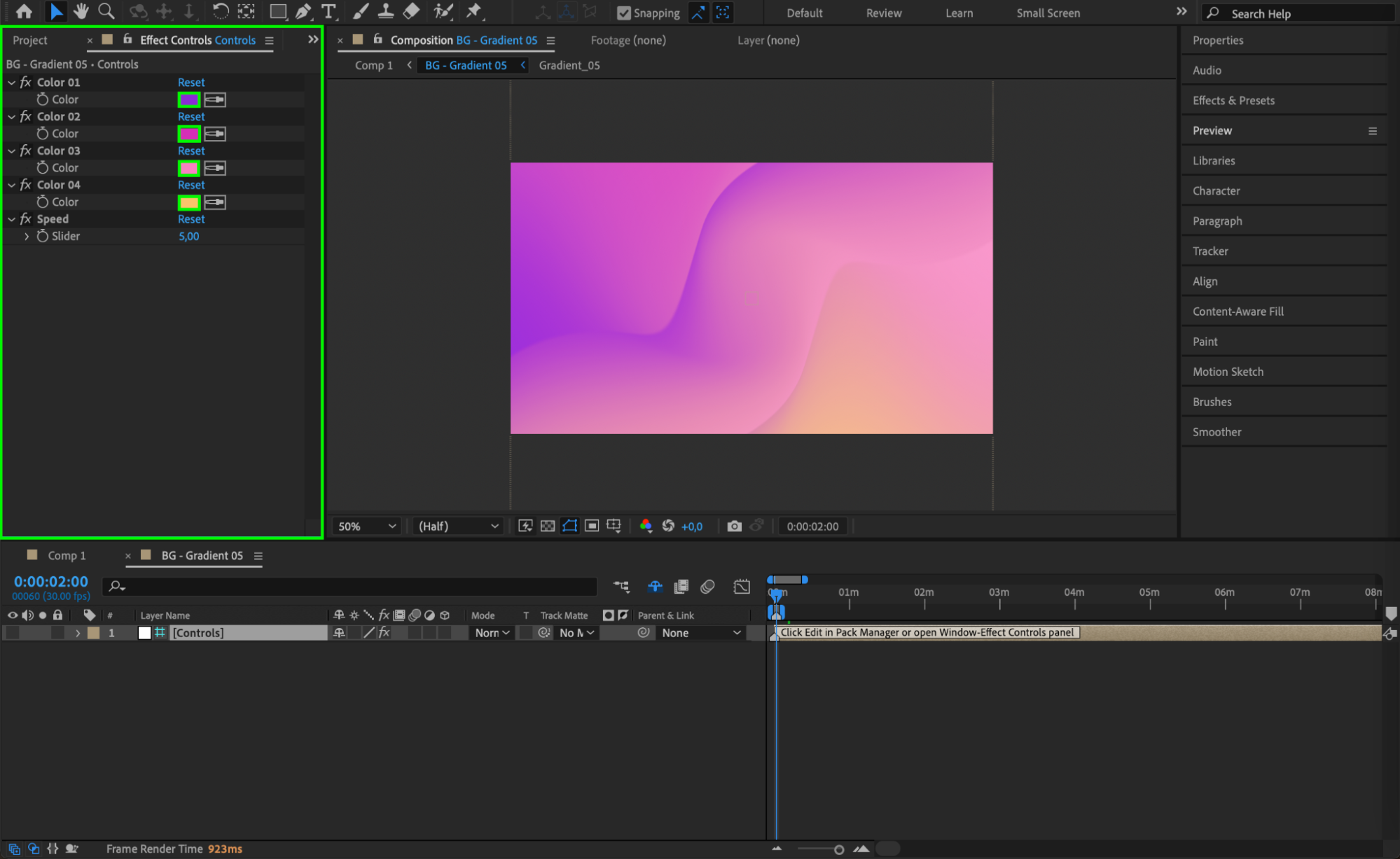
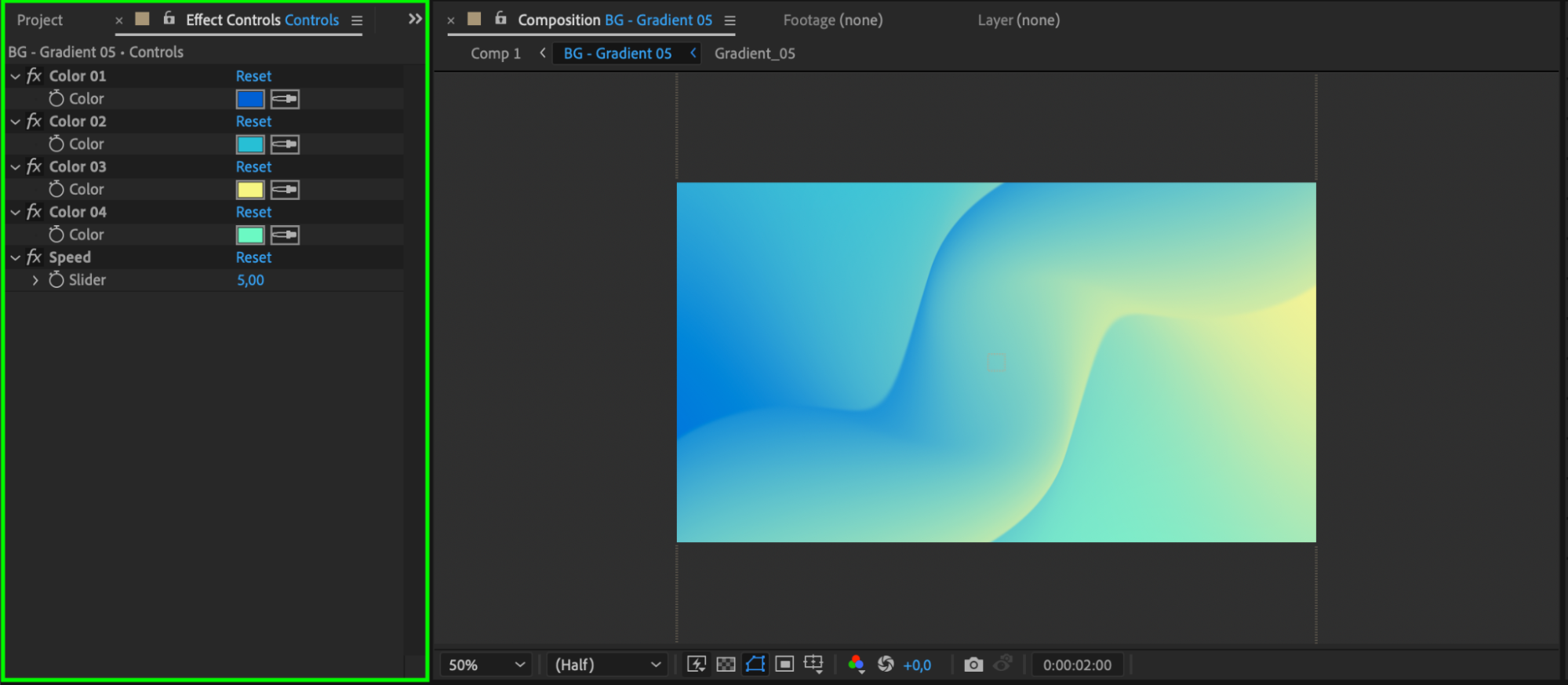
To change the look of the background, double-click on the pre-comp (e.g., Bg – Gradient 05) to open it. Find the layer named Controls and select it. Open the Effect Controls Panel, where you’ll see editable color parameters and built-in effects. Adjust these settings to match your brand or desired aesthetic.
Step 7: Add Extra Effects for Enhancement
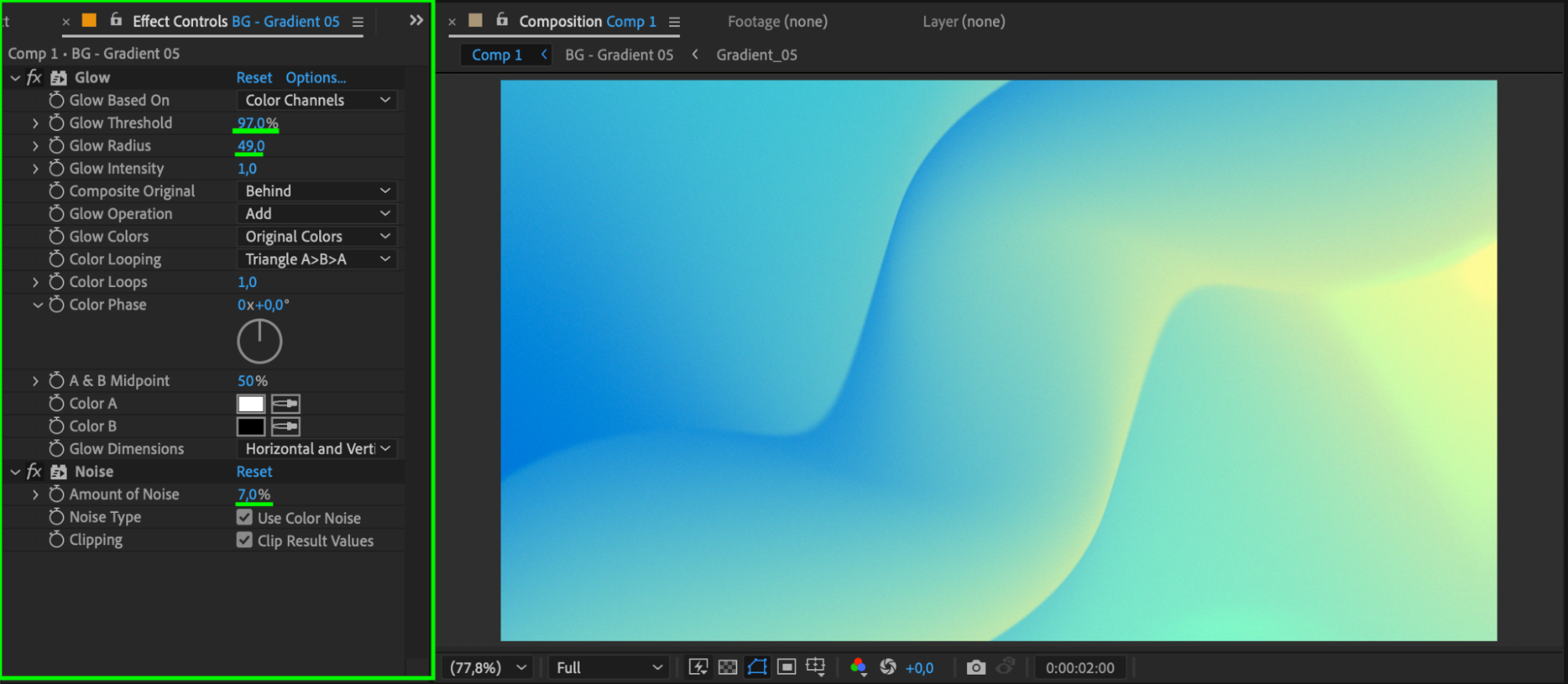
Return to your main composition. To further enhance the background, use the Effects & Presets Panel in After Effects. You can add effects like Glow, Noise, or Motion Blur to give your animation more texture and realism. These subtle touches can help the background feel more dynamic and polished.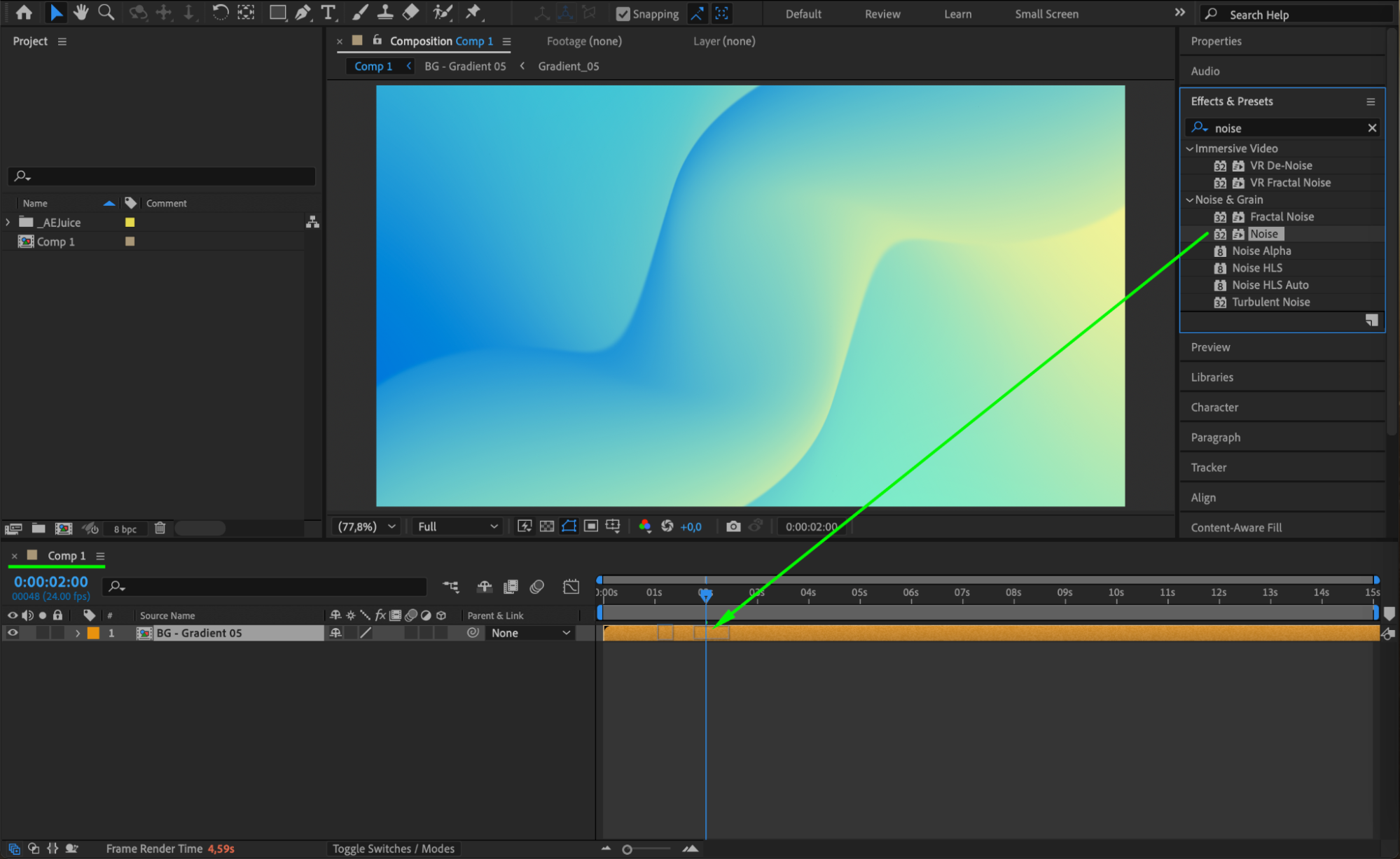
 Step 8: Preview and Finalize
Press Spacebar to preview your animation in real time. Review how the background interacts with other layers such as text, logos, or characters. If needed, make final adjustments to scale, color, or timing. Once everything looks right, you can render the project for export.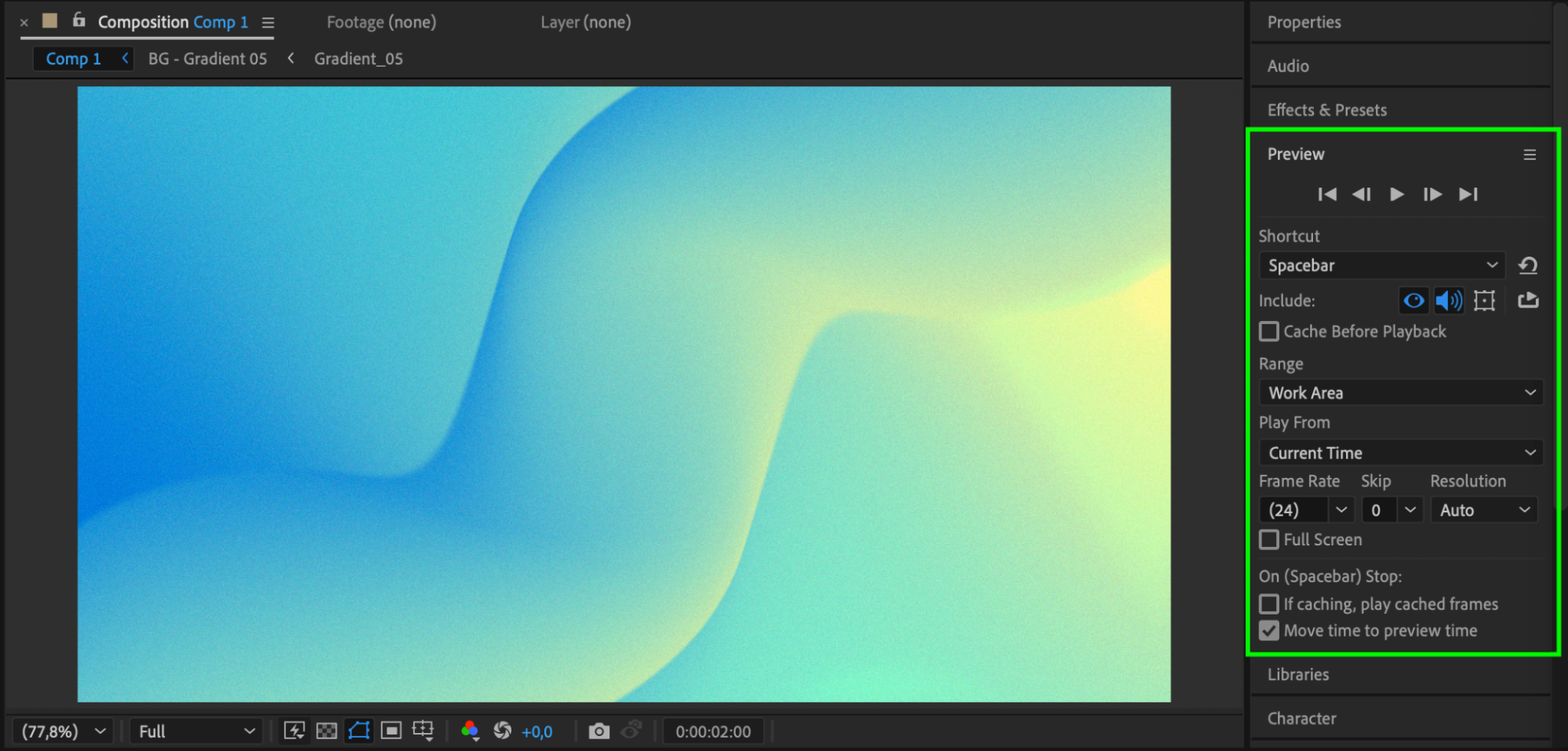 Conclusion
Using the AEJuice Animated Backgrounds Pack allows you to add visual depth and movement to your video projects without starting from scratch. With professional-looking loops and full customization options, it’s one of the best animated background tools for editors. Whether you’re creating intros, ads, or social content, animated backgrounds help bring your visuals to life quickly and easily.
Our Bestsellers
Our Bestsellers


