
Learn how to use animated marker overlays in Premiere Pro for professional data visualization and highlight effects.
Adding Animated Markers in Premiere Pro with AEJuice Pack
Introduction to Marker Animation Overlays for Editors
The Animated Markers Pack by AEJuice is perfect for editors looking to highlight important details, showcase data points, or add modern motion graphics elements to their projects. These ready-made overlays can be quickly customized and integrated into any timeline — ideal for educational content, UX/UI demos, presentations, or social media explainers.
Step 1: Launch Premiere Pro and Create a Project
Open Premiere Pro, enter a Project Name, and select your footage. Press Create to start working in your timeline.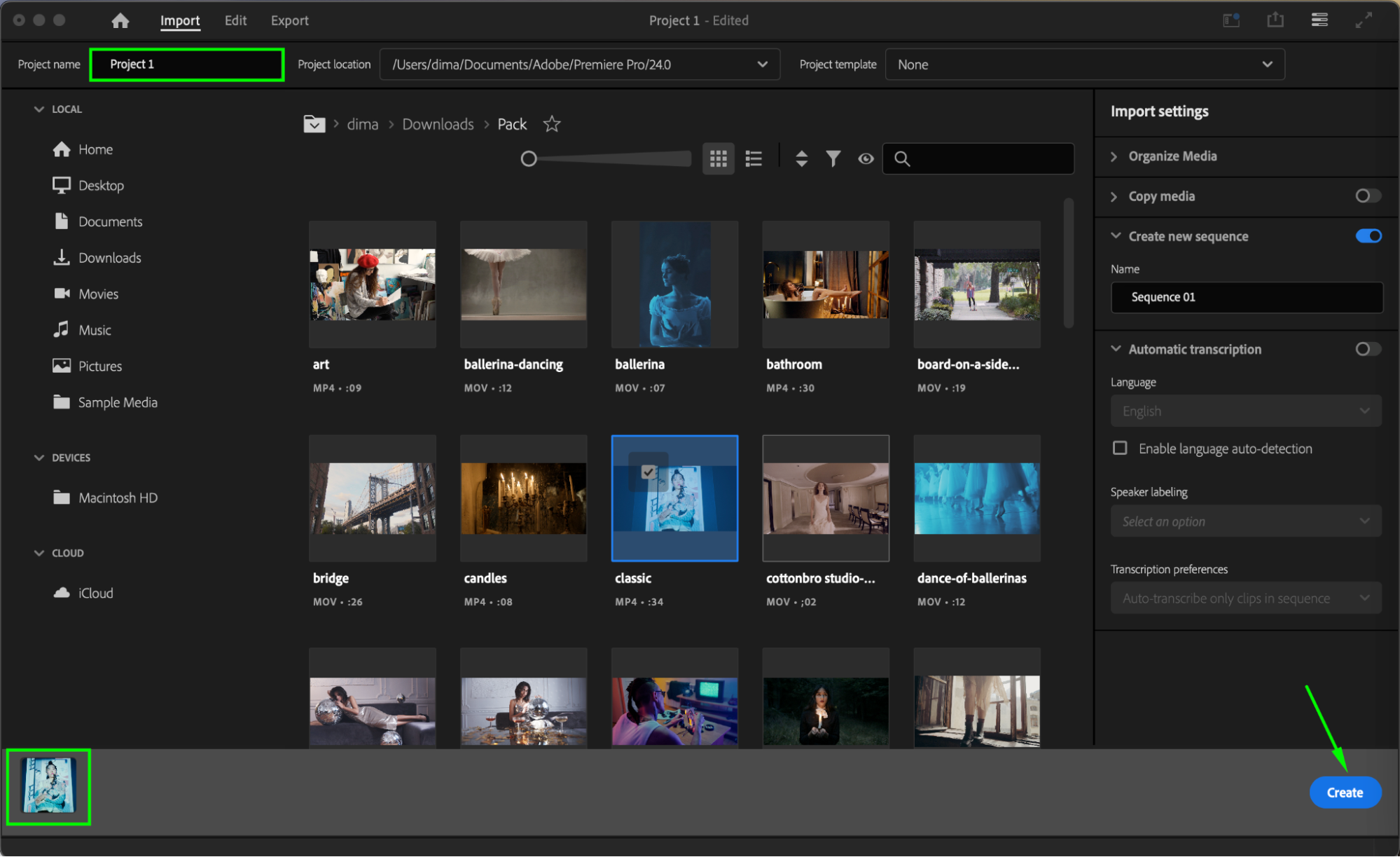 Step 2: Open AEJuice Pack Manager
Go to Window > Extensions > AEJuice Pack Manager 4 to launch the plugin panel. This is where you can browse and access all AEJuice packs installed on your system. Step 3: Download the Animated Markers Pack
In the Pack Manager, locate Animated Markers. If it’s not already installed, click to download it. After installation, you’ll have access to a library of animated pointers, callouts, and marker overlays.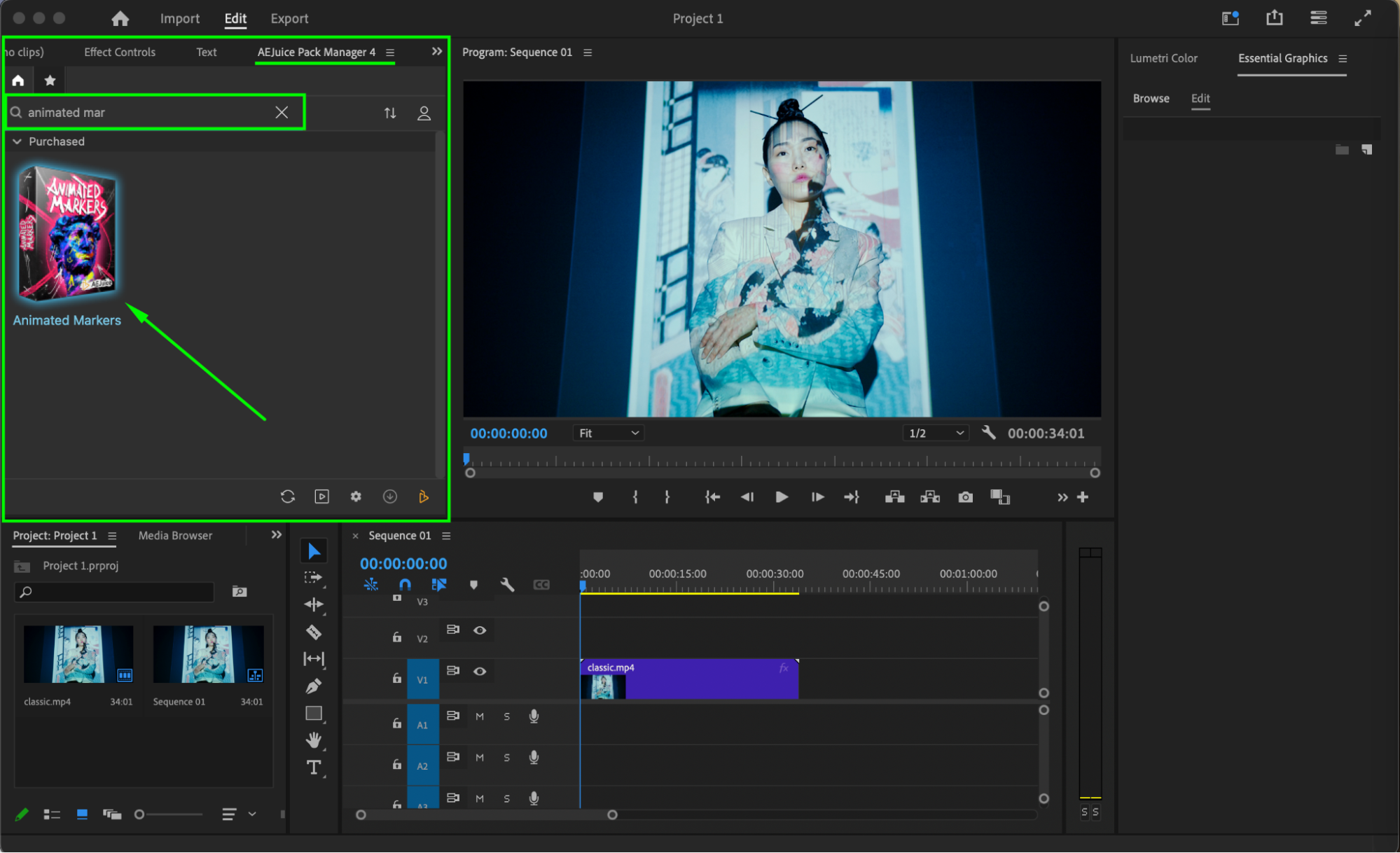
Step 4: Choose and Import an Overlay
Browse the overlays and select the marker animation that fits your style. Make sure the playhead is positioned where you want the animation to begin in your timeline, then click the overlay and press Import.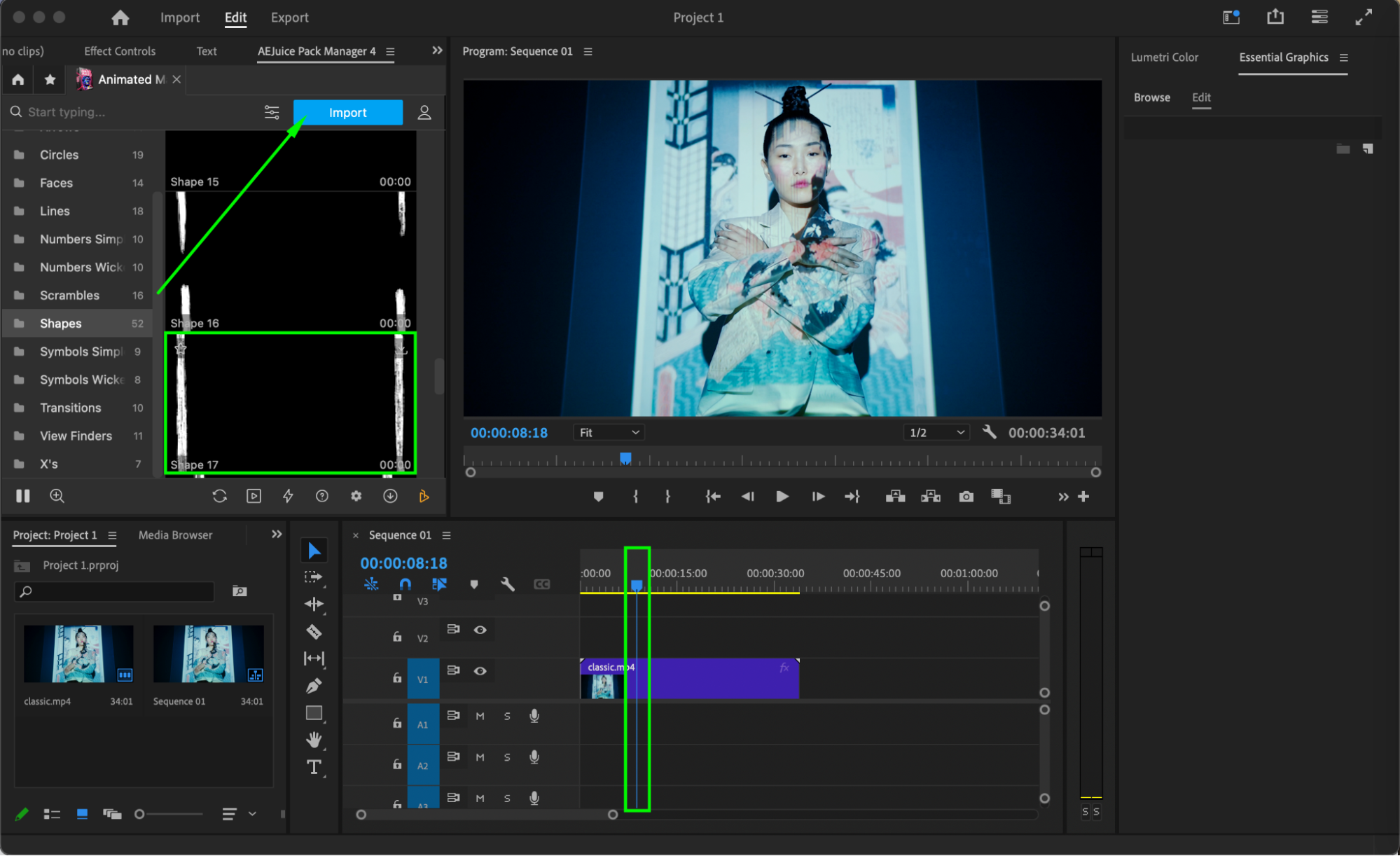 Step 5: Set Loop Duration
A pop-up titled “Seconds to Loop” will appear. Enter a value such as 3 seconds to control how long the animation will play. This helps fit the overlay to your scene length.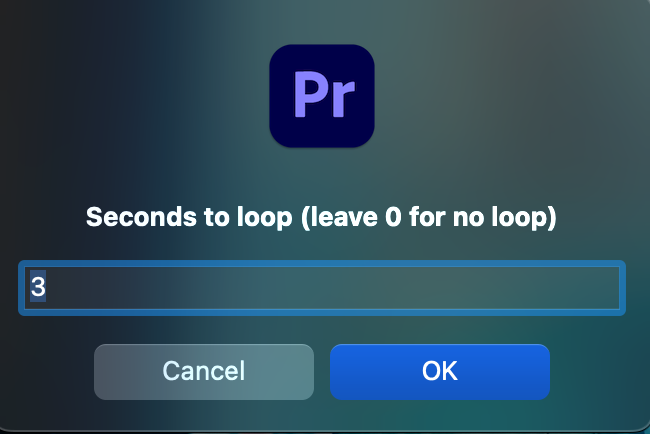
Step 6: Customize (Optional)
Select the imported animation overlay layer in your timeline.
Open the Effect Controls panel to adjust scale and opacity.
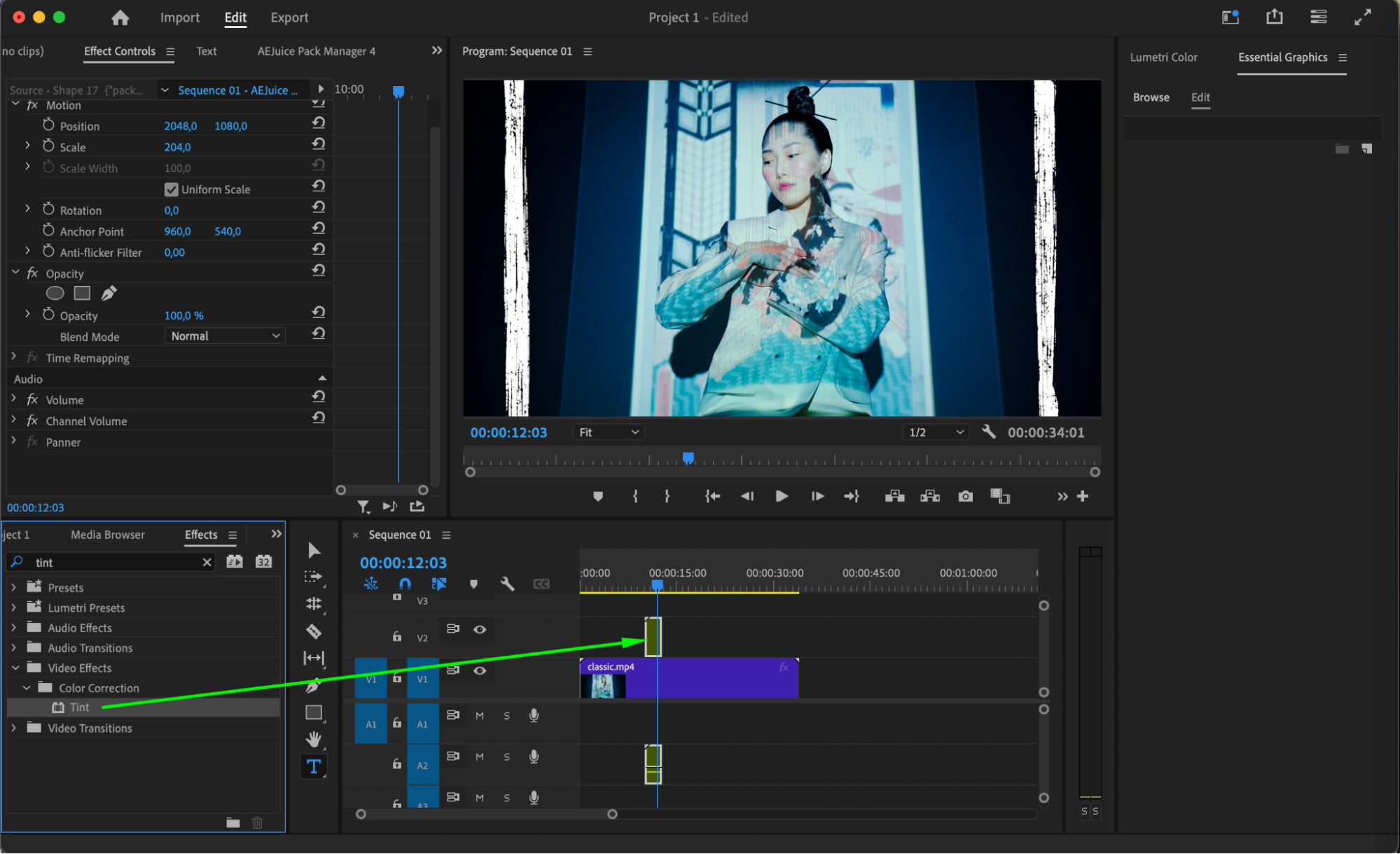
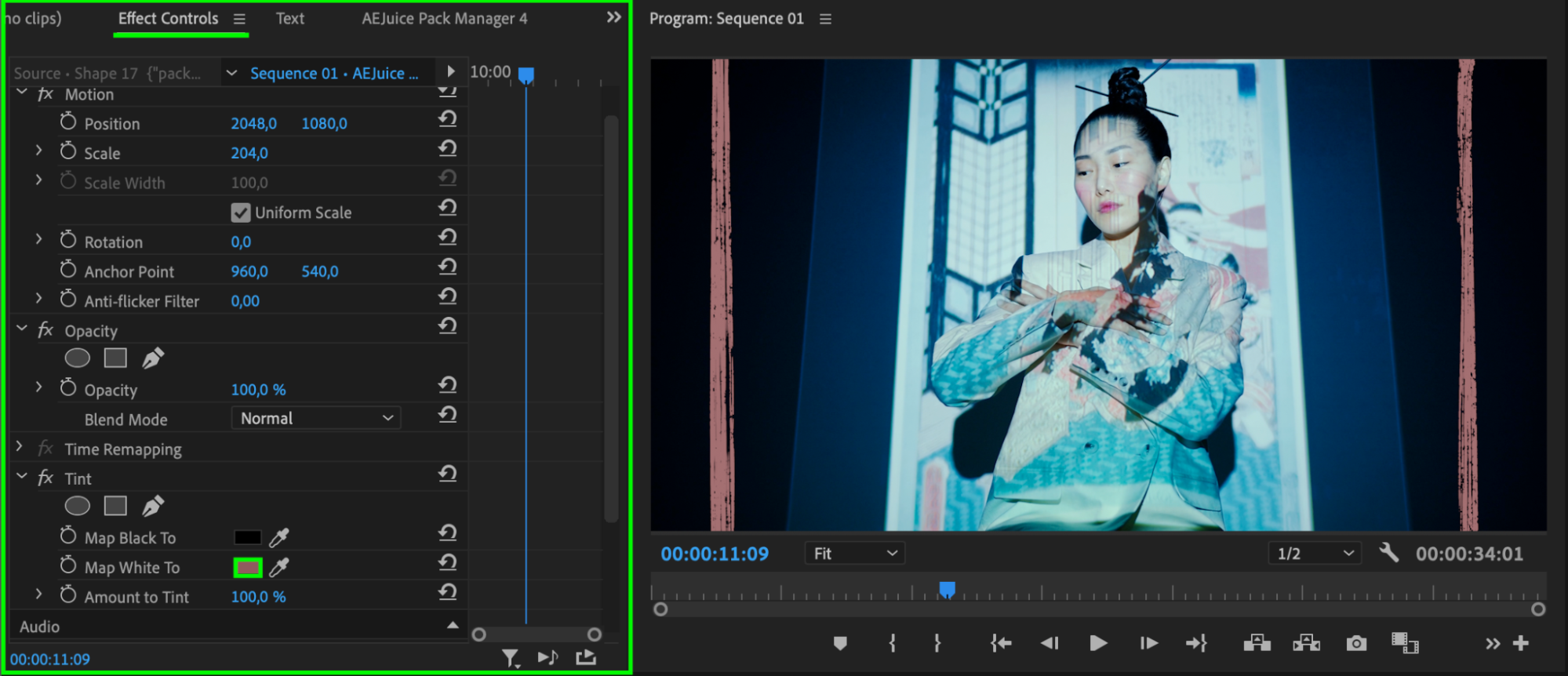
To change the color, apply the Tint effect from the Effects panel. Under “Map White To,” use the eyedropper tool to choose your desired color tone.
This makes the overlay match your video’s color scheme or highlight theme.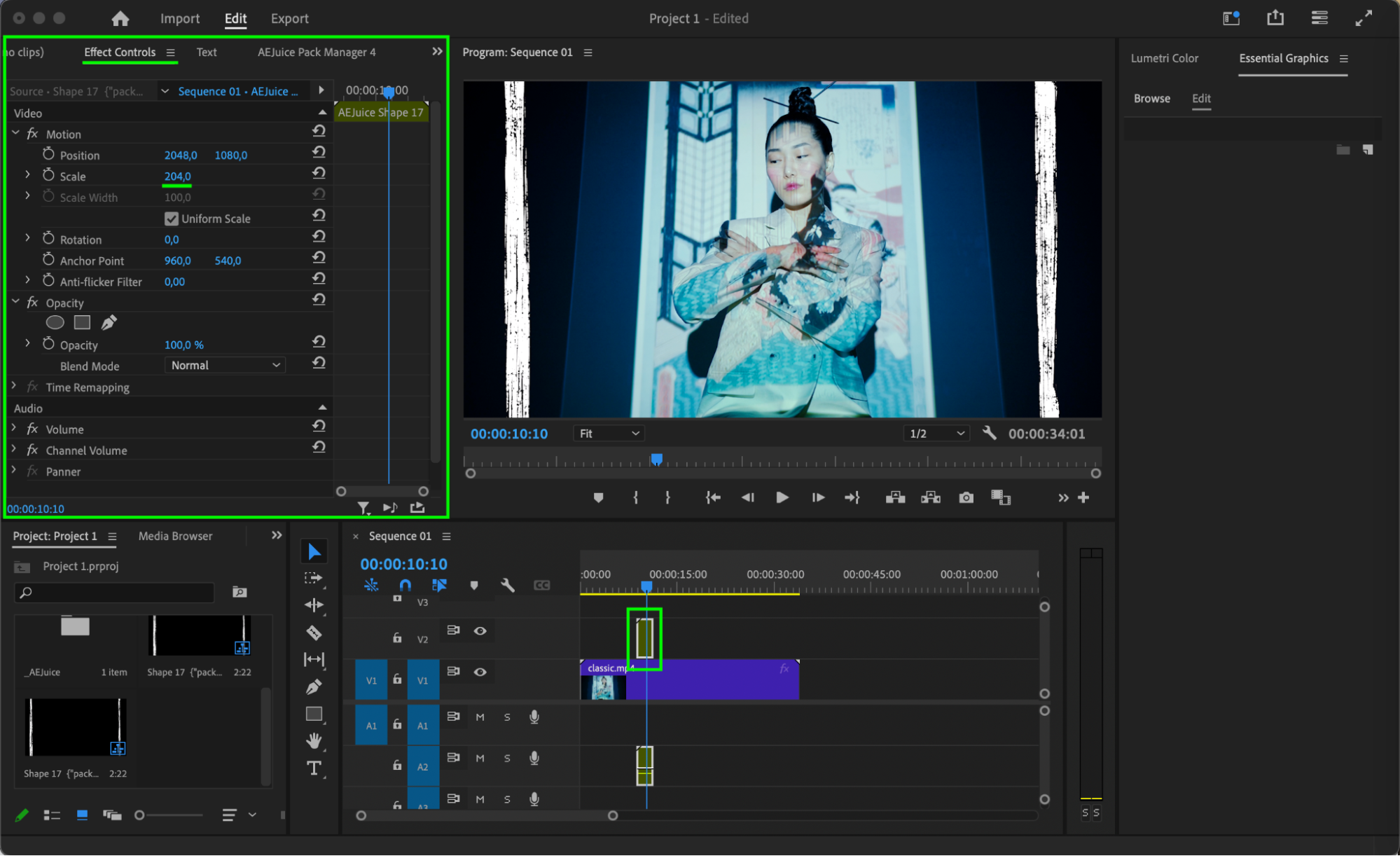
 Step 7: Preview and Finalize
Hit Play or press Spacebar to preview the animation in your sequence. Make any additional adjustments as needed to ensure the overlay integrates smoothly with your footage.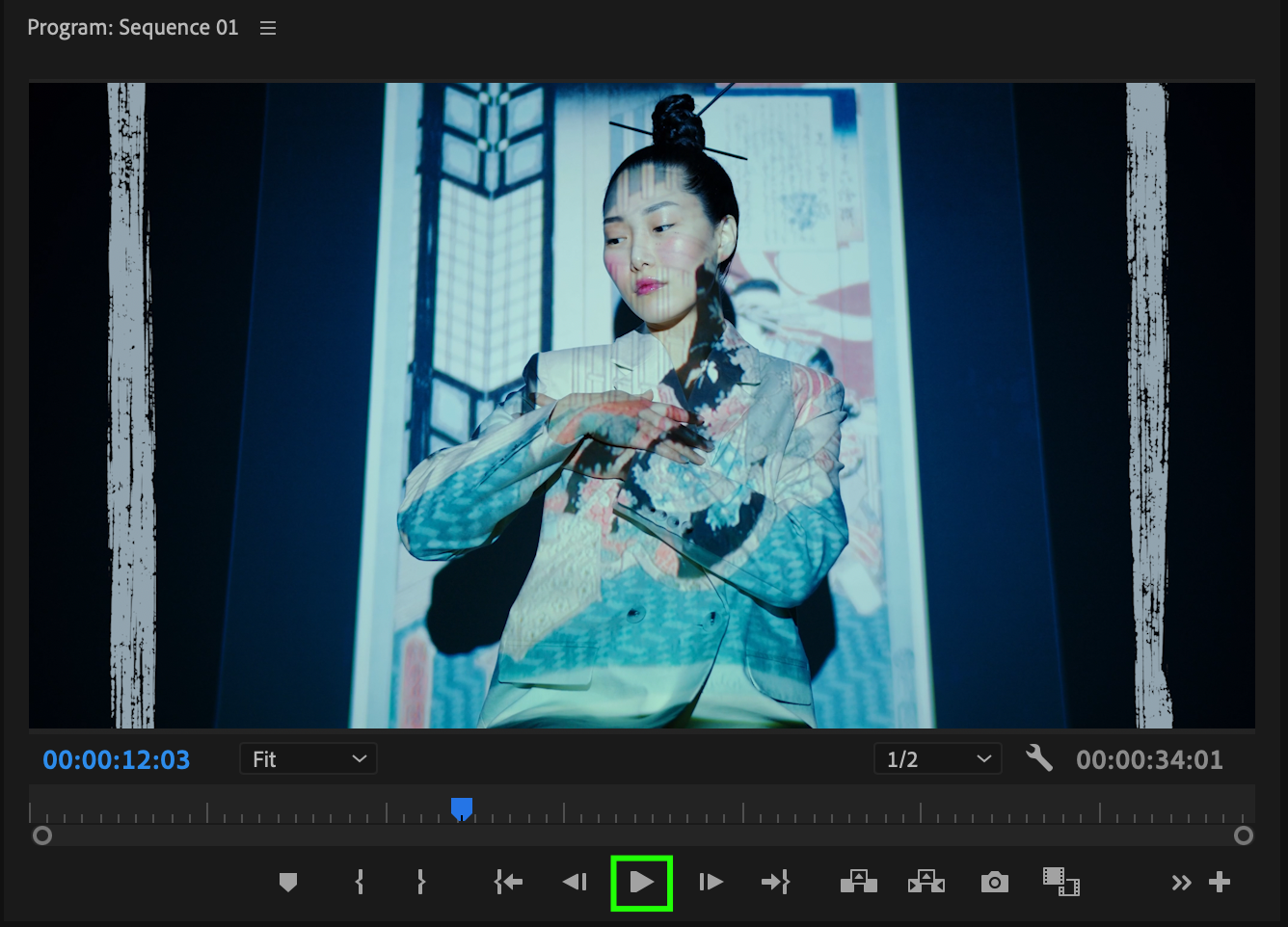 Conclusion
The Animated Markers Pack is a versatile and professional tool for any project involving data, instructions, or highlights. Use these overlays to elevate your videos with clean, modern motion design.
Our Bestsellers
Our Bestsellers


