
Introduction
When working with 3D layers in After Effects, switching between different camera views helps you better control the position and depth of your elements. Using Custom Views and the Active Camera, you can easily adjust and preview your 3D scene from multiple perspectives.
Step 1: Enable 3D for Your Layers
Open your project and go to the Timeline panel. Enable 3D for the layers you want to manipulate by clicking the cube icon next to each layer. This allows them to interact with the camera and lights in 3D space.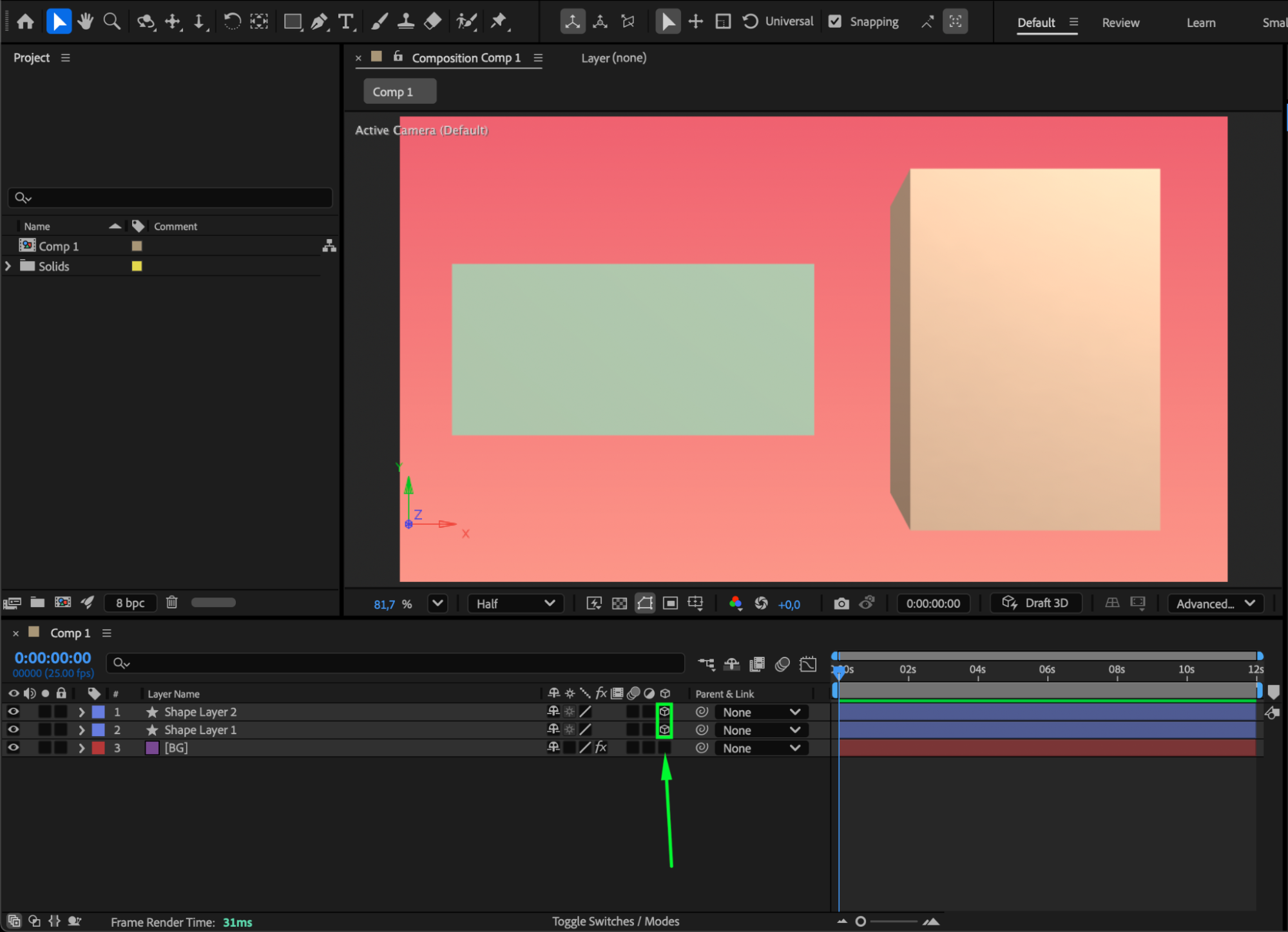 Step 2: Create and Adjust a Camera
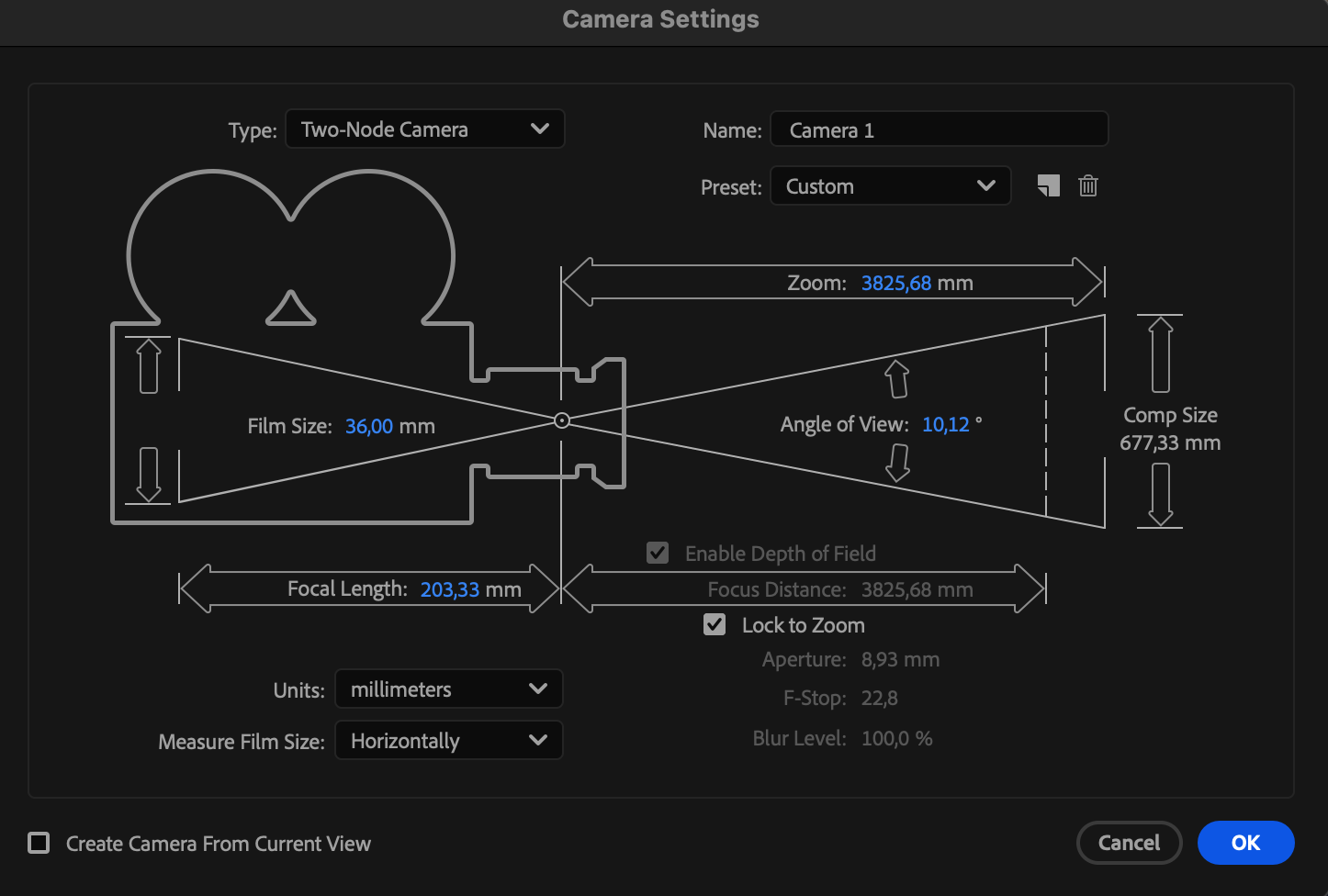
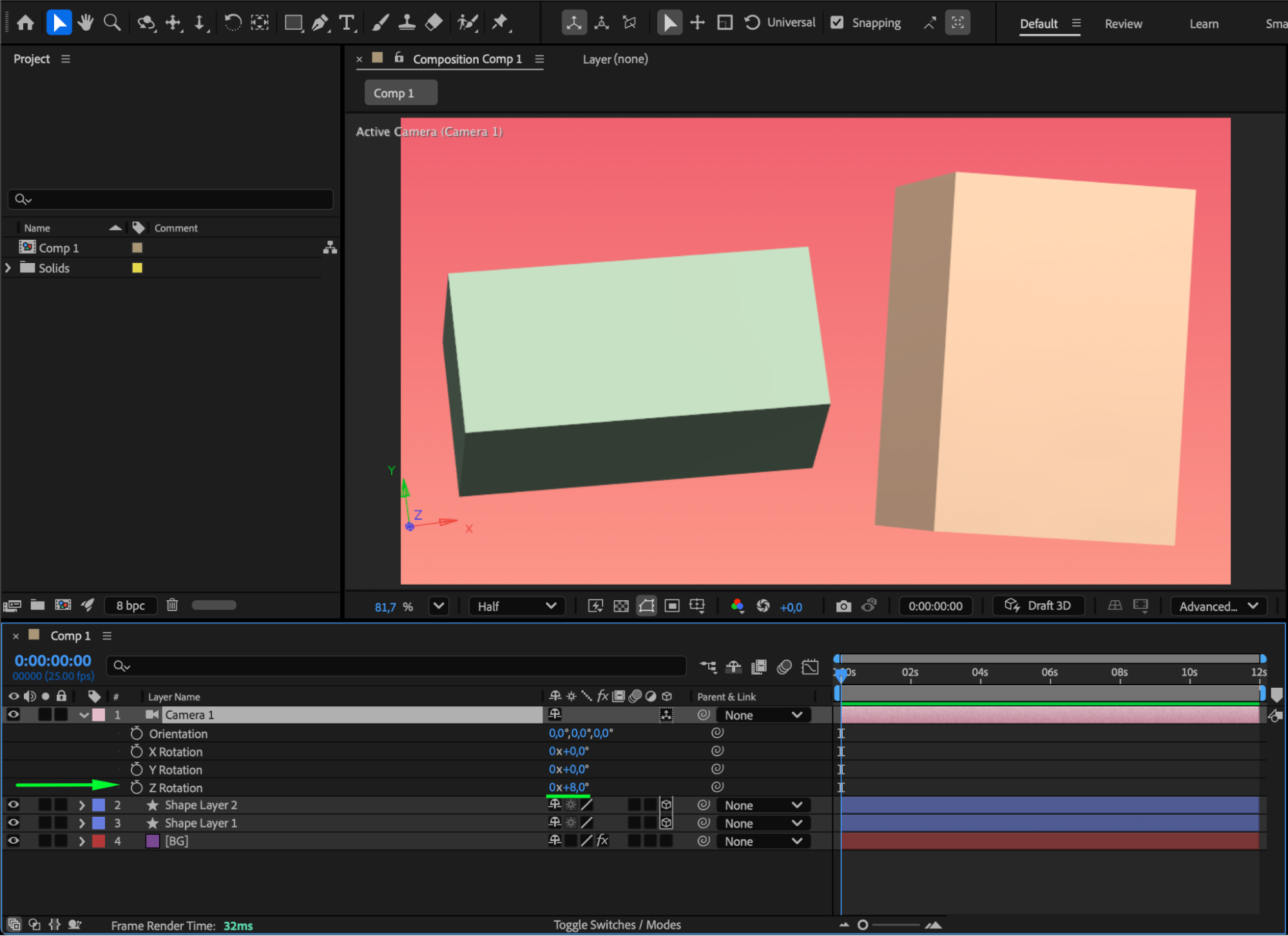
Go to Layer > New > Camera. Choose your camera settings (like preset, focal length, and angle of view) and position the camera in the Composition panel. 
Step 3: Access the View Options
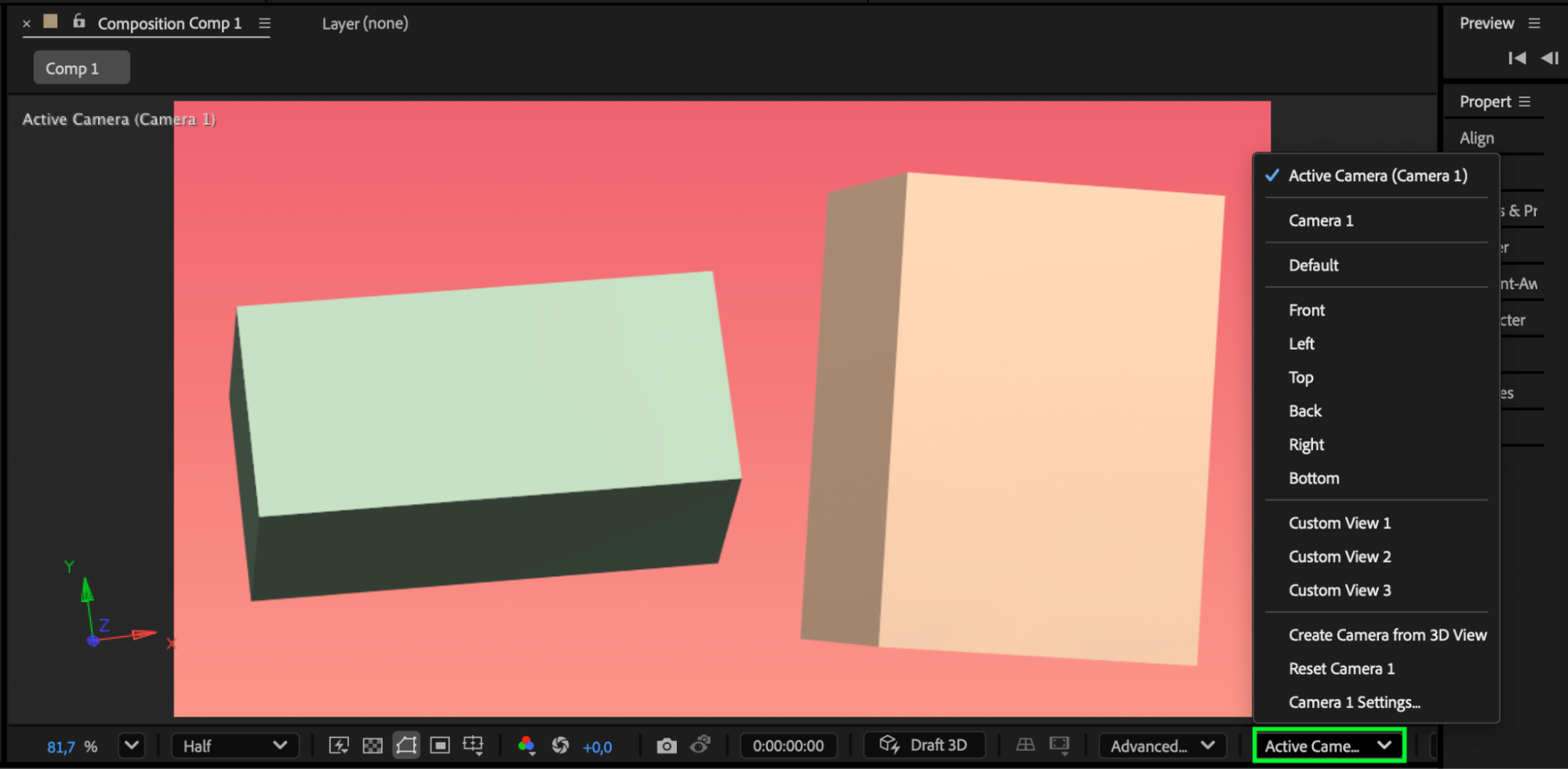
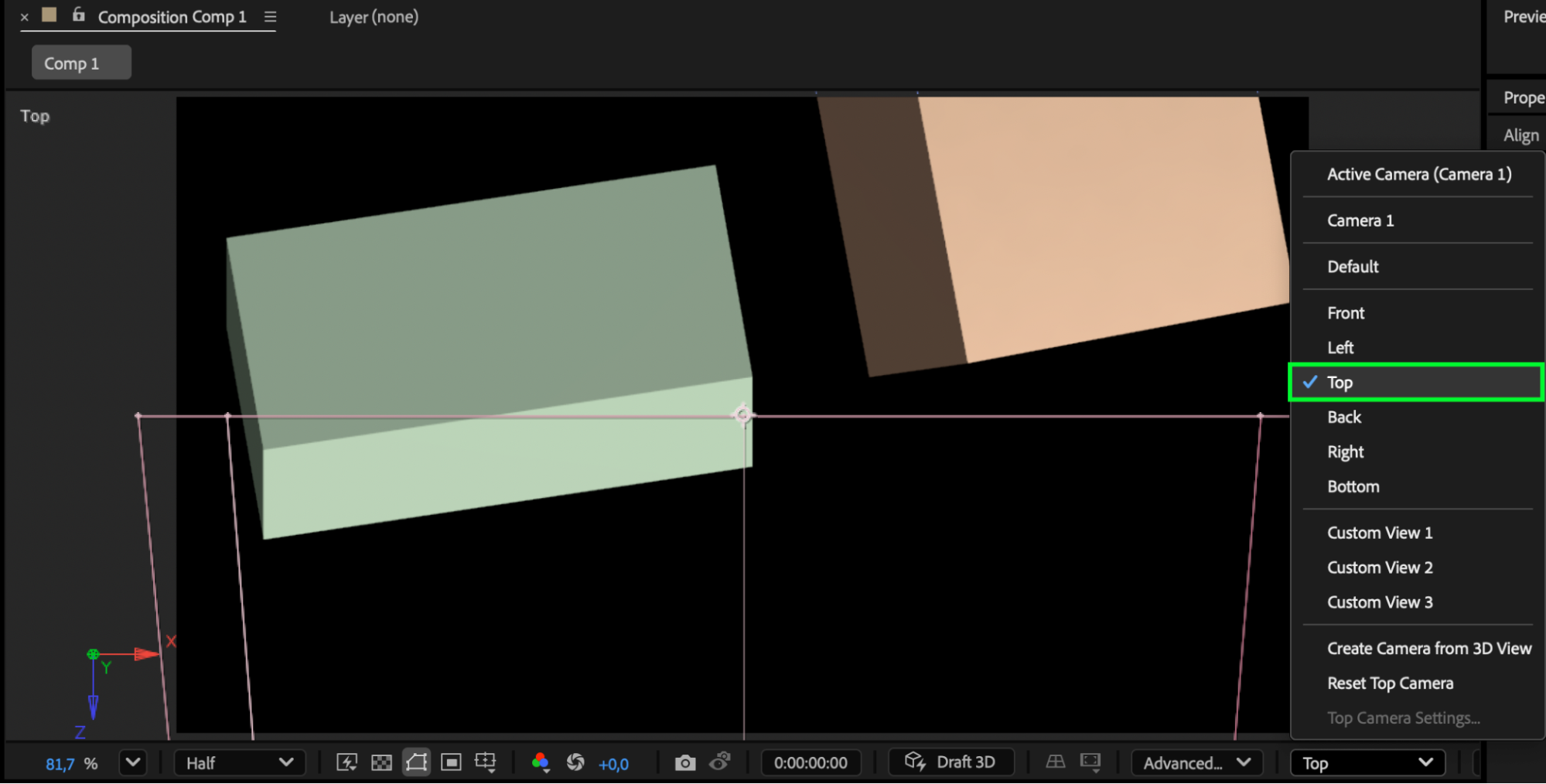
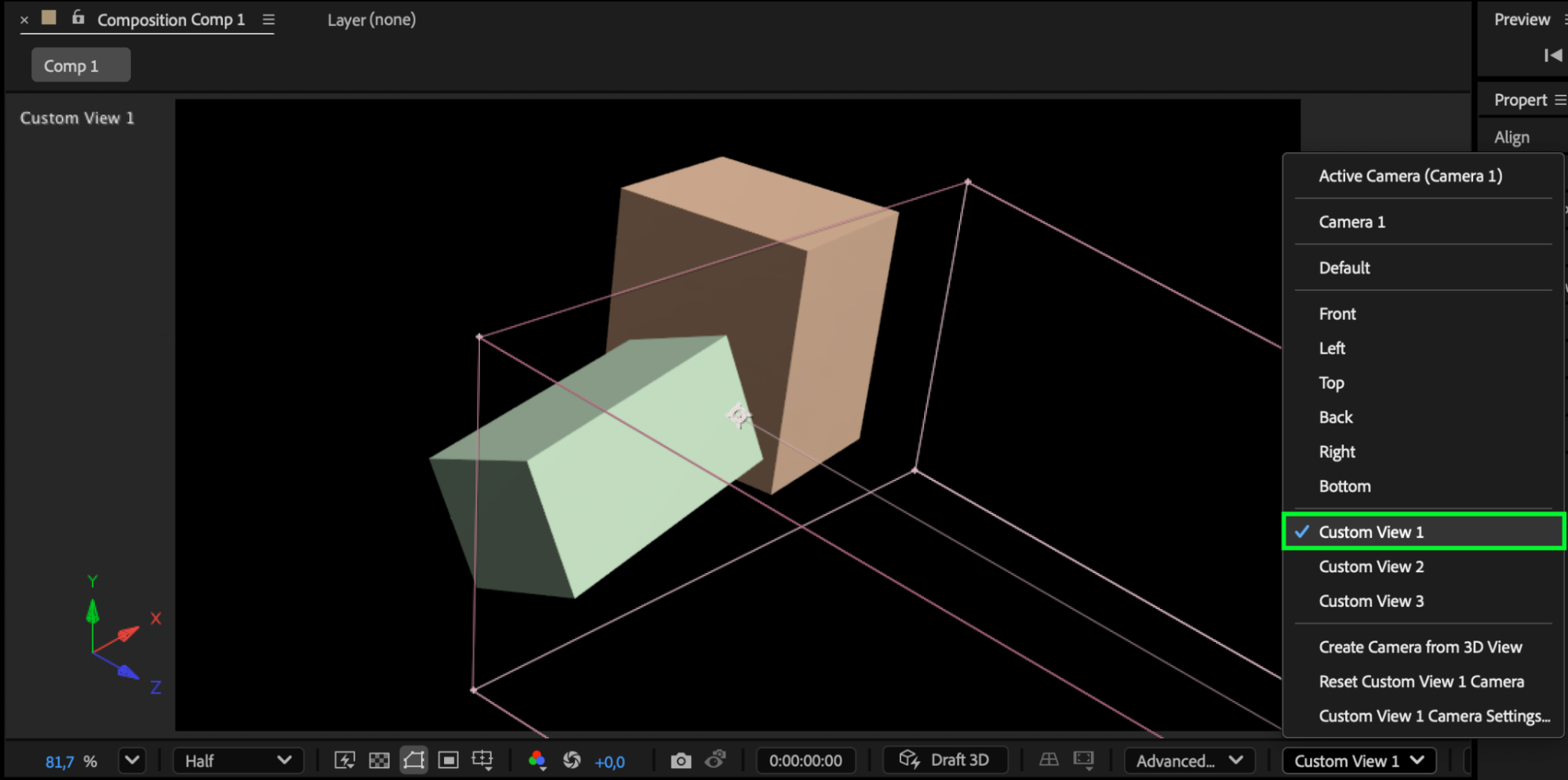
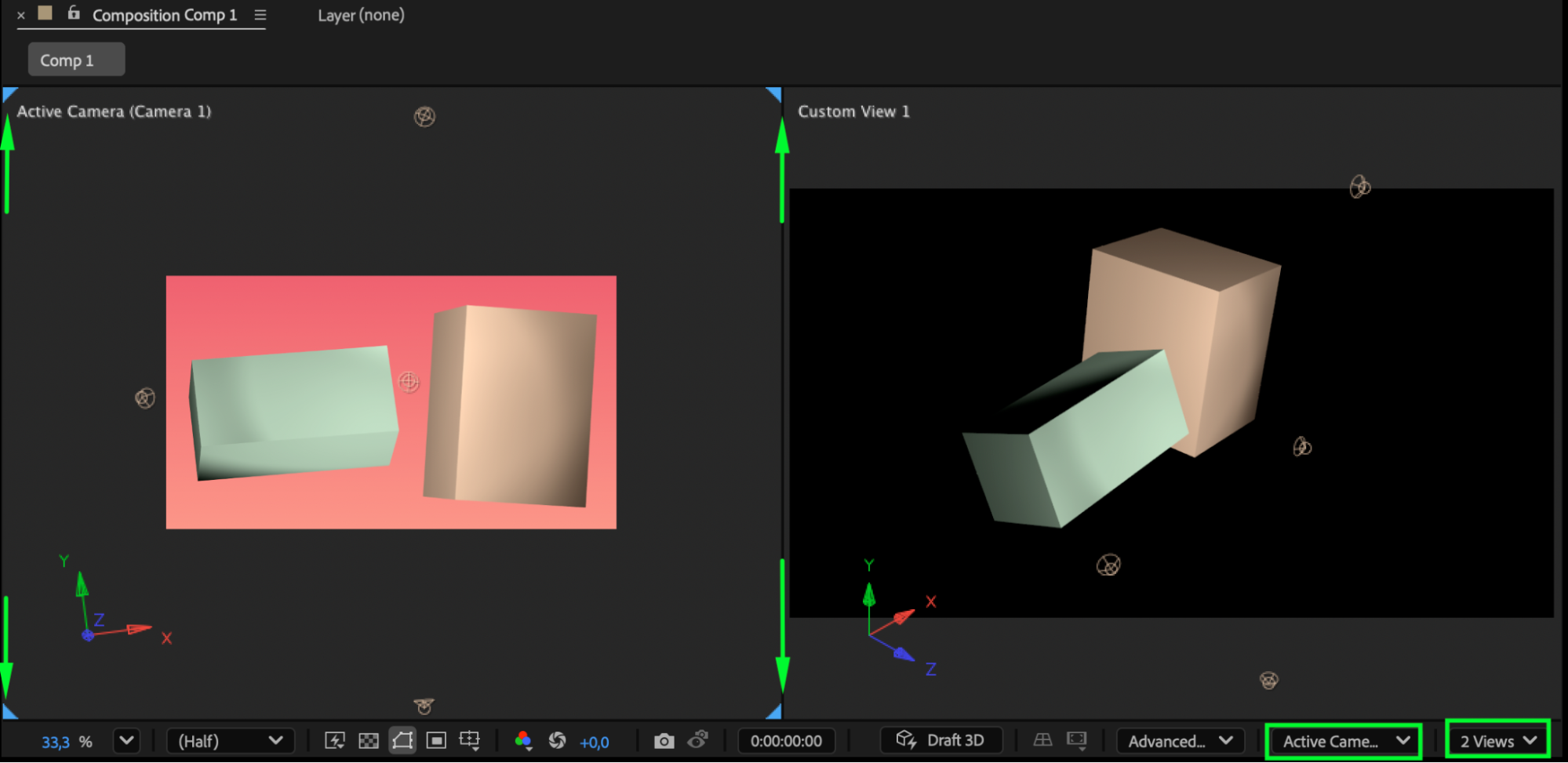
To switch between views, drag the right edge of the Composition panel slightly to expand the workspace. At the bottom of the Composition panel, you’ll see a dropdown menu labeled Active Camera. Click it to choose different views such as Top, Left, Front, or Custom View 1.
These views help you position 3D elements accurately within your scene.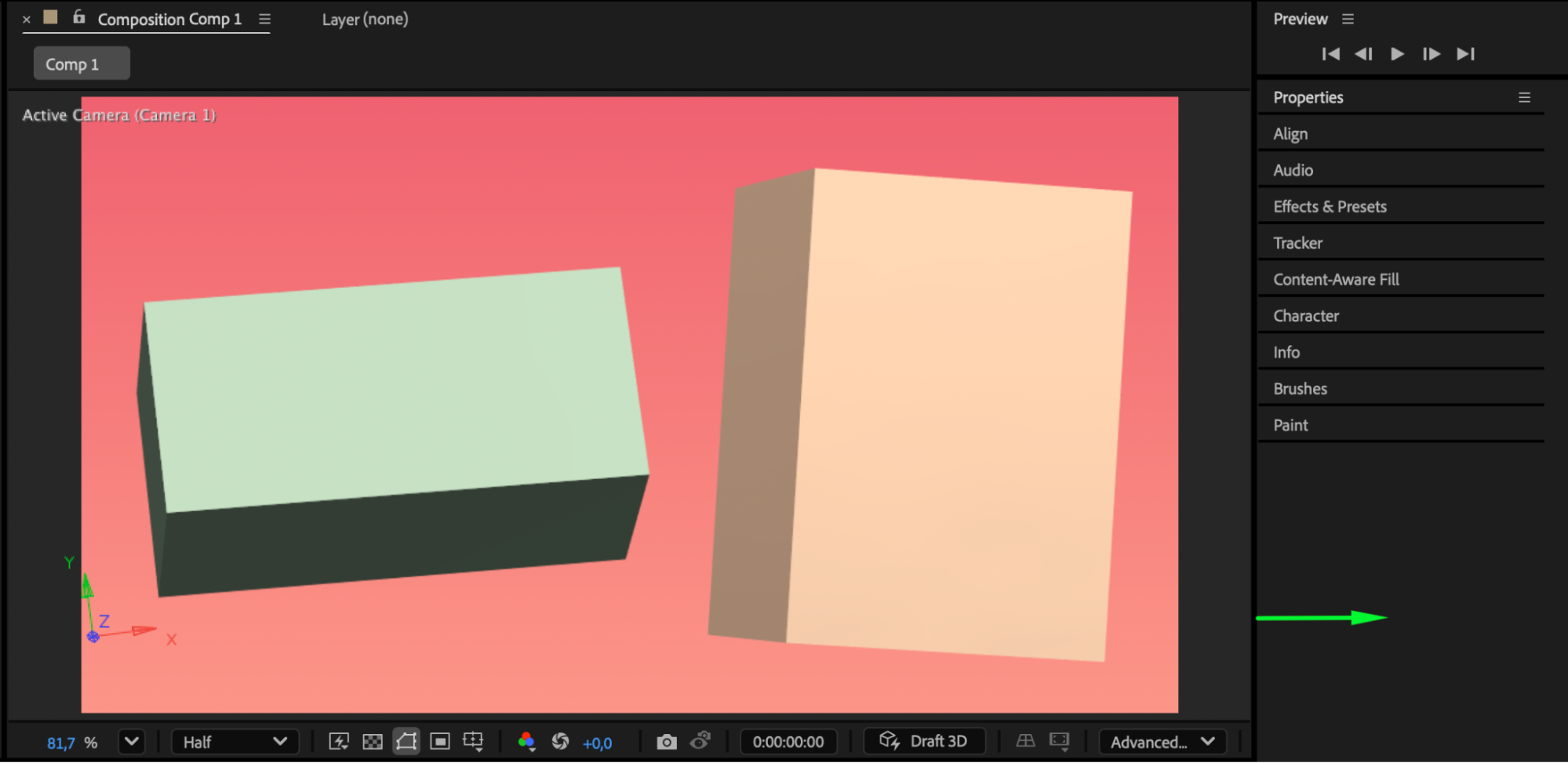
Step 4: Work with Multiple Views
Drag the right edge of the Composition panel a bit further to reveal view layout options like 1 View, 2 Views, or 4 Views. If you select 2 Views, you can see both the Active Camera and a Custom View simultaneously — perfect for aligning lights or camera angles. To change a specific view, click inside one of the panels (you’ll see blue corners appear around it), then select your desired view type from the dropdown menu.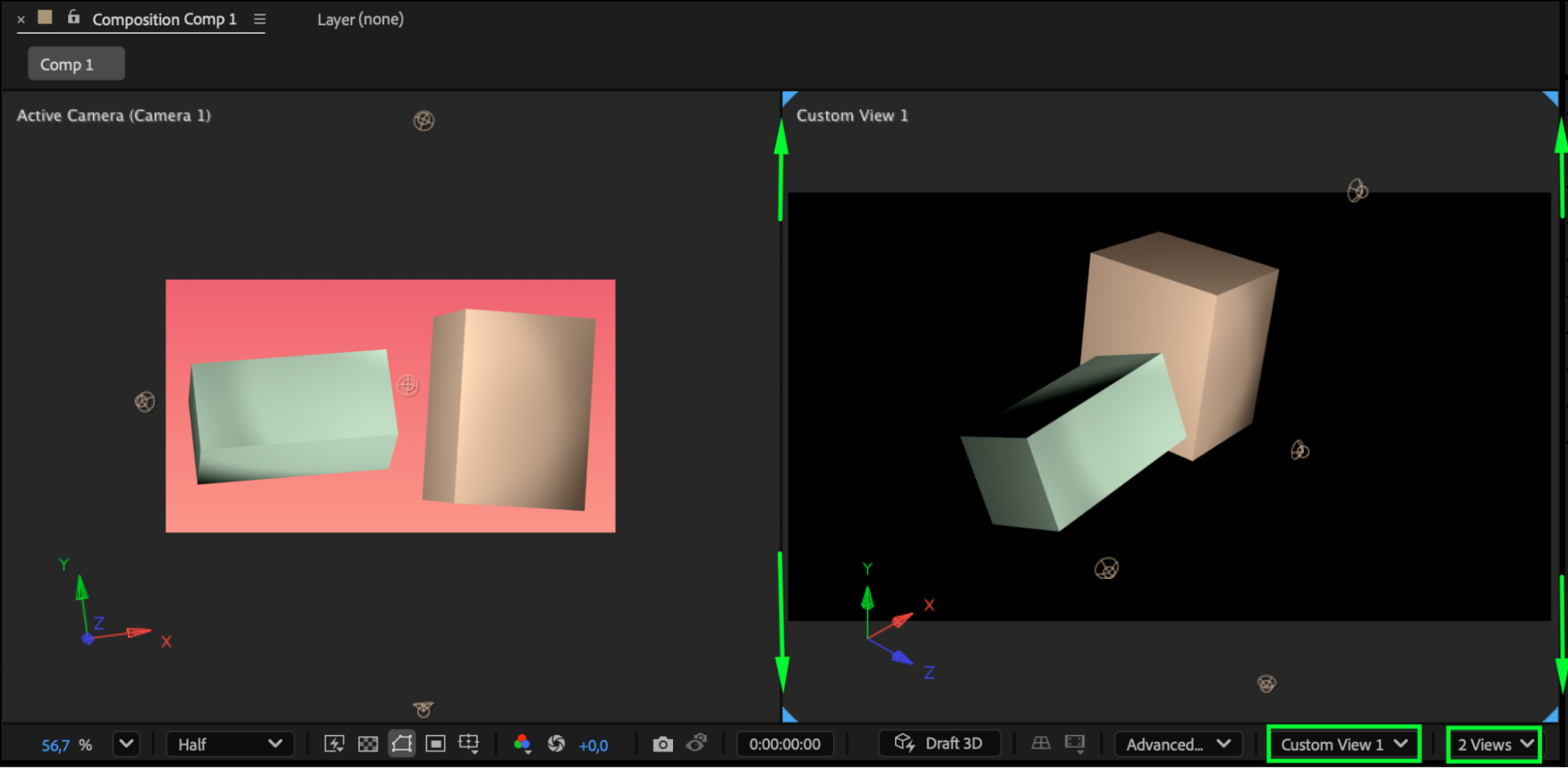
Step 5: Preview Your Composition
Press the Spacebar to preview the animation and camera motion from the Active Camera view. Make small adjustments to your camera and layers until everything looks correct in the final render view.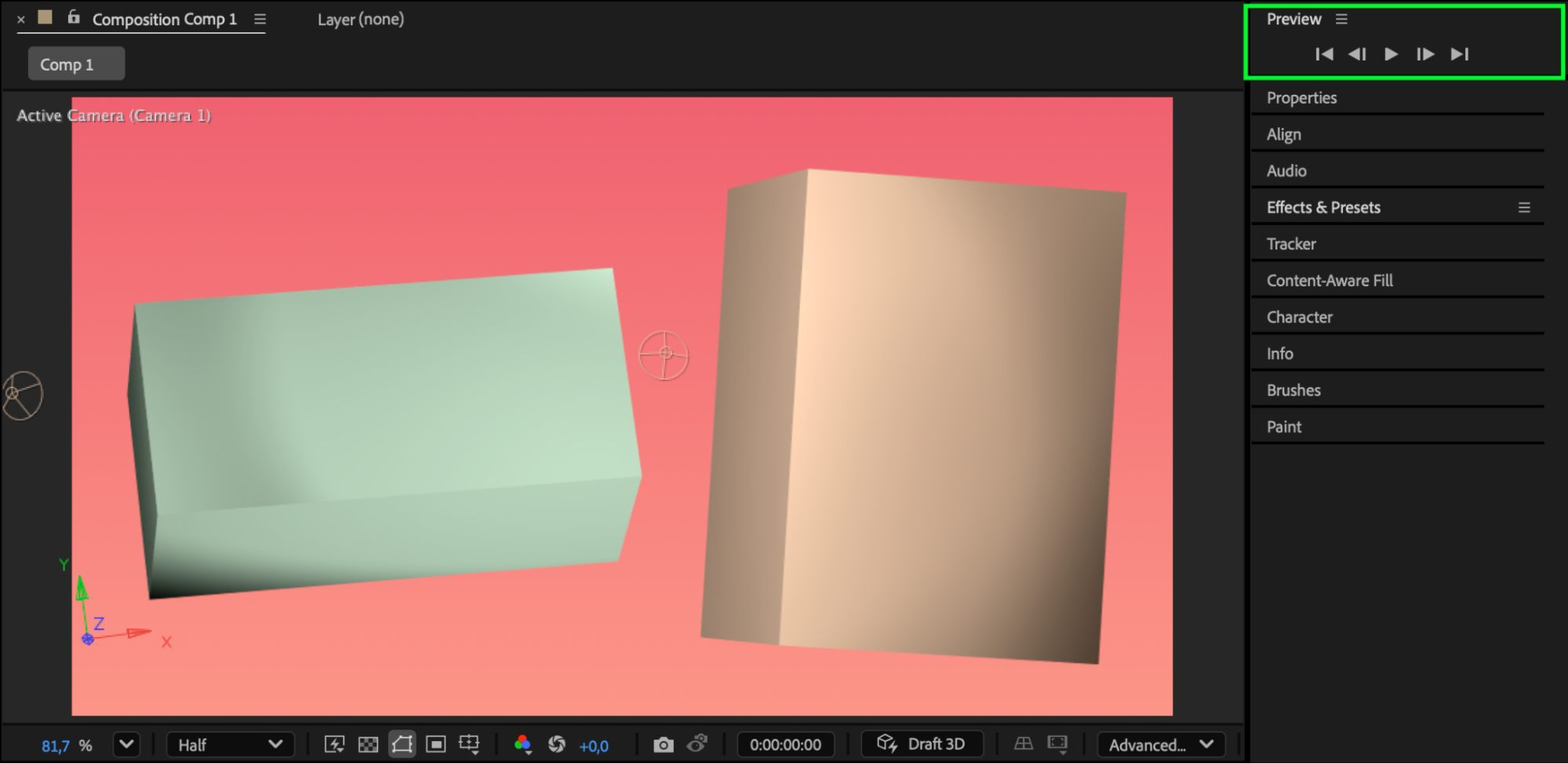
Conclusion
Using Custom Views and Active Camera in After Effects gives you precise control over your 3D scenes. You can view and adjust layers from multiple angles, making it easier to build complex animations, align lighting, and fine-tune depth and perspective before rendering your final composition.
Our Bestsellers
Our Bestsellers


