
Introduction
The CC Warpomatic effect in After Effects is a powerful tool for creating fluid, distorted transitions between two video clips. It warps and blends one layer into another, producing a seamless, organic motion effect. Follow the steps below to set it up quickly and effectively.
Step 1: Import Your Video Clips
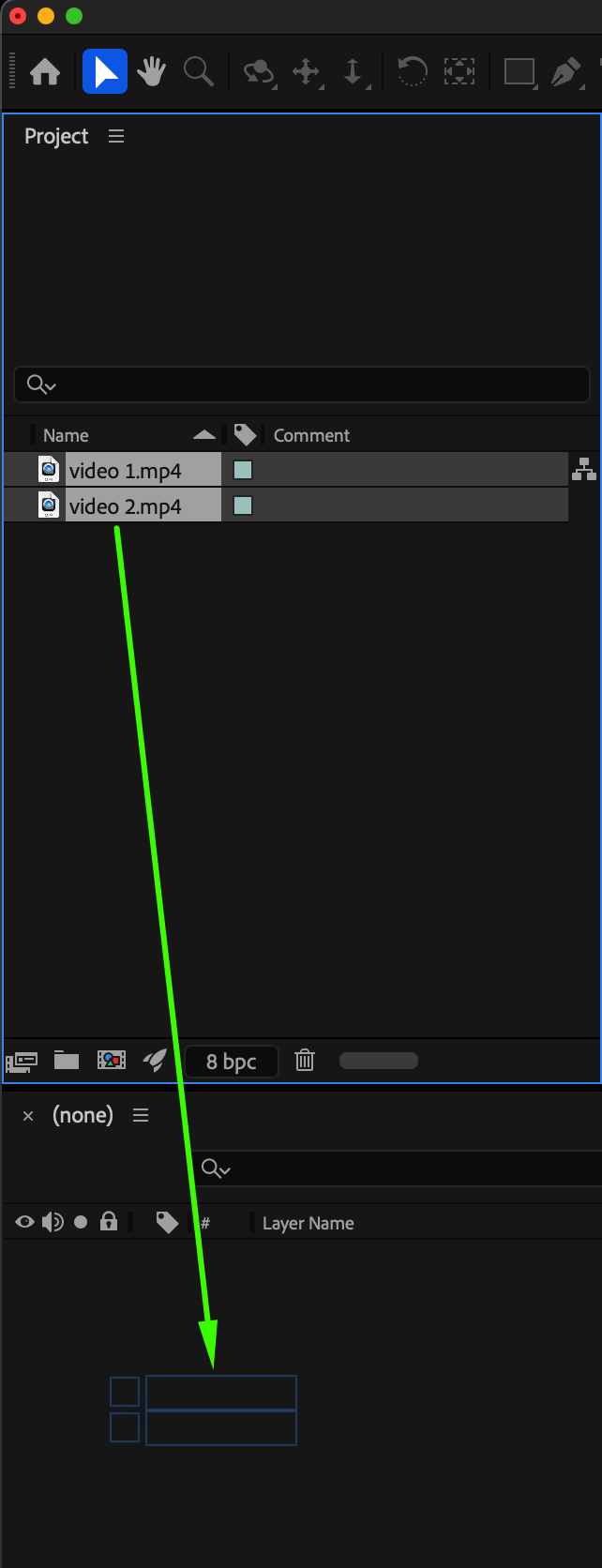
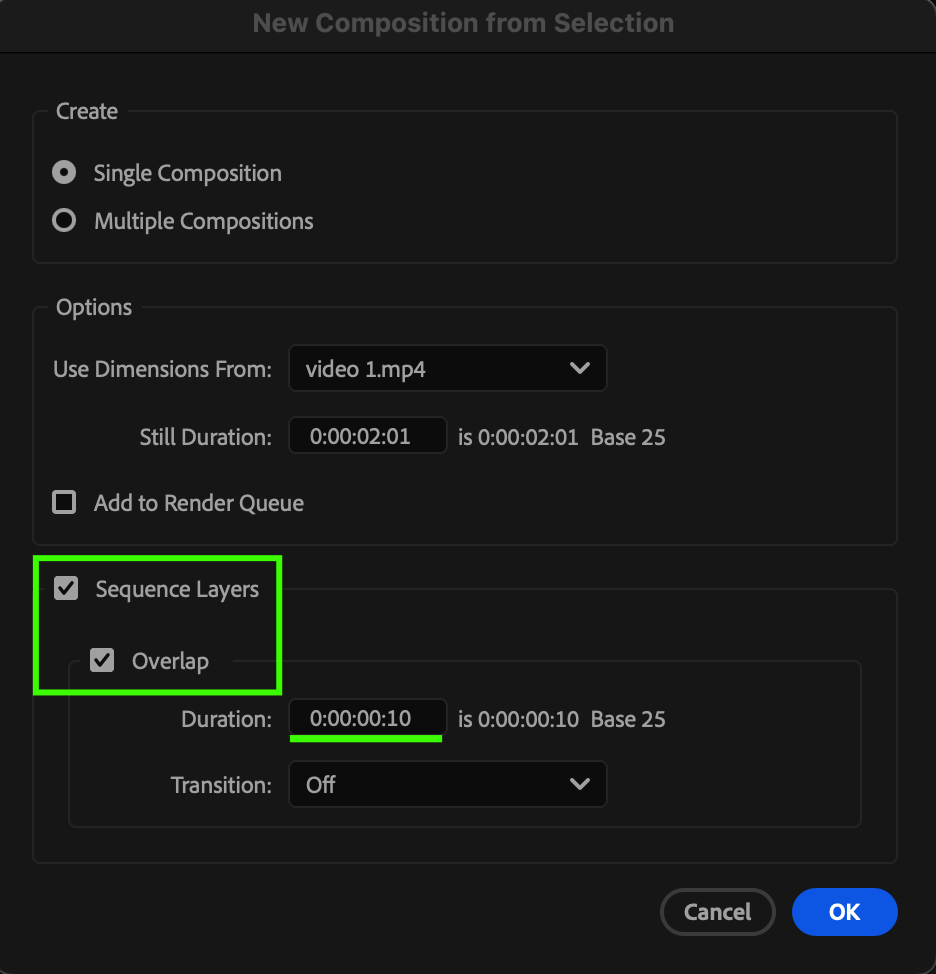
Go to File > Import > File and select your two video clips. Drag both clips to the Timeline — After Effects will open the New Composition from Selection window. Check Sequence Layers, enable Overlap, and set the Duration (for example, 0:00:00:10 for a 10-frame transition). Click OK to create your transition sequence.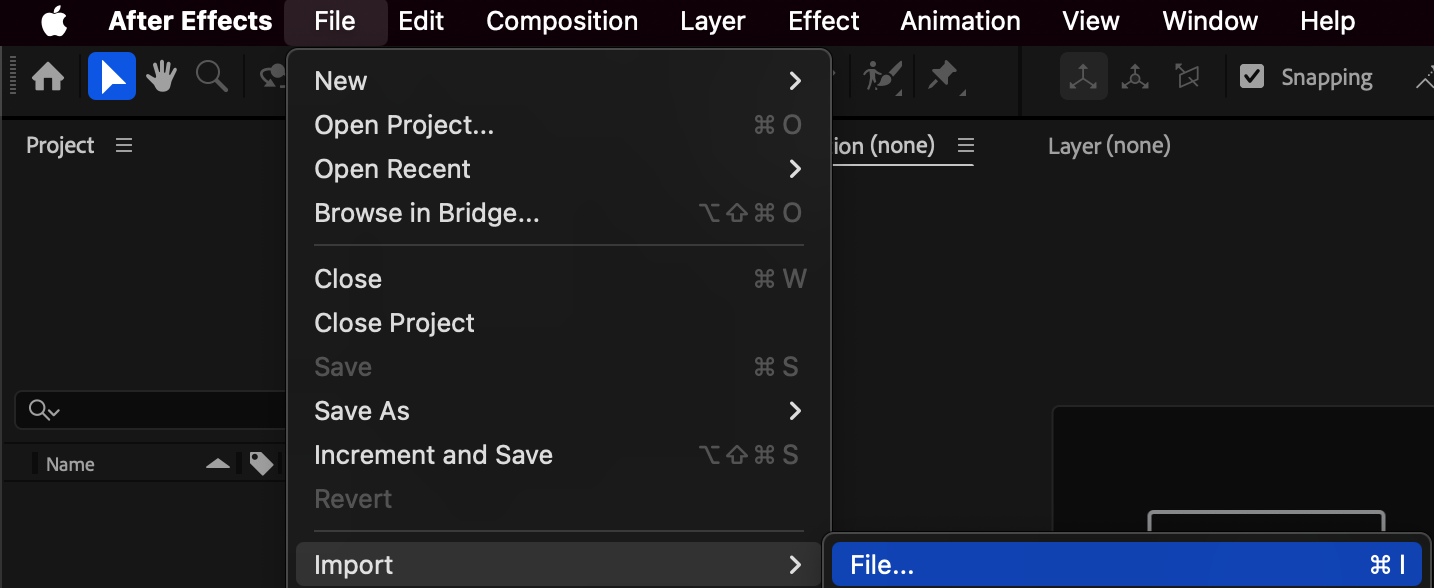
Step 2: Apply the CC Warpomatic Effect
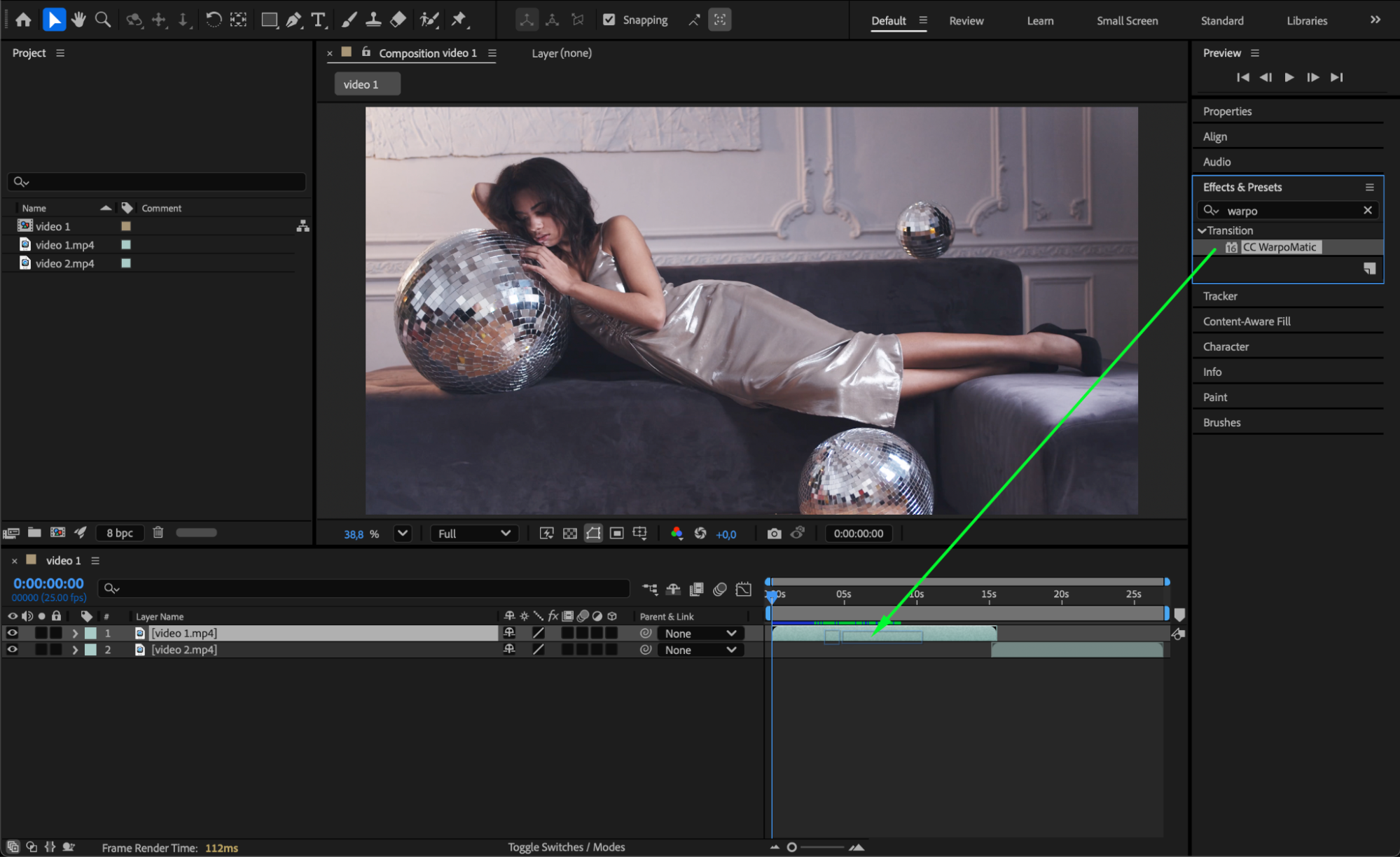
In the Effects & Presets panel, search for CC Warpomatic. Drag and drop the effect onto the first video layer in your timeline.
 Step 3: Adjust the Effect Settings
In the Effect Controls panel:
Set Layer to Reveal to your second video layer.
Adjust Smoothness to 5.
Set Warp Amount to 150.
Change Blend Span to 85.
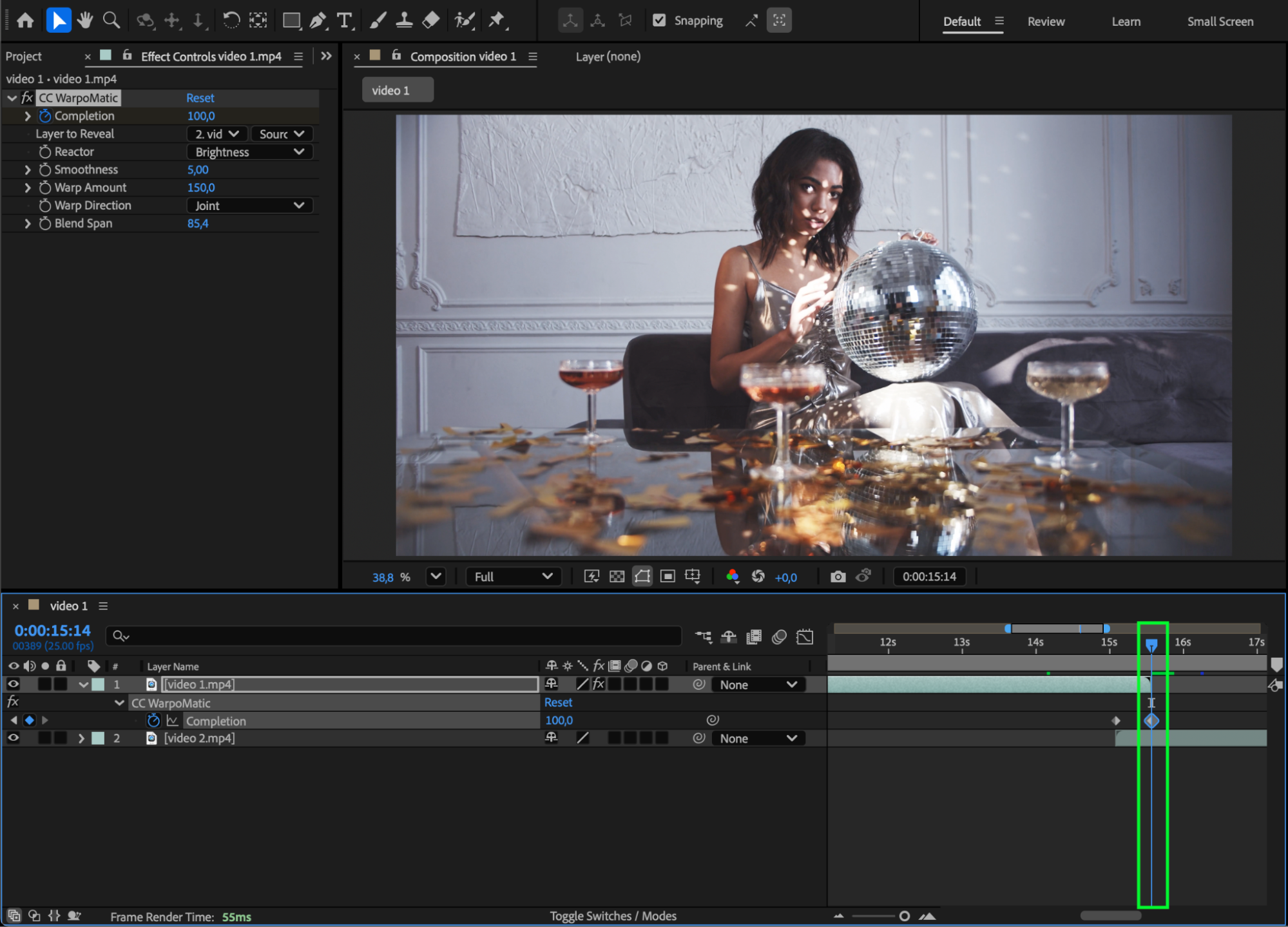
Move the CTI (Current Time Indicator) to the point where the second clip starts below the first one. Set the Completion value to 0% and click the stopwatch to create a keyframe. Then move the CTI to the end of the first video layer and change Completion to 100% to complete the transition.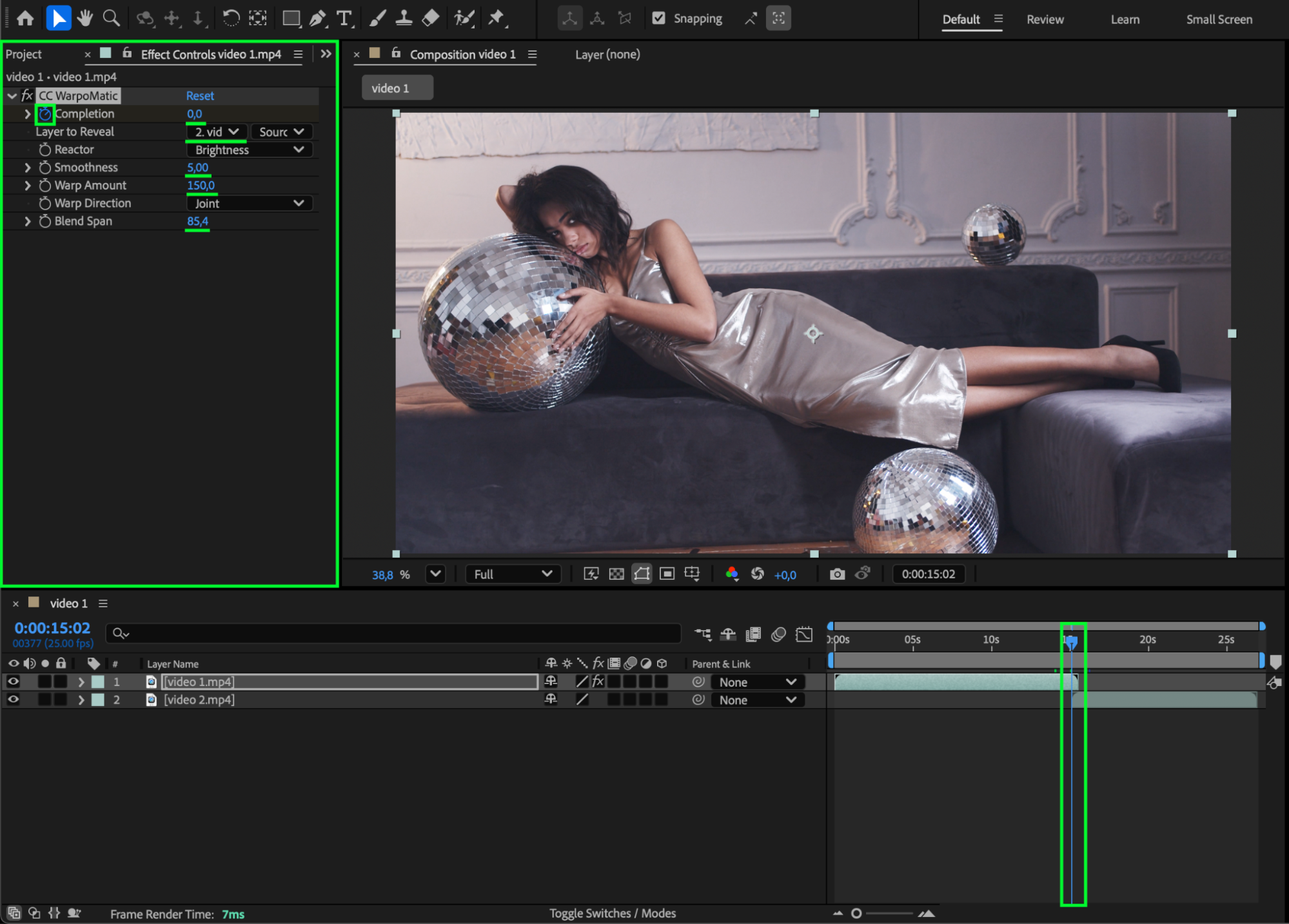
Step 4: Preview and Fine-Tune
Press the Spacebar to preview your animation. You should see the first video warping and blending smoothly into the second one, creating a dynamic and professional transition.
If needed, tweak Warp Amount or Smoothness for a more natural look.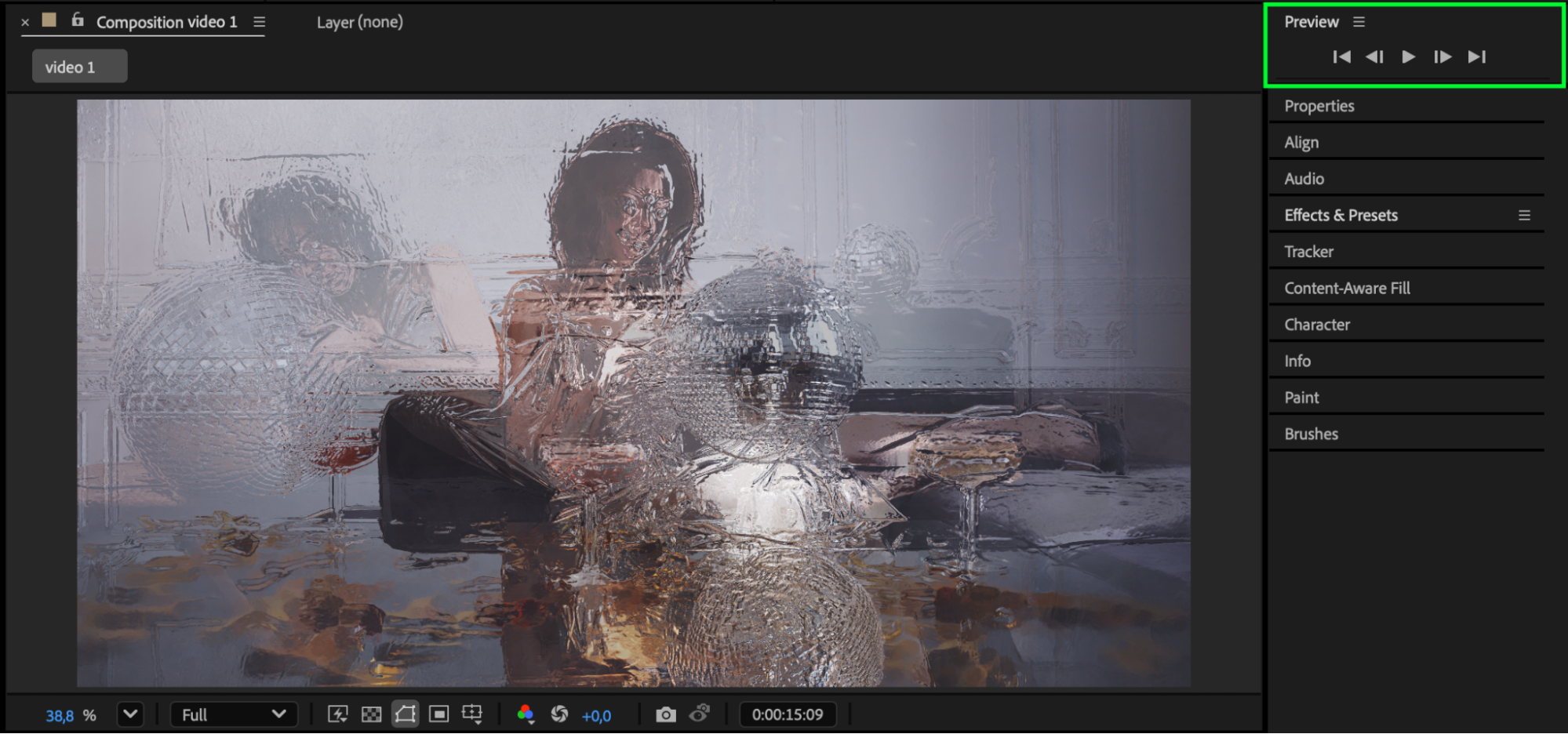
Conclusion
Using CC Warpomatic in After Effects is an easy way to produce seamless, flowing transitions between clips. By adjusting the blend and warp parameters, you can create anything from subtle morphs to dramatic distortions — perfect for music videos, travel reels, and cinematic edits.
Our Bestsellers
Our Bestsellers


