Introduction
The Foam effect in After Effects is useful for creating organic bubble, foam, or underwater-style motion. It works well for abstract backgrounds, liquid visuals, and atmospheric overlays. In this tutorial, you’ll learn how to apply and customize the Foam effect and integrate it naturally into your composition.
Step 1: Create a New Composition
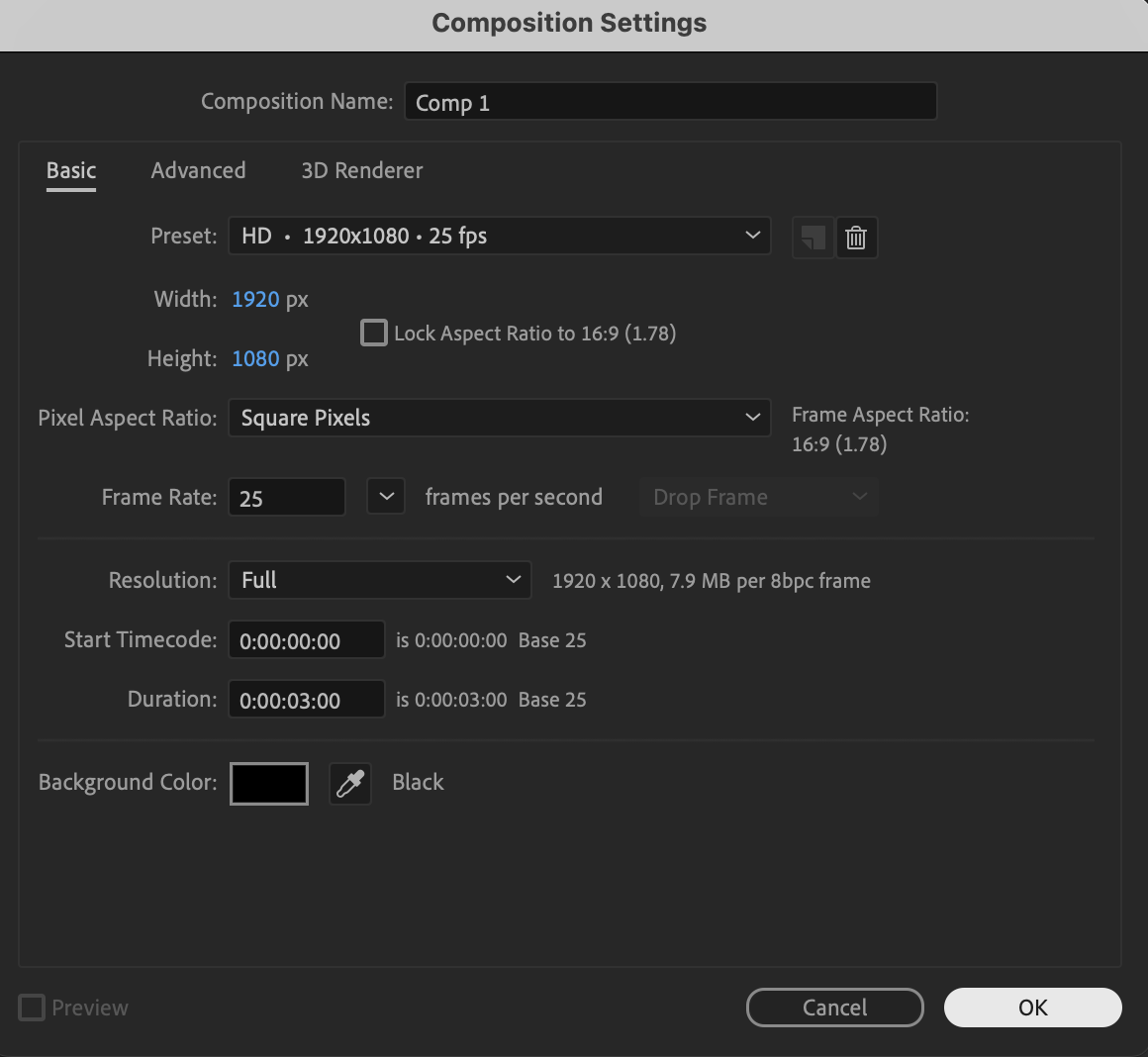
Create a new composition with your desired resolution and frame rate.
Step 2: Create a Solid Layer
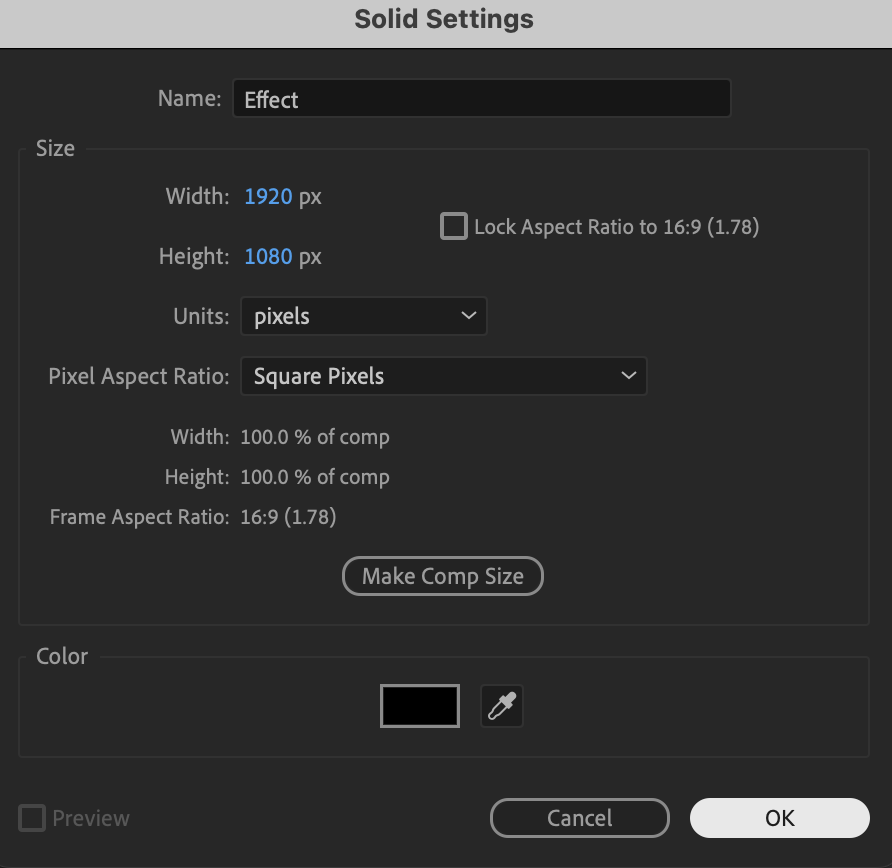
Go to Layer → New → Solid. Choose black as the color and name the layer Effect. This solid will be used as the base for the Foam effect.
Get 10% off when you subscribe to our newsletter

Step 3: Apply the Foam Effect
From the Effects & Presets panel, apply the Foam effect to the solid layer. Use the following settings as a starting point:
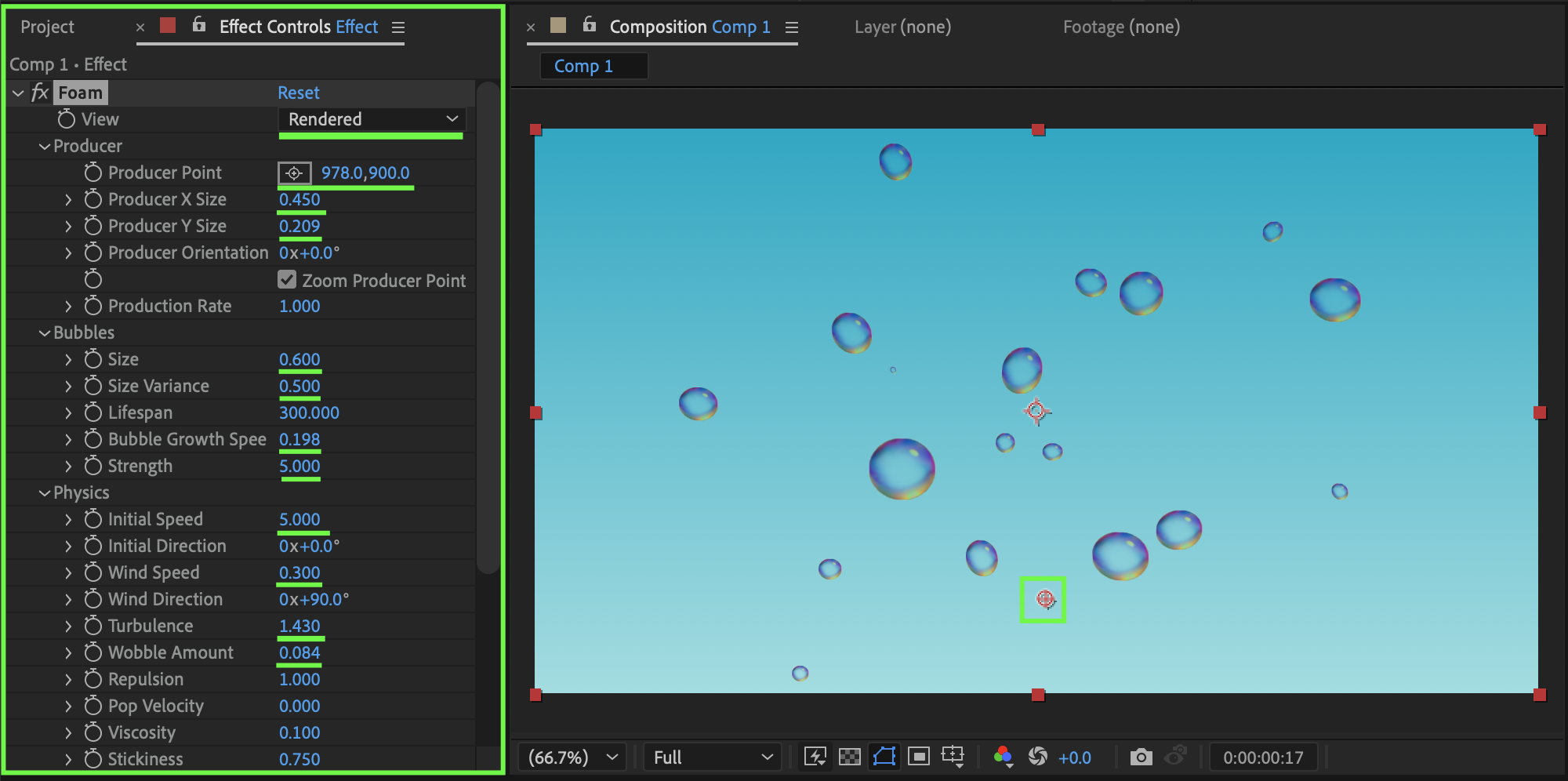
View: Rendered
Producer Point: Position it near the bottom center of the Composition panel
Producer X Size: 0.45
Producer Y Size: 0.209
Size: 0.6
Bubble Growth Speed: 0.198
Strength: 5
Initial Speed: 5
Wind Speed: 0.3
Turbulence: 1.43
Wobble Amount: 0.084
Adjust these values to control bubble size, movement, and density.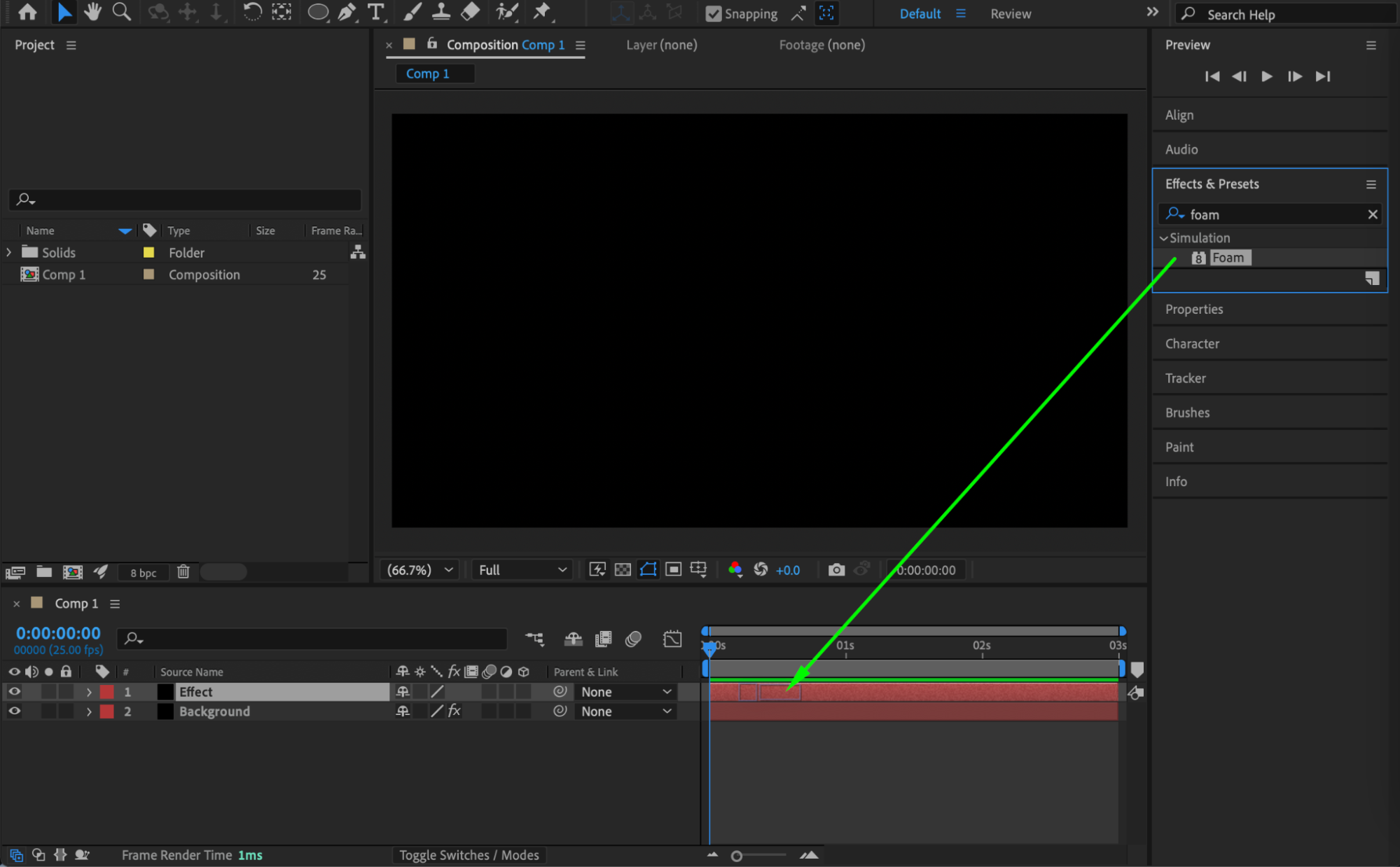
 Step 4: Start the Animation Immediately (Optional)
To make the foam animation already active at the beginning: Move the solid layer slightly to the left on the timeline so the effect has time to generate before frame 0.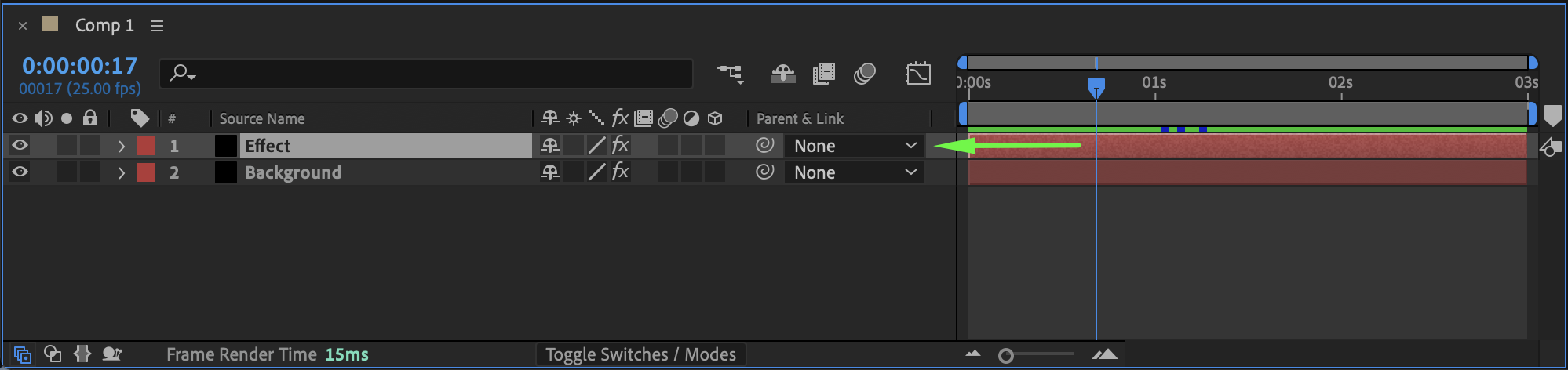
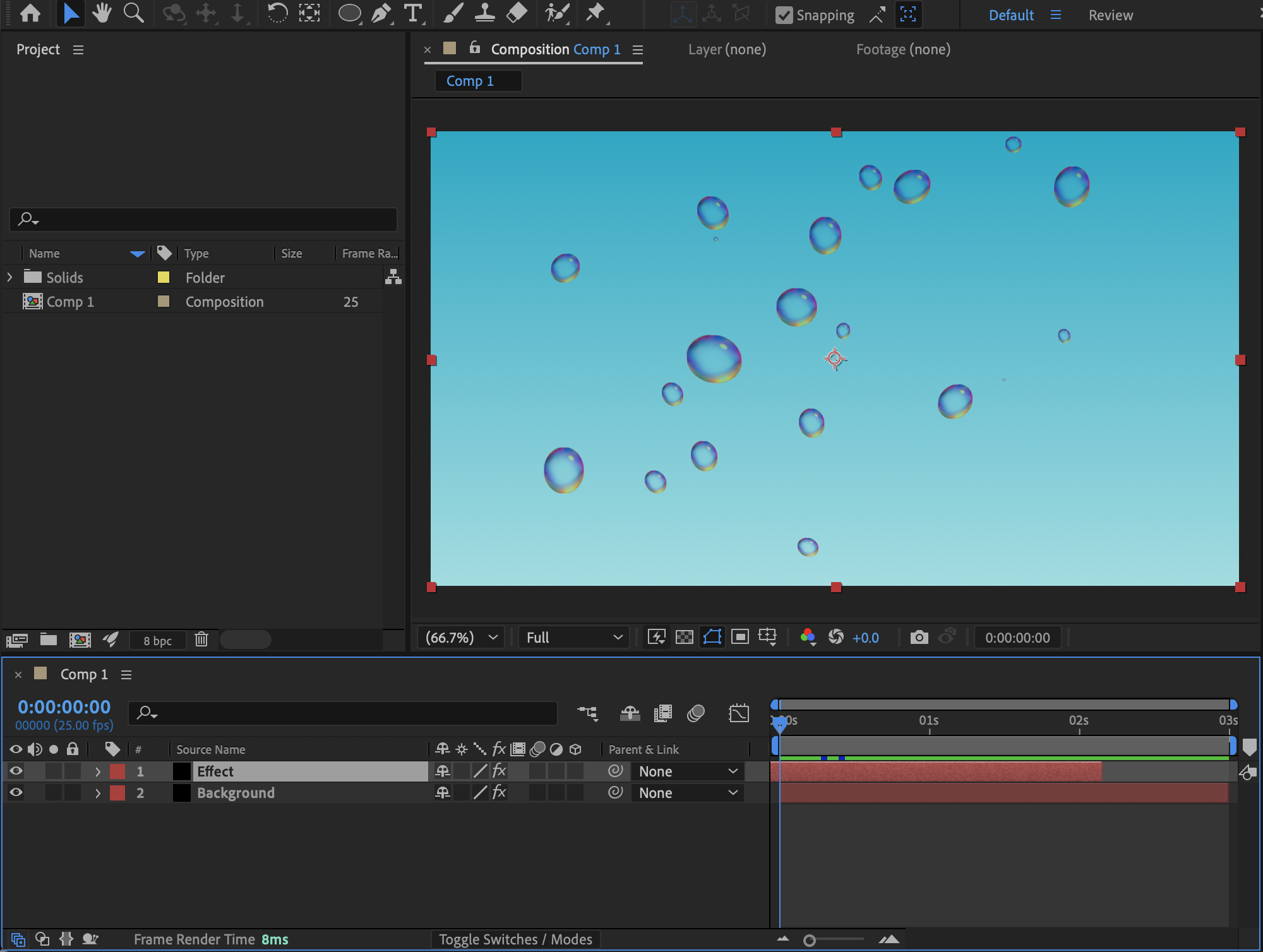
Step 5: Blend the Foam Into the Scene
Right-click on the solid layer and set its Blending Mode to Overlay. This helps the foam integrate more naturally with the background instead of appearing as a flat layer.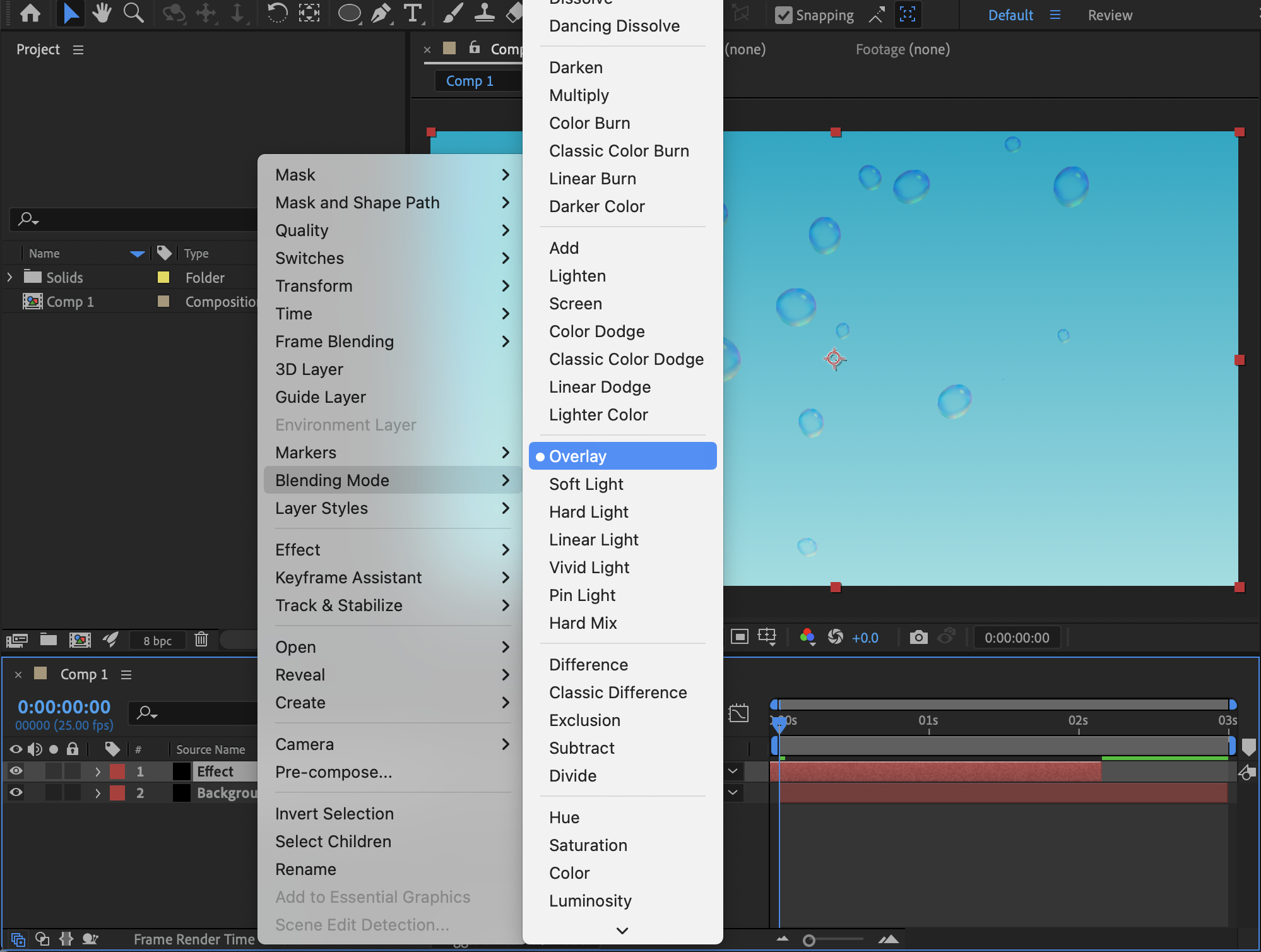
Step 6: Preview the Result
Preview the composition and fine-tune the Foam parameters, blending mode, or layer timing to match your desired visual style.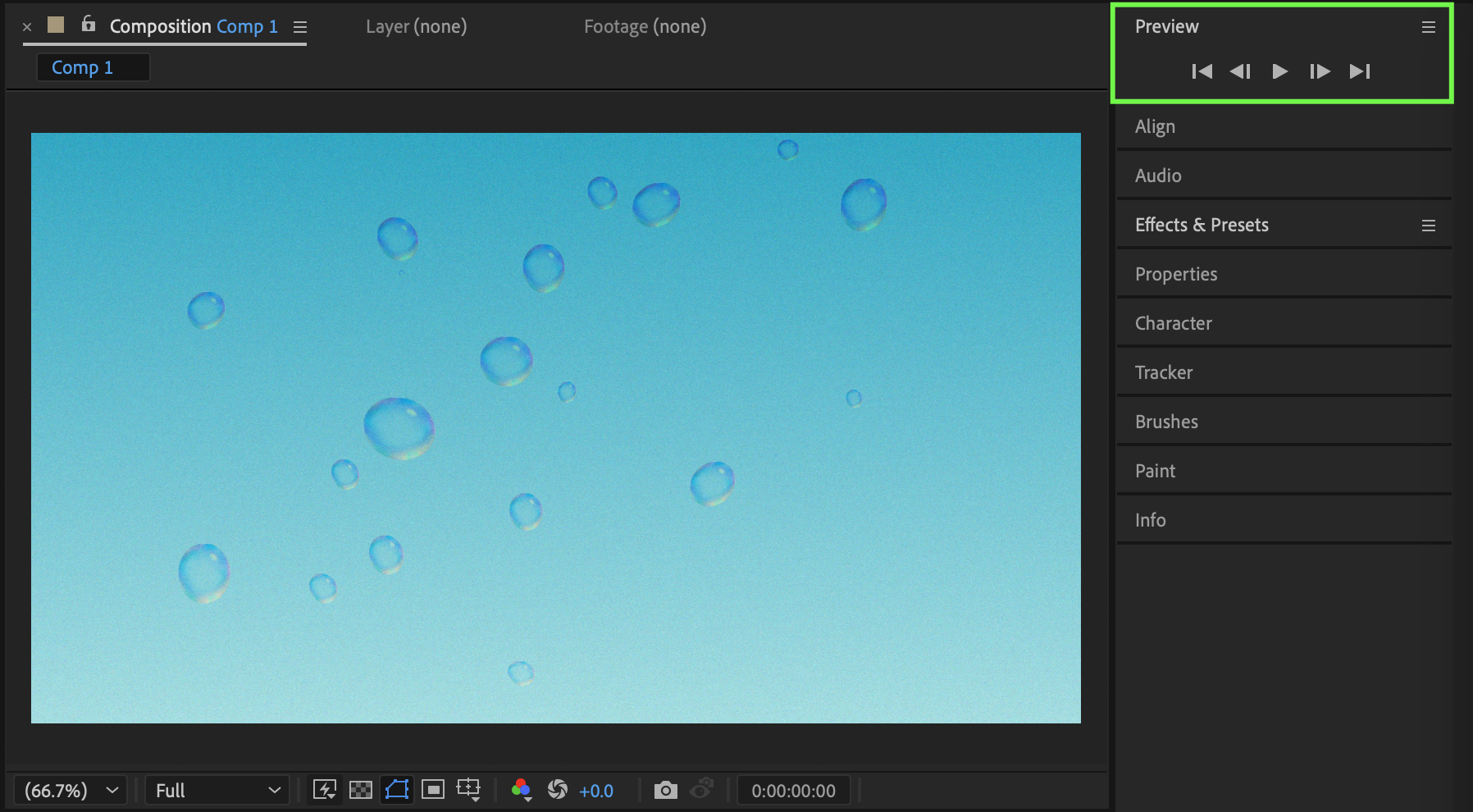
Conclusion
The Foam effect in After Effects allows you to create dynamic, organic bubble and liquid-style visuals without third-party plugins. By adjusting the producer settings, motion parameters, and blending mode, you can easily integrate foam effects into underwater scenes, abstract backgrounds, or stylized motion graphics.
Our Bestsellers

