
Introduction
The Levels effect is a powerful tool in After Effects for adjusting brightness, contrast, and tonal range. It allows you to fine-tune shadows, midtones, and highlights, giving your images and videos a cleaner and more professional look.
Step 1: Import Your Image
Go to File → Import → File and select your photo. Drag it onto the timeline.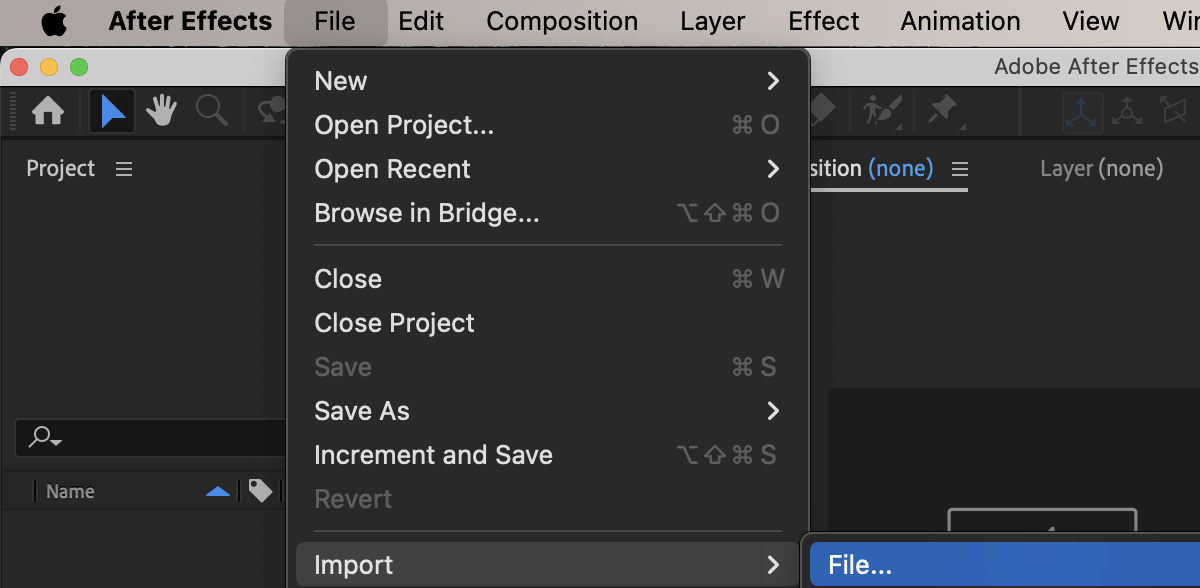
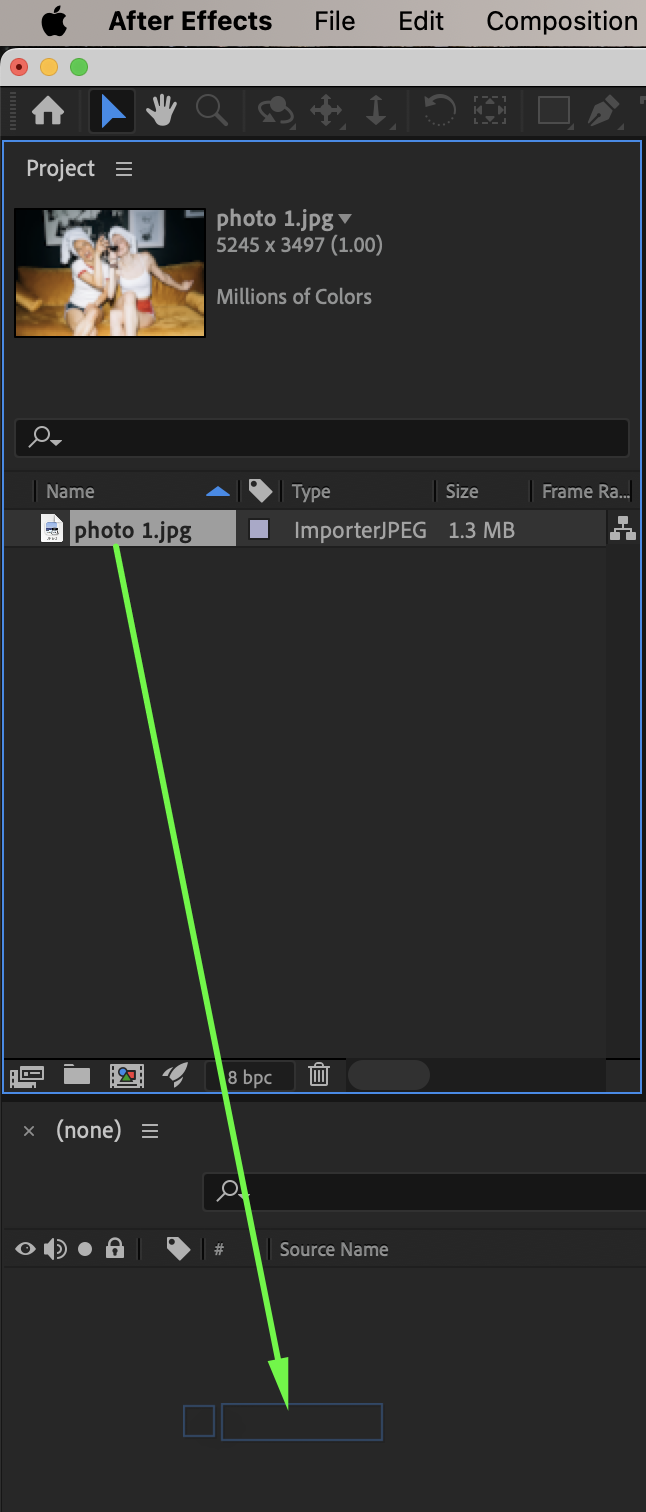 Step 2: Apply the Levels Effect
Select your image layer. From the Effects & Presets panel, drag the Levels effect onto the layer.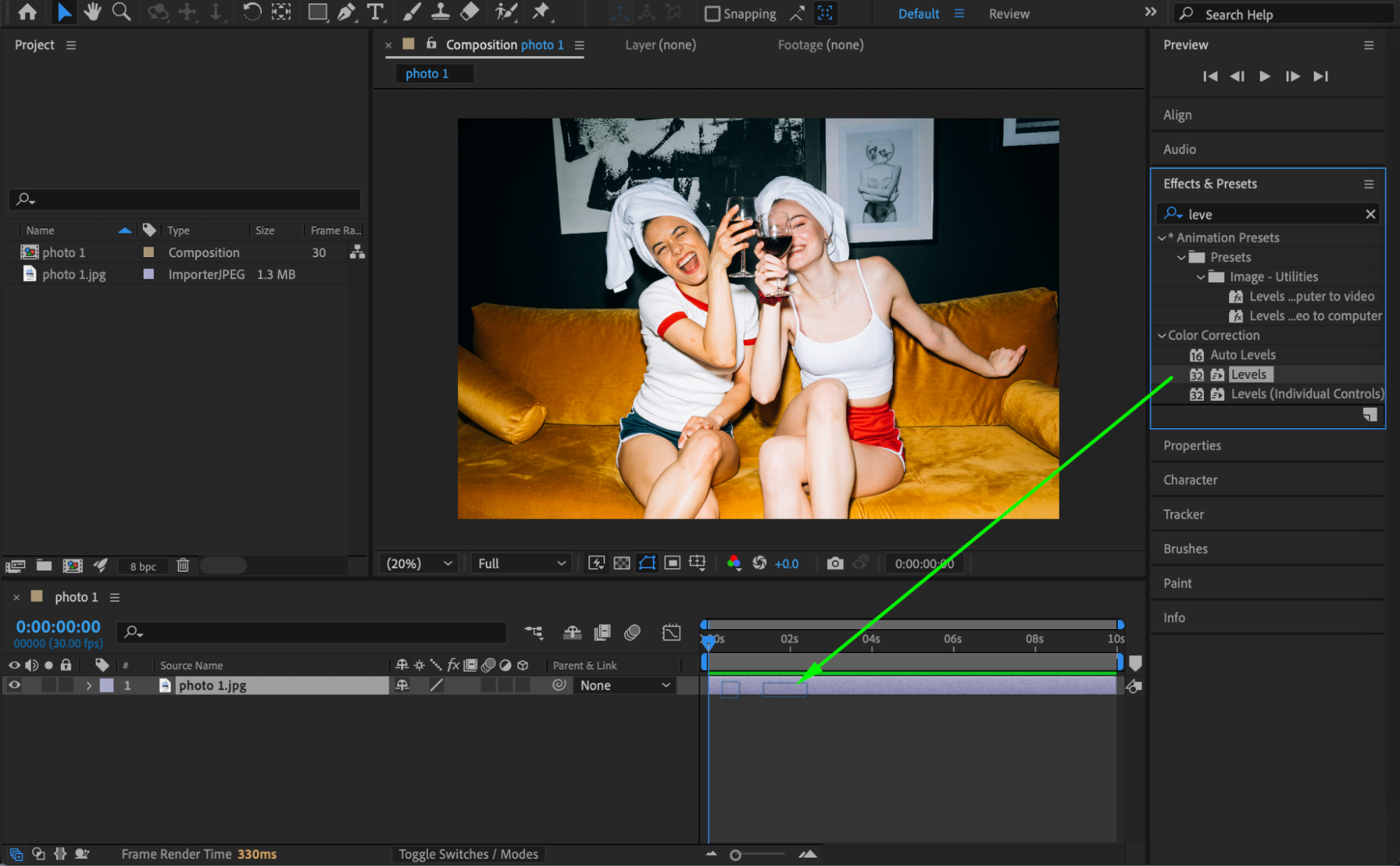
Step 3: Adjust Levels Settings
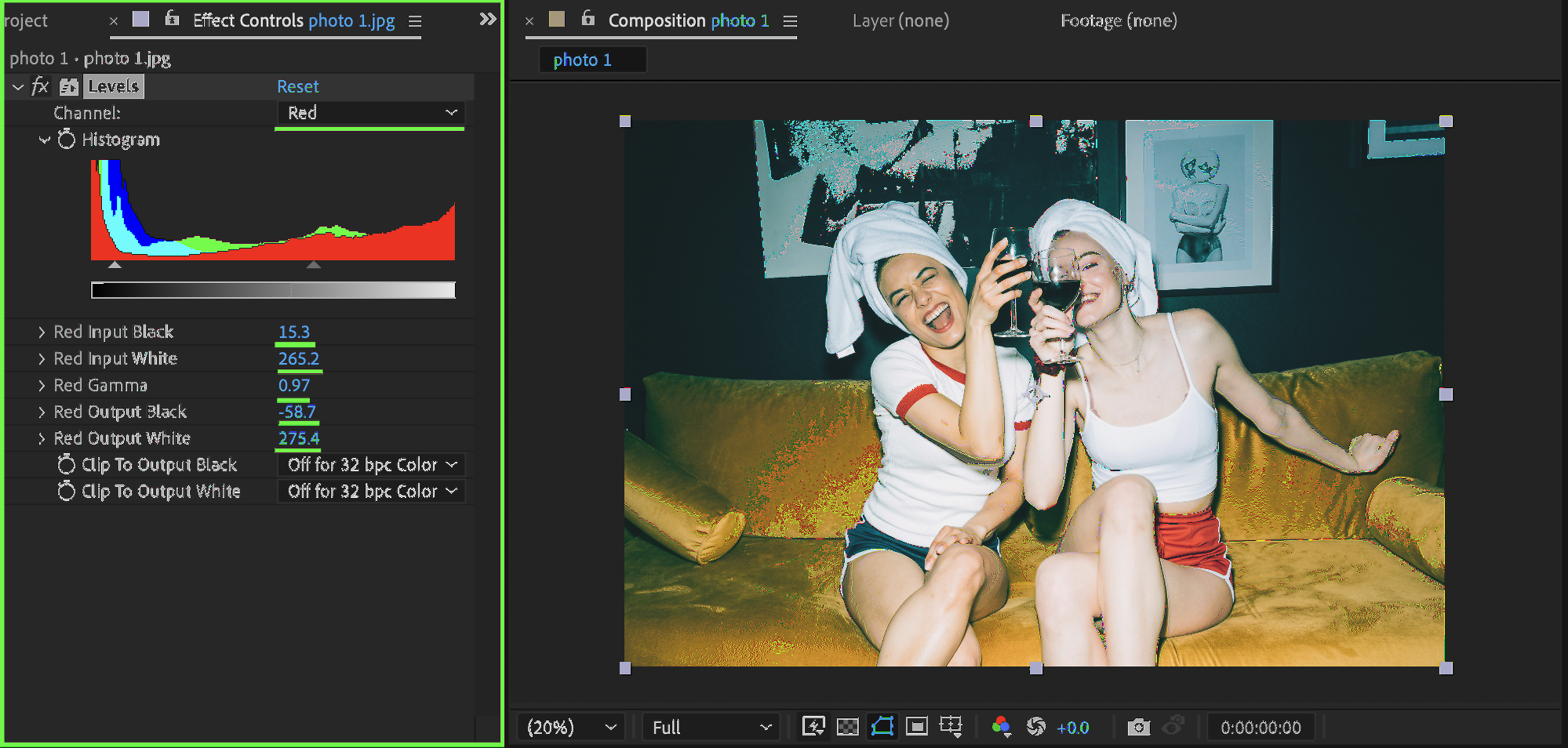
In the Effect Controls panel, start with Channel: RGB. Adjust the following parameters:
Input Black – controls shadow depth
Input White – controls highlight brightness
Gamma – adjusts midtone brightness
Output Black – sets the darkest output value
Output White – sets the brightest output value
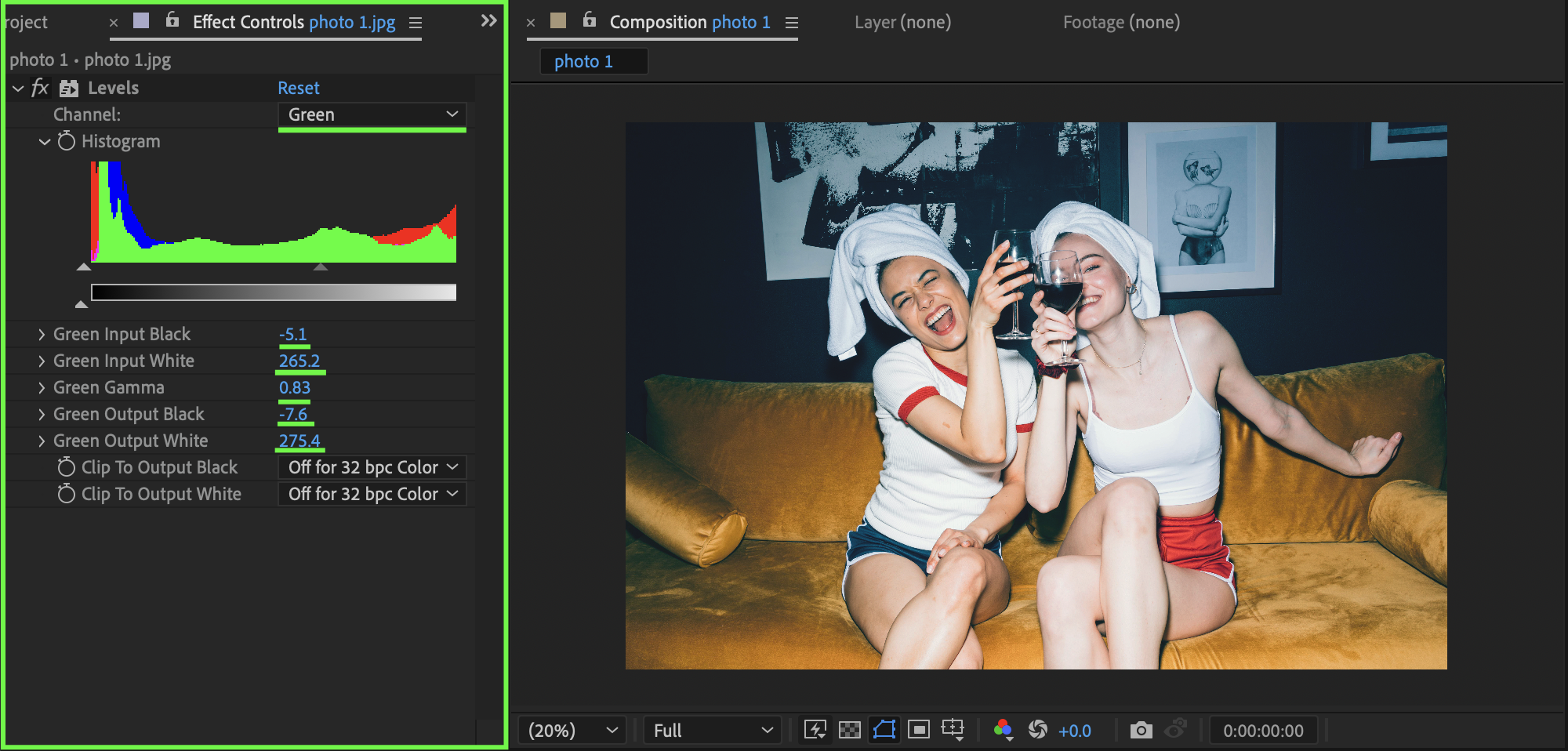
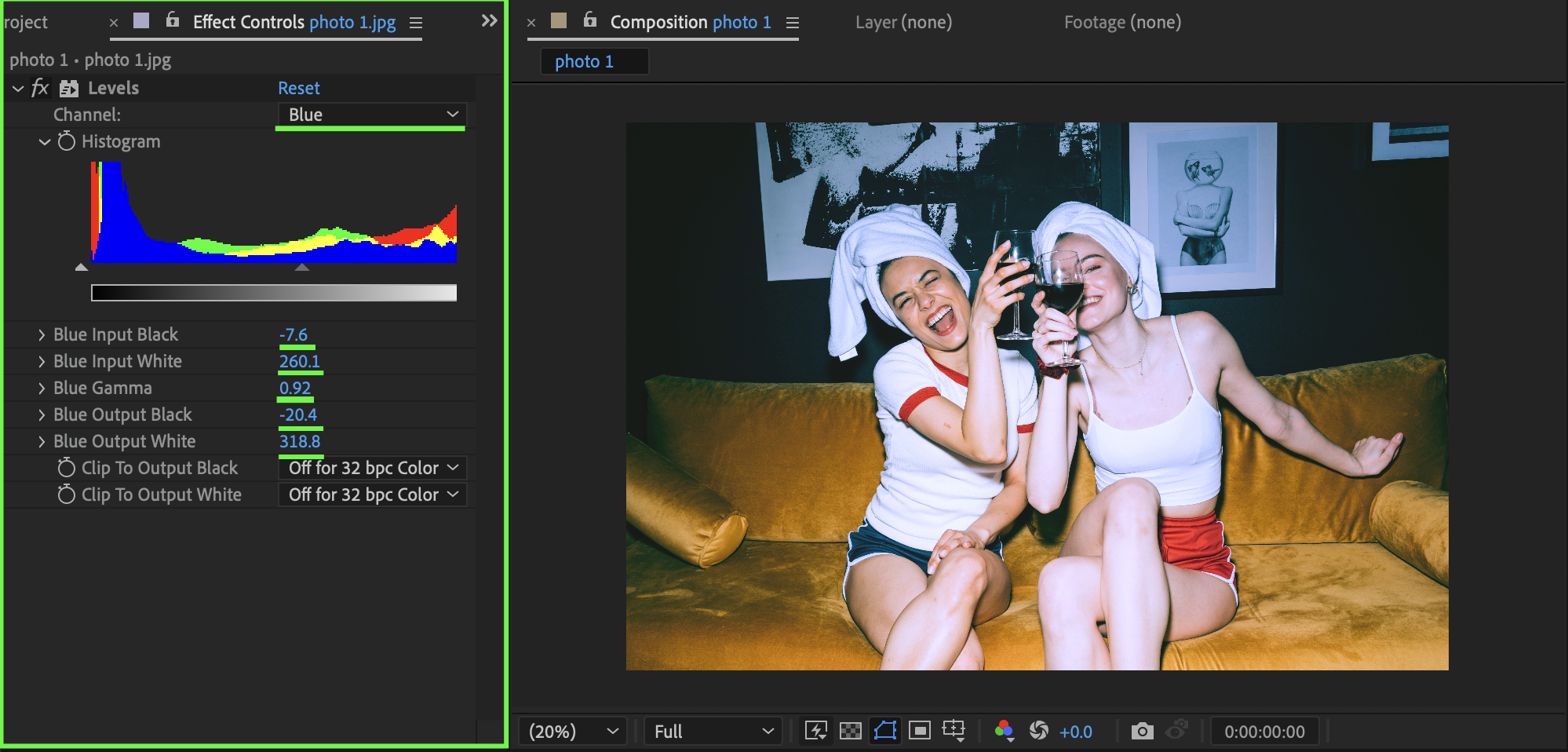
After adjusting RGB, switch the Channel to individual colors (Red, Green, Blue) and fine-tune the same parameters to correct or stylize color balance.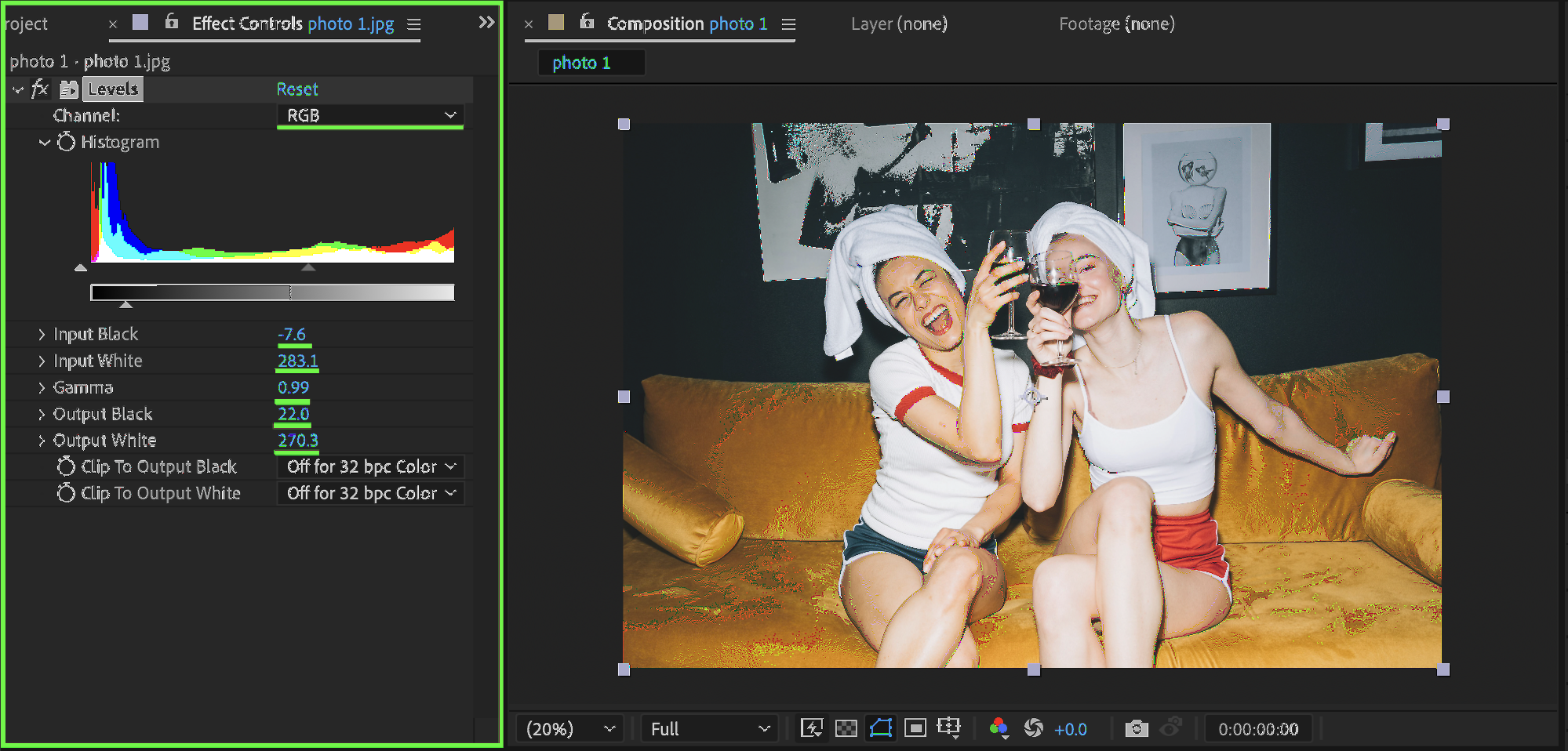
 Step 4: Preview Before and After
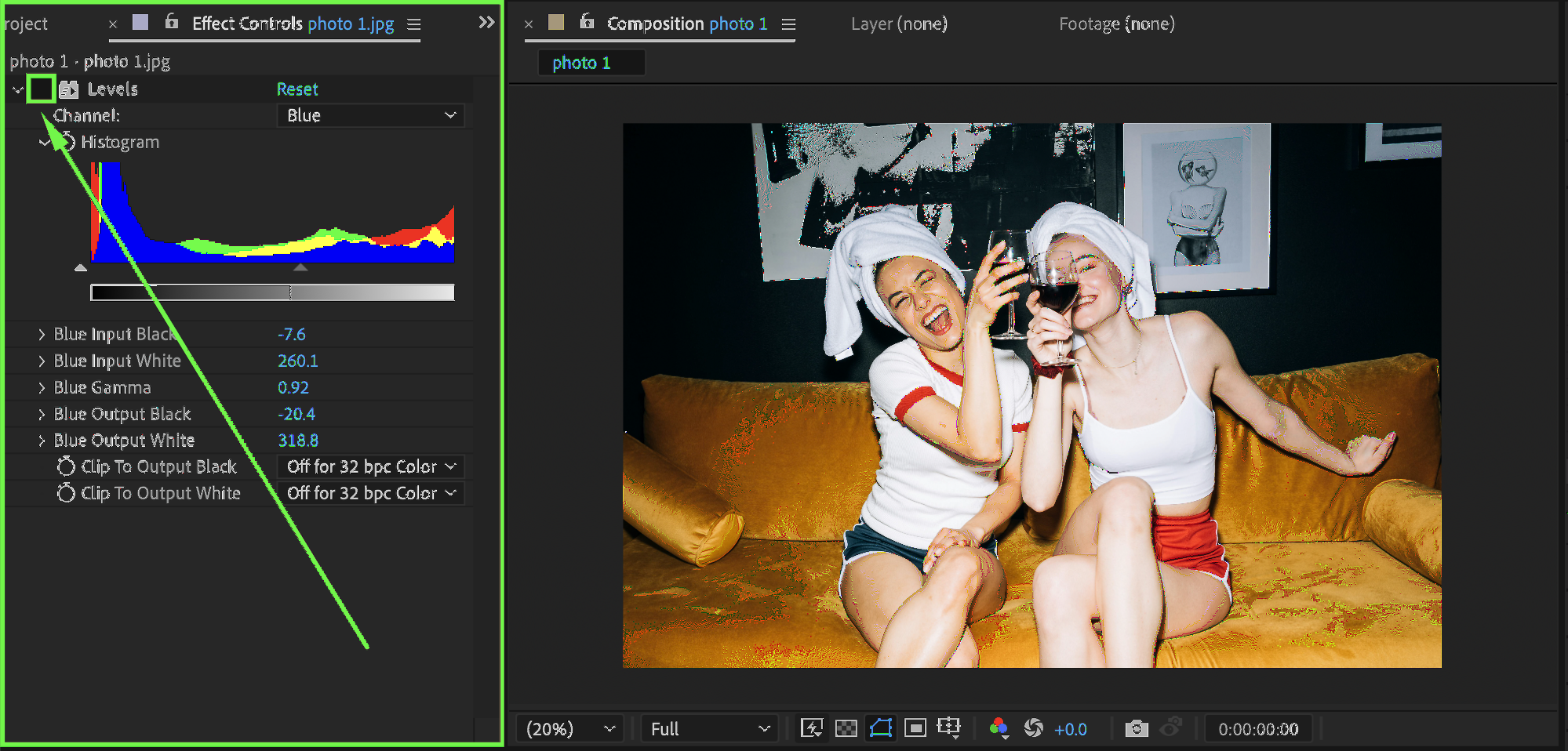
To quickly compare the image before and after, disable the effect by clicking the fx button next to the Levels effect in the Effect Controls panel. You can also toggle the fx switch on the layer in the Timeline to temporarily disable all effects.
Step 5: Enhance the Look (Optional)
For a more cinematic and detailed result, try adding additional effects such as:
Glow for highlights
Add Grain for texture and depth
Adjust these effects subtly to avoid overprocessing.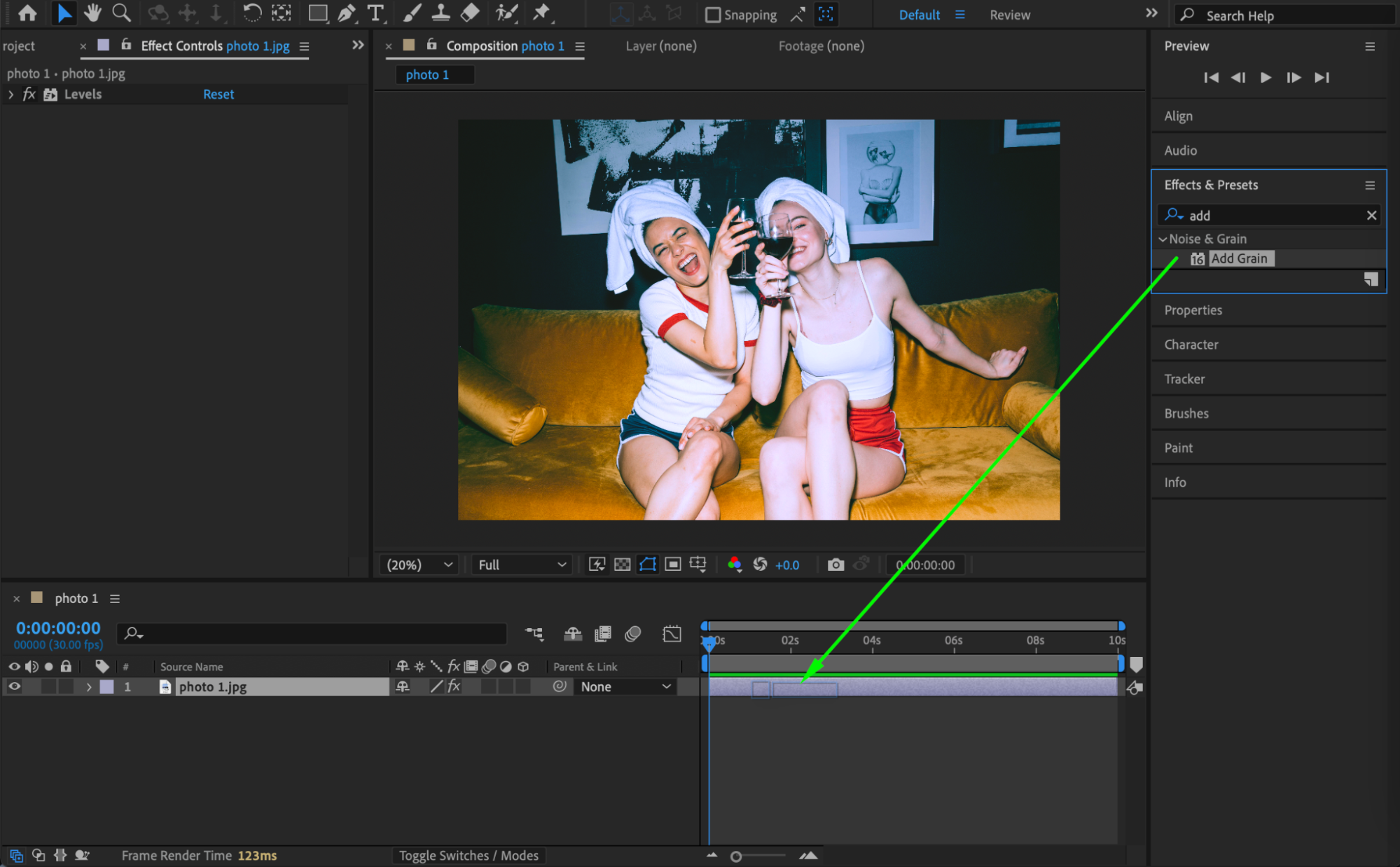
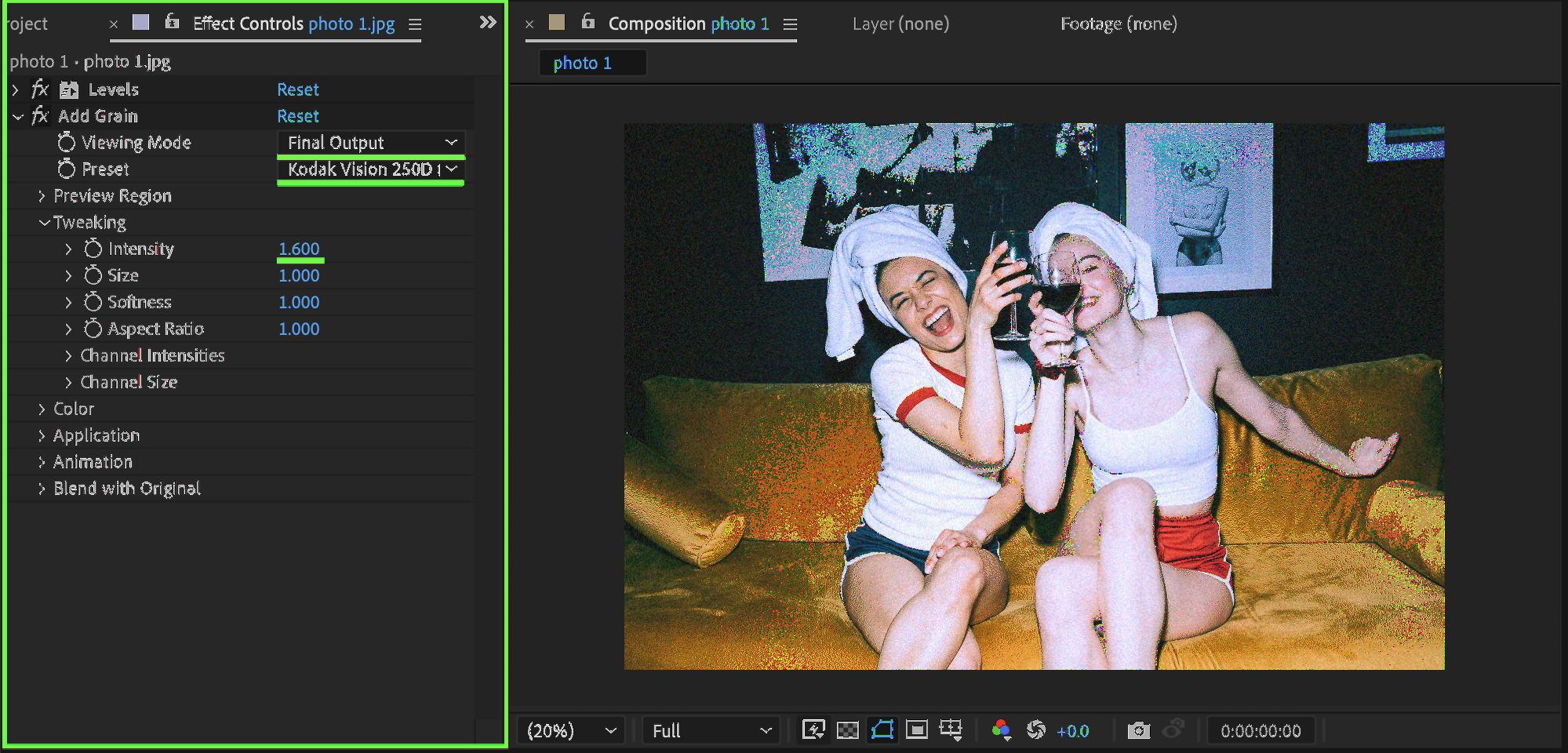
Step 6: Preview the Result
Preview the composition and make final adjustments until the image looks balanced and visually appealing.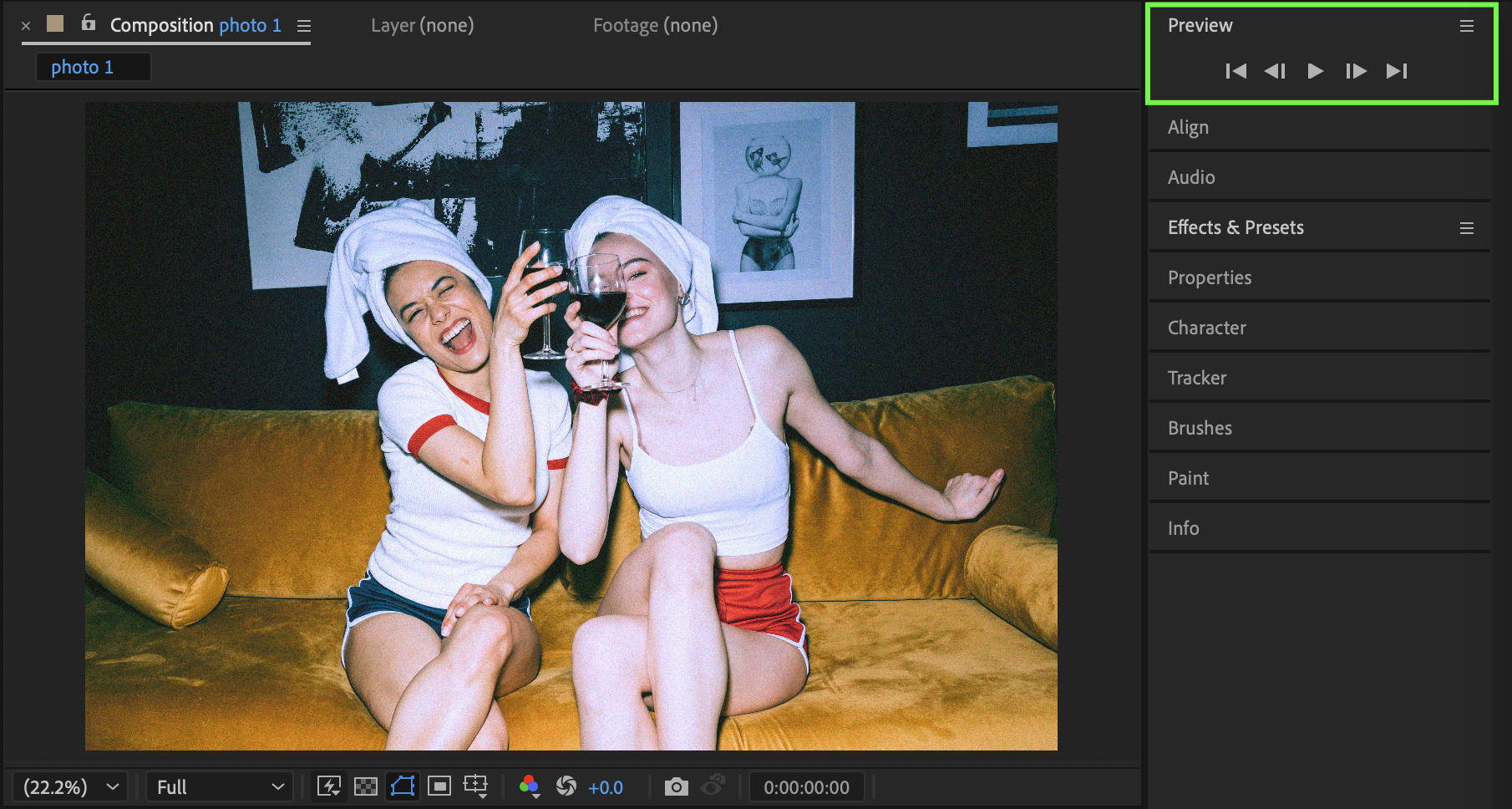
Conclusion
The Levels effect is an essential color correction tool in After Effects. By adjusting RGB and individual color channels, you can precisely control exposure, contrast, and color mood for professional-quality visuals.
Our Bestsellers
Our Bestsellers


