
Introduction
The Pen Tool in After Effects allows you to create custom shapes and masks. Sometimes you may want your shapes to have no fill and only a visible stroke, which is perfect for outlines, paths, and animated line effects.
Step 1: Create a New Composition
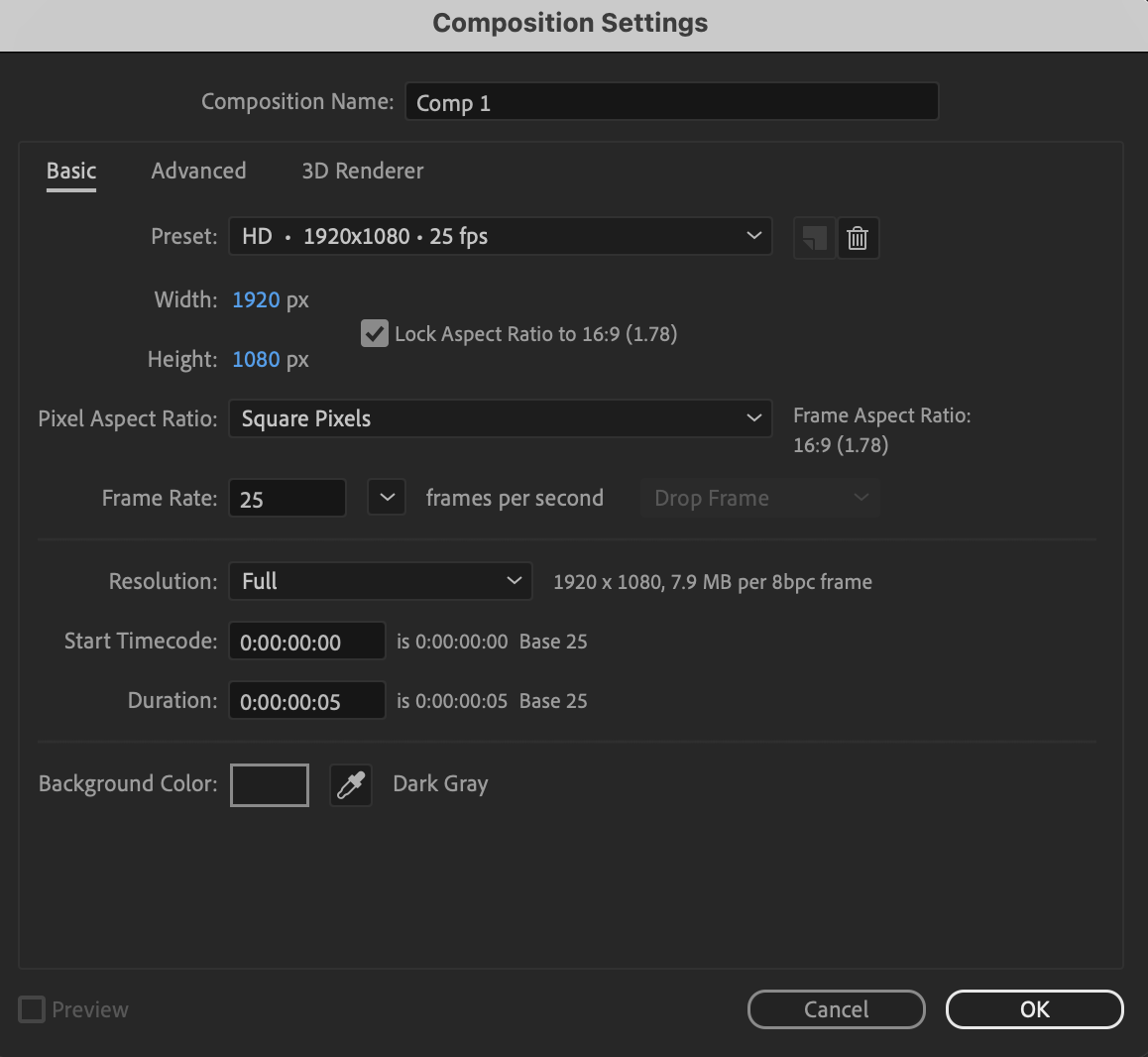
Go to Composition > New Composition and set your preferred resolution, frame rate, and duration.
 Step 2: Select the Pen Tool
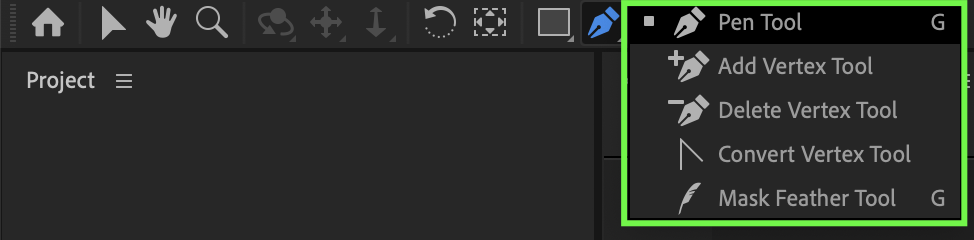
Select the Pen Tool (G) from the toolbar or menu.
Step 3: Disable Fill
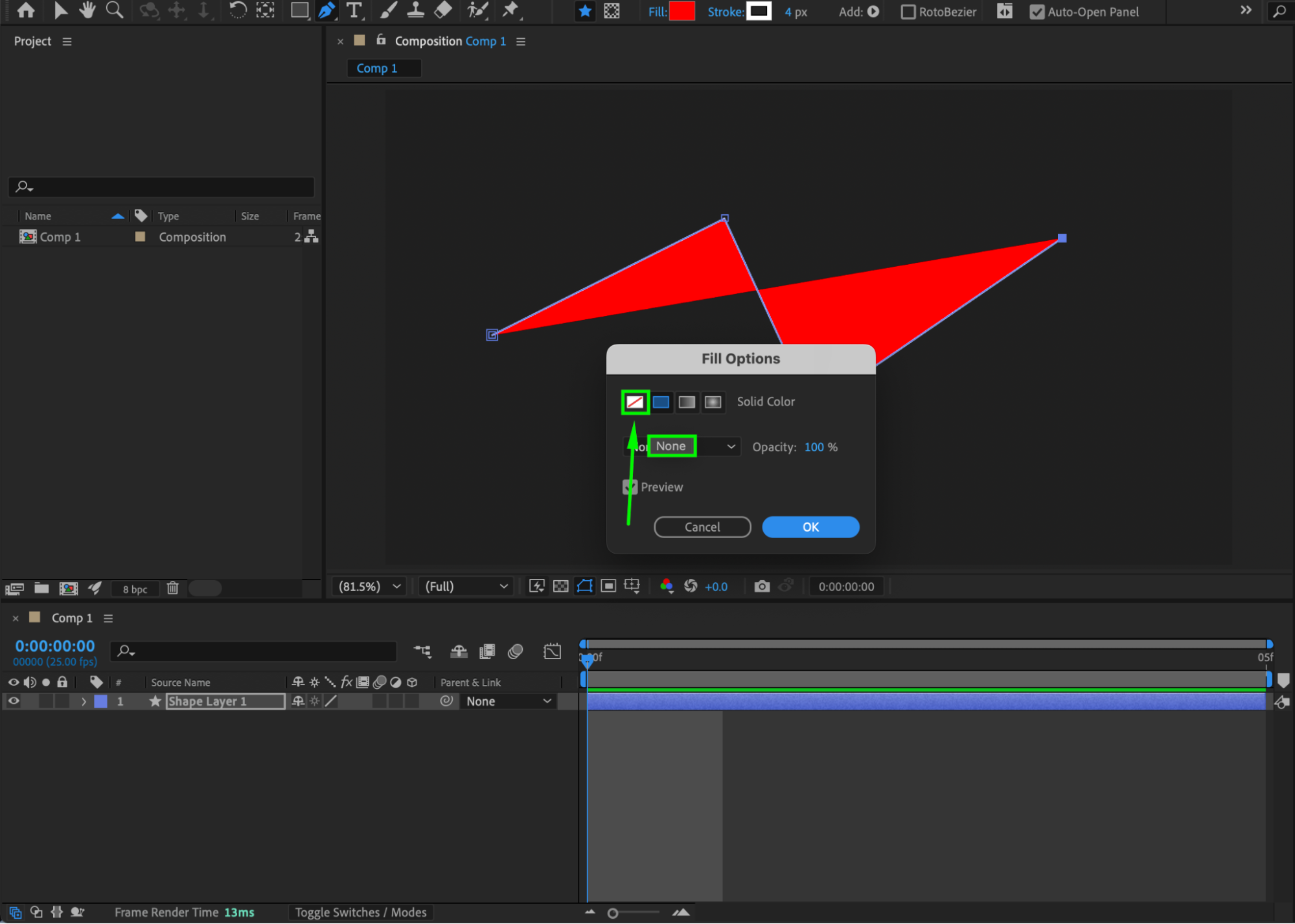
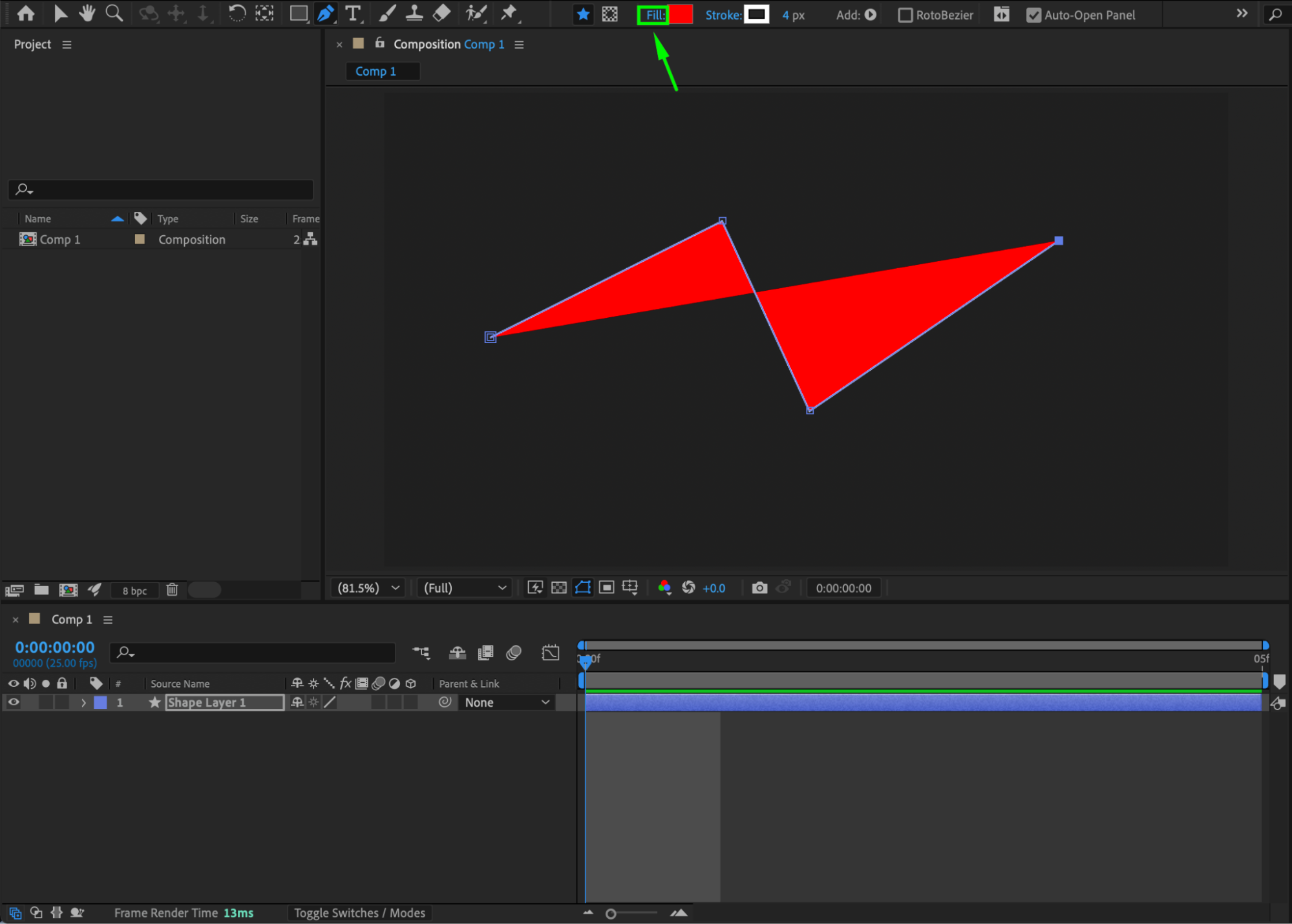
Above the composition panel, click on the blue Fill label. In the Fill Options window that appears, choose the white rectangle with a red diagonal line through it (None) and click OK.
Step 4: Configure Stroke
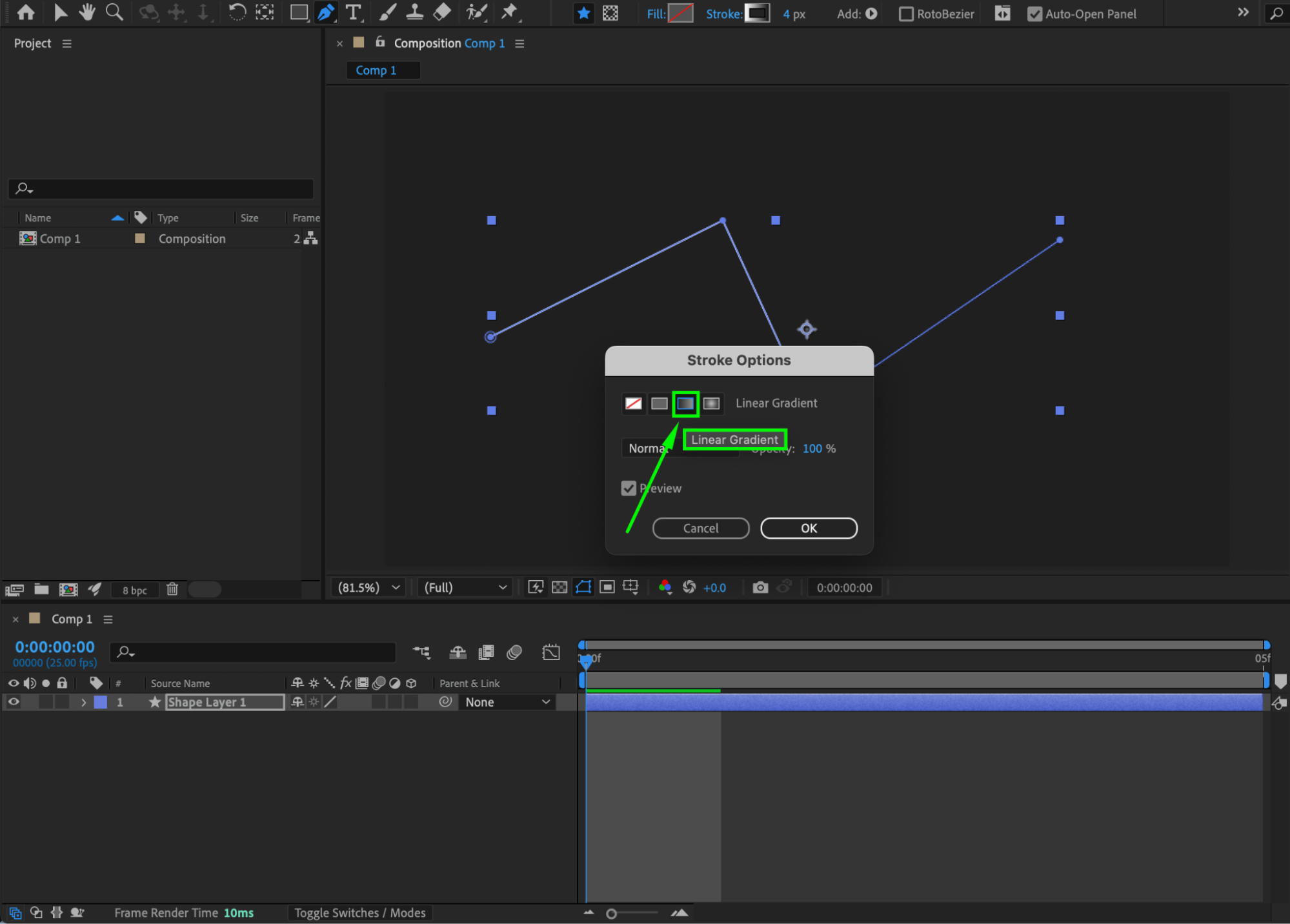
Click on the blue Stroke label above the composition panel. In the Stroke Options window, choose the type of stroke: Solid Color, Linear Gradient, or Radial Gradient, then click OK.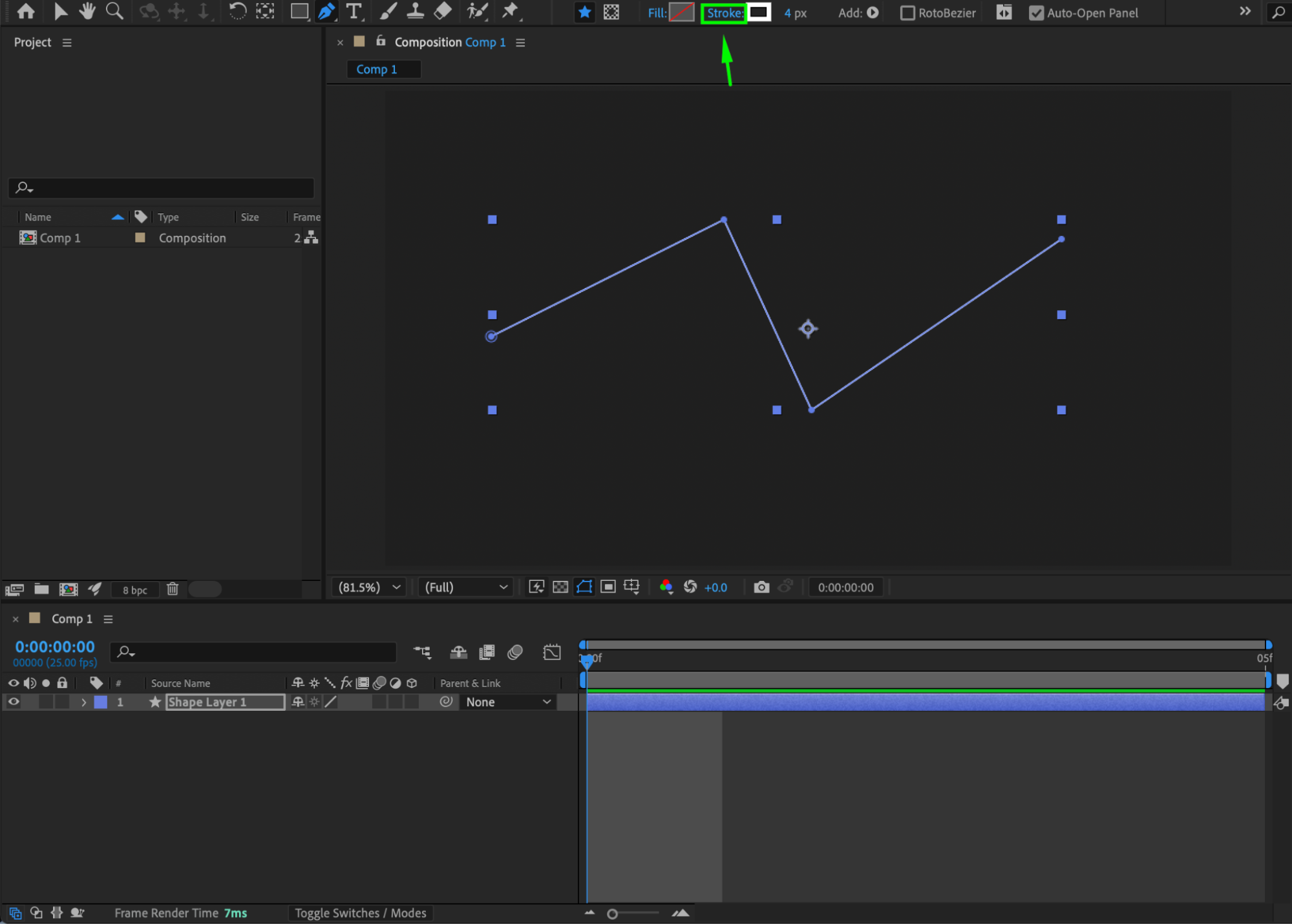
Step 5: Choose Stroke Color
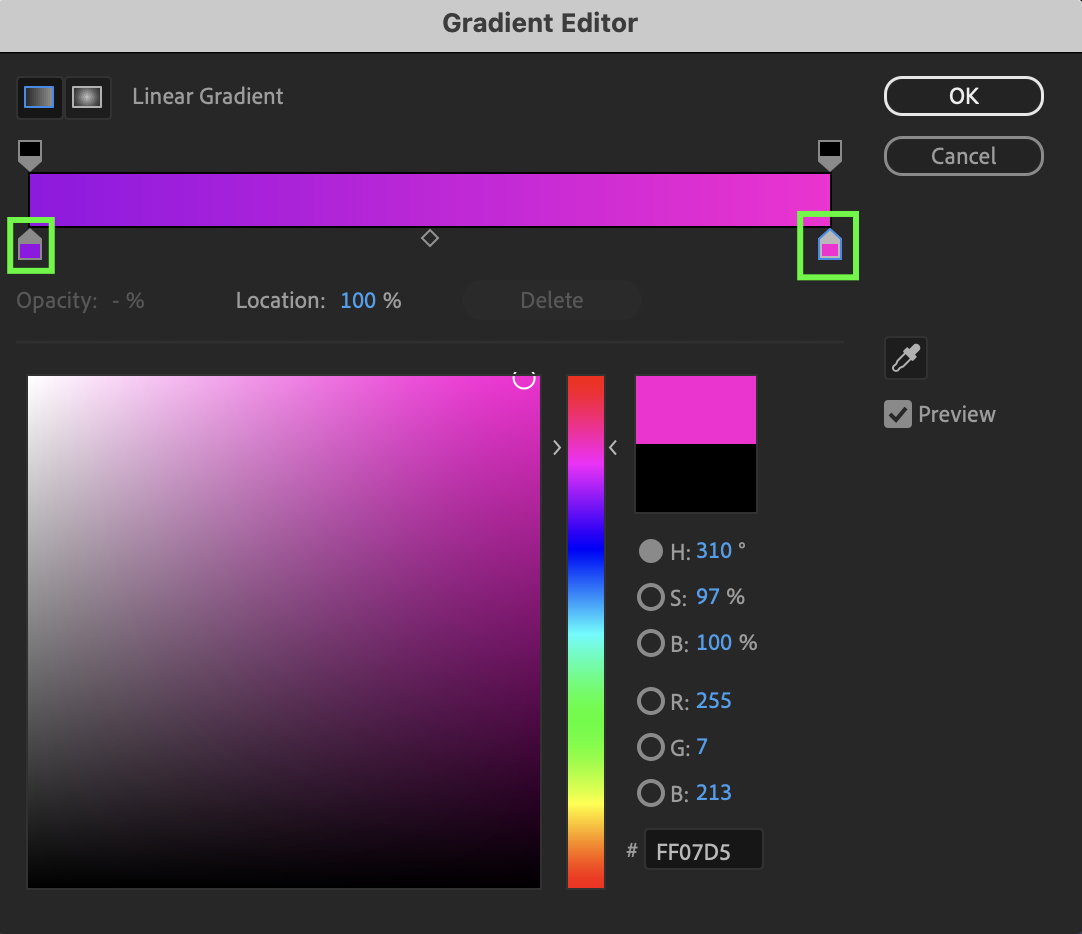
Next to the Stroke label, click the color swatch (black-and-white or colored rectangle) to select the stroke color for your shape.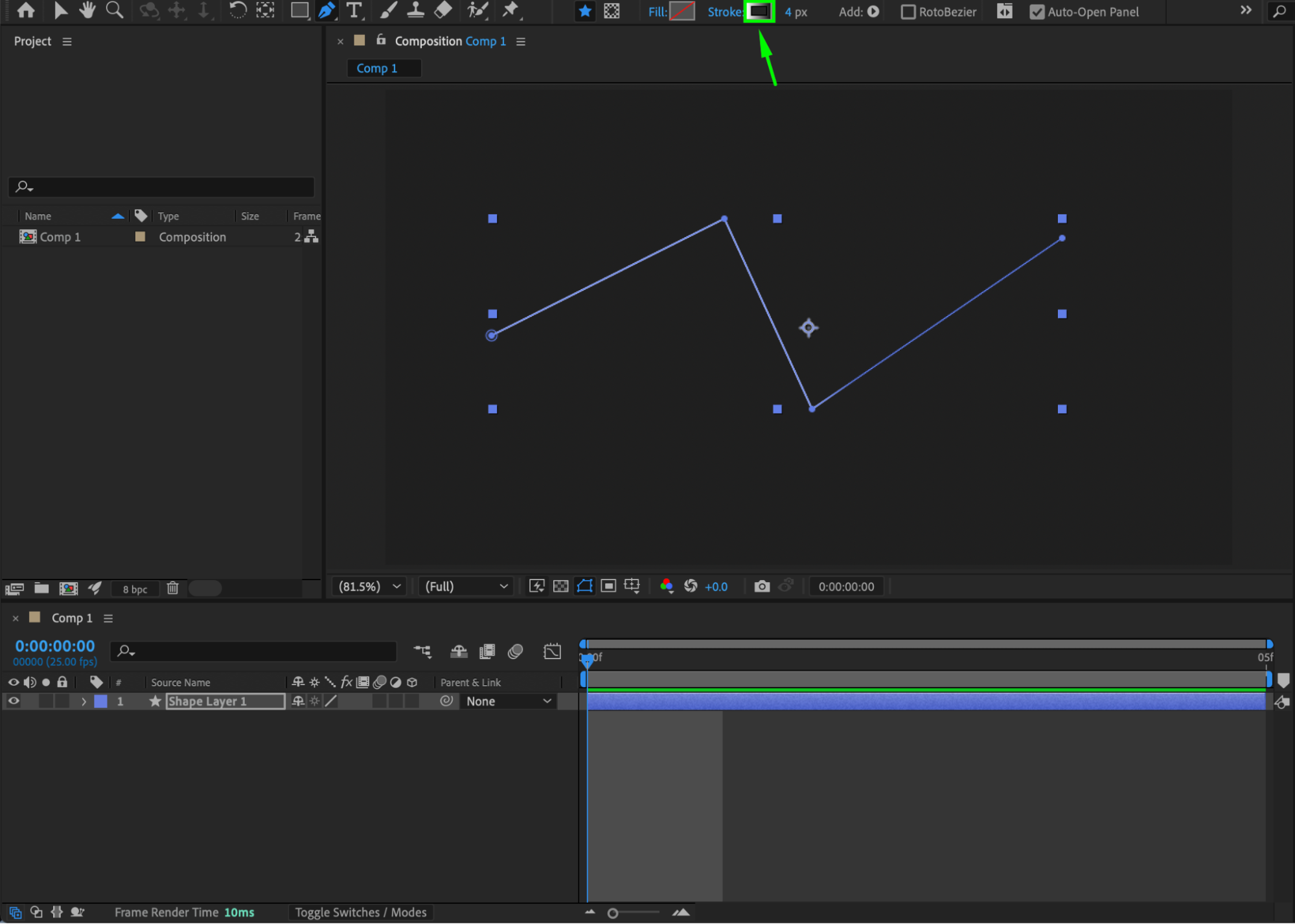
Step 6: Preview
Draw your shape with the Pen Tool. The shape will now have no fill and display only the stroke. Adjust stroke settings as needed for your animation.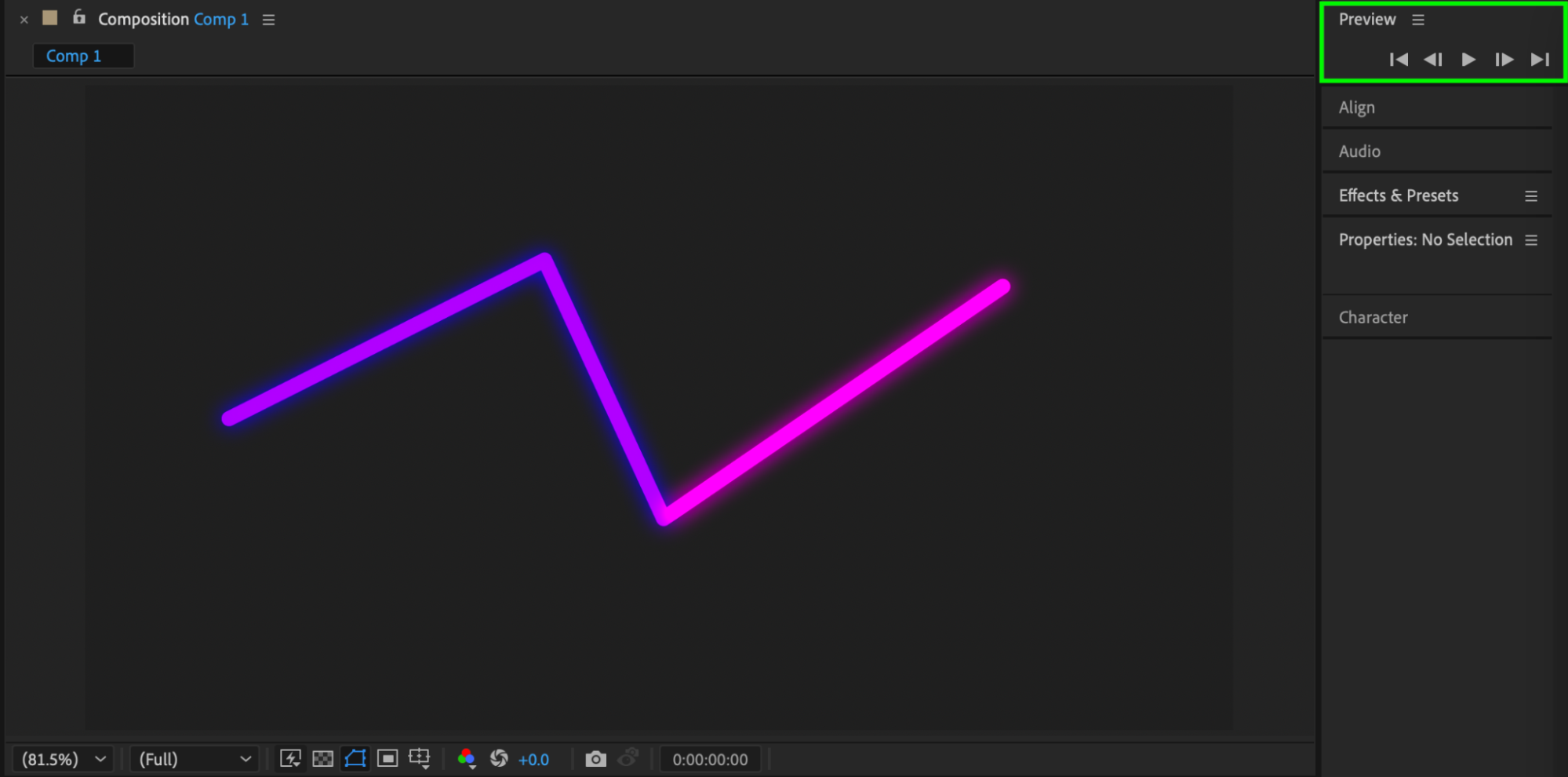
Conclusion
Using the Pen Tool with no fill in After Effects allows for clean line-based designs and animations. You can customize stroke type, color, and width to achieve the desired look for your project.
Our Bestsellers
Our Bestsellers


