
Creating Smooth Text Exit Animations in After Effects
Introduction
Text transitions out are a great way to give your motion graphics a polished and professional feel. In this tutorial, you’ll learn how to animate text disappearing using the Typewriter effect in Adobe After Effects. This method is perfect for clean, controlled exit animations that look sharp and engaging.
Step 1: Create a New Composition
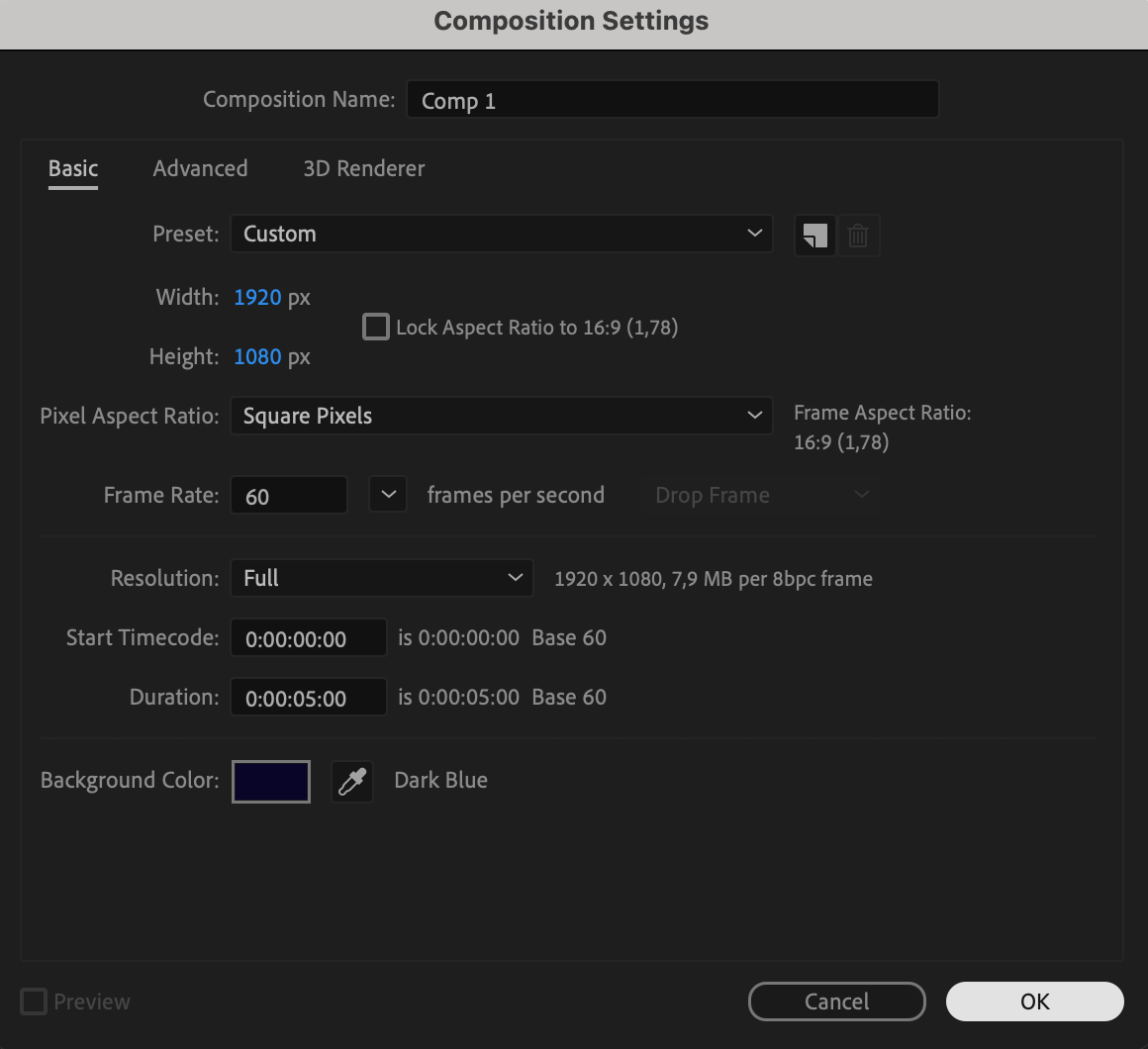
Start by opening After Effects and creating a new composition. Choose your desired resolution, frame rate, and duration. This comp will hold your animated text.
 Step 2: Add Text with the Type Tool
Select the Type Tool by pressing “Ctrl/Cmd + T” and click in the Composition panel. Type in the text you want to animate. Adjust font, size, color, and alignment as needed using the Properties and Paragraph panels.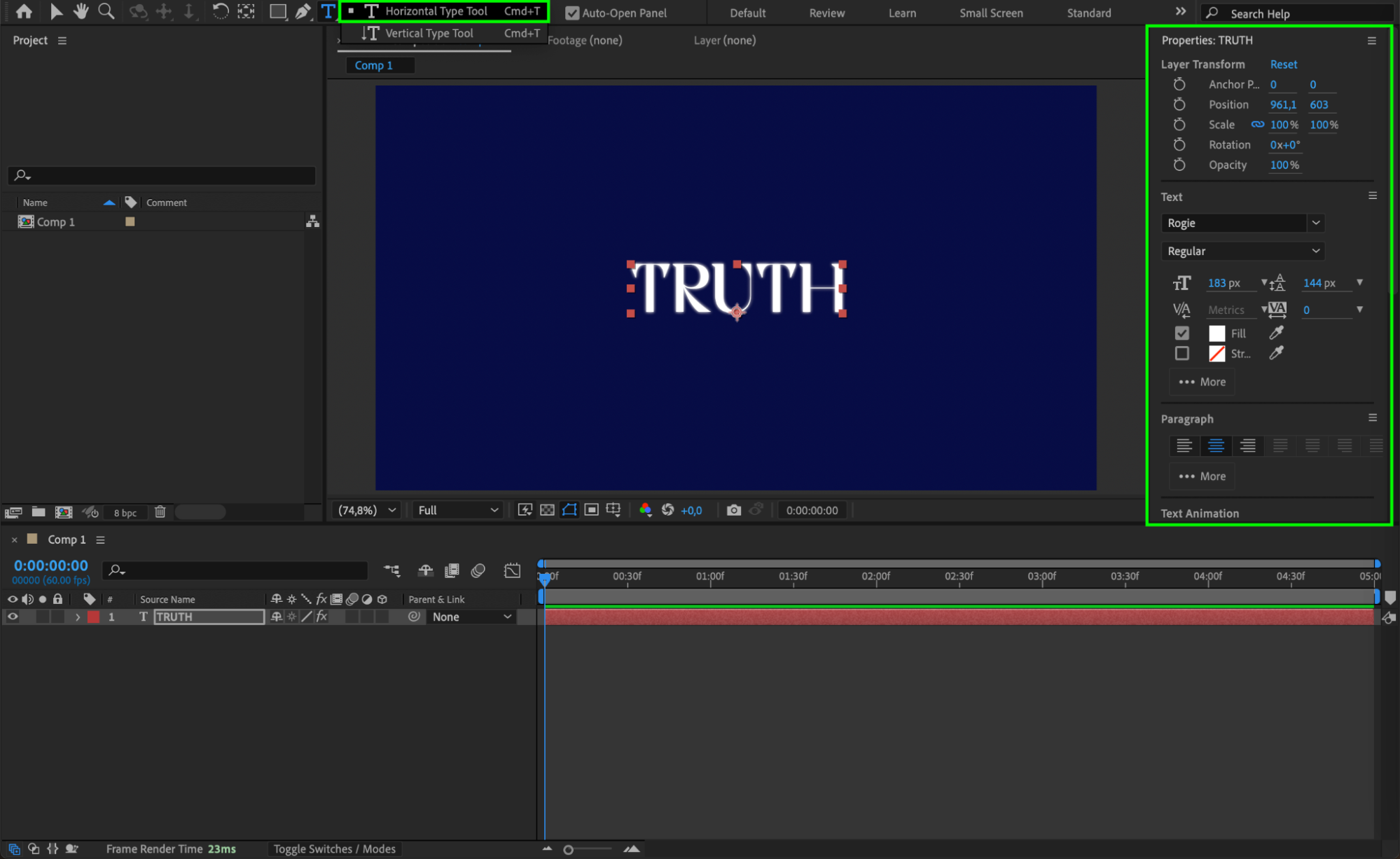
Step 3: Apply the Typewriter Effect
Go to the Effects & Presets panel, search for Typewriter, and drag it onto your text layer. This effect will automatically create keyframes that animate the text as if it’s being typed out.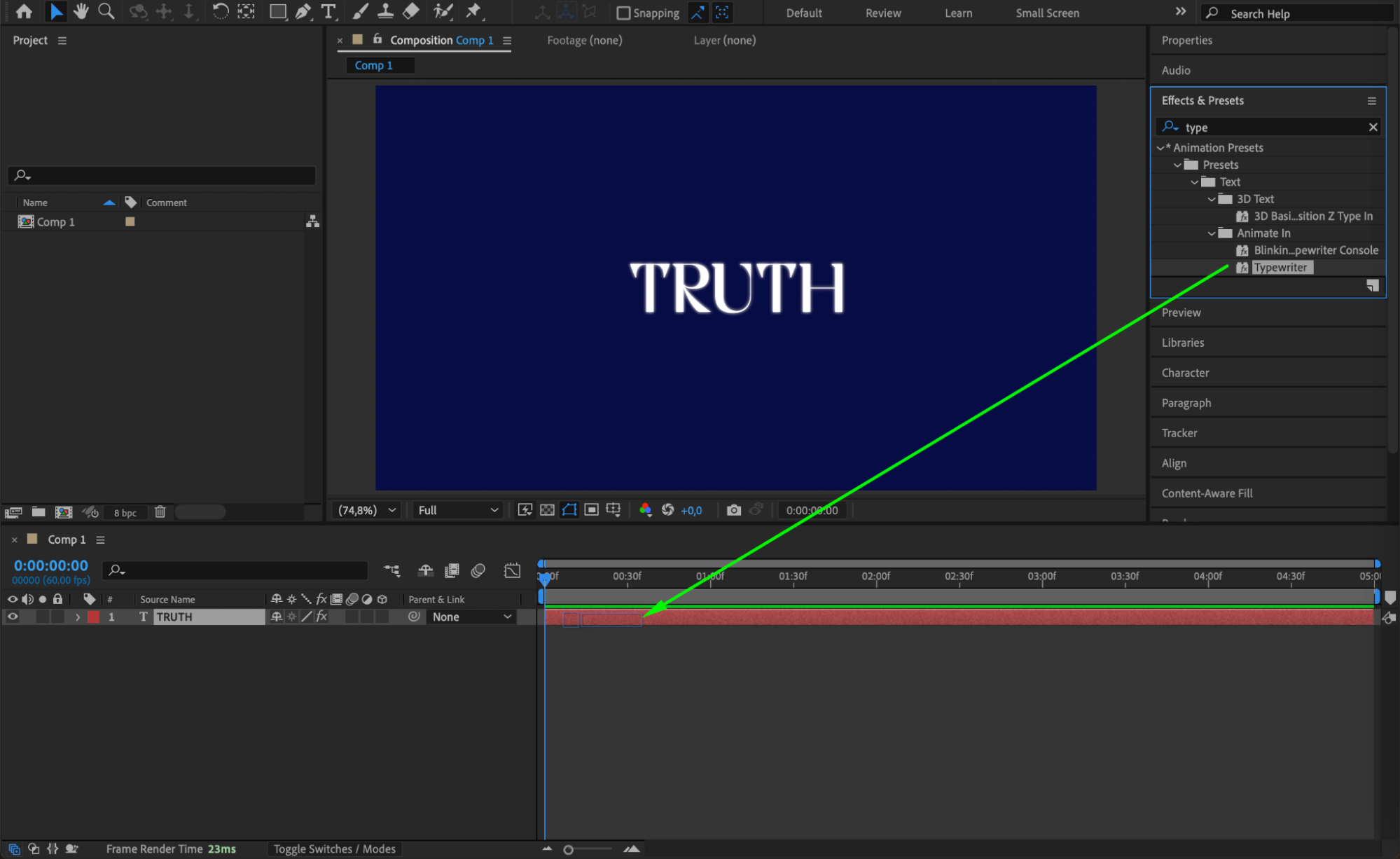 Step 4: Reveal Keyframes
Select the text layer and press “U” to show the keyframes created by the Typewriter effect. You will see keyframes for the Start property, which controls when each character appears.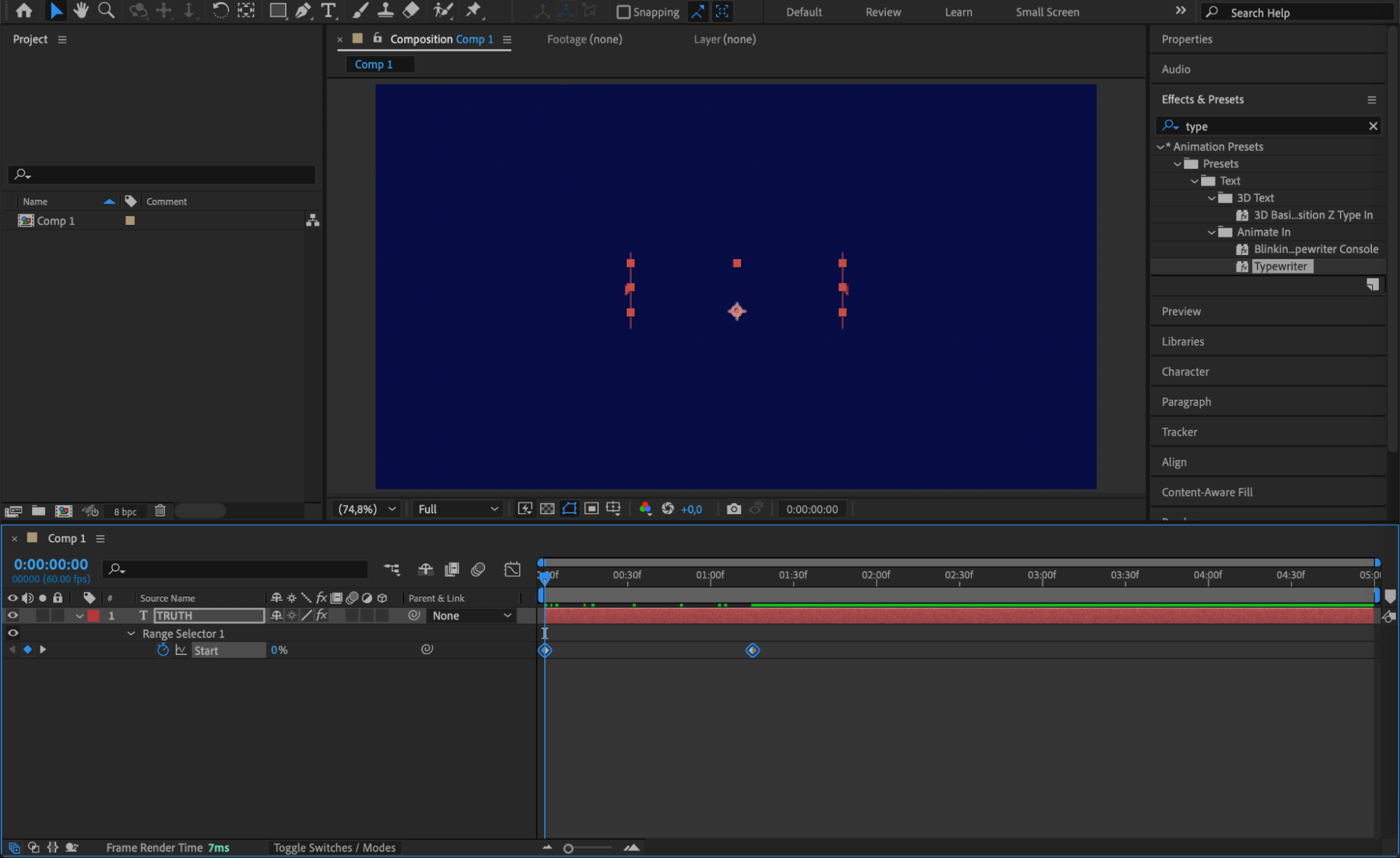 Step 5: Animate Text Disappearing
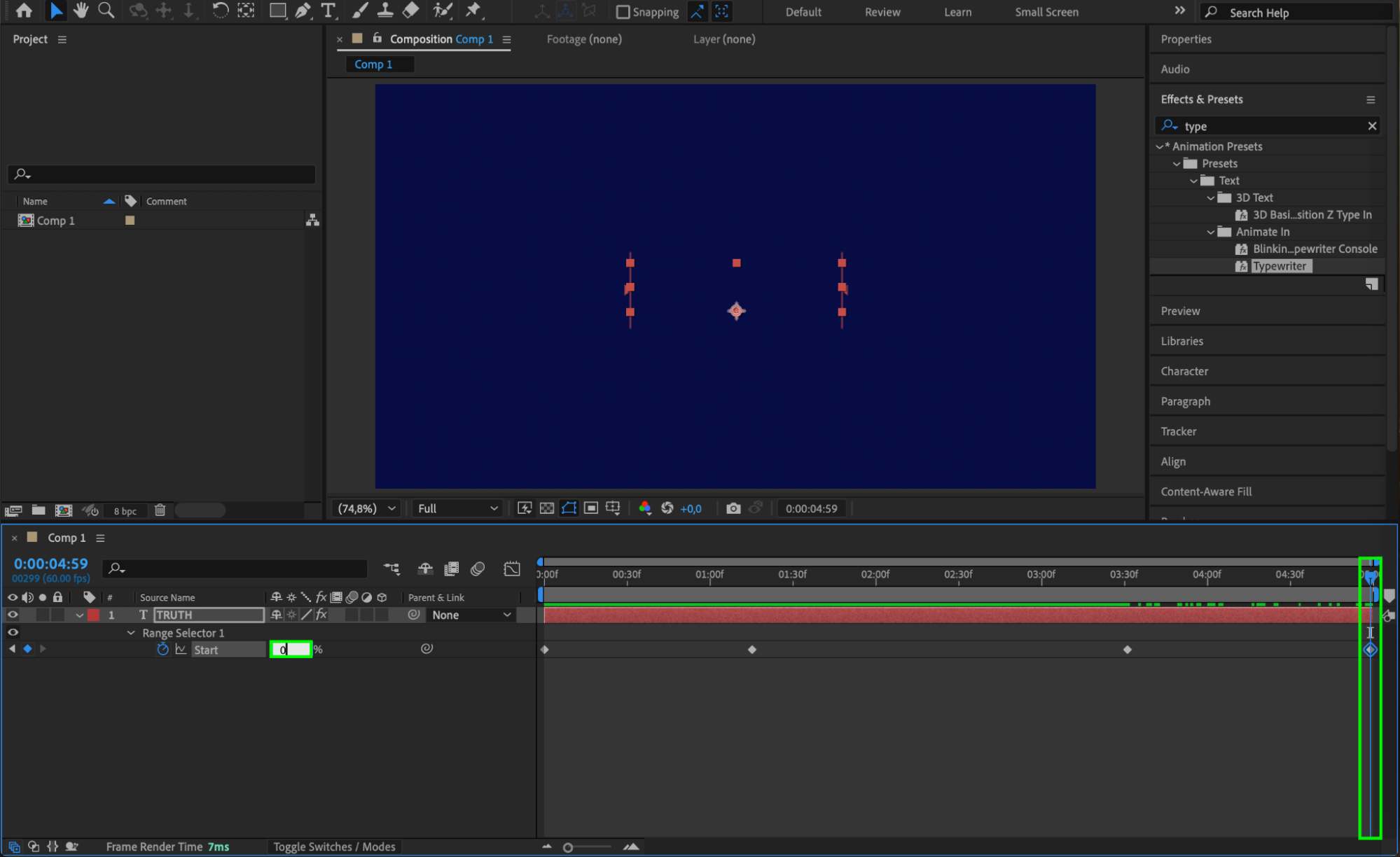
Move the CTI (Current Time Indicator) to the point where you want the text to start disappearing. Click the diamond next to Start to create a new keyframe (e.g., at 100%). Then, move the CTI further in time and change Start to 0%. This will animate the text fading out in reverse order.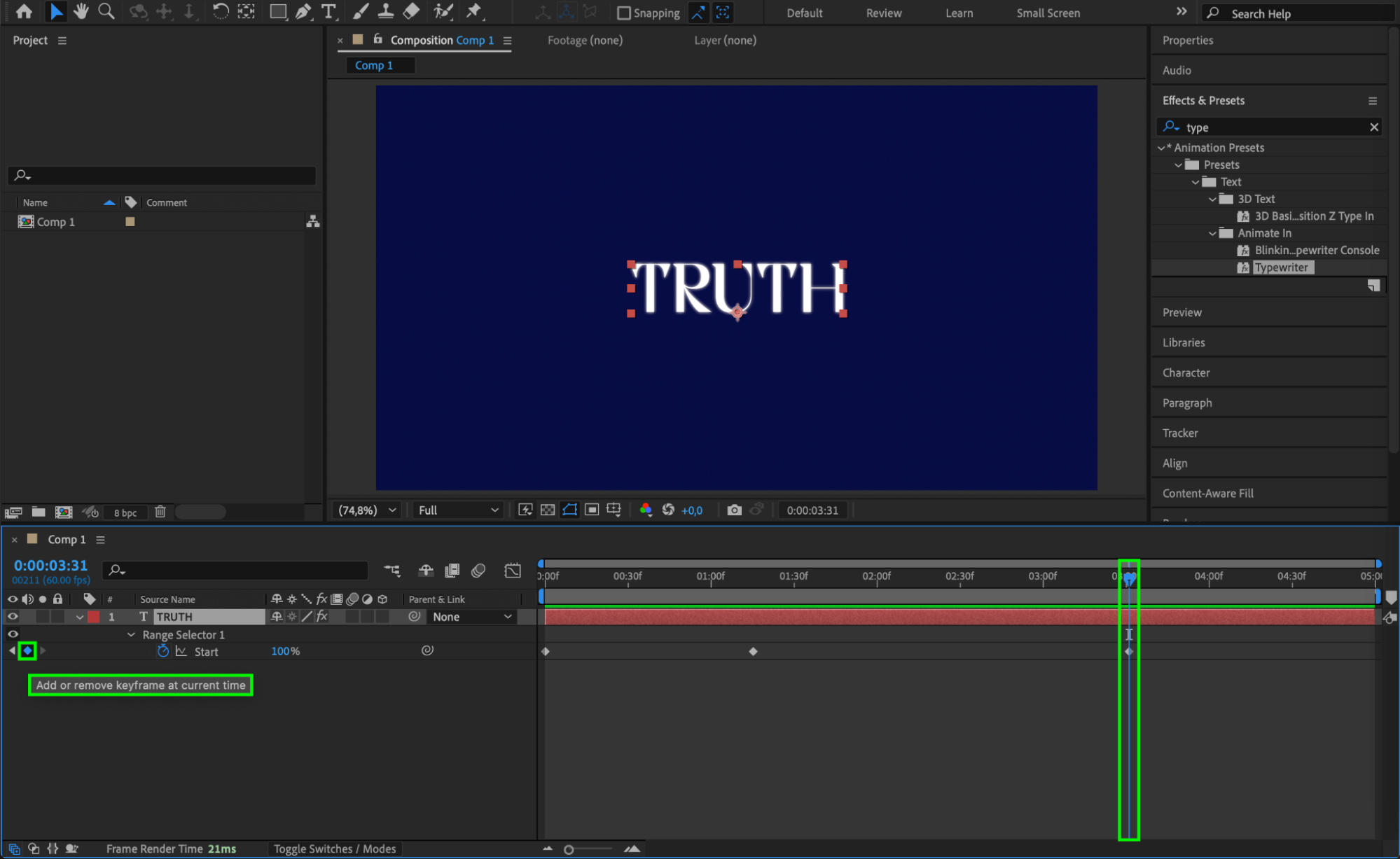
Step 6: Apply Easy Ease and Adjust Graph
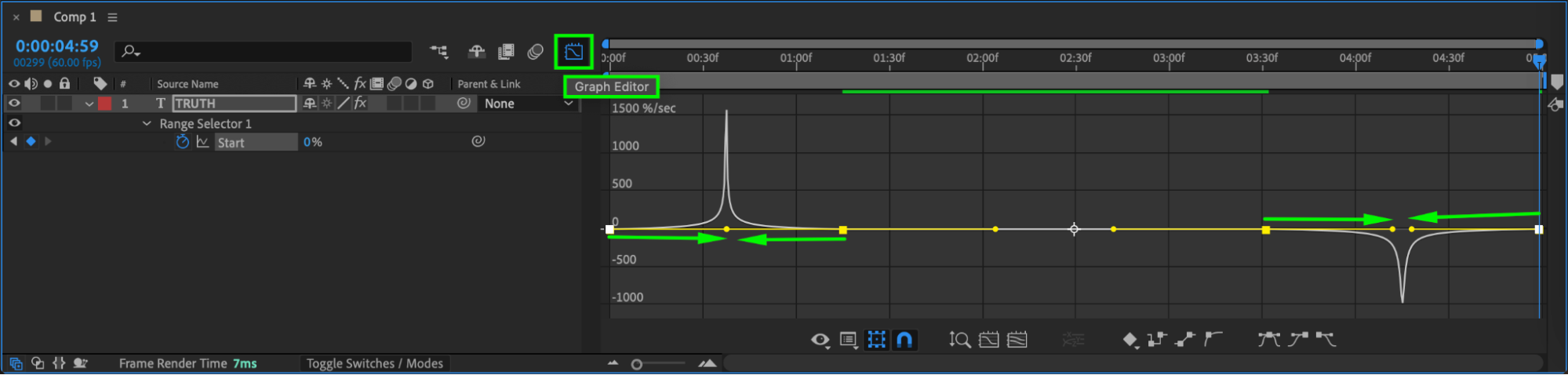
Select the four keyframes for the Start property. Right-click and choose Keyframe Assistant > Easy Ease. Open the Graph Editor to refine the speed curve, making the animation smoother and more natural.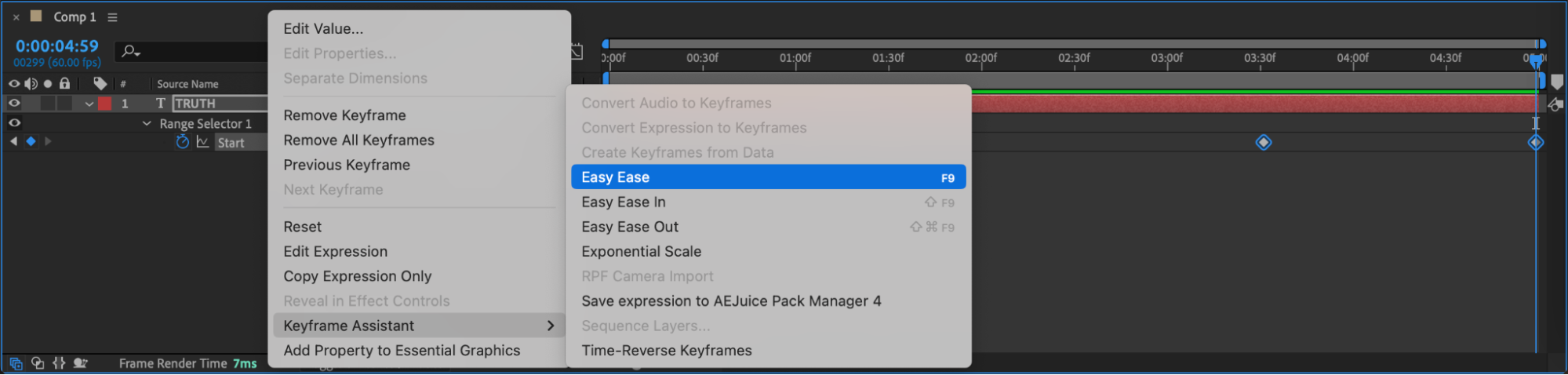
 Step 7: Preview the Animation
Press the spacebar to preview your animation. You should see the text smoothly type in, and then disappear character-by-character in reverse.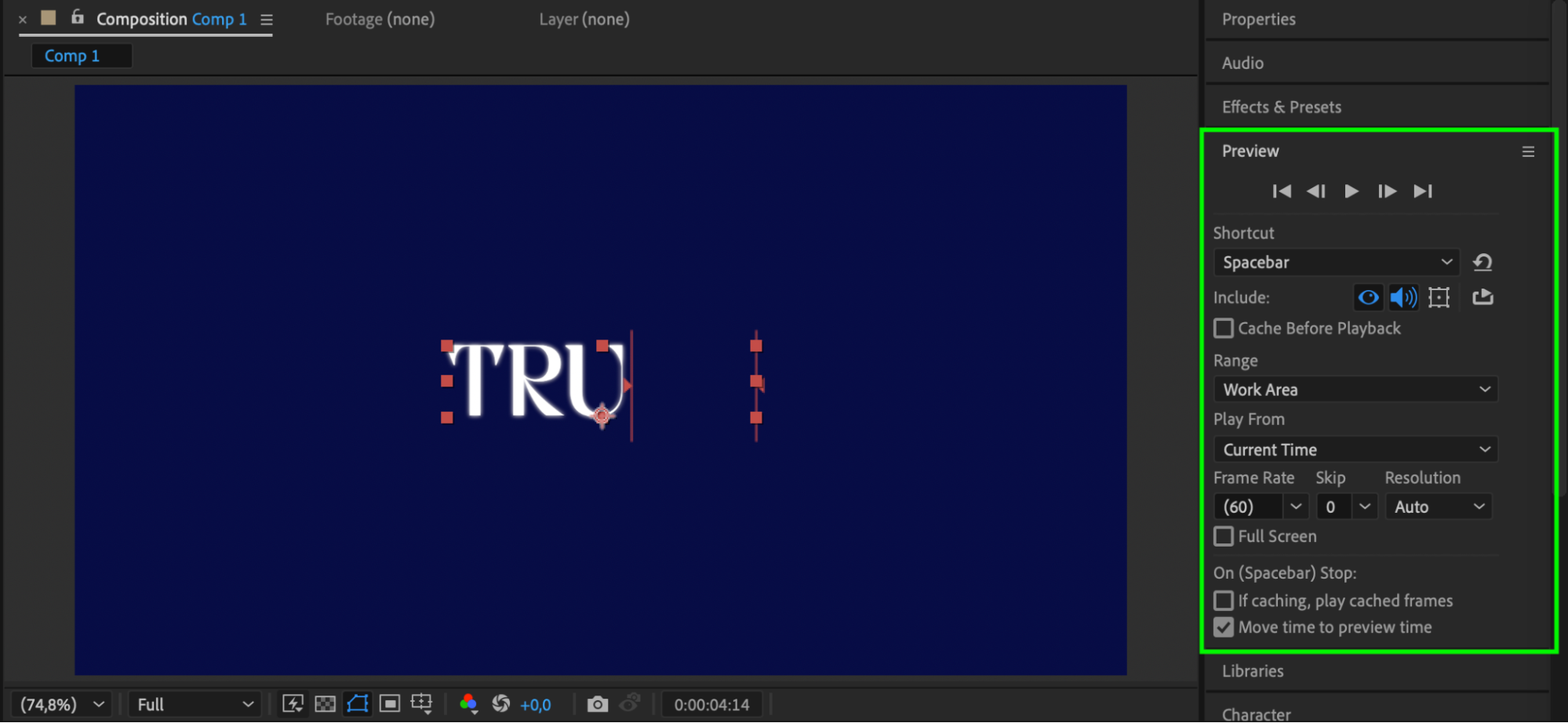 Conclusion
Animating text transitions out with the Typewriter effect is an easy and clean way to add flair to your motion graphics. With just a few keyframes and smoothing, you can make your text appear and disappear in a professional way. This technique is ideal for titles, captions, and any scene where you want your text to enter and exit with style.
Our Bestsellers
Our Bestsellers


