
Create a Realistic Smoke Text Reveal in After Effects
Introduction – Turn Any Text into Flowing Smoke with Simple Effects
This tutorial shows how to create a text animation that looks like it dissolves into smoke. It uses built-in tools like Fractal Noise and Turbulent Displace to simulate realistic smoke movement—great for dramatic intros or cinematic titles.
Step 1: Create a New Composition
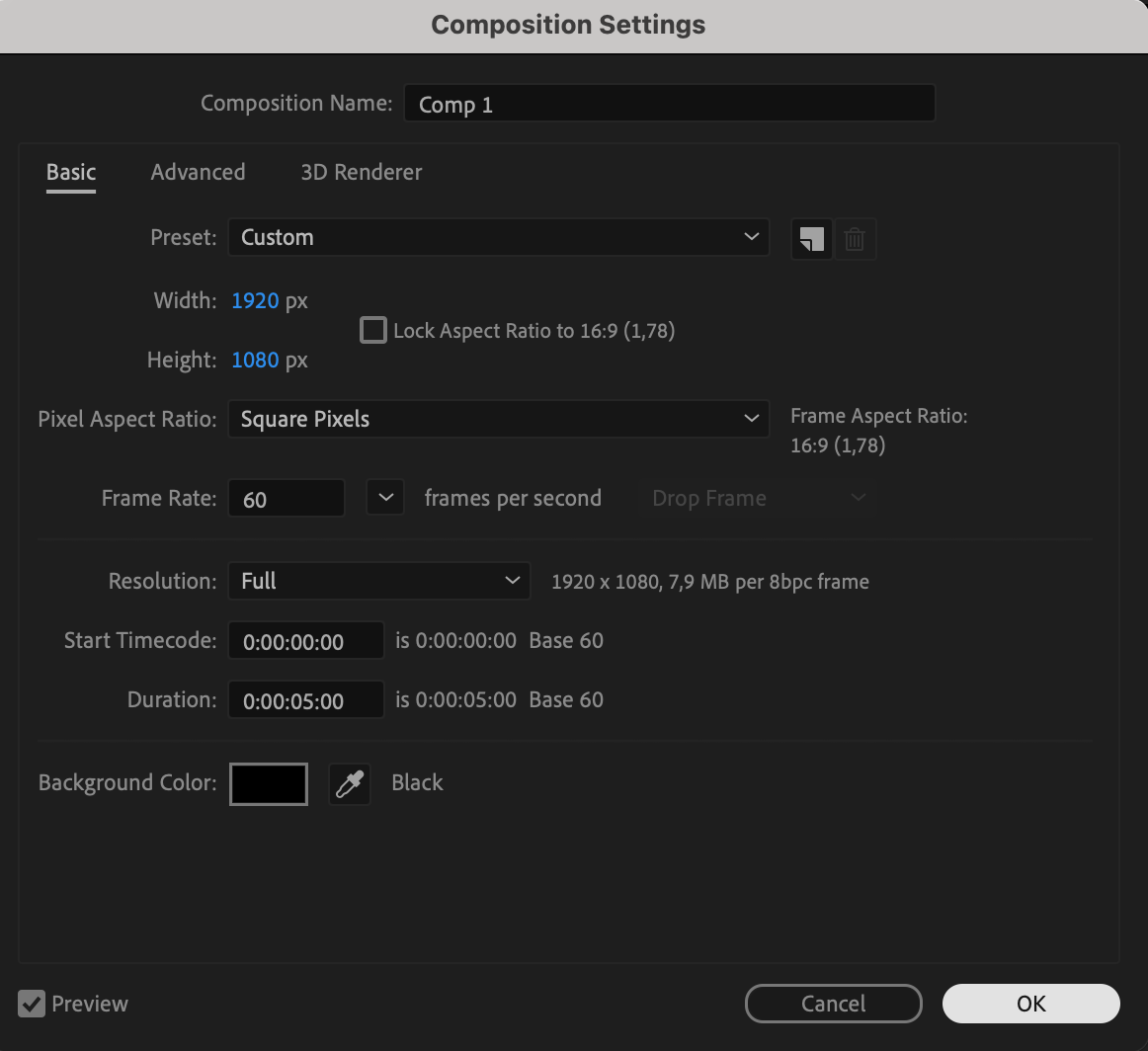
Open After Effects and go to Composition > New Composition. Set your desired resolution, frame rate, and duration. A dark background color often works best to make the smoke stand out.

 Step 2: Add Your Text
Select the Type Tool (press Ctrl/Cmd + T) and type your desired text. Choose a bold font for a stronger effect, and place it in the center of the composition.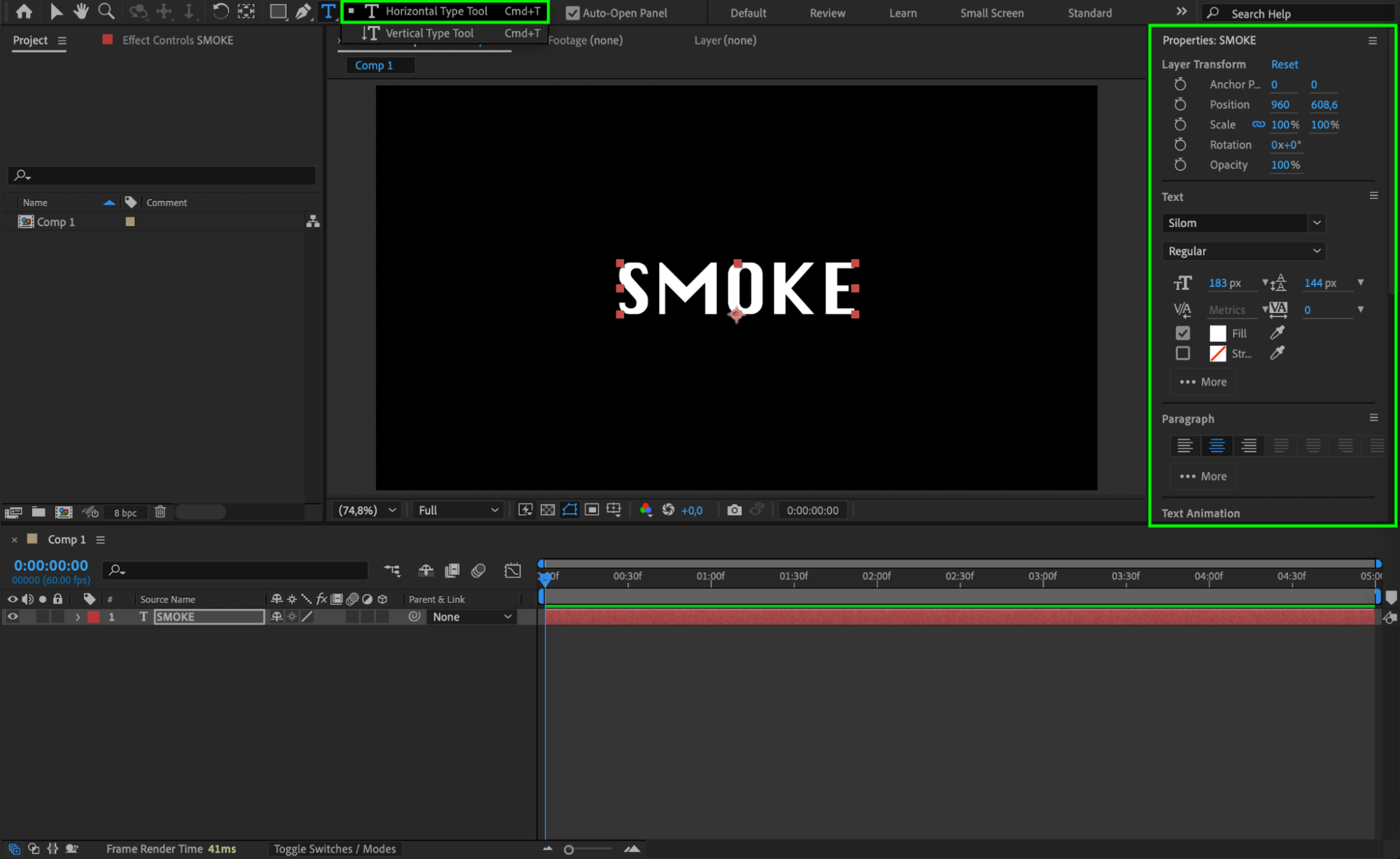 Step 3: Apply Auto-Trace
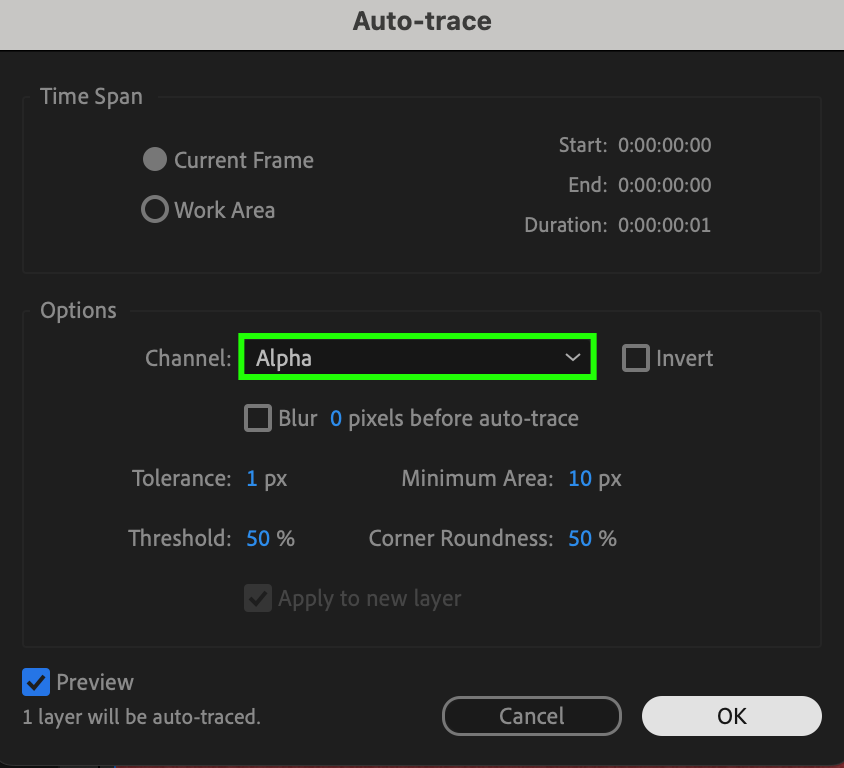
With the text layer selected, go to Layer > Auto-Trace. In the dialog box, set Channel to Alpha and keep the default settings. Click OK to create a new mask based on your text’s shape.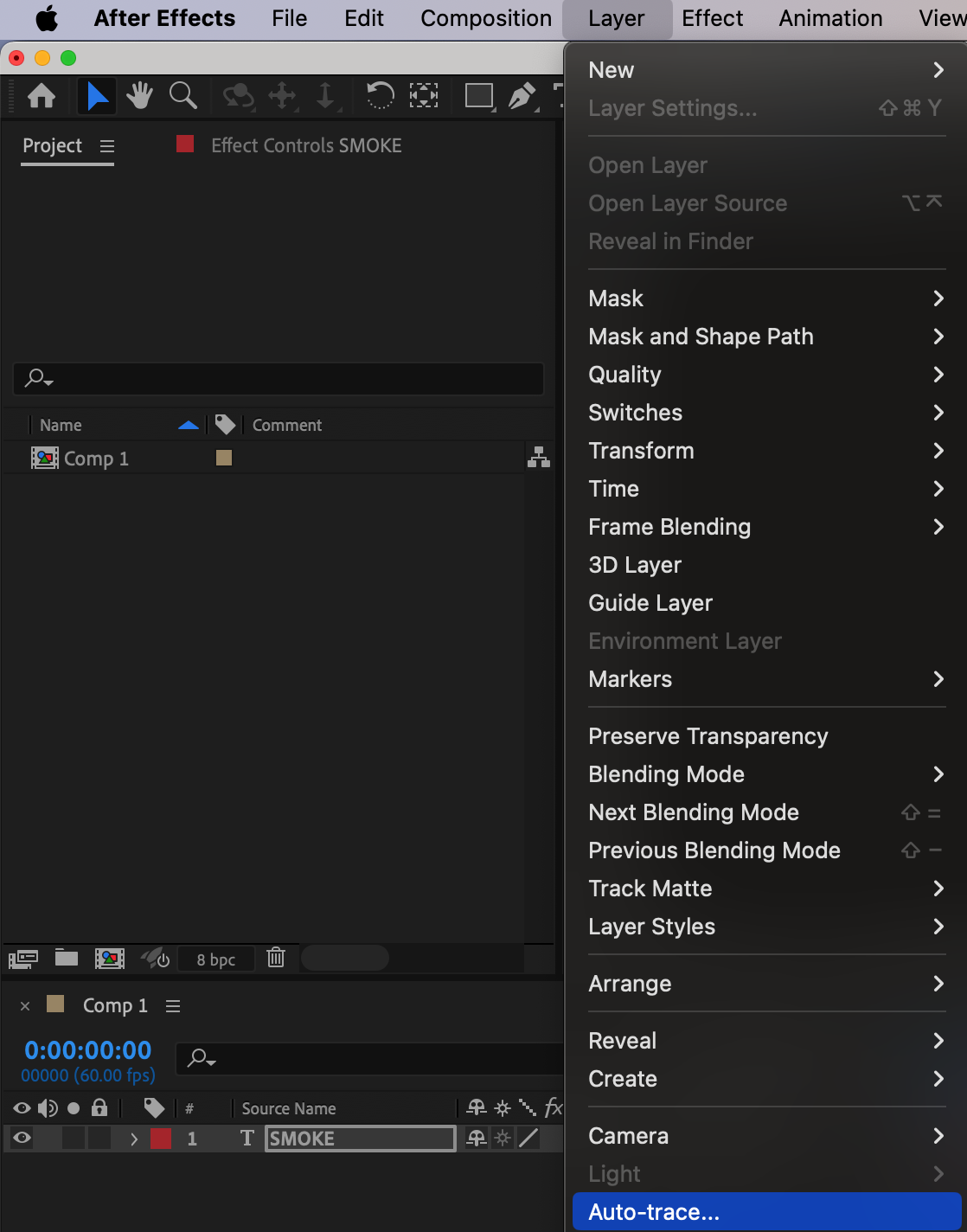
Step 4: Delete the Original Text Layer and Add Fractal Noise
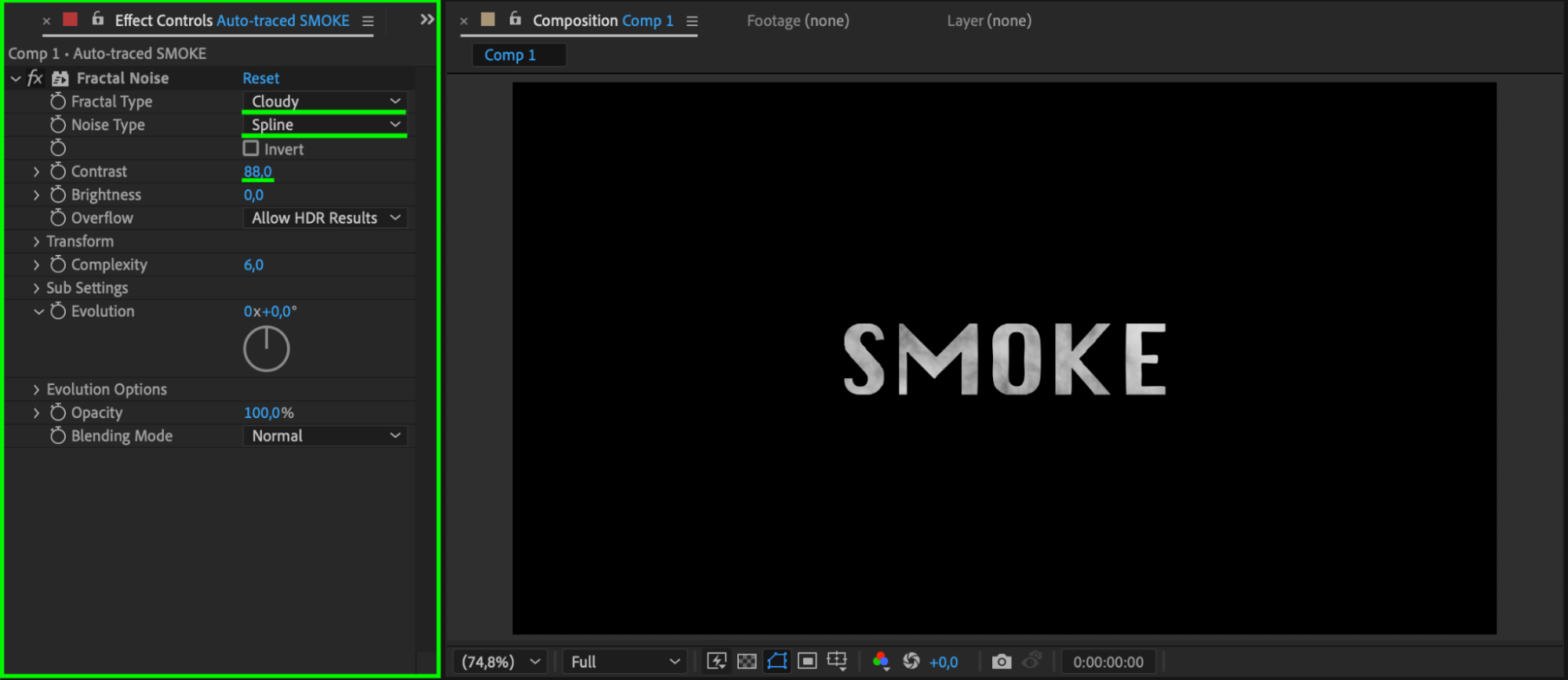
Delete the original text layer – you now have a mask shape layer. Apply Fractal Noise from the Effects & Presets panel. Set Fractal Type to Cloudy, Noise Type to Spline, and adjust Contrast to around 88 to make the smoke texture more defined.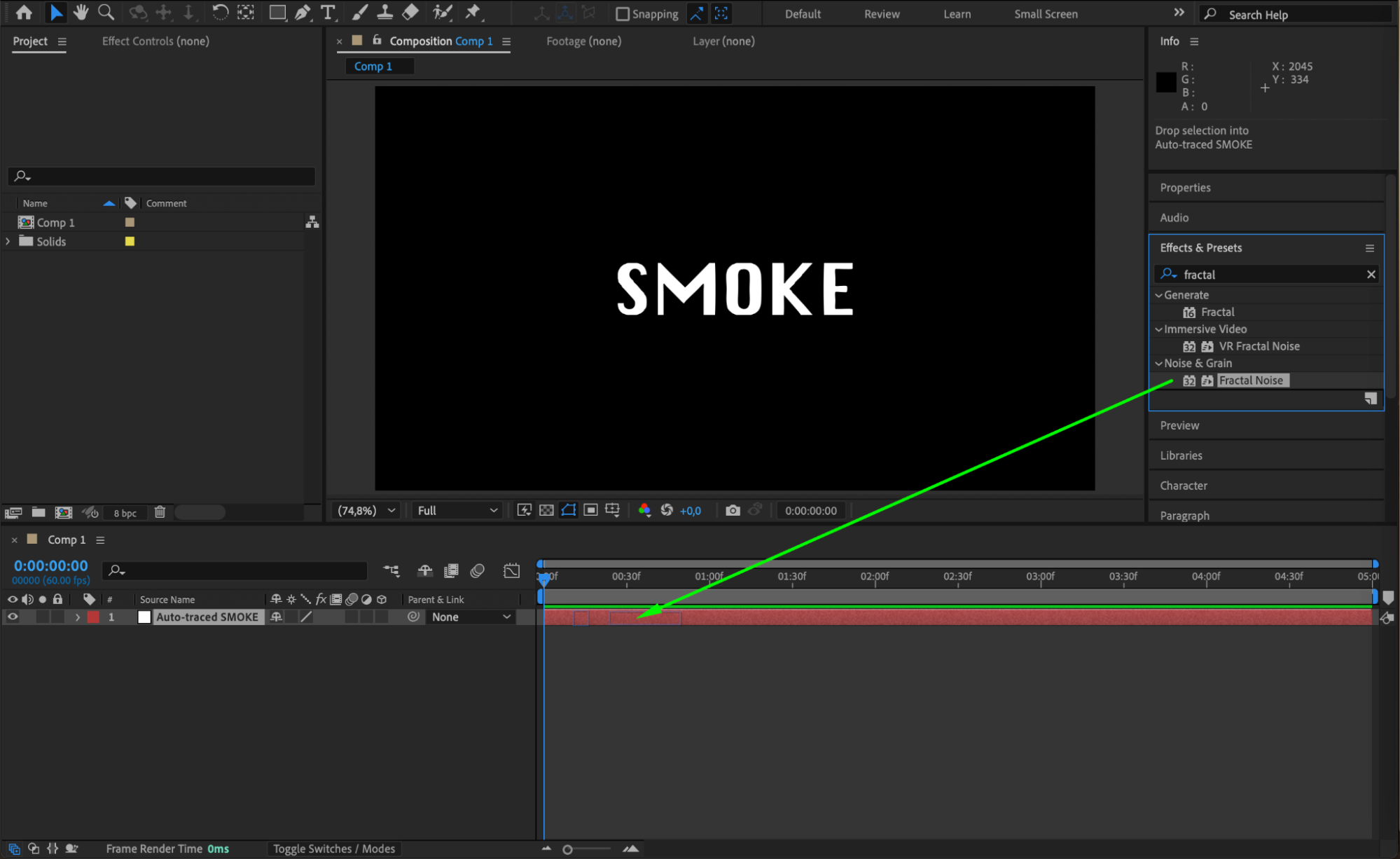
 Step 5: Add Turbulent Displace
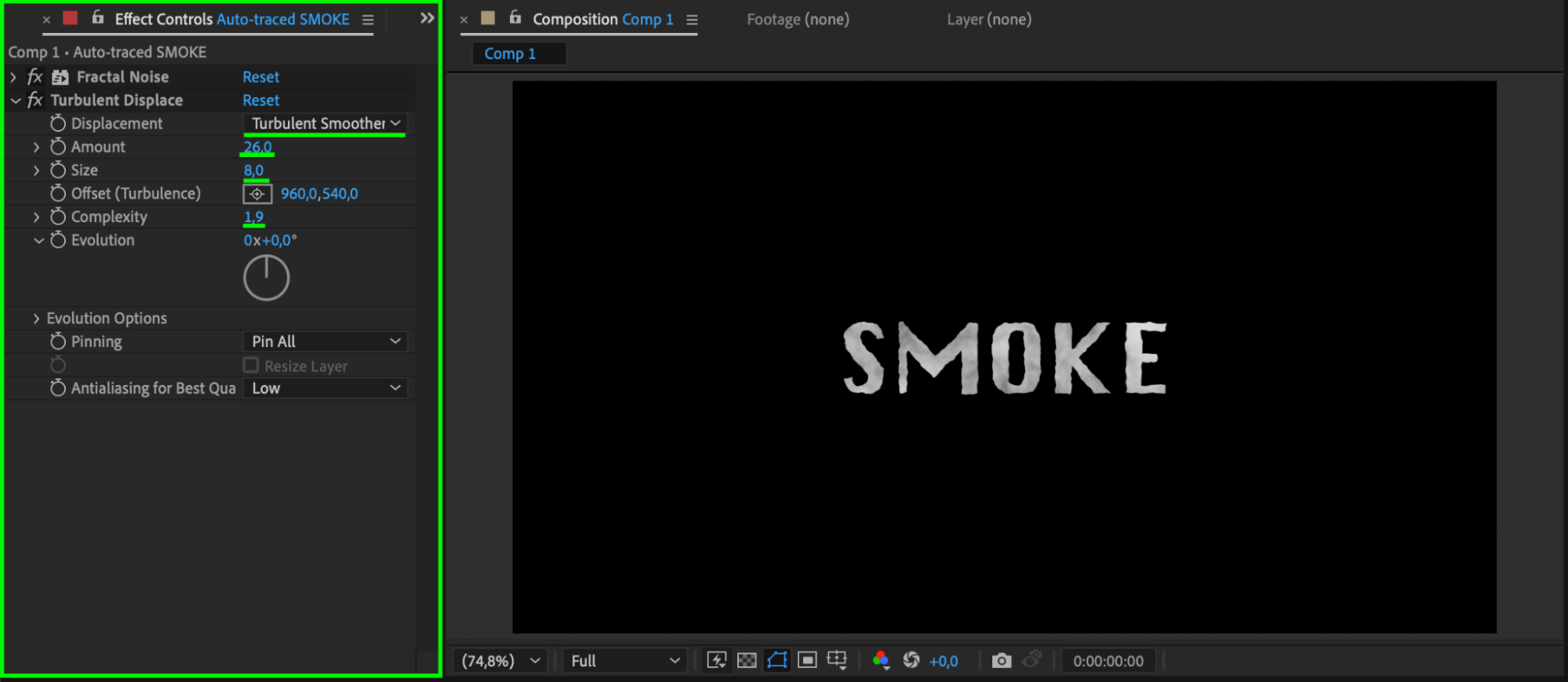
With the same shape layer selected, apply Turbulent Displace. Set Displacement to Turbulent Smoother, Amount to 26, Size to 8, and Complexity to around 1.9. This gives the smoke a flowing, organic motion.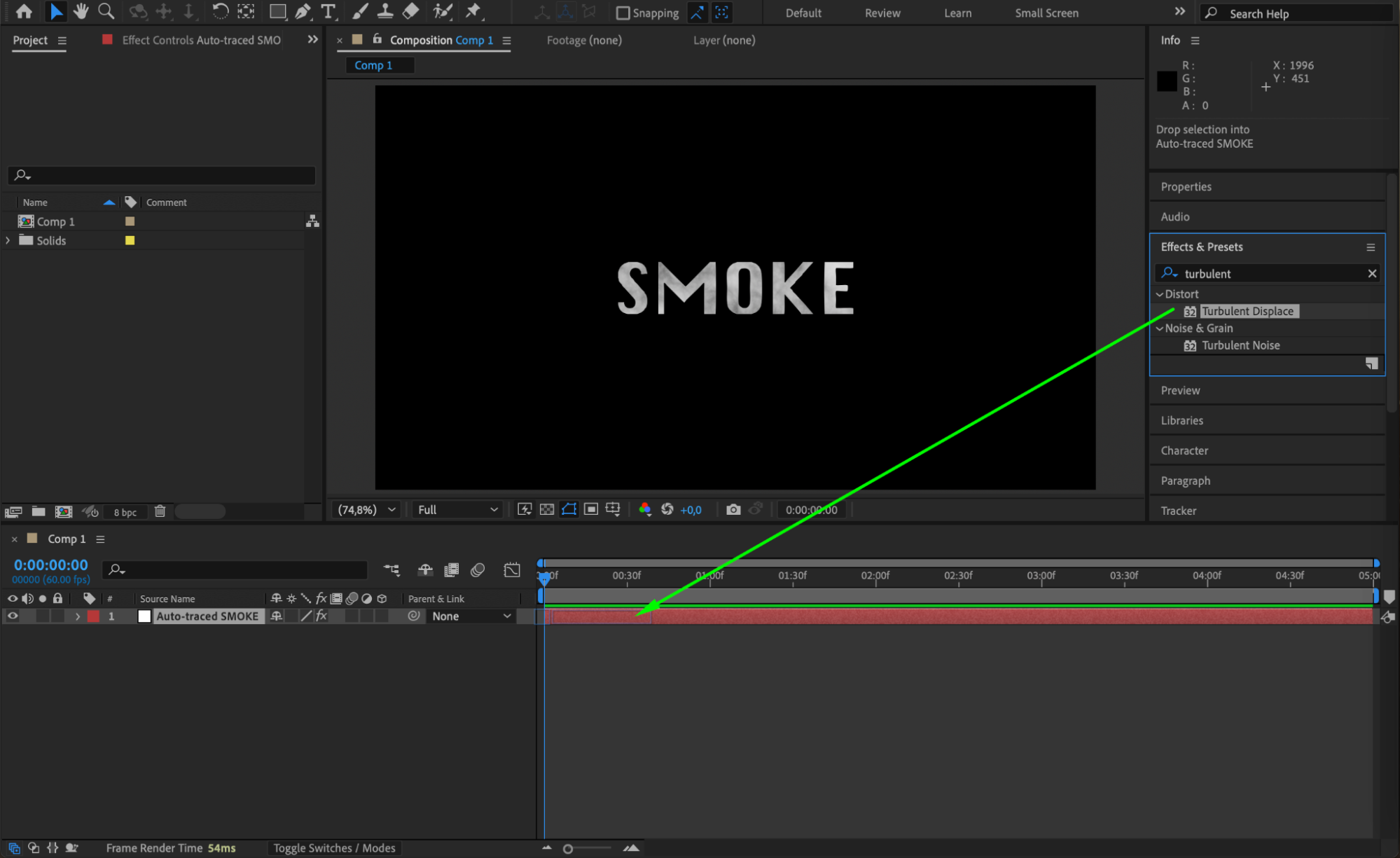
 Step 6: Soften the Edges with Mask Feather
Open the shape layer’s Mask properties and set the Feather value to around 10 for all sides. This smooths out the edges and makes the smoke look more natural and less sharp.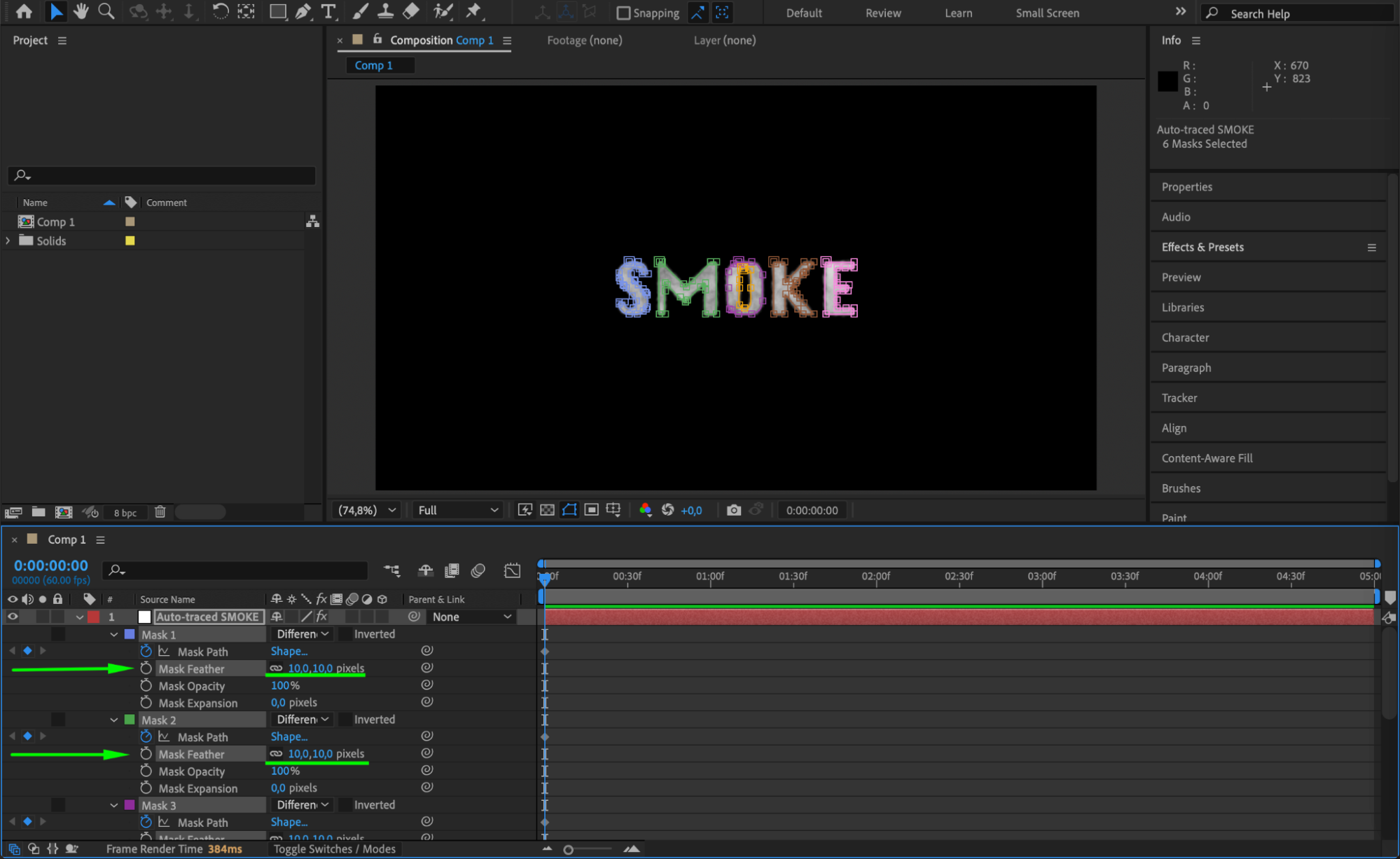 Step 7: Animate the Evolution
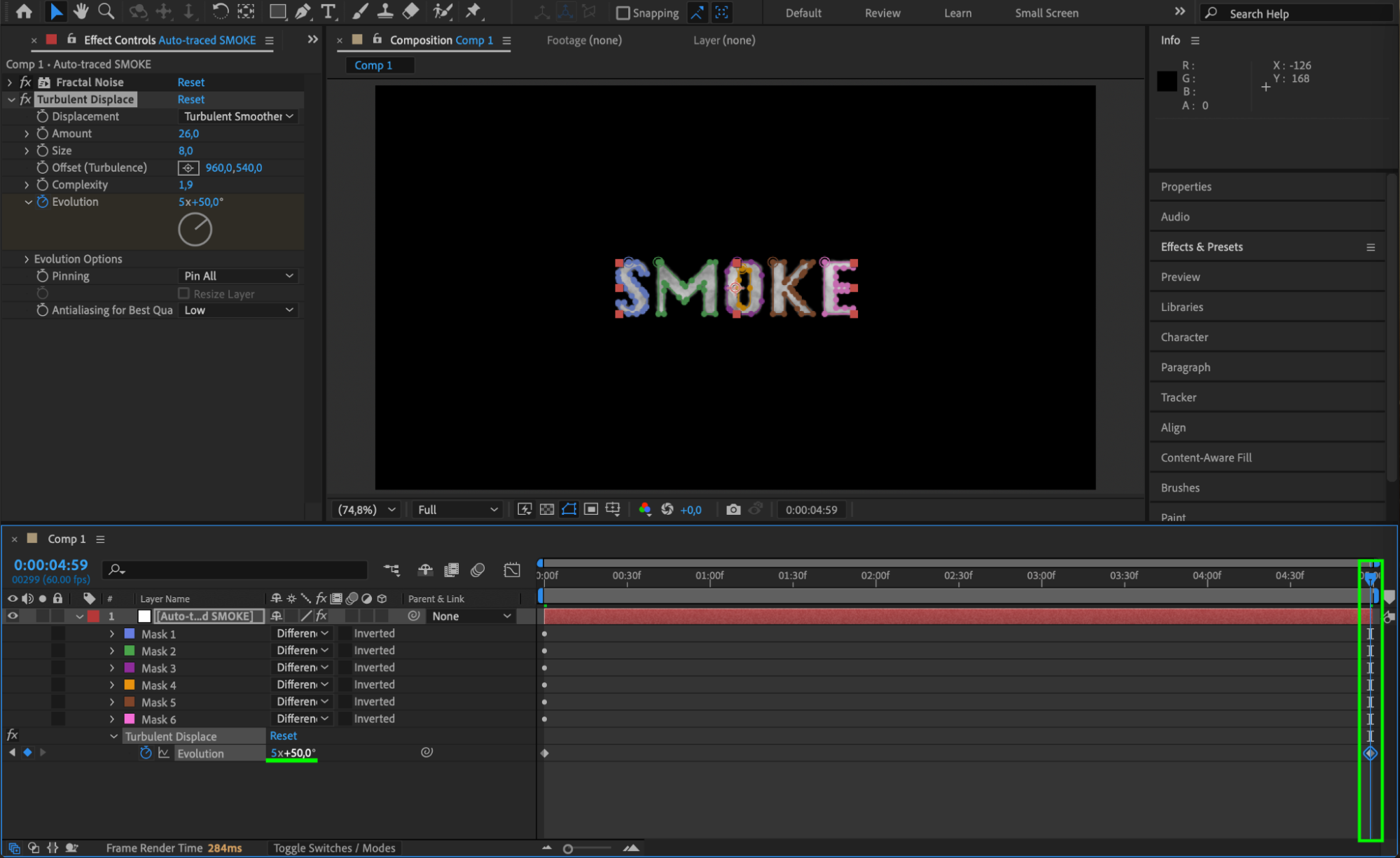
In the Fractal Noise effect, click the stopwatch next to Evolution and animate it over time (e.g., from 0x to 5x over several seconds). This will give your smoke constant, smooth motion.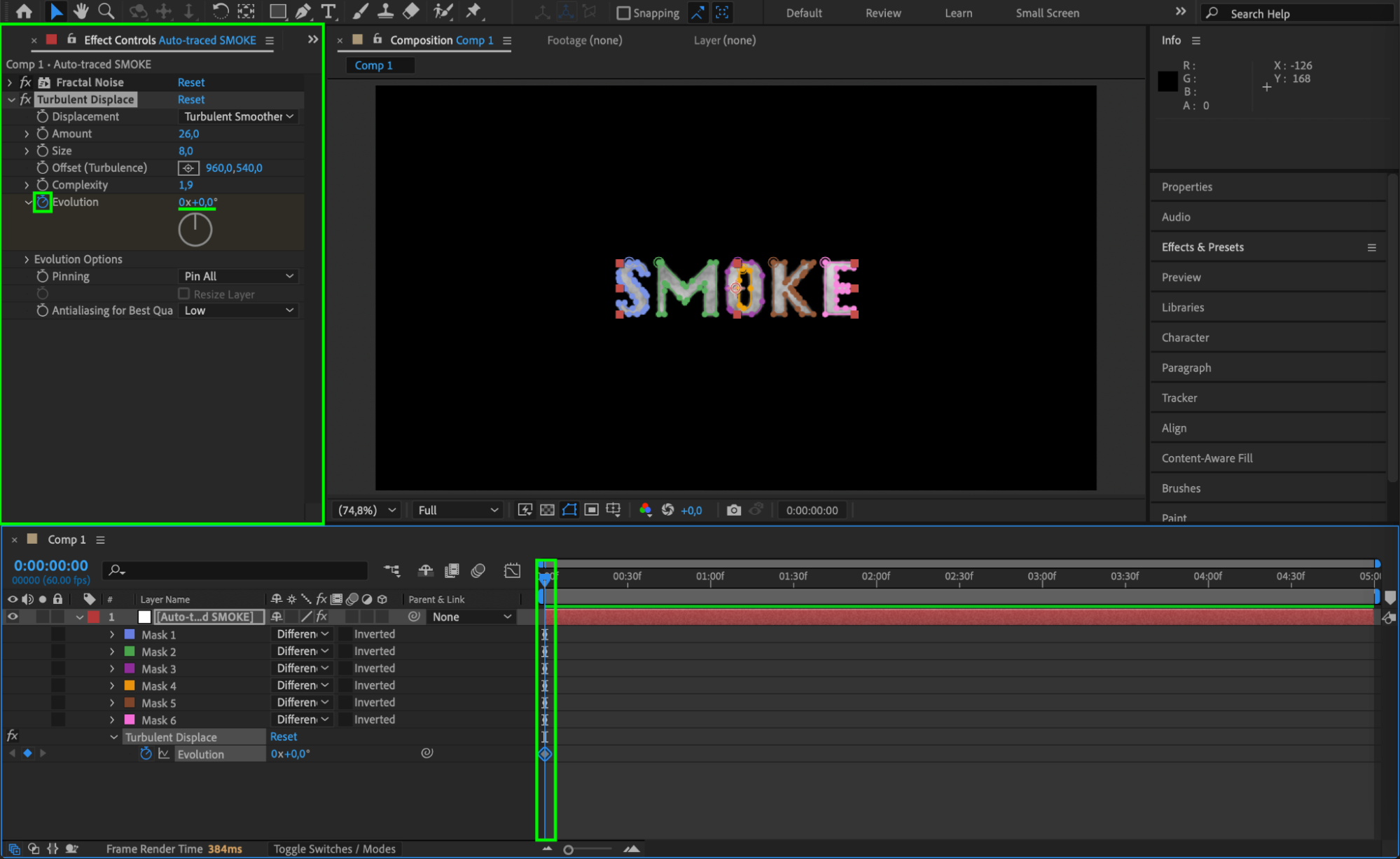
 Step 8: Preview the Smoke Effect
Press Spacebar to preview your animation. You should see the smoke flowing and shifting in the shape of your original text, creating a mesmerizing and cinematic look.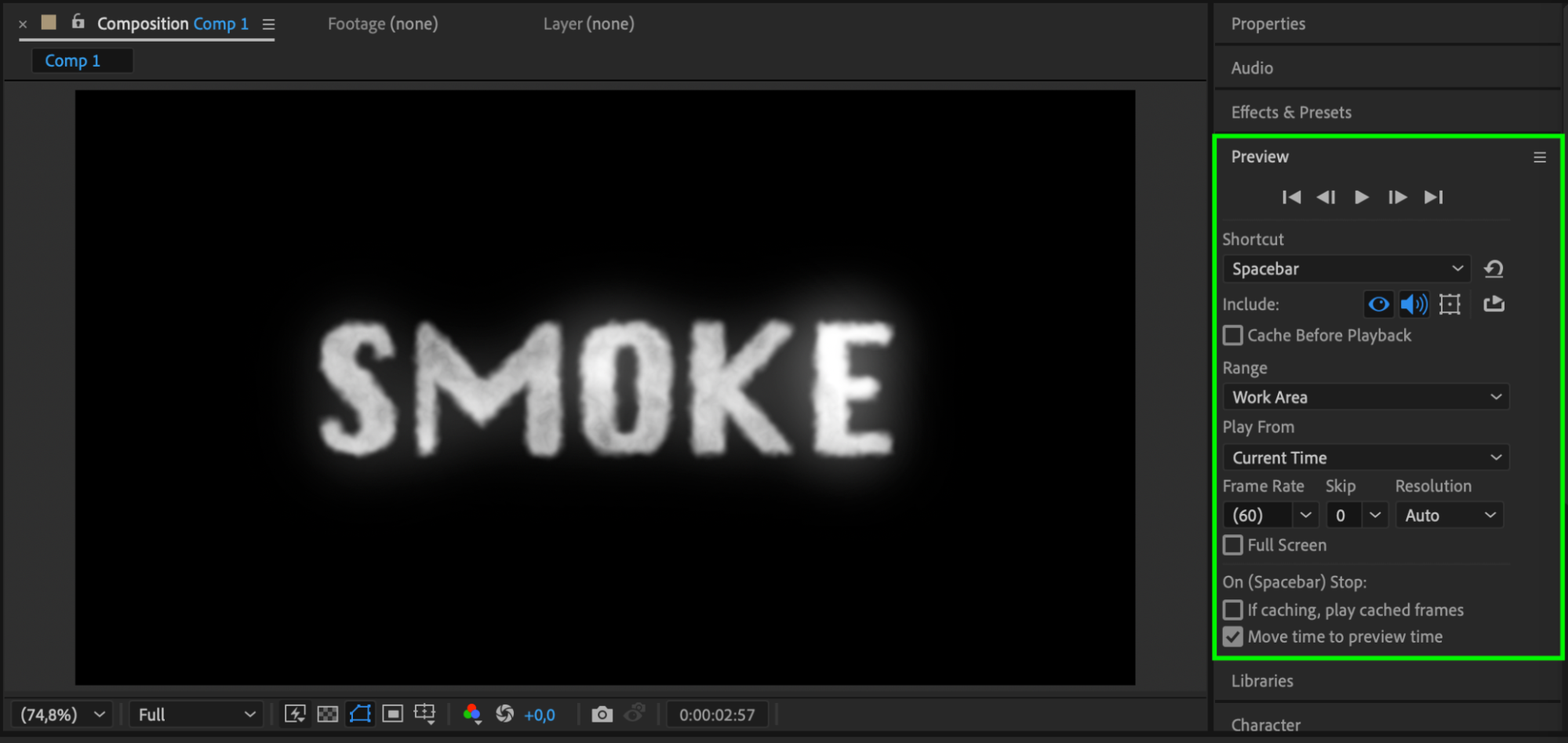 Conclusion
By combining auto-traced text with Fractal Noise and displacement effects, you can create a beautiful smoke reveal animation in After Effects without any third-party plugins. This technique is flexible and can be applied to any logo or shape for a dramatic entrance.
Our Bestsellers
Our Bestsellers


