
Create Eye-Catching Special Effects with Shapes in After Effects
Introduction – Build a Stylized Abstract FX Animation with Glow and Blur
In this tutorial, you’ll learn how to create a simple, glowing visual effect using only basic shape layers and built-in effects in After Effects. We’ll combine circles, color, blur, glow, and noise to achieve a smooth abstract look that can be used as a background, transition, or visual element in your motion graphics.
Step 1: Create a New Composition
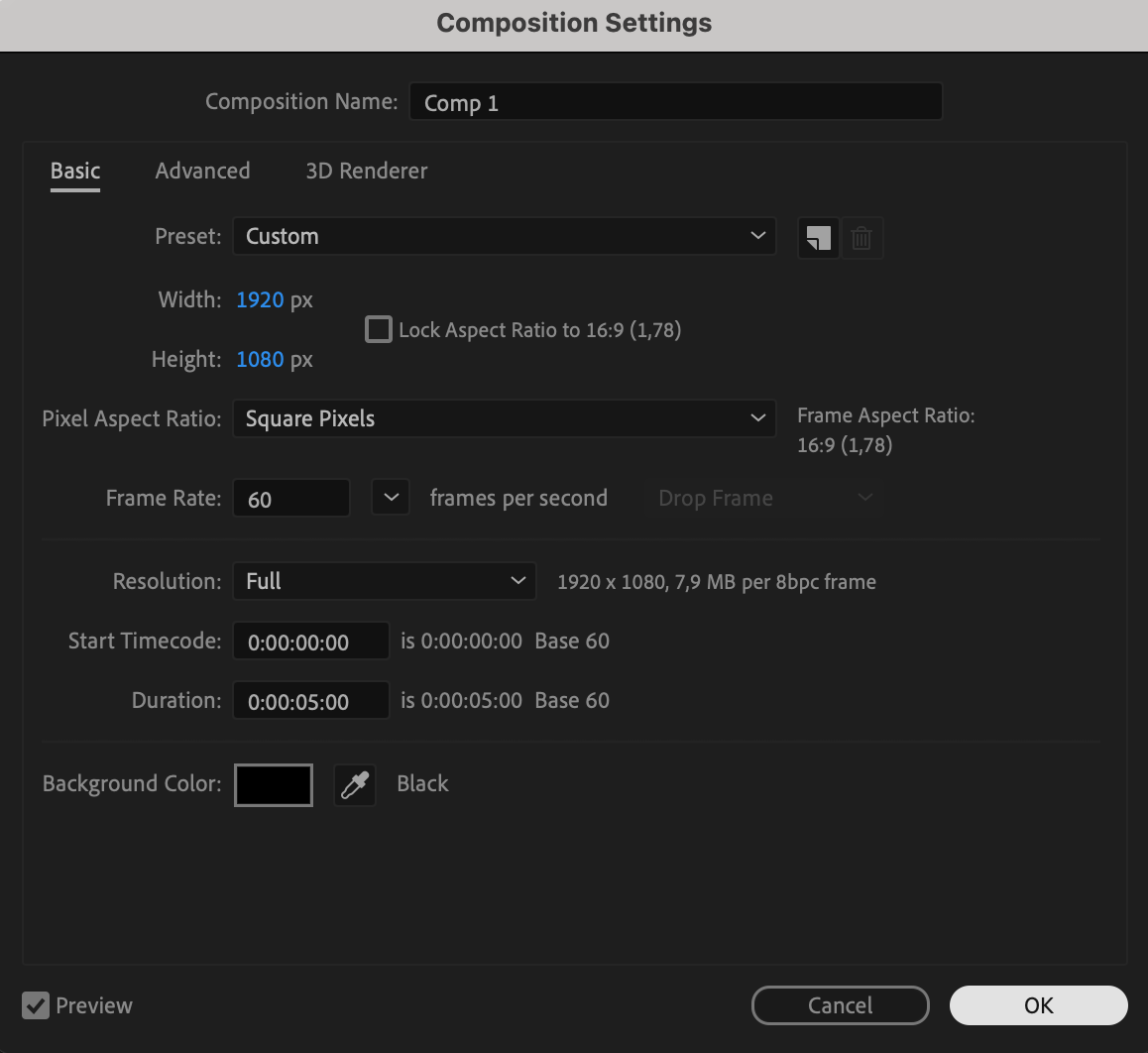
Start by going to Composition > New Composition. Set your preferred resolution (such as 1920×1080), frame rate, and duration. Choose a dark background color to help the glow effect stand out.
 Step 2: Draw a Circle Using the Ellipse Tool
Select the Ellipse Tool (Q) from the top toolbar. Make sure no layer is selected, then click and drag to create a circle shape. In the Fill and Stroke settings, choose a solid color fill and set the stroke to none.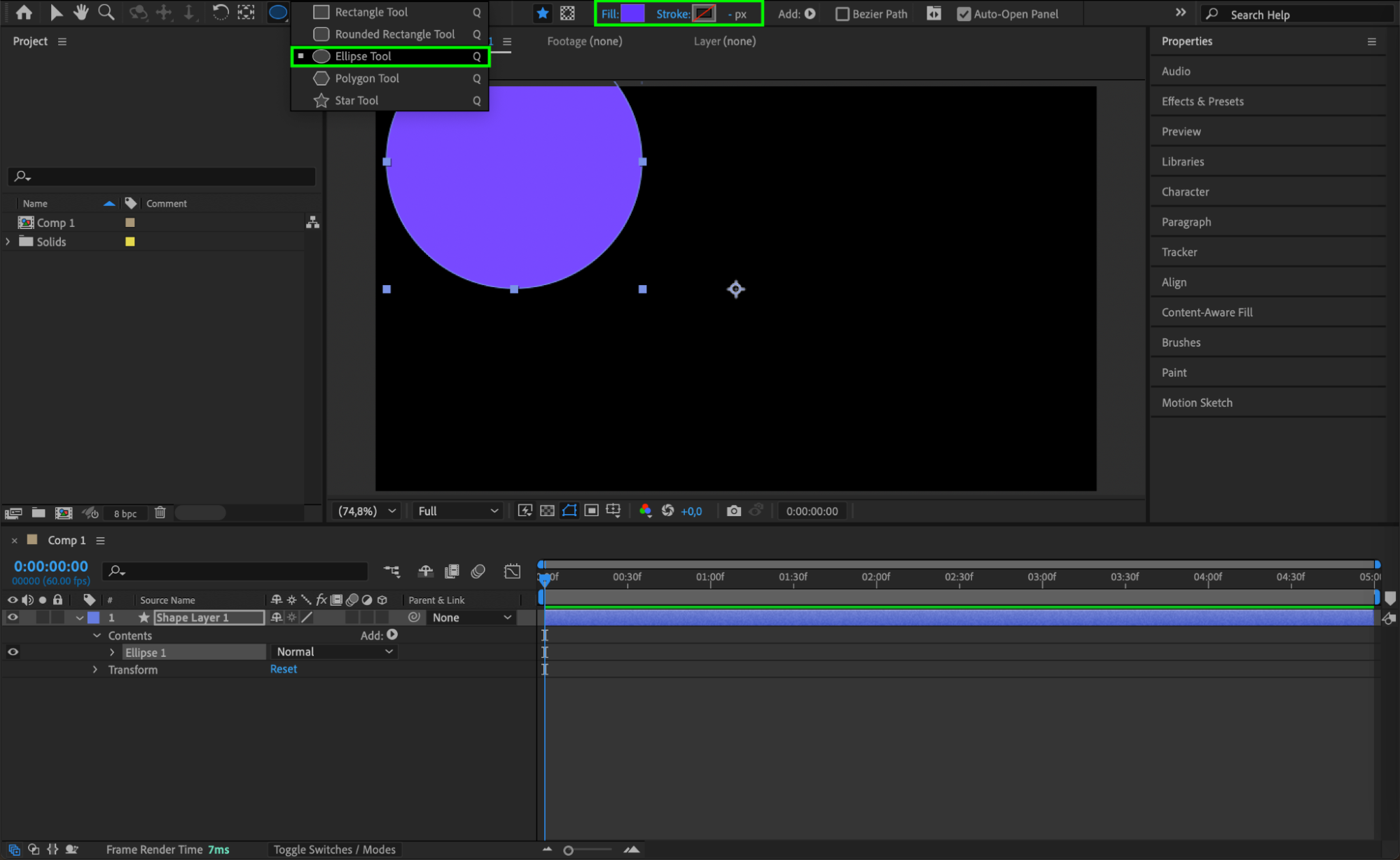 Step 3: Duplicate and Arrange the Shapes
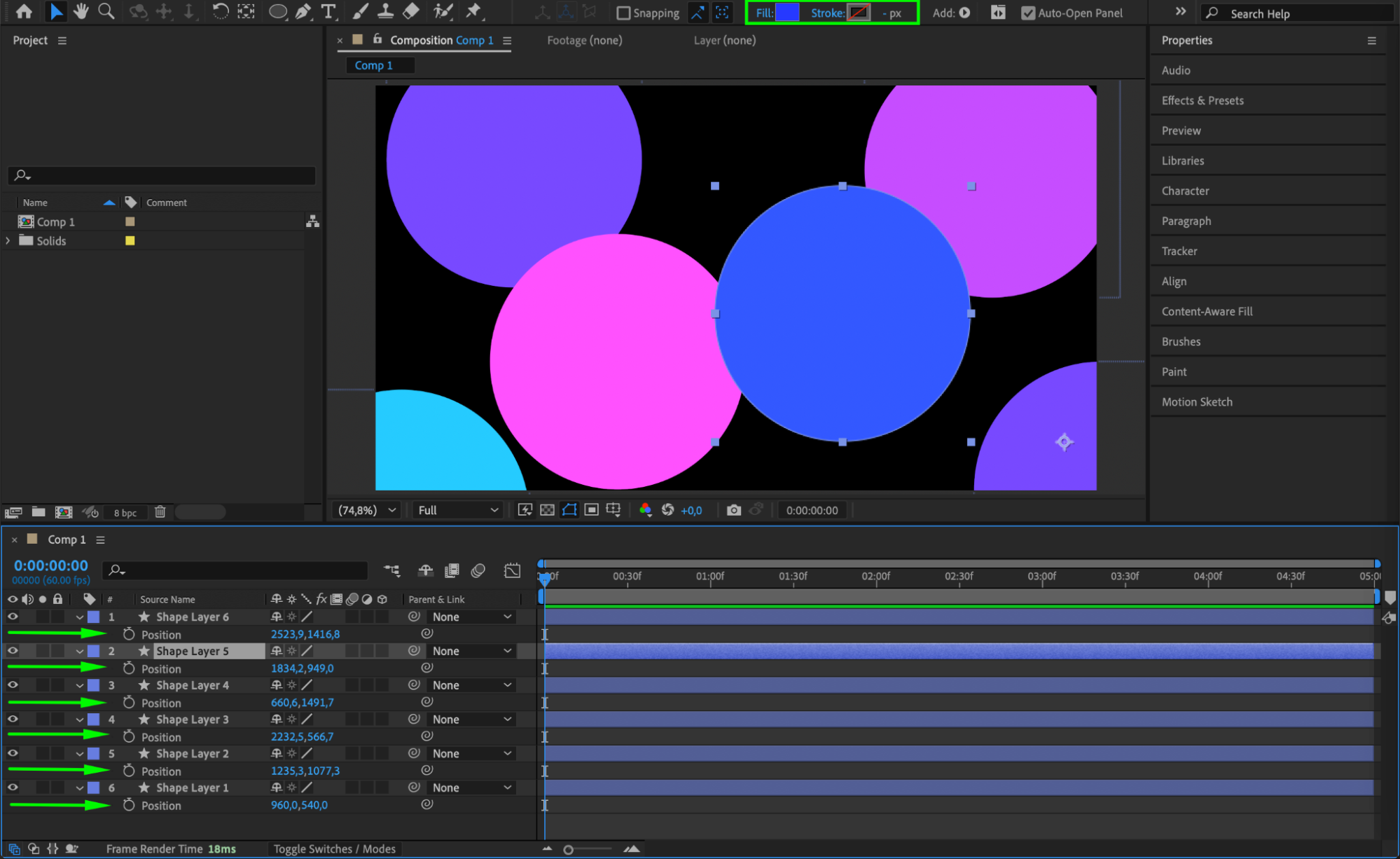
With the circle layer selected, press “Ctrl/Cmd + D” to duplicate it as many times as you like. Change the Fill color of each duplicate for variation and position them around the composition to create a more complex design.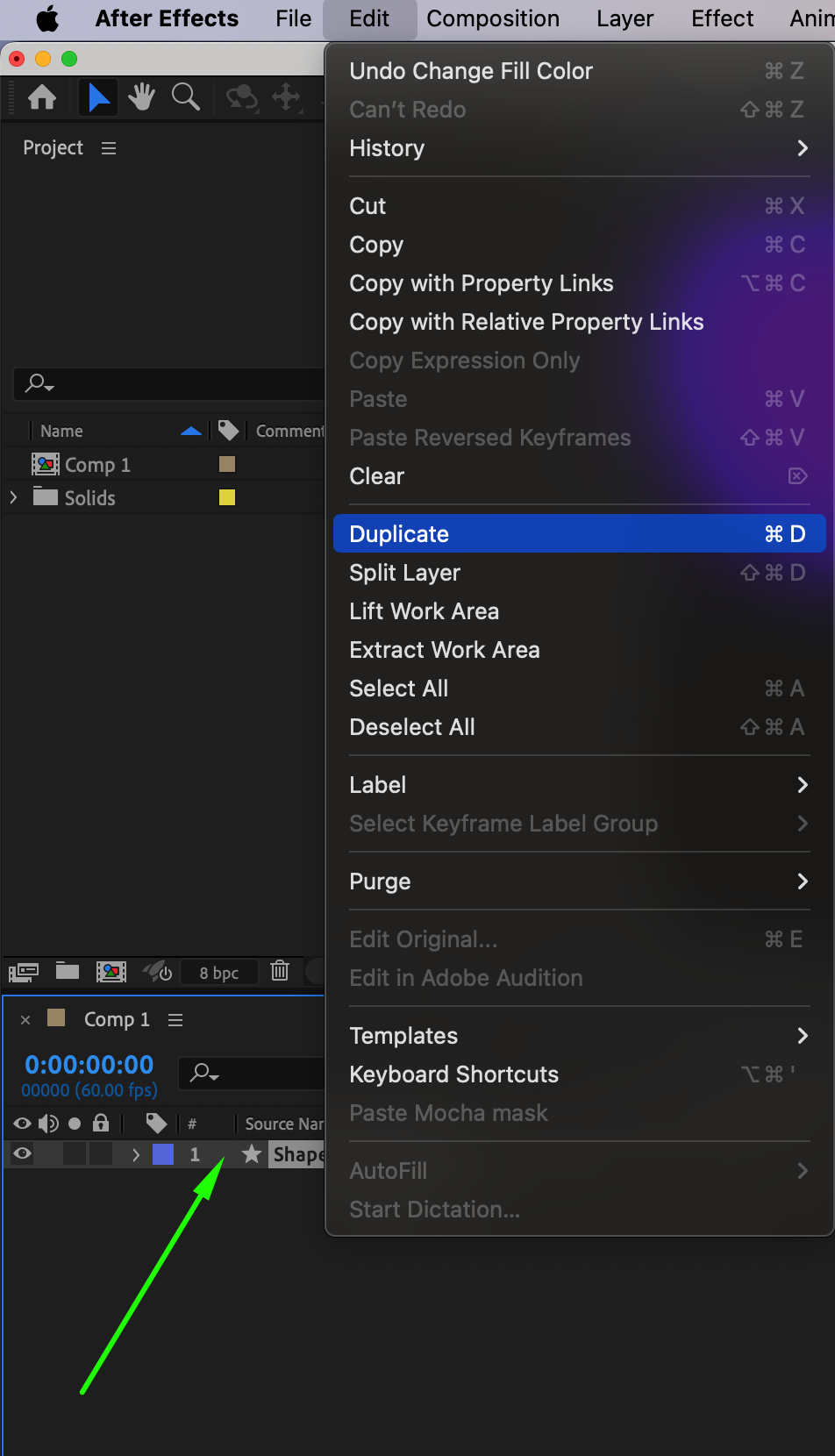
 Step 4: Add an Adjustment Layer
Go to Layer > New > Adjustment Layer. This layer will be used to apply effects that affect everything below it. Place it above all your shape layers in the timeline.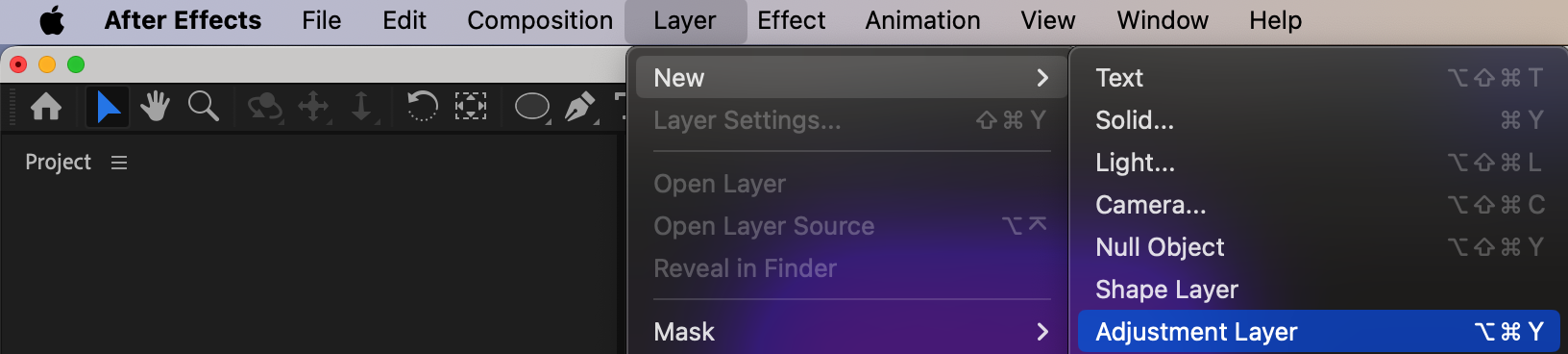
Step 5: Apply Gaussian Blur
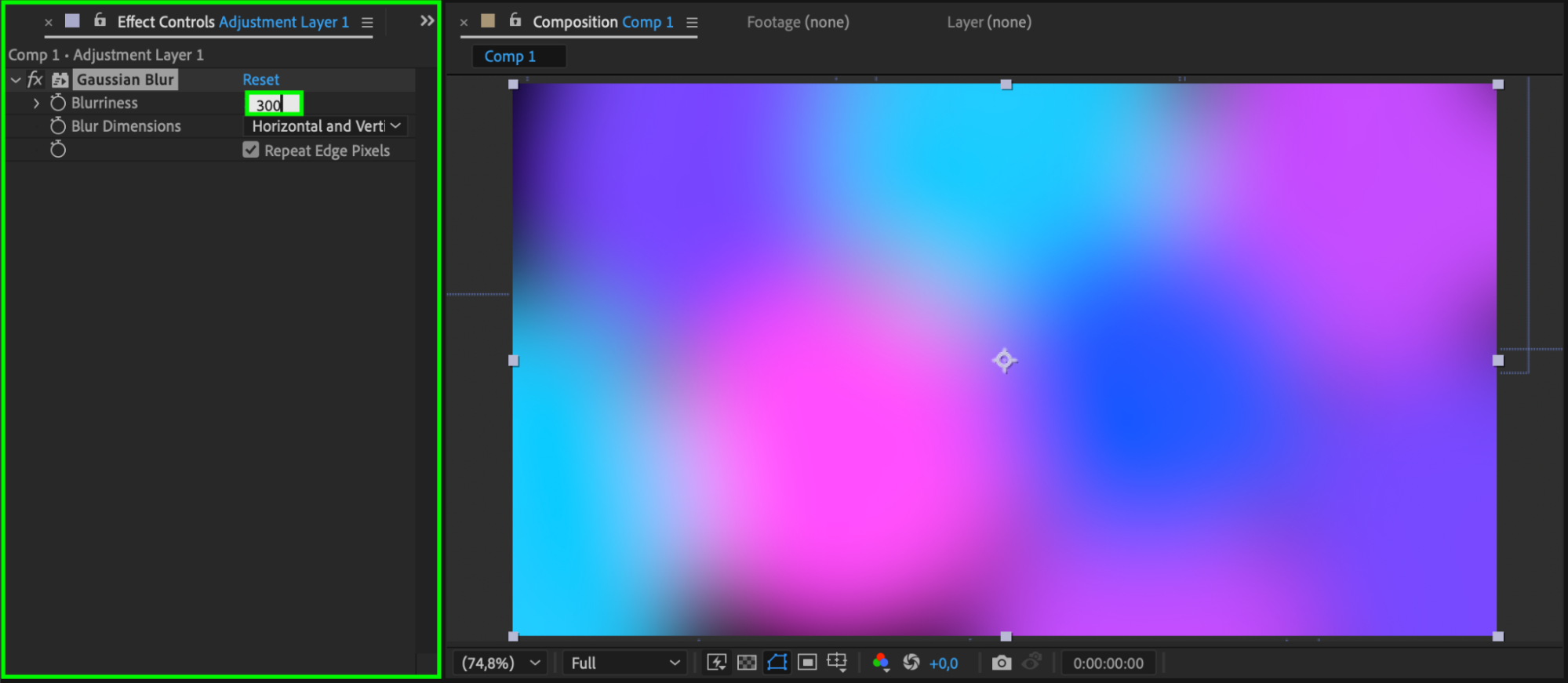
With the adjustment layer selected, go to Effects & Presets, search for Gaussian Blur, and apply it. Increase the Blurriness value to create a soft glow-like blur across your shapes.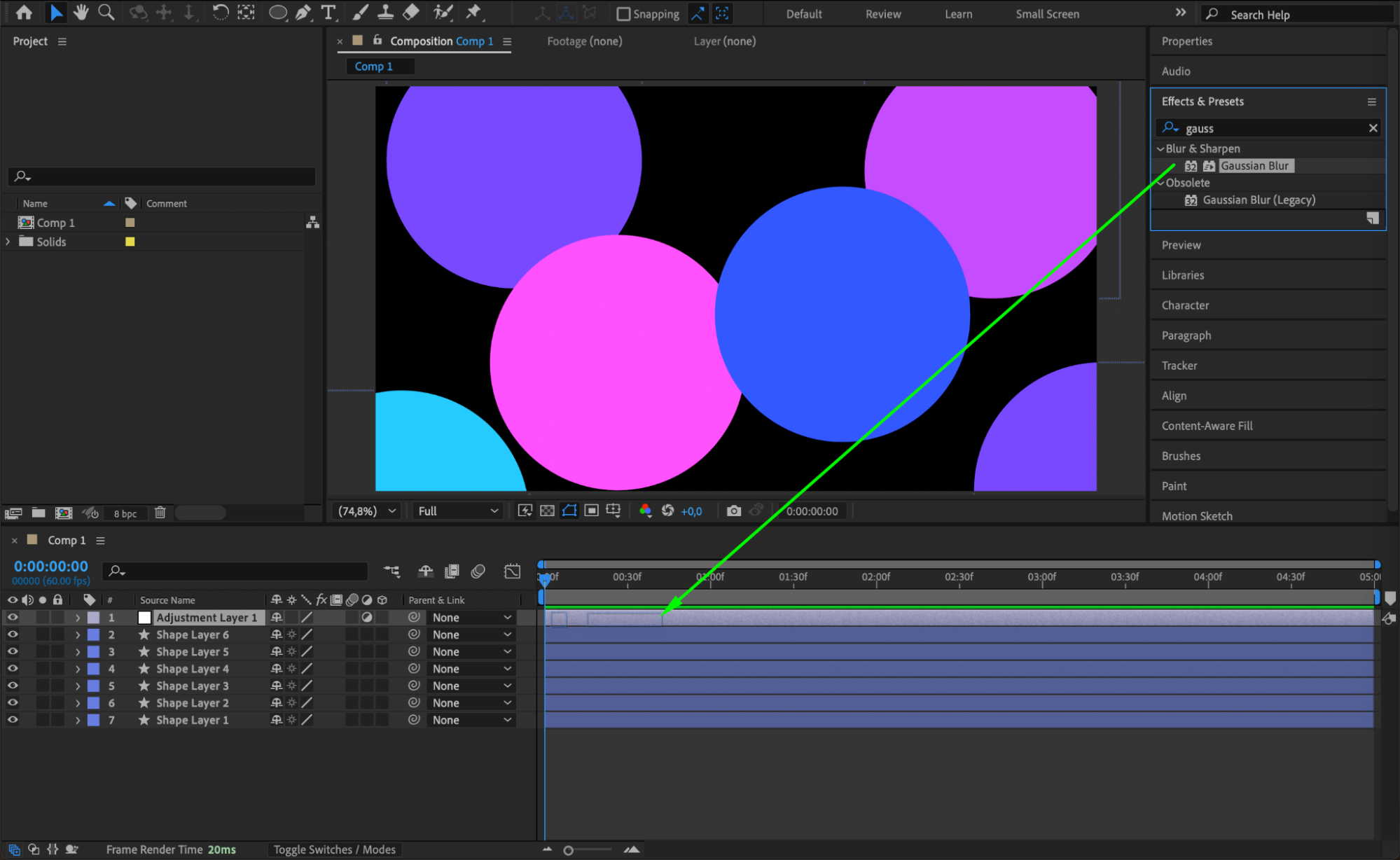
 Step 6: Add Glow
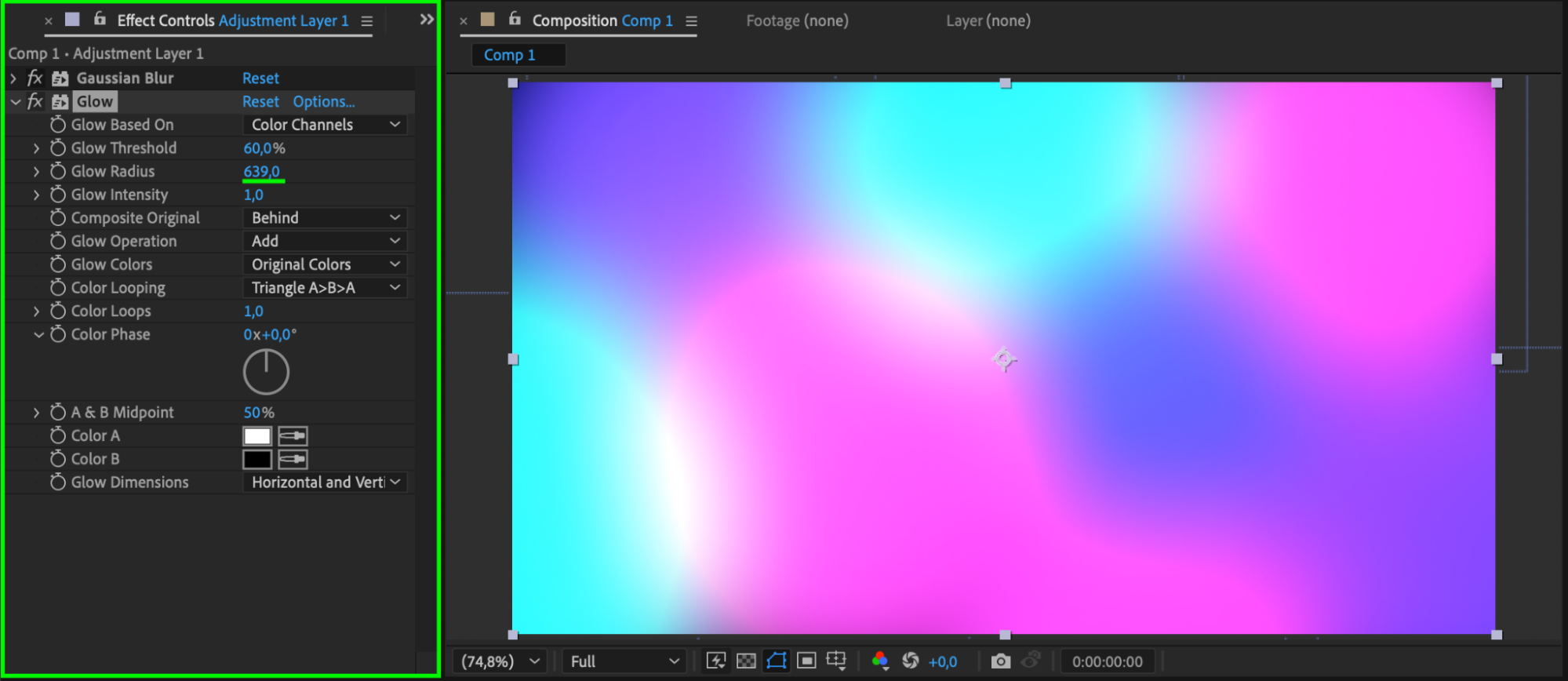
Next, apply the Glow effect to the same adjustment layer. This will give your shapes a glowing, stylized appearance. Adjust the Glow Radius, Glow Intensity, and Threshold until you get the desired effect.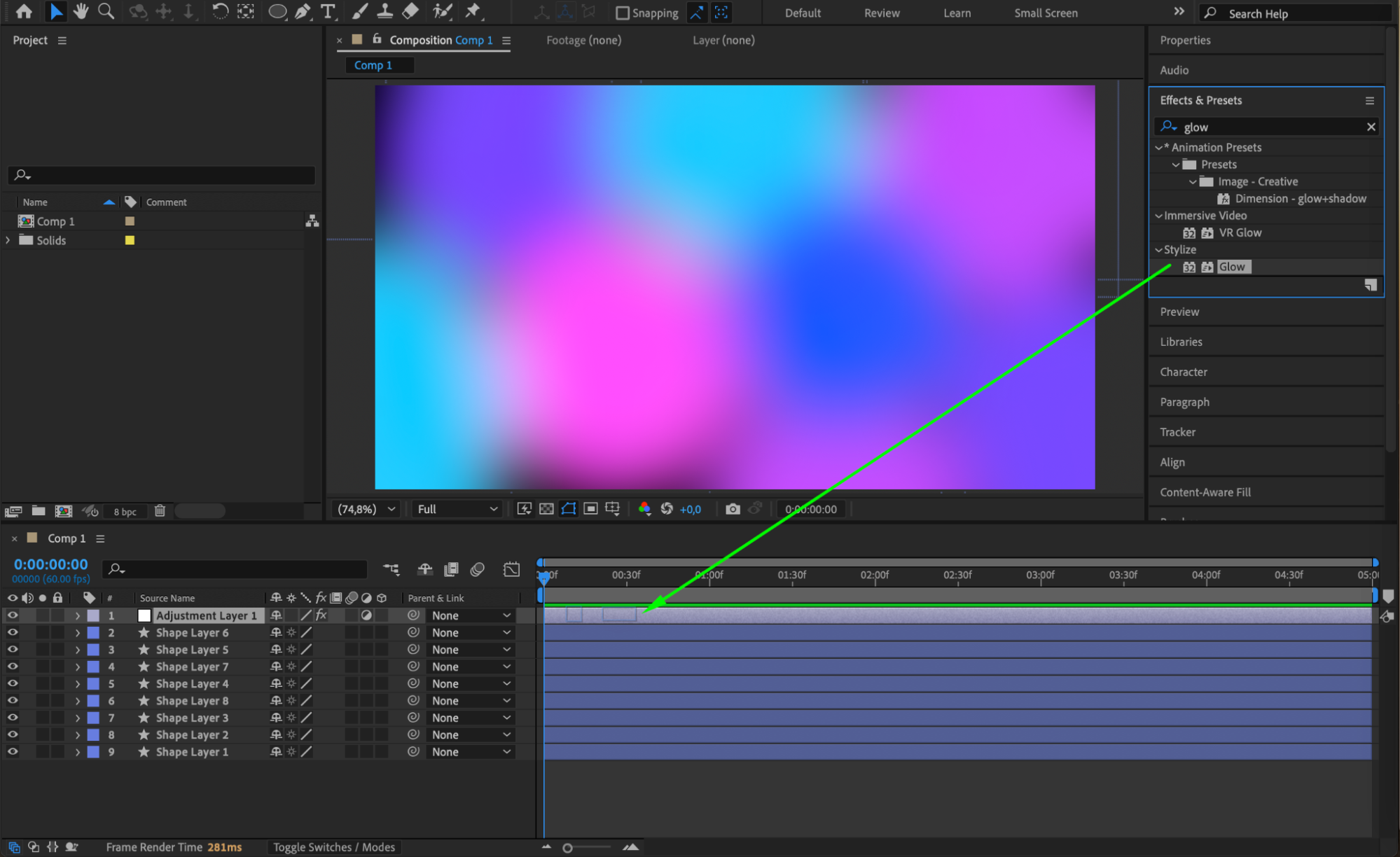
 Step 7: Add Noise for Texture
To make the effect more dynamic and cinematic, apply the Noise effect to the adjustment layer. Set the Amount of Noise to around 5–20% and enable Use Color Noise to avoid color banding.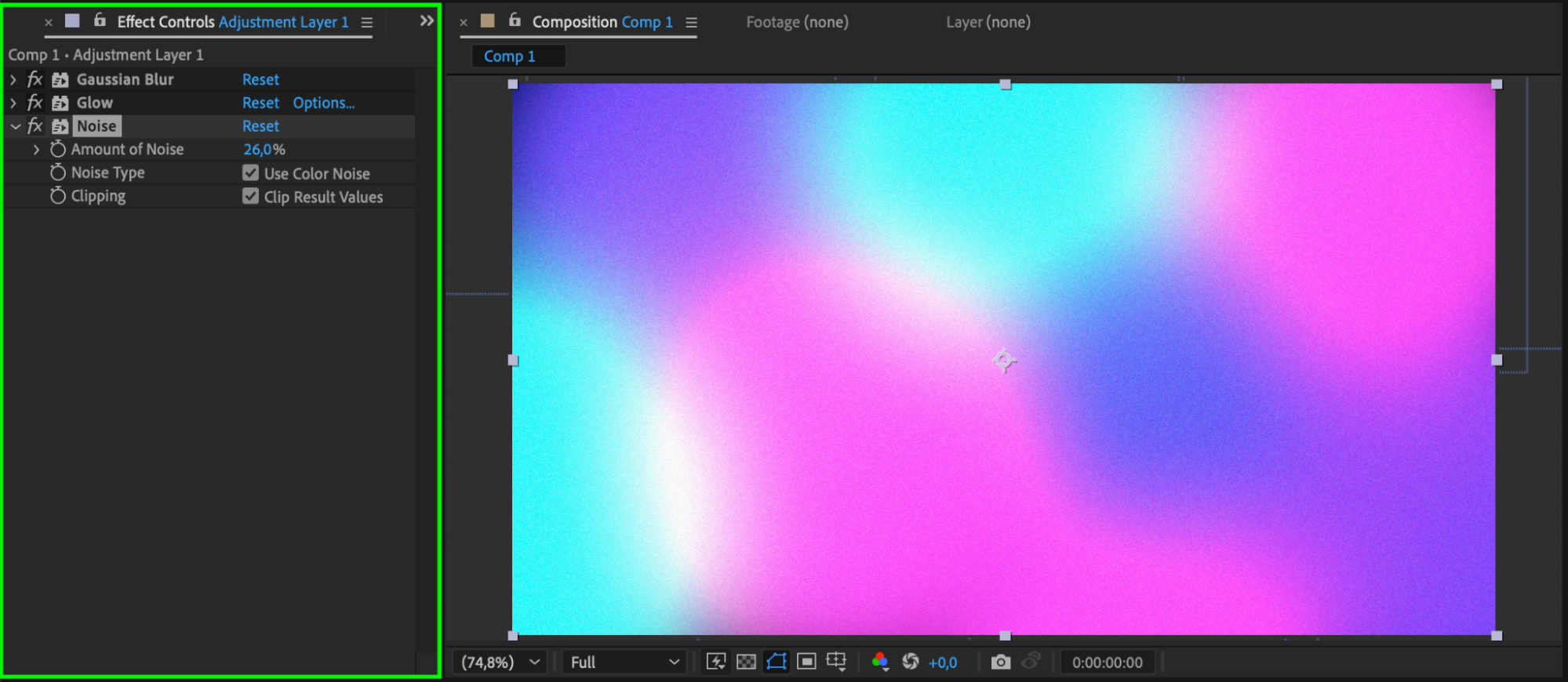
Step 8: Preview the Animation
Press the Spacebar to preview your effect. You can animate the circles’ position, scale, or opacity to create evolving motion, or use this static look as a stylish background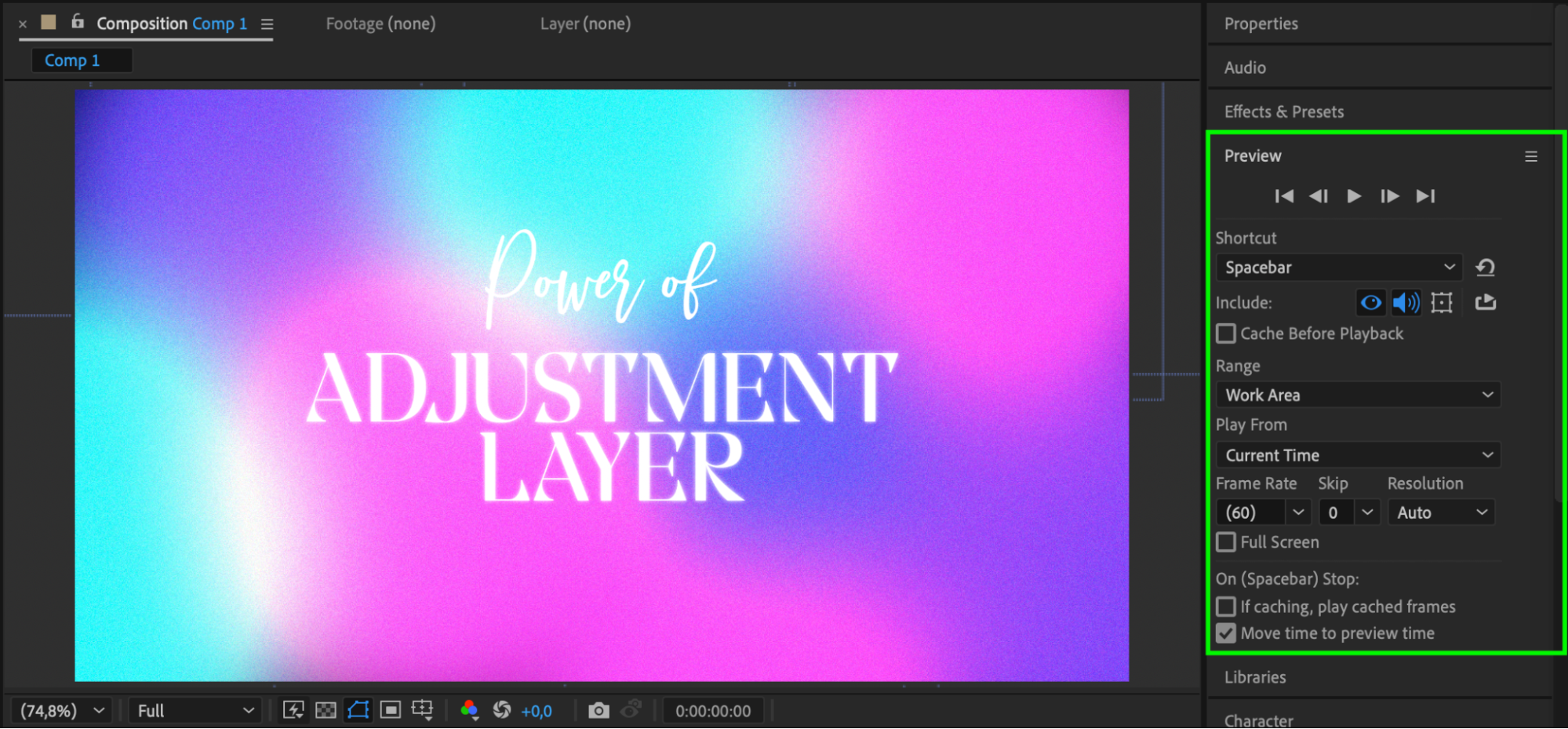 Conclusion
With just simple shapes and built-in effects like glow, blur, and noise, you can create striking visual effects in After Effects. This technique is great for abstract animations, stylized visuals, or enhancing your motion graphics projects. Experiment with different colors, blending modes, and animation to make it your own!
Our Bestsellers
Our Bestsellers


